
Vencord has become a popular alternative client mod for Discord, offering enhanced customization, performance improvements, and access to features not available in the official app. However, like any third-party software, it’s not immune to instability. Users frequently report crashes—sometimes mid-conversation or during critical tasks. These interruptions aren’t just frustrating; they can disrupt workflows, gaming sessions, or community engagement. Understanding why Vencord crashes and how to systematically resolve these issues is essential for maintaining a seamless experience.
The root causes of Vencord crashes are often multifaceted, ranging from plugin conflicts and outdated builds to system-level incompatibilities. Unlike official applications, Vencord operates outside standard support channels, meaning users must take proactive steps to diagnose and fix problems. This guide breaks down the most common triggers, provides actionable fixes, and equips you with long-term strategies to keep your setup stable.
Common Causes of Vencord Crashes
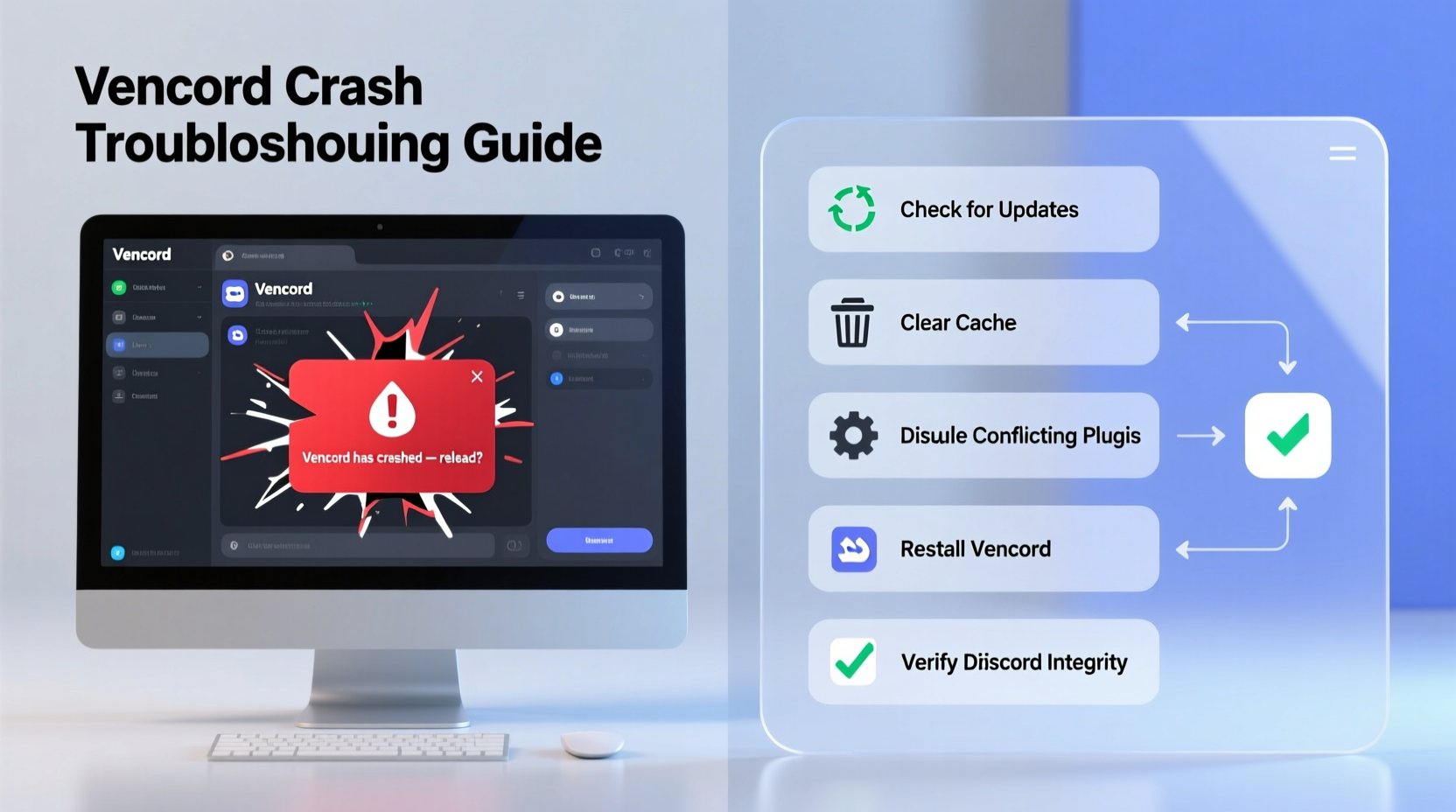
Vencord relies on patching and modifying the core Discord application, which inherently introduces complexity. When something goes wrong, the entire client can become unstable. The most frequent causes include:
- Outdated Vencord builds: Running an older version that’s incompatible with recent Discord updates.
- Plugin conflicts: Third-party plugins may interfere with core functionality or each other.
- Corrupted installation files: Missing or damaged files due to incomplete updates or improper patching.
- Antivirus interference: Security software flagging Vencord components as suspicious and blocking execution.
- Hardware acceleration issues: GPU rendering bugs affecting Electron-based apps like Discord.
- Conflicting mods: Having multiple Discord mods (e.g., BetterDiscord) active simultaneously.
Each of these factors can independently trigger a crash, but they often compound when combined. For example, an outdated plugin running on a new Discord version with hardware acceleration enabled creates a perfect storm for instability.
Step-by-Step Troubleshooting Guide
When Vencord crashes repeatedly, a structured approach ensures no potential fix is overlooked. Follow this sequence to isolate and resolve the issue efficiently.
- Restart Discord completely: Close all instances via Task Manager (Windows) or Activity Monitor (macOS). Ensure no background processes remain.
- Reapply the Vencord patch: Use the official installer to re-patch Discord. This reinstalls core hooks and replaces corrupted files.
- Disable all plugins temporarily: Navigate to Vencord settings and turn off every plugin. If stability returns, re-enable them one by one to identify the culprit.
- Update Vencord to the latest version: Visit the official GitHub page and download the newest release. Auto-updates aren't always reliable.
- Check antivirus logs: Look for entries where Vencord.exe or related files were quarantined. Add exceptions if necessary.
- Disable hardware acceleration: In Discord settings (accessible through Vencord), toggle off hardware acceleration and restart.
- Clear Discord cache: Delete the
%appdata%/discord/Cacheand%appdata%/discord/Code Cachefolders (on Windows).
This process eliminates variables methodically. Most persistent crashes are resolved by step four—updating the client. However, skipping ahead can waste time if a simple re-patch would have fixed the issue.
Do’s and Don’ts When Managing Vencord Stability
| Action | Do | Don’t |
|---|---|---|
| Updating | Check GitHub weekly for new releases and changelogs. | Ignore update notifications or assume auto-updates work flawlessly. |
| Plugins | Use only trusted, actively maintained plugins from official sources. | Install random plugins from forums or unmoderated Discord channels. |
| Security Software | Add Vencord directories to your antivirus exclusion list. | Disable antivirus entirely—use whitelisting instead. |
| Troubleshooting | Test with minimal configuration first, then build up. | Change multiple settings at once, making it hard to isolate causes. |
Real-World Example: Recovering from a Persistent Crash Loop
Jamal, a streamer and moderator in a 10K-member Discord server, began experiencing daily crashes after installing a “message logger” plugin. At first, he assumed it was a Discord bug and waited for an update. After three days of losing chat history mid-stream, he decided to investigate.
He followed the step-by-step guide above, starting with a full restart and re-patching. No improvement. He disabled all plugins—immediately, Vencord ran smoothly. One by one, he re-enabled them until the logger plugin triggered another crash. A quick search revealed the plugin hadn’t been updated in six months and was known to conflict with newer Electron versions.
After removing the plugin and clearing the cache, Jamal’s client remained stable for over two weeks. He now checks plugin compatibility before installation and schedules weekly maintenance.
“Third-party clients give you power, but with that comes responsibility. Stability isn’t guaranteed—you have to maintain it.” — Lin Zhao, Open-Source Developer and Vencord Contributor
Essential Maintenance Checklist
To prevent future crashes, integrate these practices into your routine:
- ✅ Update Vencord at least once a week
- ✅ Review installed plugins monthly for updates or deprecation
- ✅ Clear Discord cache every 14 days
- ✅ Verify antivirus hasn’t blocked Vencord files
- ✅ Backup your Vencord settings (export via settings menu)
- ✅ Test new plugins in a non-critical environment first
Frequently Asked Questions
Can Vencord get me banned from Discord?
While Discord’s Terms of Service prohibit unauthorized clients, Vencord is generally considered low-risk for bans. It doesn’t enable cheating or automation at scale. However, use it at your own discretion—Discord reserves the right to enforce policies unpredictably.
Why does Vencord crash only when I open certain servers?
This often points to a specific plugin reacting to server content—such as custom emojis, bots, or message formatting. Try disabling plugins like “Emoji Utilities” or “Message Parser” when joining problematic servers. Server-specific themes or CSS injections can also cause rendering issues.
Is there a way to automatically back up my Vencord settings?
Not natively—but you can export your settings manually via the Settings > General > Export Settings option. Consider scripting a backup using a batch file or shell script to automate periodic exports to a secure location.
Conclusion: Take Control of Your Client Experience
Vencord offers unparalleled flexibility for Discord users, but its reliability depends heavily on user diligence. Crashes aren’t inevitable—they’re usually symptoms of avoidable misconfigurations or neglected updates. By understanding the underlying causes, applying systematic fixes, and adopting preventive habits, you can enjoy a fast, feature-rich client without constant disruptions.
Don’t wait for the next crash to act. Audit your current setup today: update Vencord, review your plugins, and run a clean re-patch. Share your experiences or solutions in the comments below—your insight could help others avoid hours of frustration.




 浙公网安备
33010002000092号
浙公网安备
33010002000092号 浙B2-20120091-4
Comments
No comments yet. Why don't you start the discussion?