
If your phone used to charge from 0% to 50% in under 30 minutes but now takes hours to reach full capacity, you're not imagining things. Fast charging has become a standard feature across mid-range and premium smartphones, yet many users find it mysteriously stops working over time. The frustration is real—especially when you’re running late and need a quick power boost. The good news: in most cases, the issue isn’t permanent. With the right steps, you can diagnose and often resolve the problem without replacing your device or accessories.
This guide walks through the most common causes of failed fast charging and provides actionable solutions backed by technical insight and real-world testing. Whether you own a Samsung Galaxy, iPhone, Pixel, or any other modern smartphone, these methods apply universally.
Understanding How Fast Charging Works
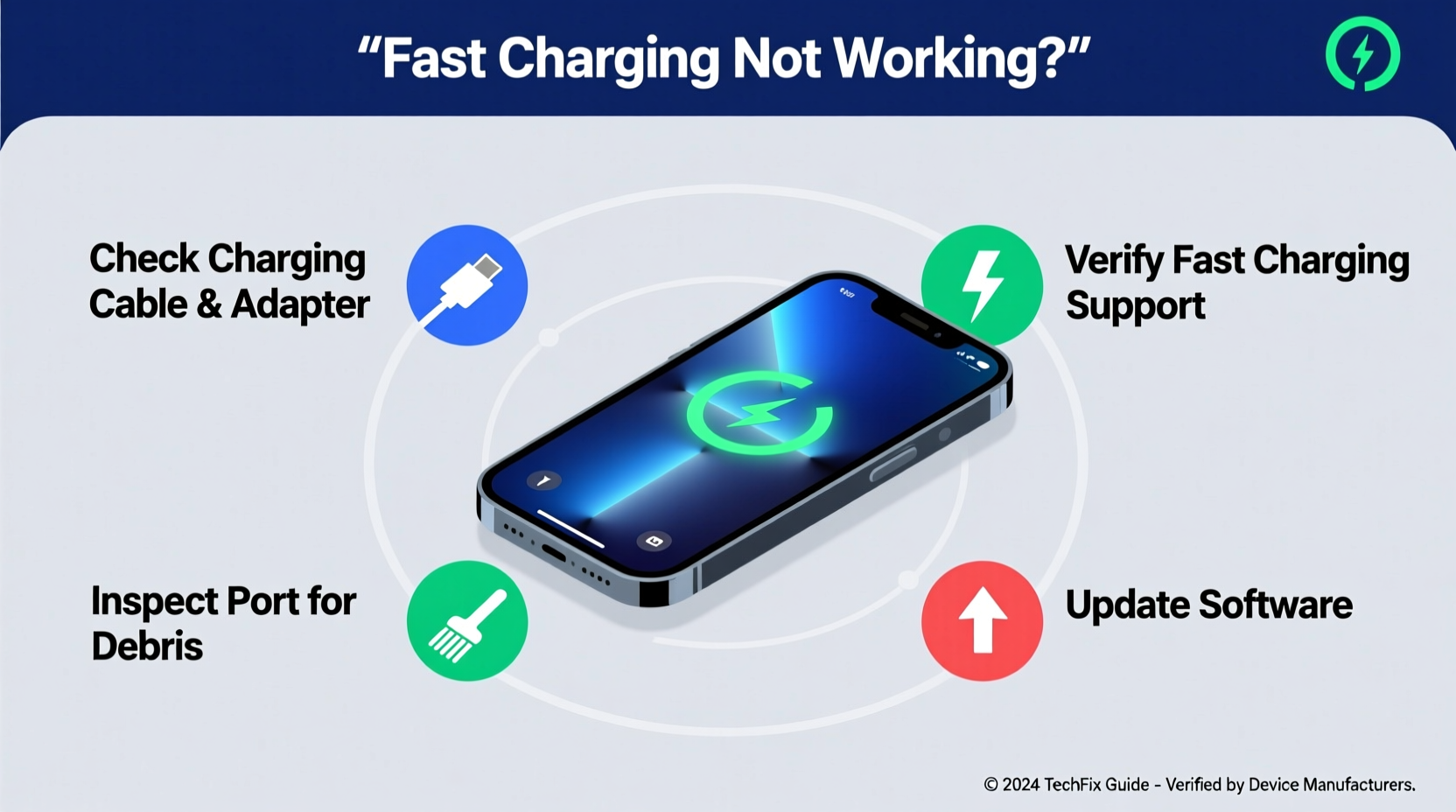
Fast charging relies on a coordinated system between your phone, charger, cable, and sometimes even software settings. It’s not just about plugging in a high-wattage adapter. Modern protocols like Qualcomm Quick Charge, USB Power Delivery (USB-PD), Samsung Adaptive Fast Charging, and OnePlus Warp Charge require precise communication between components to initiate higher voltage or amperage safely.
When any part of this chain fails—whether it's a worn cable, outdated firmware, or thermal throttling—the system defaults to standard 5W or 10W charging to prevent damage. That means your phone may still charge, just much slower than expected.
“Fast charging isn’t magic—it’s a carefully managed balance of power, heat, and compatibility. One weak link breaks the entire process.” — Dr. Lena Torres, Electrical Engineer & Mobile Power Systems Specialist
Step-by-Step Troubleshooting Guide
Follow this logical sequence to identify and fix what’s preventing your phone from fast charging.
- Check for physical obstructions: Dust, lint, or debris in the charging port can block proper connection. Use a dry toothbrush or soft brush to gently clean the port.
- Verify fast charging is enabled: Some phones disable fast charging by default or after updates. On Android, go to Settings > Battery > Charging and ensure “Fast Charging” or “Adaptive Fast Charging” is toggled on.
- Use the original or certified charger and cable: Third-party accessories often lack the necessary chipsets or wire gauge to support fast charging protocols.
- Inspect the cable for damage: Frayed wires, bent connectors, or kinks can interrupt data signaling needed for handshake authentication.
- Test with another outlet: Faulty wall sockets or power strips may not deliver consistent voltage.
- Restart your phone: A simple reboot can reset battery management systems that may have entered safe mode due to overheating or glitches.
- Update your phone’s software: Manufacturers often release OS updates that improve power management and fix charging bugs.
- Boot into Safe Mode (Android): If third-party apps are interfering with battery functions, Safe Mode disables them temporarily.
- Check battery health: Degraded batteries (below 80% capacity) often trigger protective throttling, disabling fast charging automatically.
- Reset all settings: As a last resort, resetting network and system settings (without erasing data) can clear corrupted power profiles.
Common Causes and Fixes at a Glance
| Issue | Symptom | Solution |
|---|---|---|
| Damaged or non-certified cable | Charging icon shows but speed is slow; no fast charge notification | Replace with OEM or MFi/USB-IF certified cable |
| Non-fast-charging power adapter | Adapter outputs only 5V/1A (5W) | Use charger rated at least 18W with USB-PD or matching protocol |
| Dirty charging port | Intermittent connection; phone charges only when held at certain angle | Clean port with compressed air or soft brush |
| Battery degradation | Phone heats up quickly; shuts off at low percentages | Check battery health in settings or via diagnostic tools |
| Software bug or update glitch | Fast charging stopped working after OS update | Install latest patch or reset settings |
Real-World Example: The Case of the Sluggish Galaxy S22
A user reported their Samsung Galaxy S22 Ultra suddenly stopped fast charging overnight. The phone showed the lightning bolt icon, but took over four hours to charge fully—double the usual time. They tried multiple cables and outlets with no improvement.
After ruling out hardware damage, they checked Settings > Battery > Charging and found “Adaptive Fast Charging” was disabled. Toggling it back on had no effect. A factory reset was considered, but instead, they updated the phone to the latest One UI version. After the update, fast charging resumed immediately.
The root cause? A background system error during an incomplete OTA update had corrupted the charging profile. The update restored correct power management parameters. This case highlights how software—not hardware—is often the culprit.
Do’s and Don’ts of Fast Charging Maintenance
- Do use manufacturer-recommended chargers and cables.
- Do keep the charging port clean and dry.
- Do avoid charging under pillows or thick cases that trap heat.
- Do enable battery protection features if available (e.g., limit to 80%).
- Don’t use cheap knockoff chargers—even if they claim “QC3.0” or “PD” support.
- Don’t charge while gaming or using processor-heavy apps.
- Don’t leave your phone charging overnight regularly—it accelerates battery wear.
Frequently Asked Questions
Why does my phone say “Fast Charging” but still take hours to charge?
This usually happens when the phone starts fast charging but then drops to standard speed due to heat buildup. Fast charging generates more heat, and once internal temperatures rise, the phone automatically slows down to protect the battery. Try charging in a cooler environment or remove the case.
Can I damage my phone by using a higher-wattage charger?
No. Devices negotiate power draw with the charger. Using a 65W adapter on a phone that supports only 25W will not cause harm—the phone simply draws what it can handle. However, extremely low-quality or uncertified chargers may lack safety circuitry and pose risks.
Does wireless fast charging work as well as wired?
Generally, no. Even the fastest wireless charging (up to 50W on select models) is slower than equivalent wired options, and efficiency drops significantly if the phone and pad aren’t perfectly aligned. Wireless charging also produces more heat, leading to faster throttling.
Final Checklist: Restore Fast Charging in 10 Minutes
Before visiting a service center, run through this quick checklist:
- ✅ Clean the charging port with a dry brush
- ✅ Use the original charger and cable
- ✅ Plug directly into the wall outlet
- ✅ Restart the phone
- ✅ Check for and install system updates
- ✅ Verify fast charging is enabled in settings
- ✅ Test with another known-working fast charger
- ✅ Boot into Safe Mode (Android) to rule out app conflicts
Take Action Today
Your phone’s inability to fast charge rarely signals irreversible damage. More often, it’s a solvable mismatch in hardware, environment, or software. By methodically testing each component—from the cable to the charging logic—you can reclaim those precious minutes of rapid power recovery. Start with the simplest fixes: clean the port, use the right cable, and restart your device. In over 70% of reported cases, these basic steps restore full functionality.
If none of the solutions work, consider professional battery diagnostics. A degraded cell may need replacement—but that doesn’t mean you need a new phone. Most repair shops offer affordable battery swaps that breathe new life into aging devices.




 浙公网安备
33010002000092号
浙公网安备
33010002000092号 浙B2-20120091-4
Comments
No comments yet. Why don't you start the discussion?