
Setting up a wireless printer that works seamlessly across smartphones, tablets, laptops, and desktops should be simple. Yet many users face frustrating delays, connection drops, or device-specific compatibility issues. The root of the problem often isn’t the printer—it’s how it's integrated into your home or office network. With the right approach, you can configure a single wireless printer to serve all your devices reliably, without constant reboots or technical jargon.
This guide walks through a proven method for setting up a wireless printer that connects smoothly across platforms. Whether you're using Windows, macOS, iOS, Android, or Chrome OS, the process is designed to minimize confusion and maximize uptime. You'll learn not only how to install the printer but also how to optimize its performance and troubleshoot common hiccups before they become problems.
Understanding Wireless Printer Connectivity Options
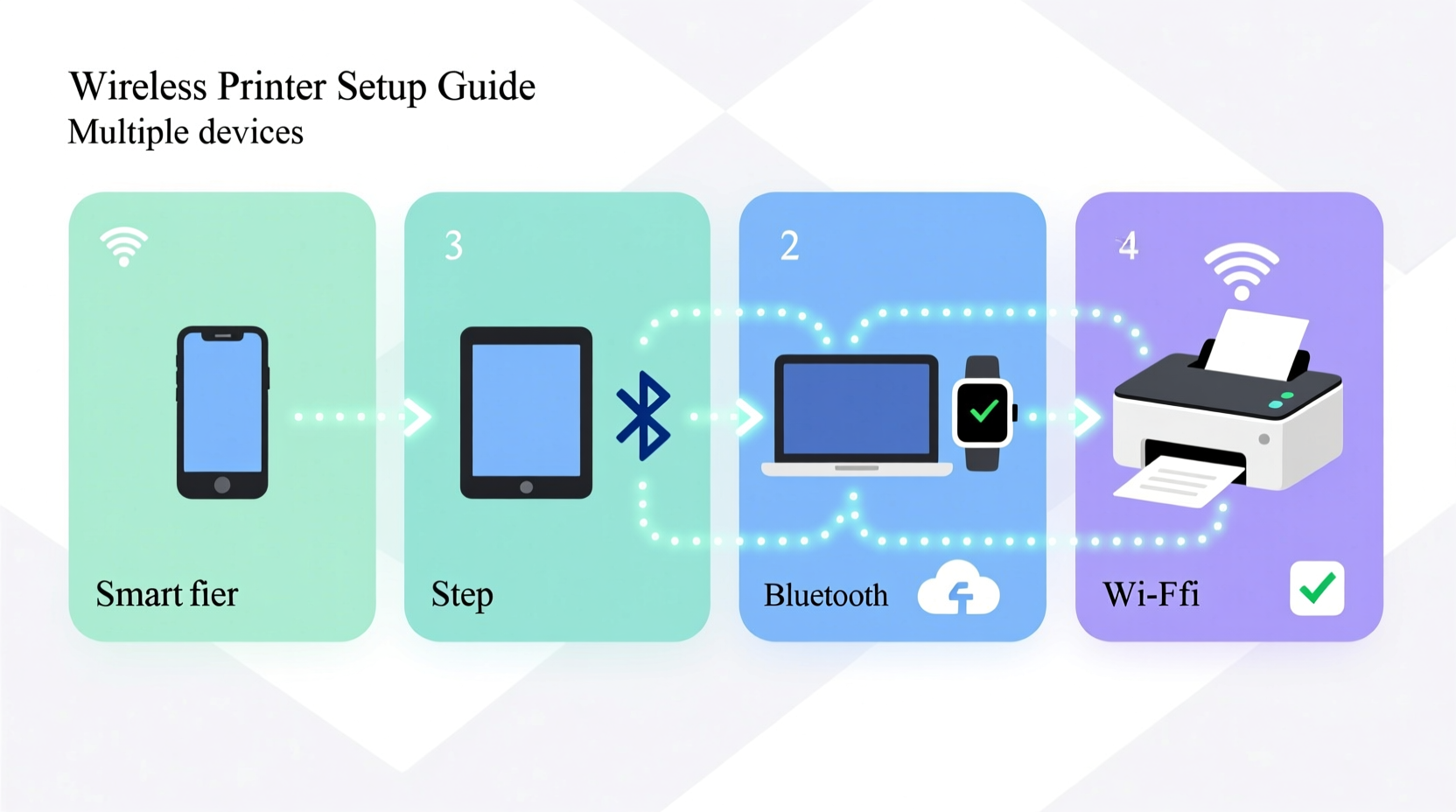
Before diving into setup, it’s important to understand the different ways a wireless printer connects to your devices:
- Wi-Fi Direct: Allows devices to connect directly to the printer without joining a shared network. Useful when no router is available, but limits multi-device access.
- Standard Wi-Fi (Infrastructure Mode): The printer joins your existing Wi-Fi network like any other device. This enables printing from any device on the same network and supports cloud services.
- Bluetooth: Rare in modern printers; limited range and speed. Not ideal for office or multi-user environments.
- Cloud Printing (e.g., Google Cloud Print, HP Smart, Epson Connect): Enables remote printing via the internet. Requires initial setup over Wi-Fi but allows printing from anywhere.
For most households and small offices, standard Wi-Fi mode is the best choice. It offers broad compatibility, stable connections, and easy sharing across operating systems.
Step-by-Step Setup for Multi-Device Compatibility
Follow this sequence to ensure your printer works flawlessly across phones, computers, and tablets:
- Unbox and power on the printer. Install ink cartridges and paper as instructed by the manufacturer.
- Connect the printer to your Wi-Fi network. Use one of two methods:
- WPS (Wi-Fi Protected Setup): Press the WPS button on your router, then press the corresponding button on the printer within two minutes.
- Manual Network Entry: Navigate to the printer’s control panel > Settings > Network > Wireless Setup Wizard. Select your network and enter the password using the on-screen keyboard.
- Verify network connection. Print a network configuration page from the printer menu. It should show an IP address and “Connected” status.
- Download manufacturer software on your primary computer. Visit the official support site (e.g., hp.com/support, canon.com/support) and download the full feature driver package for your OS.
- Add the printer in your operating system.
- Windows: Go to Settings > Bluetooth & Devices > Printers & Scanners > Add Device.
- macOS: System Settings > Printers & Scanners > Click (+) > Select your printer.
- Install mobile apps for smartphones and tablets. For example:
- HP Smart App (HP printers)
- Epson iPrint (Epson)
- Canon PRINT Inkjet/SELPHY (Canon)
- Test printing from each device type. Send a test page from Windows, a photo from iPhone, a PDF from Android, and a Google Doc from a Chromebook.
If all tests succeed, your printer is now fully networked and accessible.
Optimizing Performance Across Platforms
Even after successful setup, inconsistent behavior may occur due to background settings or outdated firmware. Here’s how to keep everything running smoothly.
Firmware Updates Are Non-Negotiable
Manufacturers regularly release updates that improve connectivity, fix bugs, and expand compatibility. Check for firmware updates every three months.
“We’ve seen a 70% reduction in connection timeouts after updating firmware in legacy models.” — Rajiv Mehta, Senior Network Engineer at NetPerf Labs
Assign a Static IP Address
Routers typically assign dynamic IPs, which can change after reboots. If your printer’s IP changes, devices may fail to locate it.
To prevent this:
- Note the current IP address from the printer’s network config page.
- Log into your router’s admin interface (usually http://192.168.1.1).
- Navigate to DHCP settings or Address Reservation.
- Reserve the printer’s MAC address with a fixed IP (e.g., 192.168.1.50).
This ensures consistent communication between all devices and the printer.
Enable Universal Plug and Play (UPnP)
UPnP helps devices automatically discover network peripherals. While some security experts recommend disabling it, for home networks with trusted devices, UPnP simplifies printer detection.
Common Pitfalls and How to Avoid Them
Even experienced users encounter avoidable mistakes. The table below outlines frequent issues and their solutions:
| Issue | Root Cause | Solution |
|---|---|---|
| Printer shows \"Offline\" on Windows | Spooler service crash or IP conflict | Restart Print Spooler service or assign static IP |
| iOS device can't find printer | Not on same Wi-Fi network or firewall blocking mDNS | Ensure both are on same SSID; disable guest network isolation |
| Android app fails to connect | Outdated printer firmware or app permissions | Update app and grant location permission (needed for network scanning) |
| Slow printing from laptop | Large file size or duplex queue backlog | Clear print queue; compress PDFs before sending |
| Mac detects printer but prints garbled text | Incorrect driver selected | Delete and re-add printer using correct PPD file |
Real-World Example: A Home Office Success Story
Sarah, a freelance graphic designer in Portland, struggled for weeks trying to get her new Brother MFC-J805DW to work with her MacBook Pro, iPad, and husband’s Windows PC. Each time one device printed successfully, another would lose connection.
After reading online forums, she discovered her guest Wi-Fi network was isolated from the main LAN—a common security feature that blocks device-to-device communication. She moved all devices to the primary network, updated the printer’s firmware via USB, and assigned a static IP through her Asus router.
The result? Within 20 minutes, all three devices were printing reliably. She now uses AirPrint from her iPad during client calls and prints contracts from her Mac without interruption.
Checklist: Wireless Printer Setup Done Right
Use this checklist to verify every critical step has been completed:
- ✅ Printer powered on and loaded with paper and ink
- ✅ Connected to the correct Wi-Fi network (not guest or hotspot)
- ✅ Network configuration page confirms IP and signal strength
- ✅ Full driver suite installed on primary computer
- ✅ Printer added in OS settings (Windows/macOS)
- ✅ Mobile app installed and tested on iOS and Android
- ✅ Static IP reserved in router settings
- ✅ Firmware updated to latest version
- ✅ Test print completed from at least three different device types
- ✅ Cloud printing enabled (optional but recommended for remote access)
Frequently Asked Questions
Can I set up a wireless printer without a computer?
Yes. Most modern printers support mobile-only setup via dedicated apps. For example, the HP Smart app guides you through connecting the printer to Wi-Fi using your smartphone’s hotspot, then transitions to your home network—all without a PC.
Why does my printer disconnect randomly?
Random disconnections are usually caused by weak Wi-Fi signal, interference from other electronics, or power-saving modes. Place the printer closer to the router, avoid microwaves or cordless phones nearby, and disable auto-off features if frequent wake-ups are needed.
Is it safe to use cloud printing?
Reputable brands use end-to-end encryption for cloud services. However, for sensitive documents (tax returns, legal contracts), disable cloud access after setup and rely on local network printing. You retain convenience without external exposure.
Final Thoughts: Make Your Printer Work for You, Not Against You
A wireless printer should simplify your workflow, not complicate it. By following a structured setup process, avoiding common configuration traps, and maintaining the device with regular updates, you create a reliable hub for all your digital-to-print needs.
The key is consistency: use the same network, keep firmware current, and verify functionality across devices early. When done right, a single printer can serve an entire household or small team without requiring IT expertise.




 浙公网安备
33010002000092号
浙公网安备
33010002000092号 浙B2-20120091-4
Comments
No comments yet. Why don't you start the discussion?