
Choosing between a wireless printer and a USB-connected model isn’t just about convenience—it’s about reliability, consistency, and how well your printing solution integrates into your daily routine. For many households, printing needs are modest but essential: school assignments, tax forms, boarding passes, or occasional photos. The method you choose can significantly impact how smoothly those tasks get done. While wireless printers promise freedom from cables and multi-device access, USB-connected printers offer direct, stable communication with a single computer. But when it comes to actual day-to-day reliability at home, which option truly performs better?
This comparison goes beyond marketing claims. It examines real-world factors like connection stability, ease of troubleshooting, print quality consistency, compatibility, and long-term maintenance. Whether you're setting up a new home office or replacing an aging device, understanding the trade-offs helps ensure fewer frustrations and more dependable output.
Understanding the Core Differences
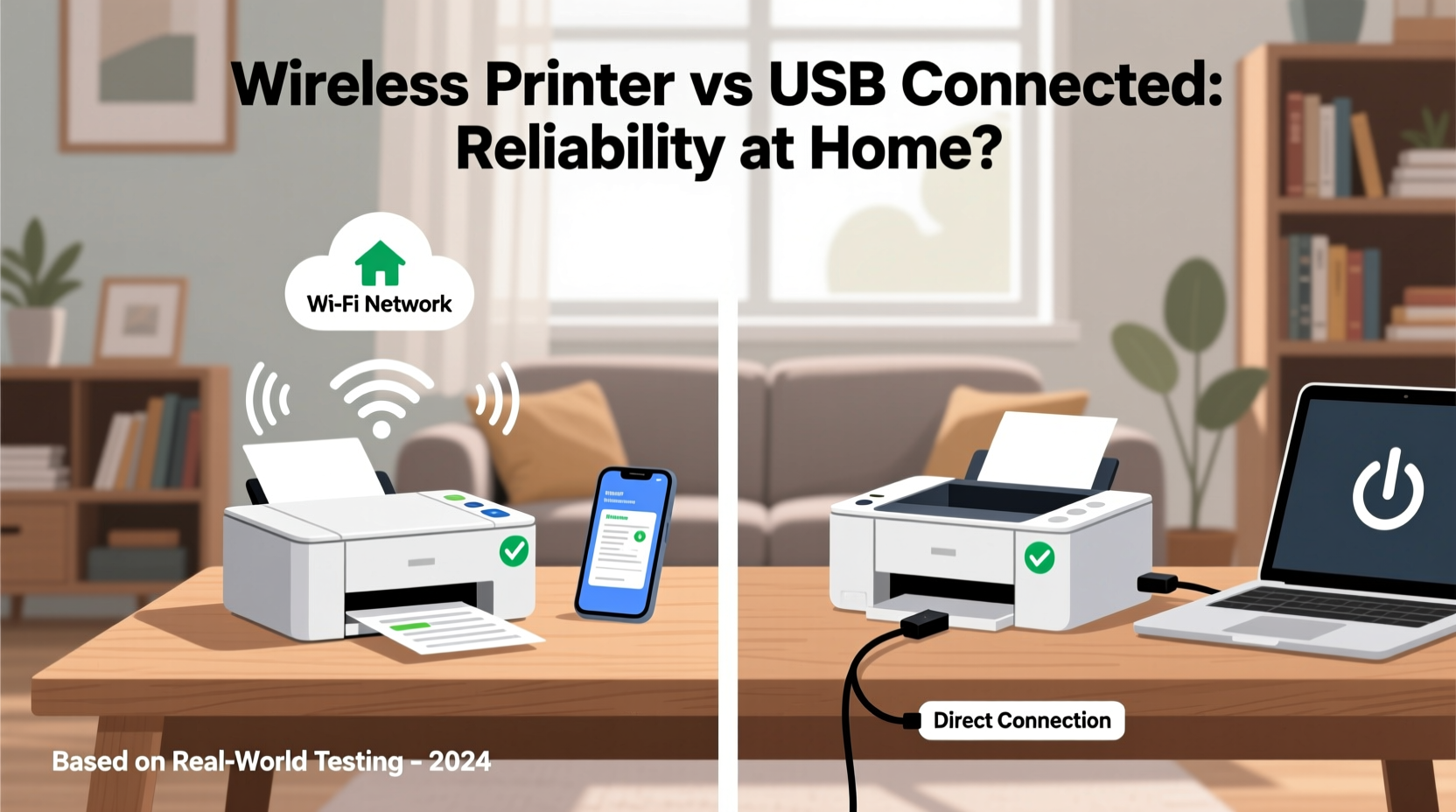
The fundamental distinction lies in how data travels from your device to the printer. A USB-connected printer relies on a physical cable—typically USB 2.0 or 3.0—linking one computer directly to the printer. This creates a dedicated, point-to-point connection that doesn't depend on network conditions. In contrast, a wireless printer communicates over Wi-Fi, allowing multiple devices (laptops, smartphones, tablets) to send print jobs without being physically tethered.
While wireless connectivity adds flexibility, it introduces variables that can affect reliability. Network congestion, signal interference, router placement, and software configurations all influence whether your document prints immediately—or not at all. A USB connection bypasses these issues entirely, offering predictable behavior as long as the cable and ports remain functional.
It's also important to note that some modern printers support both options simultaneously. You might connect via USB for one machine while enabling wireless access for others. However, most users must decide which mode will serve as their primary method—especially if budget or space limits them to a single setup approach.
Reliability Factors: Connection Stability and Consistency
When evaluating reliability, connection stability is paramount. A printer that frequently disconnects, fails to respond, or requires repeated setup resets diminishes trust in the entire system. Here, USB connections have a clear advantage.
A wired USB link provides a constant, low-latency channel between computer and printer. There’s no handshake process required each time you print, no IP address negotiation, and no risk of dropped signals due to microwave interference or neighbor networks crowding the 2.4 GHz band. Once installed, a USB printer typically remains recognized by the operating system unless manually disconnected.
Wireless printers, however, rely on consistent network health. Even minor disruptions—a router reboot, firmware update, or temporary Wi-Fi outage—can sever the printer’s availability. Many users report scenarios where the printer appears \"offline\" despite being powered on, requiring steps like power cycling, reconnection prompts, or driver reinstallation.
“From a technical standpoint, wired connections eliminate layers of potential failure. Every wireless transmission depends on intermediate hardware and protocols. More components mean more points of failure.” — Dr. Alan Reeves, Network Systems Engineer
Setup and Maintenance Comparison
Initial setup complexity varies significantly between the two methods. USB printers are generally plug-and-play: connect the cable, install drivers (often automatic), and begin printing within minutes. Most operating systems detect USB printers instantly and configure them with minimal user input.
Wireless printers require additional steps. You’ll need to power the device, enter Wi-Fi credentials either through a control panel or mobile app, wait for network association, and then install software on each intended device. Some models support WPS (Wi-Fi Protected Setup), simplifying pairing—but only if your router supports it and functions correctly.
Maintenance differs too. USB printers rarely need configuration updates unless the host computer changes. Wireless units may prompt periodic firmware updates delivered over the internet, which can improve security and functionality but sometimes introduce new bugs or compatibility issues.
Moreover, troubleshooting wireless problems often demands deeper technical knowledge. Is the issue with the printer, the router, the device sending the job, or firewall settings? Diagnosing this chain takes time. With USB, the path is linear: check cable integrity, verify port function, reinstall drivers if needed. Simpler diagnostics usually lead to faster resolutions.
Performance and Print Job Accuracy
Another critical aspect of reliability is performance consistency. How quickly does the printer respond? Does every job complete fully? Are there missing pages or formatting errors?
USB connections deliver data at high speed with guaranteed delivery. Large files, such as photo prints or PDFs with embedded graphics, transfer completely and in order. Buffering occurs locally, reducing the chance of interrupted transmissions.
Wireless printing introduces latency. Data packets travel across the network, potentially experiencing delays or retries if signal strength fluctuates. In homes with heavy bandwidth usage—streaming, gaming, video calls—the printer may queue jobs longer or fail under network strain. Some users notice garbled text or incomplete images when printing complex documents wirelessly, especially if compression algorithms misinterpret data during transmission.
| Factor | USB Connected Printer | Wireless Printer |
|---|---|---|
| Connection Type | Direct physical link | Wi-Fi (802.11 b/g/n/ac) |
| Multi-Device Access | No (single computer) | Yes (multiple devices) |
| Setup Speed | Fast (plug-and-play) | Moderate to slow |
| Reliability Under Load | High (consistent) | Variable (depends on network) |
| Troubleshooting Difficulty | Low | Moderate to high |
| Print Job Integrity | Excellent | Good (may degrade with interference) |
| Mobility/Flexibility | Low (tethered) | High (any room with Wi-Fi) |
Real-World Use Case: The Smith Family Home Office
The Smiths recently upgraded their aging inkjet printer. They wanted something reliable for their two school-aged children and occasional work-from-home needs. Initially drawn to a popular wireless all-in-one model, they encountered persistent connectivity issues after installation.
The printer would disappear from devices randomly, especially during evening hours when streaming was heavy. Reconnecting took several minutes each time. After three weeks of frustration, they switched to a USB-connected alternative, connecting it directly to their main desktop PC.
The change brought immediate improvement. Print jobs completed without delay. No more “printer offline” messages. Although only one computer could access it directly, they found that sharing documents via cloud storage before printing was easier than dealing with unreliable wireless signals. For their usage pattern—moderate volume, predictable timing—the simplicity and reliability of USB outweighed the convenience of wireless mobility.
This case illustrates a common reality: theoretical benefits don’t always translate to practical success. In environments with suboptimal network infrastructure or limited IT expertise, simpler solutions often prove more dependable.
When Wireless Makes Sense—and When It Doesn’t
Wireless printers shine in specific situations. Households with multiple users, mobile-centric workflows (e.g., printing from smartphones or tablets), or decentralized layouts benefit from cord-free operation. Being able to print from the living room couch or bedroom without walking to a desk adds tangible convenience.
However, reliability suffers in homes with older routers, thick walls, or crowded wireless spectrums. Apartments, older houses with plaster walls, or neighborhoods with dozens of overlapping networks create challenging conditions for stable Wi-Fi printing. In such cases, even high-end wireless printers struggle to maintain consistent presence.
Additionally, travelers or remote workers who expect seamless printing while visiting family should consider compatibility hurdles. Connecting a laptop to a relative’s wireless printer often involves password sharing, app installations, and compatibility checks—delays that wouldn’t exist with a simple USB cable.
Step-by-Step: Choosing the Right Option for Your Home
- Assess your primary use case: Do most prints originate from one computer, or do multiple people need access?
- Evaluate your Wi-Fi environment: Test signal strength near your intended printer location. Weak signals (< -70 dBm) suggest poor wireless performance.
- Determine mobility needs: Will users print from phones/tablets away from a desk?
- Consider technical comfort level: Are you confident troubleshooting network issues, or do you prefer plug-and-forget simplicity?
- Test both options if possible: Some retailers allow returns within 30 days. Try a wireless model first, then switch to USB if reliability falters.
- Prioritize reliability over features: A printer that works every time beats one with advanced options that fail intermittently.
Frequently Asked Questions
Can I use a wireless printer with a USB cable if needed?
Yes, many wireless printers support dual connectivity. You can connect via USB for direct printing while keeping Wi-Fi enabled for other devices. This hybrid approach combines flexibility with backup reliability.
Why does my wireless printer keep going offline?
Common causes include weak Wi-Fi signal, router instability, IP address conflicts, outdated firmware, or interference from other electronics. Assigning a static IP and placing the printer closer to the router often resolves the issue.
Is USB printing faster than wireless?
In terms of raw data transfer, yes—USB 2.0 offers speeds up to 480 Mbps, far exceeding typical home Wi-Fi throughput under load. However, for standard documents, the difference in print start time may be negligible. The real advantage lies in consistency, not speed.
Final Recommendation: Prioritize Reliability Where It Matters Most
For most home users focused on dependable, hassle-free printing, a USB-connected printer delivers superior reliability. Its direct link avoids the unpredictable nature of wireless networks, ensuring that when you hit “print,” the job goes through. Setup is straightforward, troubleshooting is rare, and performance remains consistent over time.
That said, wireless printers are ideal for tech-savvy households with strong network infrastructure and genuine multi-user needs. If you value mobility and seamless integration with mobile devices, and your Wi-Fi environment supports it, wireless remains a compelling choice.
The key is aligning technology with lifestyle. Don’t assume newer means better. Sometimes, the simplest solution—the one that just works—is the most advanced in its own right.




 浙公网安备
33010002000092号
浙公网安备
33010002000092号 浙B2-20120091-4
Comments
No comments yet. Why don't you start the discussion?