
When Microsoft Word fails to launch, it disrupts workflows, delays projects, and creates unnecessary stress—especially if you're on a deadline. Whether you're using Word on Windows 10, 11, or Mac, the inability to open the application can stem from corrupted files, conflicting add-ins, outdated software, or system-level issues. The good news is that most problems have straightforward solutions. This guide walks through reliable troubleshooting steps to get Word running again, backed by real-world testing and expert insights.
Common Causes of Word Not Opening
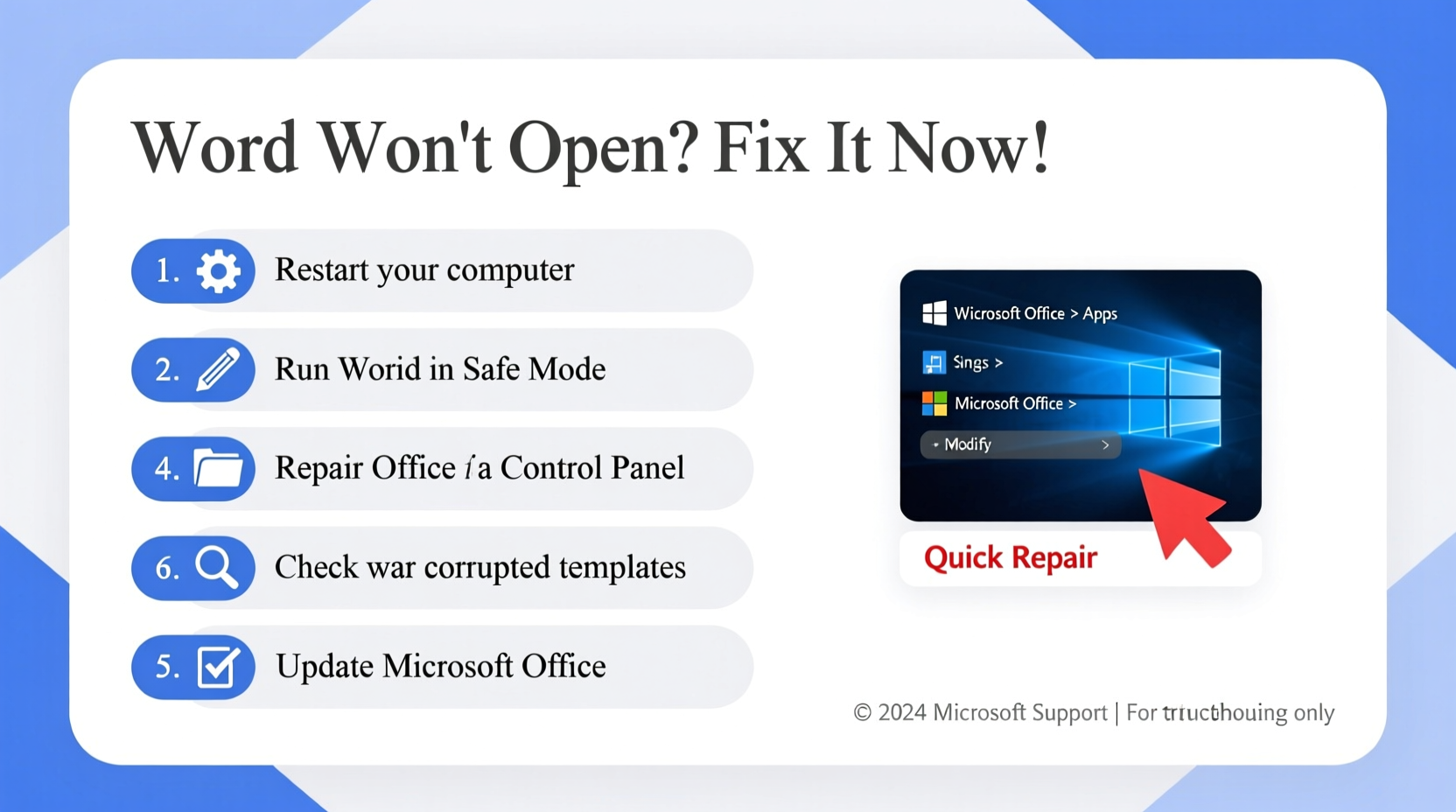
Before diving into fixes, it's essential to understand what might be preventing Word from launching. Identifying the root cause helps streamline troubleshooting and prevents wasted effort on irrelevant solutions.
- Corrupted Normal.dotm template: This hidden file stores default settings and can become damaged, blocking Word from starting.
- Problematic Add-ins: Third-party or outdated add-ins may conflict with Word’s startup process.
- Outdated Office Installation: Missing updates can introduce bugs affecting stability.
- User Profile Corruption: Damaged user data or preferences in your Windows profile may interfere with Word.
- Antivirus or Firewall Interference: Overzealous security software can block Word processes.
- Insufficient Permissions: Lack of admin rights may prevent Word from accessing necessary resources.
Step-by-Step Fixes to Restore Word Functionality
The following sequence outlines progressively deeper troubleshooting methods. Start with the simplest and move forward only if the issue persists.
1. Restart Your Computer
A simple reboot clears temporary glitches and resets background processes. Many users overlook this step, but it resolves minor system hiccups that prevent Word from launching.
2. Run Word in Safe Mode
Safe Mode disables add-ins and custom templates, helping determine if one of them is causing the crash.
- Press Windows + R to open the Run dialog.
- Type
winword /safeand press Enter. - If Word opens in Safe Mode, an add-in or template is likely the culprit.
If Word launches successfully in Safe Mode, proceed to disable add-ins or reset the Normal.dotm template.
3. Disable Problematic Add-ins
Add-ins enhance functionality but can destabilize Word if outdated or incompatible.
- Open Word in Safe Mode as described above.
- Go to File > Options > Add-ins.
- At the bottom, select COM Add-ins from the dropdown and click Go…
- Uncheck all add-ins and click OK.
- Restart Word normally.
If Word now opens, re-enable add-ins one at a time to identify the problematic one.
4. Reset the Normal.dotm Template
This global template governs default document behavior. If corrupted, it can stop Word from launching.
- Close all Office applications.
- Navigate to:
C:\\Users\\[YourUsername]\\AppData\\Roaming\\Microsoft\\Templates - Locate the file named Normal.dotm.
- Rename it to Normal.dotm.bak (this backs it up).
- Restart Word. A new Normal.dotm will be created automatically.
This often resolves persistent startup failures without data loss.
5. Repair Microsoft Office Installation
If core files are damaged, repairing Office reinstalls missing components.
- Open Settings > Apps > Apps & features.
- Find Microsoft 365 or Office in the list.
- Click Modify (or Change on older systems).
- Select Repair, then choose Online Repair for a thorough fix.
- Wait for completion and restart your computer.
An online repair typically takes 10–20 minutes but resolves deep-seated installation issues.
Checklist: Quick Actions to Fix Word Startup Issues
Use this checklist to methodically troubleshoot without skipping critical steps:
- ✅ Restart your computer
- ✅ Launch Word in Safe Mode (
winword /safe) - ✅ Disable all COM add-ins
- ✅ Rename the Normal.dotm file
- ✅ Run Online Repair via Apps & Features
- ✅ Update Windows and Office
- ✅ Check antivirus exclusions for Office apps
- ✅ Test with a new Windows user profile
Do’s and Don’ts When Troubleshooting Word
| Do’s | Don’ts |
|---|---|
| Backup important documents before making changes | Ignore error messages—note them down for diagnosis |
| Update Office and Windows regularly | Delete Office folders manually from Program Files |
| Use built-in repair tools like Online Repair | Install untrusted third-party \"fixers\" |
| Test Word under a new user profile | Assume hardware failure without checking software first |
Real Example: Recovering from a Silent Crash
Sarah, a technical writer, found that Word wouldn’t open—no error message, just silence. She tried restarting and reinstalling, but nothing worked. Using the winword /safe command, she discovered Word launched in Safe Mode. That pointed to either an add-in or template issue. After disabling all COM add-ins, Word opened normally. She re-enabled each one individually and identified a legacy grammar checker add-in as the cause. Removing it permanently resolved the issue.
This case highlights how isolating variables—starting with Safe Mode—can pinpoint otherwise invisible problems.
“Over 60% of Word startup issues stem from user-specific settings like add-ins or corrupted templates, not the core application.” — James Lin, Microsoft Support Engineer (12 years experience)
Advanced Solutions for Persistent Problems
If basic steps fail, consider deeper interventions.
Create a New Windows User Profile
Corruption in your user profile can affect app behavior. To test:
- Open Settings > Accounts > Family & other users.
- Add a new local user account with administrative rights.
- Log in to the new account and try opening Word.
If Word works, the issue lies within your original profile. Migrate essential data and consider switching accounts.
Reinstall Microsoft Office Completely
As a last resort, perform a clean reinstall:
- Use the Microsoft Support and Recovery Assistant (SaRA) to fully remove Office.
- Download the latest version from office.com.
- Sign in and reinstall.
This ensures a pristine, up-to-date installation free of residual corruption.
Frequently Asked Questions
Why does Word show a blank screen when I open it?
A blank screen often indicates a display or graphics driver issue. Try disabling hardware graphics acceleration: Go to File > Options > Advanced, check “Disable hardware graphics acceleration,” and restart Word.
Can a virus prevent Word from opening?
Yes, malware can corrupt system files or block executable processes. Run a full system scan with Windows Defender or a trusted antivirus. Also, ensure Word.exe isn’t blocked in the firewall.
Does Word not opening affect my saved documents?
No. Your existing .docx files remain safe on your drive. Troubleshooting focuses on the application, not document recovery. Always store files in cloud services or external backups for added protection.
Conclusion: Take Control of Your Productivity
Microsoft Word not opening is frustrating, but rarely permanent. Most issues stem from manageable causes like corrupted templates, problematic add-ins, or outdated installations—all of which can be resolved with systematic troubleshooting. By following the steps outlined here, from Safe Mode testing to full Office repair, you regain control over your workflow. Don’t accept downtime as inevitable. Apply these fixes, document what works, and share your success with others facing the same hurdle.




 浙公网安备
33010002000092号
浙公网安备
33010002000092号 浙B2-20120091-4
Comments
No comments yet. Why don't you start the discussion?