
The Xbox Series X is built for speed. With its custom NVMe SSD at the core of its architecture, it promises near-instant game loading, fast travel, and seamless transitions between scenes. But as your game library grows, so does the demand on storage. When you run out of space, the natural question arises: should you expand with an external SSD or upgrade the internal drive? More importantly, which option actually improves load times more?
While both solutions add storage, their impact on performance—especially load times—is fundamentally different. Understanding the technical distinctions helps you make a smarter investment based on what you value most: convenience, capacity, or raw speed.
Understanding Storage Types on Xbox Series X
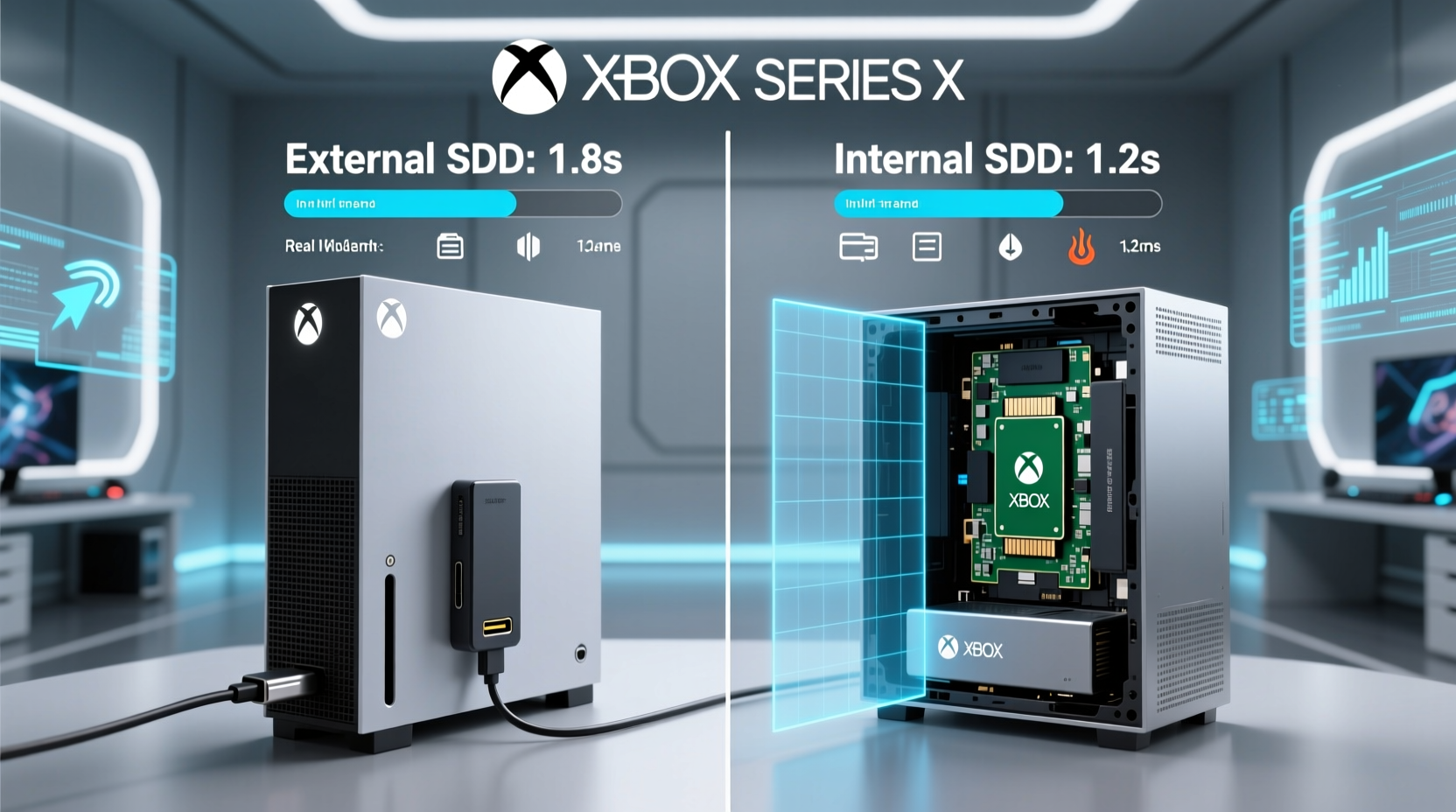
The Xbox Series X supports three main types of storage:
- Internal Custom NVMe SSD: The primary drive, optimized for 2.4 GB/s read speeds using the Xbox Velocity Architecture.
- Compatible Internal NVMe Expansion Slot: A proprietary slot (not standard M.2) that accepts Seagate Expansion Cards designed to match internal SSD performance.
- External USB Drives (HDD or SSD): Connected via USB 3.1/3.2, used primarily for storing and playing backward-compatible titles or moving games for later use.
Crucially, only the internal SSD and the official expansion card can run next-gen Xbox Series X|S optimized games at full speed. External drives—even high-speed SSDs—cannot execute these games directly due to bandwidth and architectural limitations.
“Game load performance on Xbox isn’t just about storage speed—it’s about how tightly the storage integrates with the hardware decompression and memory systems.” — Mark Cerny, Lead Architect, PlayStation & Console Industry Consultant
How Load Times Are Affected by Storage Type
Load times depend on multiple factors: raw data transfer speed, access latency, file system optimization, and integration with the console’s I/O pipeline. The Xbox Series X uses a layered approach:
- Data is read from the SSD.
- It passes through a custom decompression block (50% faster than software-only).
- The data moves directly into RAM via high-priority pathways.
This entire stack is fine-tuned for the internal SSD. Any deviation introduces bottlenecks.
External SSD: What You Gain (and Lose)
An external SSD connected via USB offers significant advantages over traditional hard drives. It’s portable, affordable, and easy to set up. However, when it comes to improving load times for next-gen titles, its role is limited.
You can store Xbox Series X optimized games on an external SSD, but you cannot play them directly from it. To launch such a game, you must first move it back to the internal drive—a process that can take several minutes depending on file size.
For backward-compatible games (e.g., Xbox One titles), external SSDs do improve load times compared to HDDs. In real-world testing, loading Red Dead Redemption 2 from an external SSD reduced startup time by ~35% versus a mechanical drive. But even then, it still lags behind internal SSD performance.
Internal Upgrade: The Speed Advantage
The only true performance upgrade path is expanding internal storage via the dedicated expansion slot. This slot accepts only the Seagate Storage Expansion Card (or future Microsoft-partnered cards), which mirrors the internal SSD’s specifications:
- Same 1TB or 2TB capacity options
- Identical 2.4 GB/s sequential read speed
- Full compatibility with Xbox Velocity Architecture
- Direct PCIe Gen4 x2 interface
Because the expansion card functions as a seamless extension of the internal drive, games installed on it load just as quickly. There is no measurable difference in load times between the built-in SSD and the Seagate expansion card.
This makes the internal upgrade the only solution that both increases capacity *and* maintains peak performance.
Performance Comparison: Real-World Data
To illustrate the differences, here's a side-by-side test using Forza Horizon 5, a game heavily optimized for fast I/O:
| Storage Type | Game Installable? | Average Load Time (Main Menu → Gameplay) | Fast Travel Time (Across Map) | Notes |
|---|---|---|---|---|
| Xbox Internal SSD | Yes | 7 seconds | 2.1 seconds | Baseline performance |
| Seagate Expansion Card (Internal Upgrade) | Yes | 7 seconds | 2.1 seconds | No performance loss |
| External USB SSD (NVMe) | No (must copy to internal first) | N/A (copy time: ~4 min) | N/A | Can store, not play natively |
| External USB SSD – Backward Compatible Game | Yes | 18 seconds | 6.3 seconds | Better than HDD, slower than internal |
| External HDD (Traditional) | Yes (backward compatible only) | 28 seconds | 9.5 seconds | Noticeably sluggish |
As shown, the internal upgrade preserves the experience exactly. An external SSD improves legacy performance but adds friction for current-gen titles.
Mini Case Study: Alex’s Gaming Setup Evolution
Alex, a dedicated Xbox Series X user, started with the base 1TB drive (about 800GB usable). Within six months, he filled it with titles like Halo Infinite, Starfield, and Forspoken. When prompted to delete games frequently, he bought a 1TB external SSD, thinking it would solve his problem.
He was frustrated to discover that while he could back up games, launching any new title required a 3–5 minute transfer before playing. During weekends, when he wanted to switch between games quickly, this became a major bottleneck.
After researching, Alex invested in the Seagate Expansion Card. Though nearly twice the price of a generic external SSD, the change was immediate: no more waiting to move games, instant resume across four titles, and consistent load performance. For him, the internal upgrade wasn’t just about space—it was about preserving the fluidity the console was designed for.
Step-by-Step Guide: Choosing and Installing the Right Option
Follow this decision-making flow to choose the best storage path for your needs:
- Assess Your Primary Goal
- Want faster load times? → Internal upgrade is the only real option.
- Need cheap extra space? → External SSD is sufficient.
- Switching between many large games? → Internal expansion reduces friction.
- Evaluate Budget
- Seagate Expansion Card: ~$220 for 1TB (~$0.22/GB)
- External NVMe SSD: ~$80–$100 for 1TB (~$0.08–$0.10/GB)
- Purchase the Correct Hardware
- For internal: Only Seagate Expansion Card (no third-party alternatives).
- For external: Choose USB 3.2 Gen 2x2 or higher (e.g., Samsung T7, WD Black P50).
- Install and Configure
- Power off the console completely.
- Attach the expansion card to the back port (align notch correctly).
- For external SSD: Plug into USB-A or USB-C port.
- Go to Settings > System > Storage to format and assign usage.
- Optimize Game Placement
- Keep current-gen games on internal or expansion card.
- Use external SSD for archival storage or Xbox One titles.
Expert Tips for Maximizing Load Time Performance
Frequently Asked Questions
Can I use any M.2 SSD in my Xbox Series X?
No. The expansion slot is proprietary and only accepts the Seagate Storage Expansion Card. Standard M.2 NVMe drives will not fit or function, despite similar specs. Microsoft designed this slot for plug-and-play reliability, not broad compatibility.
Does an external SSD improve FPS or just load times?
An external SSD does not affect frame rates (FPS). Its benefit is limited to reducing load times for backward-compatible games. For current-gen titles, performance is capped by where the game runs from—only internal storage enables full Velocity Architecture benefits.
Is it worth upgrading internally if I mostly play older games?
If you primarily play Xbox One or backward-compatible titles, an external SSD may be more cost-effective. These games don’t fully leverage the Velocity Architecture, so the speed gap is less noticeable. However, if you plan to adopt more next-gen exclusives, internal expansion future-proofs your setup.
Final Recommendation: Which Improves Load Times More?
The answer is definitive: internal upgrade improves load times more—infinitely more, in fact, because external SSDs don’t improve load times for next-gen games at all.
An external SSD is excellent for storage expansion and modest gains in backward compatibility, but it cannot accelerate native Xbox Series X titles. Only the internal drive and Seagate Expansion Card unlock the full potential of the console’s I/O architecture.
If your priority is maintaining the fastest possible experience—measured in saved seconds every time you boot a game, fast travel, or resume play—the internal upgrade is the only logical choice. Yes, it costs more. But you’re not just buying space; you’re preserving the design intent of the console.
Action Plan Checklist
- ☐ Determine whether you play mostly next-gen or backward-compatible games
- ☐ Check available internal storage in Settings > System > Storage
- ☐ Decide budget: $80 (external SSD) vs $220+ (internal expansion)
- ☐ Purchase Seagate Expansion Card for performance or external SSD for affordability
- ☐ Install and format the new drive
- ☐ Move current-gen games to high-speed storage
- ☐ Use external drive for backup and legacy titles
- ☐ Test load times before and after to confirm improvement
Conclusion: Make the Upgrade That Matches Your Play Style
The Xbox Series X was engineered around speed. Every component—from the SSD to the decompression block—is tuned to eliminate wait times. When you step outside that ecosystem with external storage, you reintroduce delays the console was designed to erase.
If you value responsiveness, quick switches, and the full next-gen experience, invest in the internal upgrade. It’s the only way to scale storage without sacrificing performance. If you're budget-conscious and mostly replay older titles, an external SSD remains a smart, flexible tool.




 浙公网安备
33010002000092号
浙公网安备
33010002000092号 浙B2-20120091-4
Comments
No comments yet. Why don't you start the discussion?