
Apple Music offers a rich library of songs, curated playlists, and exclusive content, but not every user stays subscribed long-term. Whether you're switching to another service, taking a break from streaming, or simply no longer using the platform, knowing how to properly cancel your subscription is essential. The key is doing it correctly—before your next billing cycle—to avoid being charged again.
Many users assume that stopping payment or uninstalling the app ends their subscription. That’s a common misconception. Apple continues to renew subscriptions automatically unless canceled manually through the correct channel. This guide walks you through the exact steps across all devices, explains timing strategies, and helps you confirm cancellation so you’re never billed again.
Why Canceling Properly Matters
Apple Music operates on a recurring subscription model. When you sign up—whether for a free trial or paid plan—you agree to automatic renewal. If you don’t cancel before the trial ends or before your next payment date, Apple will charge your default payment method without warning.
The good news? You can cancel at any time, keep access until your current billing period ends, and prevent future charges—all without losing your data or settings. But timing and method matter. Cancel too late, and you’ll be locked into another month. Use the wrong device or account, and you might think you’ve canceled when you haven’t.
“Most accidental renewals happen because users confuse pausing usage with ending the subscription. Cancellation must go through Apple ID settings—not just turning off auto-play.” — Jordan Lee, Digital Consumer Rights Advocate
Step-by-Step: How to Cancel Apple Music on Any Device
Cancelling Apple Music follows the same core process regardless of whether you're using an iPhone, iPad, Mac, or Windows PC. However, the interface differs slightly. Below are detailed instructions for each platform.
On iPhone or iPad
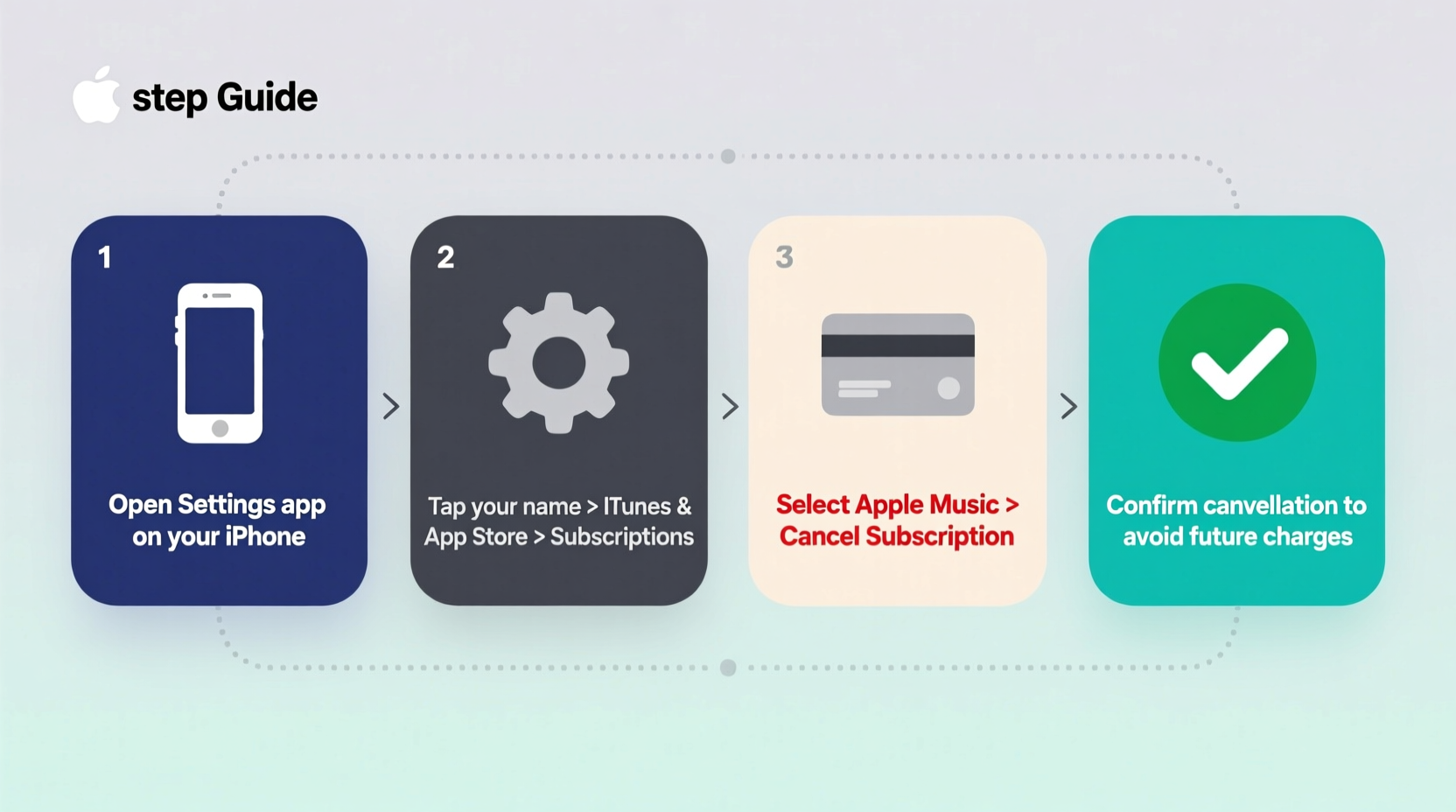
- Open the Settings app.
- Tap your name at the top to enter your Apple ID profile.
- Select Subscriptions.
- Tap Apple Music from the list of active subscriptions.
- Choose Cancel Subscription at the bottom of the screen.
- Confirm when prompted.
You’ll see a message confirming that your subscription will end on a specific date. That’s your final access day. After that, you lose premium features but can still listen to downloaded music offline until it expires due to DRM restrictions.
On Mac
- Click the Apple menu () in the top-left corner.
- Select System Settings (or System Preferences on older macOS).
- Click your name to access your Apple ID settings.
- Navigate to Media & Purchases > Manage Subscriptions.
- Find Apple Music, click it, then select Cancel Subscription.
- Confirm your choice.
On Windows PC (via iTunes)
- Open iTunes.
- Click Account in the top menu, then View My Account. You may need to sign in.
- Under the Settings section, find Manage Subscriptions and click Edit.
- Select Apple Music Membership.
- Click Cancel Subscription and confirm.
Timing Is Everything: When to Cancel to Avoid Charges
You can cancel anytime, but to avoid the next charge, you must do so **before** your renewal date. Apple doesn’t offer prorated refunds, so even if you cancel halfway through your billing cycle, you’ll still have full access until the end of the period.
For example: If your subscription renews on the 15th of each month, you must cancel by the 14th to stop the next charge. Cancel on the 15th or later, and you’ll be billed again—even if only minutes after renewal.
| Billing Cycle Start | Renewal Date | Last Day to Cancel Without Charge | Access Continues Until |
|---|---|---|---|
| March 1 | April 1 | March 31 | April 1 (end of day) |
| May 15 | June 15 | June 14 | June 15 (end of day) |
| February 10 (trial) | March 10 | March 9 | March 10 (end of day) |
“Canceling one day early is better than one minute late. Set a calendar reminder seven days before renewal to give yourself a buffer.” — TechLife Weekly, Consumer Tech Review
Common Mistakes That Lead to Accidental Charges
Even tech-savvy users make errors when trying to cancel Apple Music. Here are the most frequent missteps—and how to avoid them.
- Mistaking Family Sharing for Individual Cancellation: If you’re part of an Apple Music Family Plan, leaving the group doesn’t cancel your personal subscription if you were paying separately. You must cancel directly.
- Using Siri or Settings Search Incorrectly: While you can ask Siri to “cancel my Apple Music,” it may not always route correctly. Manual navigation through Settings ensures accuracy.
- Assuming Free Trial Cancellation Isn’t Needed: All free trials require proactive cancellation. Apple does not notify you before charging—only emails after.
- Canceling Through Third-Party Apps: Some users try to cancel via Spotify or YouTube settings. This has zero effect. Only Apple ID controls Apple Music billing.
Mini Case Study: Sarah’s Near Miss
Sarah signed up for Apple Music’s three-month free trial while traveling abroad. She enjoyed curated playlists during her commute but forgot about the subscription once she returned home. Two weeks before her trial ended, she received an email titled “Your Apple Music subscription is about to begin.”
She opened her iPhone, went to Settings > Subscriptions, found Apple Music, and clicked “Cancel Subscription.” The system confirmed her access would continue until June 28—but no further charges would apply.
Because she acted before June 28, she avoided a $10.99 monthly fee. Had she waited until June 29—even if she hadn’t used the service—she would have been billed automatically.
This real-world scenario underscores the importance of tracking trial periods and acting early.
Checklist: Cancel Apple Music Without Getting Charged
Follow this checklist to ensure a smooth, charge-free cancellation:
- ✅ Check your Apple ID subscription page for active plans
- ✅ Note your next renewal date (found under Apple Music details)
- ✅ Cancel at least one day before that date
- ✅ Confirm cancellation with a follow-up check in Settings
- ✅ Disable automatic downloads if no longer needed
- ✅ Keep a screenshot of confirmation for your records
Frequently Asked Questions
Can I get a refund if I was charged by mistake?
Yes, but only in limited cases. Apple may issue a refund if you were charged right after canceling or due to a duplicate payment. Go to reportaproblem.apple.com, sign in, find the charge, and request a refund. Success depends on timing and reason.
Will I lose my downloaded music after canceling?
Yes, eventually. Songs downloaded through Apple Music are protected by DRM. Once your subscription ends, they become unplayable. Locally imported music (e.g., MP3s) remains accessible. Consider backing up playlists or transferring favorites beforehand.
Can I restart Apple Music later?
Absolutely. You can resubscribe at any time through the Apple Music app or Settings. Your listening history, libraries, and preferences are preserved for up to 30 days after cancellation.
Final Steps and Peace of Mind
Cancelling Apple Music doesn’t have to be stressful. With the right knowledge and a few minutes of attention, you can exit the service cleanly and avoid unwanted charges. The process is consistent, secure, and reversible—giving you full control over your digital subscriptions.
Take action now: Open your device’s Settings, review your subscriptions, and confirm your status. If Apple Music is no longer serving you, cancel it today—before midnight rolls around and another charge slips through.




 浙公网安备
33010002000092号
浙公网安备
33010002000092号 浙B2-20120091-4
Comments
No comments yet. Why don't you start the discussion?