
In the era of remote work, Zoom has become the digital office hallway—where ideas are shared, decisions are made, and first impressions are formed. But while video quality often grabs attention, audio clarity quietly determines whether you're heard clearly or dismissed as “muffled.” One frequently debated tool in the pursuit of better sound: the pop filter. Is it essential for professional Zoom calls, or just an accessory for podcasters and musicians? The answer depends on your microphone, environment, and communication style.
With millions working from home, even minor audio flaws can undermine credibility. Plosive sounds like “p” and “b” can distort speech, especially with sensitive microphones. This is where pop filters enter the conversation. While they’re standard in recording studios, their role in everyday remote work setups is less obvious. Let’s explore when—and why—they matter, and what alternatives exist if you’re not ready to clip one onto your desk.
Understanding Pop Filters: What They Do and Don’t Fix
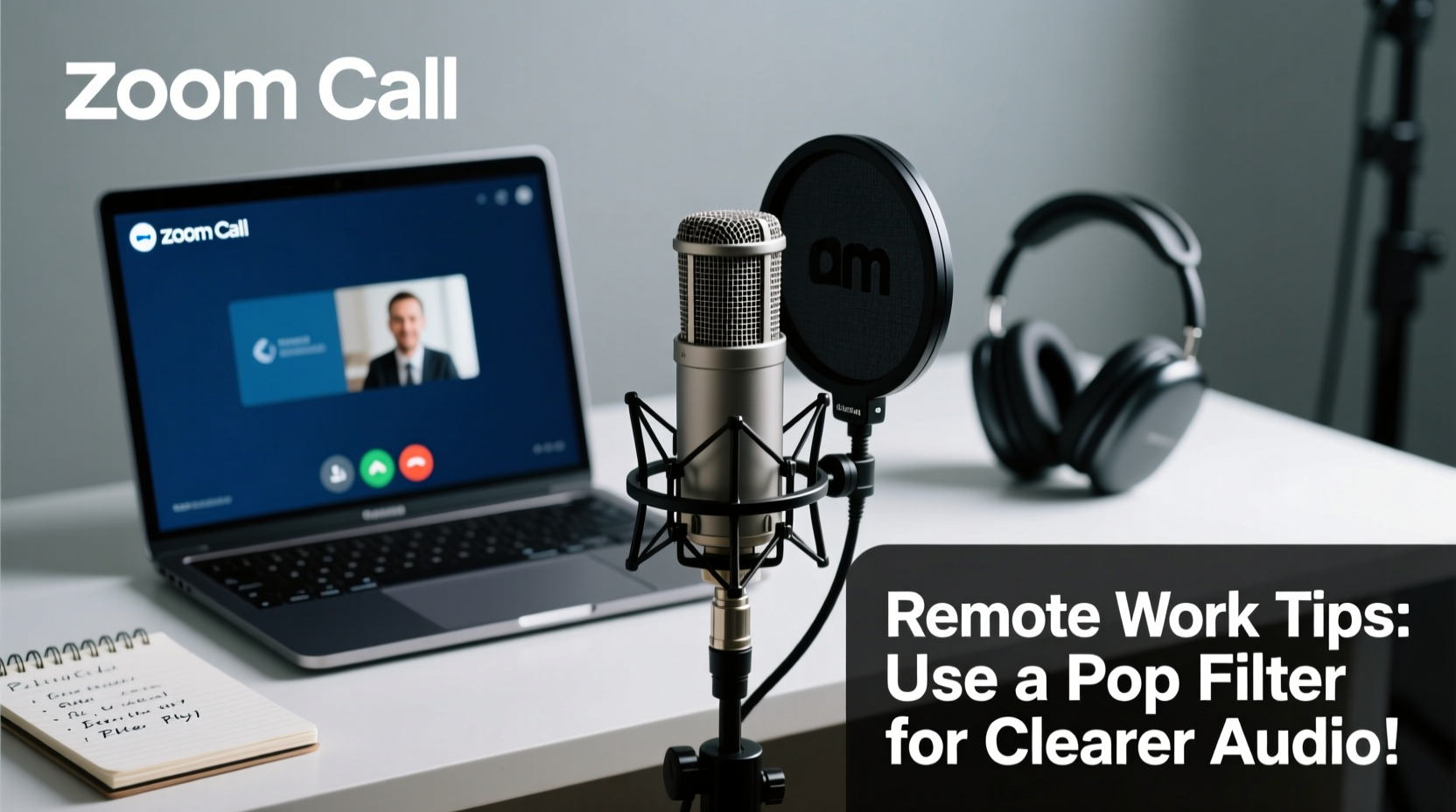
A pop filter, also known as a windscreen or pop shield, is a thin circular mesh placed between your mouth and microphone. Its primary function is to reduce plosives—sudden bursts of air produced when pronouncing certain consonants like “p,” “t,” “k,” and “b.” These air blasts hit the microphone diaphragm directly, causing distortion that sounds like explosive pops or low-frequency thumps in recordings.
Pop filters work by diffusing this airflow. The mesh breaks up the concentrated gust before it reaches the mic, minimizing distortion without significantly affecting voice clarity. However, it’s important to clarify what pop filters don’t do:
- They do not reduce background noise.
- They do not improve microphone sensitivity or frequency response.
- They are not substitutes for proper room acoustics or noise suppression software.
So while a pop filter enhances vocal clarity by taming plosives, it won’t fix a noisy HVAC system or echo in a tiled bathroom-turned-home-office. It’s one piece of a broader audio optimization strategy.
When a Pop Filter Makes a Real Difference in Zoom Calls
Not every remote worker needs a pop filter. The necessity depends largely on three factors: microphone type, speaking habits, and meeting context.
Microphone Sensitivity: Condenser microphones, commonly used in USB mics like the Audio-Technica AT2020USB+ or Blue Yeti, are highly sensitive and pick up subtle nuances—including unwanted plosives. If you use such a mic, a pop filter becomes far more beneficial than if you rely on a basic headset or laptop mic, which typically have lower sensitivity and built-in pop protection.
Speaking Style: Some people naturally speak with strong articulation or sit very close to their mic. If colleagues frequently comment on “p-pops” during your presentations or you notice clipping in recorded meetings, a pop filter may solve the issue.
Meeting Type: For internal team syncs, occasional pops might be forgivable. But in client pitches, webinars, or training sessions where audio quality reflects professionalism, eliminating distractions matters. In these cases, a pop filter contributes to polished delivery.
“Audio quality shapes perception. A single distracting pop can make listeners question the speaker’s preparedness—even if the content is excellent.” — Dr. Lena Torres, Communication Researcher at Stanford University
Alternatives to Pop Filters for Remote Workers
If you’re hesitant to add another gadget to your workspace, several effective alternatives can reduce plosives without a traditional pop filter.
1. Off-Axis Microphone Placement
Instead of speaking directly into the mic, angle your microphone slightly so the air blast passes beside it rather than hitting the diaphragm head-on. Speaking at a 45-degree angle to the mic can dramatically reduce plosive impact.
2. Use a Foam Windscreen
Many microphones come with a foam cover that fits snugly over the capsule. While less effective than a mesh pop filter, it still helps dampen plosives and is ideal for portable setups. It’s also discreet and doesn’t alter your desk aesthetic.
3. Increase Distance from the Mic
Stepping back 6–12 inches reduces the force of air hitting the microphone. This also minimizes proximity effect (the bass boost when speaking too close), resulting in a more balanced tone. Just ensure your voice remains loud enough for clear pickup.
4. Leverage Software Noise Suppression
Tools like Krisp, NVIDIA RTX Voice, or Zoom’s built-in AI noise cancellation can detect and suppress plosives and background sounds. While not perfect, they offer real-time correction and are especially useful for those using budget equipment.
| Solution | Effectiveness on Plosives | Cost | Best For |
|---|---|---|---|
| Mesh Pop Filter | High | $10–$30 | Dedicated home offices with condenser mics |
| Foam Windscreen | Moderate | $5–$15 (often included) | Mobile workers or minimalist setups |
| Off-Axis Mic Positioning | Moderate to High | Free | All users, especially space-limited environments |
| Noise Suppression Software | Low to Moderate | Free–$10/month | Users with inconsistent audio issues |
Step-by-Step Guide to Improving Your Zoom Call Audio
Better audio doesn’t require expensive gear. Follow this practical sequence to enhance your voice clarity on every call:
- Assess Your Current Setup: Record a short test message using your usual mic and listen back. Play it at normal volume and note any popping, muffling, or distortion.
- Position the Microphone Correctly: Place it slightly off-center from your mouth, about 6–8 inches away. Avoid placing it directly in front of fans, vents, or windows.
- Add a Pop Filter (If Needed): If plosives are evident, attach a mesh pop filter. Ensure it’s taut and positioned between your mouth and the mic.
- Optimize Your Environment: Reduce echo by adding soft furnishings—curtains, rugs, or bookshelves. Avoid bare walls and hard surfaces near your recording area.
- Enable Noise Suppression: Install Krisp or use Zoom’s “Suppress Background Noise” setting under Audio Settings. Choose “Auto” or “Aggressive” based on your environment.
- Test Before Every Important Meeting: Run a 30-second audio check in Zoom’s test call feature. Ask a colleague for feedback if possible.
Real-World Example: How One Team Improved Meeting Engagement
Jamie Chen, a project manager at a distributed tech startup, noticed declining engagement in weekly all-hands meetings. Attendees frequently asked for repeats, and post-meeting feedback mentioned “audio fatigue.” After reviewing recordings, Jamie realized her voice—recorded with a high-end USB mic—was plagued by sharp “p” sounds that distracted listeners.
She experimented with solutions: first trying a foam cover (minimal improvement), then adjusting mic angle (better), and finally adding a $15 mesh pop filter. The difference was immediate. Colleagues reported clearer speech, fewer interruptions, and improved focus. Within two weeks, meeting satisfaction scores rose by 37%.
“I didn’t think a small mesh screen could make such a difference,” Jamie said. “But once I heard the clean playback, I realized how much mental effort my team was spending just decoding my words.”
Checklist: Optimize Your Zoom Audio in Under 10 Minutes
Use this quick checklist before your next call to ensure crisp, professional sound:
- ✅ Position microphone 6–8 inches from mouth, slightly off-axis
- ✅ Attach pop filter or foam windscreen if using a sensitive mic
- ✅ Close windows and mute nearby devices (fans, phones, TVs)
- ✅ Enable noise suppression in Zoom or via third-party app (e.g., Krisp)
- ✅ Conduct a test call and listen for plosives or background noise
- ✅ Speak at a consistent volume and pace—avoid shouting or leaning in
Frequently Asked Questions
Do I need a pop filter if I use a headset?
Generally, no. Most headsets position the microphone close to the side of your mouth, naturally avoiding direct airflow from plosives. Additionally, headset mics are designed for voice communication and include built-in pop protection. A pop filter would be impractical and unnecessary in this setup.
Can I make a DIY pop filter?
Yes, many professionals have created effective DIY versions using a bent wire coat hanger and a pair of nylon stockings. Stretch the nylon over the loop and secure it tightly. While not as durable as commercial models, it can reduce plosives in a pinch. Just ensure the material is breathable and doesn’t muffle your voice.
Will a pop filter improve my audio if I record in a noisy apartment?
Not directly. A pop filter only addresses plosive distortion, not ambient noise like traffic, pets, or appliances. For noisy environments, prioritize acoustic treatment, directional microphones (cardioid pattern), and noise-canceling software. A pop filter complements these tools but doesn’t replace them.
Conclusion: Clarity Starts with Small Details
Remote work demands more than reliable internet and a quiet room—it requires intentionality about how you show up. Audio quality is part of your professional presence. While a pop filter alone won’t transform your Zoom experience, it can be the missing detail that elevates your voice from acceptable to exceptional.
You don’t need a full studio setup to communicate clearly. By understanding your equipment, adjusting your technique, and using simple tools like a pop filter when appropriate, you ensure your message lands without distraction. Whether you’re leading a team, presenting to clients, or collaborating across time zones, crisp audio builds trust and keeps conversations flowing.




 浙公网安备
33010002000092号
浙公网安备
33010002000092号 浙B2-20120091-4
Comments
No comments yet. Why don't you start the discussion?