
A dual monitor setup has become essential for professionals, students, and creators who demand efficiency, multitasking capability, and immersive screen real estate. Whether you're coding, editing videos, managing spreadsheets, or gaming casually, having two monitors can significantly improve workflow and reduce clutter. The good news? You don’t need to spend hundreds per screen to get reliable performance. With careful selection, it’s entirely possible to build a powerful dual-monitor configuration with displays under $200 each—without sacrificing clarity, responsiveness, or connectivity.
This guide highlights top-performing, budget-friendly monitors ideal for pairing in a dual setup. We’ll cover key specs to consider, compare leading models, and provide practical advice on optimizing your workspace for long-term comfort and productivity.
Why a Dual Monitor Setup Makes Sense
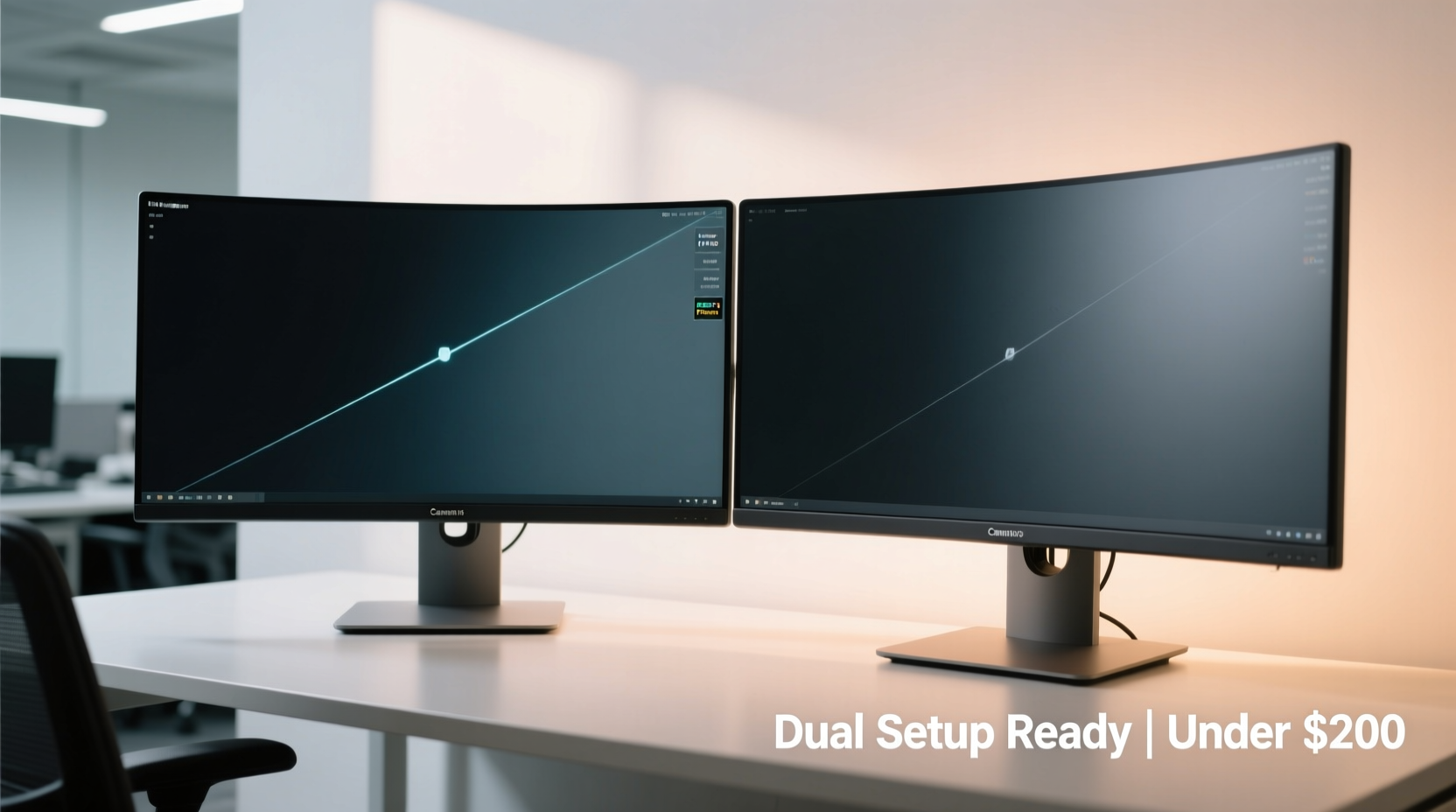
Dual monitors are more than just a status symbol—they deliver measurable gains in efficiency. Studies from the University of Utah and independent productivity labs show that users with two screens complete tasks up to 30% faster than single-screen counterparts. This is especially true for tasks involving data comparison, communication windows, reference materials, or split application layouts (e.g., email on one side, document on the other).
For remote workers, streamers, designers, and developers, dual monitors reduce context switching, minimize window resizing, and allow better organization of digital space. And today’s affordable panel technology means you can achieve this upgrade without spending over $400 total.
Key Features to Look for Under $200
When shopping for budget monitors, certain features should not be compromised. Prioritize these elements to ensure longevity, visual comfort, and compatibility with your system:
- Panel Type: IPS panels offer superior color accuracy and viewing angles compared to TN, making them ideal for creative work and consistent visuals across both screens.
- Resolution: Full HD (1920x1080) remains the sweet spot for 24-inch monitors. Avoid lower resolutions like 1366x768, which appear pixelated and limit usability.
- Refresh Rate: 75Hz is standard in this range; some models offer 100Hz or 144Hz for smoother motion, beneficial for light gaming or scrolling.
- Connectivity: At least one HDMI 1.4+ port is essential. VGA may be included but is outdated. DisplayPort support adds future-proofing.
- Ergonomics: Tilt adjustment is basic; height, swivel, and pivot (portrait mode) are bonuses. VESA mount compatibility allows arm integration.
- Bezels: Thin bezels enhance visual continuity between monitors, crucial for dual setups used in design or video editing.
“Even on a tight budget, matching two well-chosen 1080p IPS monitors can outperform a single ultrawide in flexibility and task management.” — Jordan Lee, Workspace Optimization Consultant
Top 5 Affordable Monitors Under $200 Each
The following models have been selected based on verified user reviews, professional testing, availability, and value-for-money balance. All are widely available through major retailers like Amazon, Best Buy, and Newegg as of 2024.
| Model | Size & Resolution | Panel Type | Refresh Rate | Ports | Price Range |
|---|---|---|---|---|---|
| Dell S2421HS | 23.8\" FHD (1920x1080) | IPS | 75Hz | HDMI, VGA | $130–$160 |
| ASUS VP249QGR | 23.6\" FHD (1920x1080) | IPS | 75Hz | HDMI, VGA | $140–$170 |
| AOC 24B2XH | 23.8\" FHD (1920x1080) | IPS | 75Hz | HDMI, VGA | $120–$150 |
| ViewSonic VA2432-h | 24\" FHD (1920x1080) | IPS | 75Hz | HDMI, VGA, Audio Out | $140–$165 |
| HP M24f FHD | 23.8\" FHD (1920x1080) | IPS | 75Hz | HDMI, DisplayPort, USB Hub | $160–$190 |
Dell S2421HS – Reliable Everyday Workhorse
This no-frills monitor delivers consistent color reproduction and minimal input lag. Its near-bezel-less design makes it excellent for dual configurations where screen alignment matters. Dell’s build quality ensures durability, and the inclusion of both HDMI and VGA offers broad compatibility with older systems.
ASUS VP249QGR – Smooth Scrolling & Eye Care
In addition to solid IPS performance, this model includes ASUS’ proprietary Eye Care technology with flicker-free backlighting and blue light filters. It’s a smart choice for users spending long hours in front of screens. While it lacks DisplayPort, its 75Hz refresh rate provides a slight edge over 60Hz alternatives.
AOC 24B2XH – Best Value for Tight Budgets
Priced consistently under $150, this AOC model punches above its weight. It features adaptive sync (FreeSync), reducing screen tearing during video playback or casual gaming. The slim profile and narrow bezel contribute to a clean desktop aesthetic when paired with a second unit.
ViewSonic VA2432-h – Balanced Performance with Audio Flexibility
One of the few budget monitors with a built-in audio output jack, allowing you to route sound through external speakers or headphones via the monitor itself. This simplifies cable management in dual setups. Colors are vibrant out of the box, requiring little calibration for general use.
HP M24f FHD – Premium Connectivity on a Budget
Standing at the upper end of the price range, the HP M24f justifies its cost with DisplayPort 1.2 and a three-port USB hub. Ideal for laptops or compact desktops with limited ports. The anti-glare coating performs well in bright environments, and HP’s firmware supports quick brightness presets.
Setting Up Your Dual Monitor System: A Step-by-Step Guide
Choosing the right hardware is only half the battle. Proper setup ensures optimal ergonomics, software integration, and long-term usability.
- Choose Matching Models: For seamless visuals, use two identical monitors. Differences in color temperature, brightness, or bezel size create visual discontinuity.
- Check Your GPU Outputs: Ensure your graphics card or laptop has enough video outputs (e.g., HDMI + DisplayPort). Use adapters cautiously—they can degrade signal quality.
- Position Correctly: Place both monitors side by side with no gap. The center point between them should align with your primary seating position. Top edges should be level with your eyes.
- Adjust Settings in OS: On Windows, press Win + P to choose “Extend” mode. Right-click desktop > Display settings to arrange monitors graphically and set primary display.
- Calibrate Brightness & Color: Manually adjust both monitors to match brightness, contrast, and color tone. Use built-in presets like “sRGB” or “Standard” as starting points.
- Cable Management: Use sleeves or clips to bundle HDMI, power, and USB cables. This reduces clutter and prevents accidental disconnections.
- Test Workflow Flow: Drag windows across screens, verify font clarity, and assess response time. Make fine adjustments to tilt or distance as needed.
Real-World Example: Remote Developer Boosts Productivity
Mark, a freelance web developer based in Austin, upgraded from a single 15.6\" laptop screen to a dual Dell S2421HS setup for under $300. He placed one monitor in landscape for browser testing and the other in portrait mode (using a VESA arm) for code editing.
“Before, I was constantly minimizing windows and losing focus,” Mark said. “Now I keep my IDE, terminal, and documentation open simultaneously. My debugging time dropped by almost 40%, and my posture improved because I’m not hunched over a small screen.”
He emphasized that choosing identical models made color matching effortless and allowed him to reuse the same HDMI cables and mounts. The investment paid for itself within two weeks in billable hour savings.
Frequently Asked Questions
Can I mix different monitor brands in a dual setup?
Yes, but not ideally. Mixing brands often leads to mismatched colors, brightness levels, and bezel designs, creating visual imbalance. If you must mix, stick to the same resolution, panel type, and size. Calibrate manually for consistency.
Do I need a powerful GPU for dual monitors under 200 each?
Not necessarily. Modern integrated graphics (Intel UHD 630+, AMD Radeon Vega, Apple M-series) handle dual 1080p displays effortlessly for office tasks, browsing, and media. A dedicated GPU is only needed for gaming, 4K video, or 3D rendering across both screens.
Is 75Hz worth it over 60Hz in this price range?
Yes. The jump from 60Hz to 75Hz results in noticeably smoother cursor movement and scrolling, especially on larger screens. It reduces eye fatigue during extended sessions and is supported by most budget IPS panels now.
Maximizing Longevity: Maintenance and Optimization Checklist
To get the most out of your dual monitor investment, follow this simple maintenance routine:
- ✅ Clean screens weekly with a microfiber cloth and screen-safe solution (no ammonia-based cleaners).
- ✅ Enable automatic brightness adjustment if available to reduce wear on the backlight.
- ✅ Use power-saving modes or turn off monitors when not in use for hours.
- ✅ Update firmware if the manufacturer provides patches (especially for HP and Dell).
- ✅ Recheck monitor alignment every few months—desks vibrate, stands shift.
- ✅ Organize cables periodically to prevent strain on ports.
- ✅ Match color profiles using OS tools or third-party apps like DisplayCAL (free).
Final Thoughts and Next Steps
Building an effective dual monitor setup under $200 per screen is not only feasible—it’s smart. The monitors listed here prove that affordability doesn’t mean compromise on core features like IPS clarity, Full HD resolution, and modern connectivity. By selecting matched units and setting them up thoughtfully, you create a workspace that enhances focus, reduces fatigue, and scales with your needs.
The real advantage lies in consistency: two aligned, calibrated, and ergonomically positioned screens transform how you interact with digital content. Whether you’re analyzing data, designing layouts, or managing communications, the extra screen real estate pays dividends in speed and precision.




 浙公网安备
33010002000092号
浙公网安备
33010002000092号 浙B2-20120091-4
Comments
No comments yet. Why don't you start the discussion?