
Every time you open a new browser tab, you're greeted by the familiar Google search page. While functional, it can feel repetitive after months—or years—of the same minimalist design. What if you could transform that blank canvas into something that reflects your style, inspires creativity, or simply brightens your day? Personalizing your Google background is easier than most people think, and it takes only a few minutes. Whether you want a calming landscape, a motivational quote, or a sleek dark theme, customizing your Google homepage adds a personal touch to your daily digital routine.
This guide walks you through simple, effective ways to refresh your Google browsing experience using built-in tools, Chrome extensions, and third-party apps—all without compromising speed or security.
Why Customize Your Google Background?
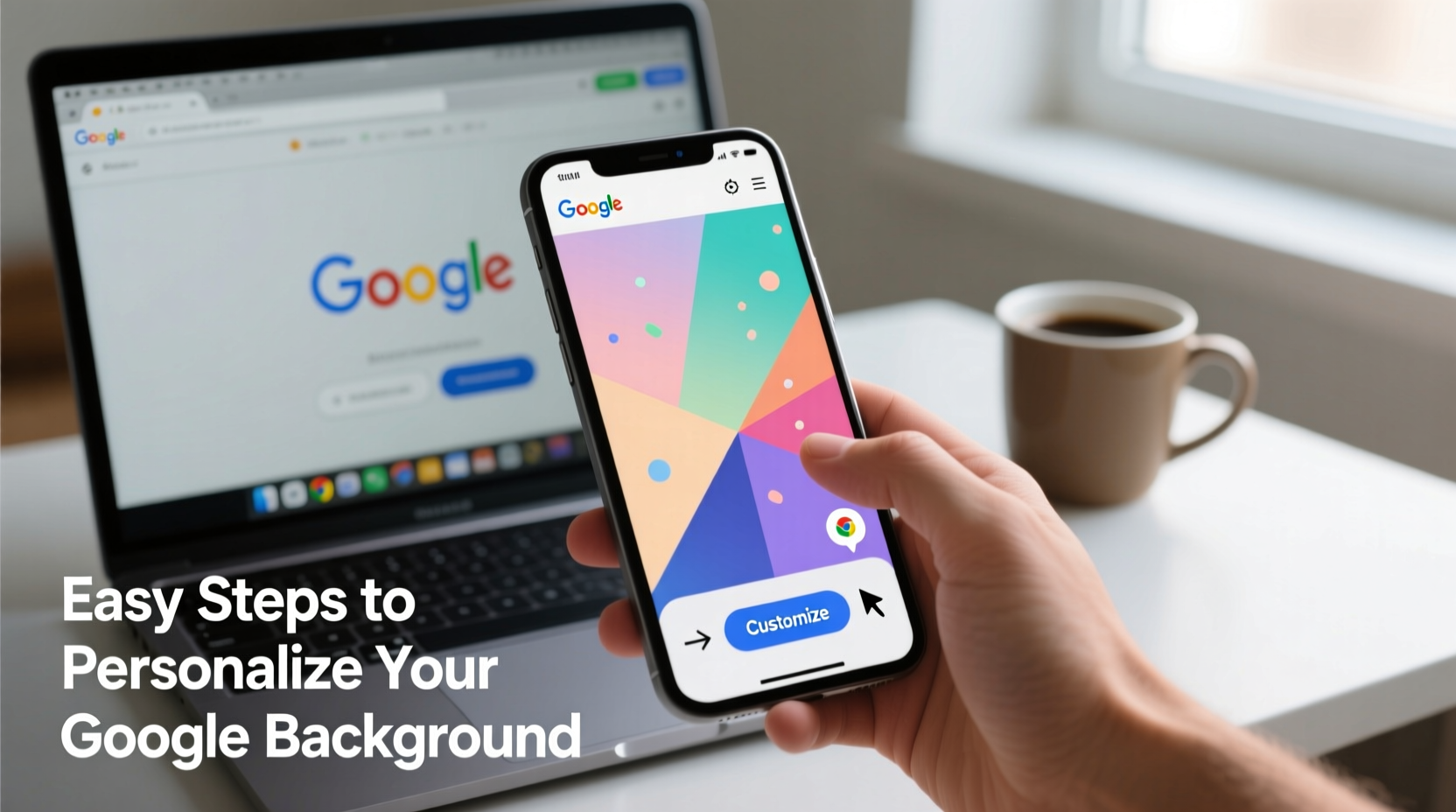
Your browser is one of the first things you interact with each day. A personalized background does more than look good—it can improve focus, reduce visual fatigue, and make routine searches feel less mechanical. Studies in environmental psychology suggest that even subtle aesthetic changes in digital workspaces can influence mood and productivity. A vibrant sunset or a favorite photo can serve as a micro-moment of joy during a busy day.
Google itself recognizes this. In recent years, they’ve expanded customization options directly within Chrome, allowing users to set custom backgrounds, themes, and color schemes. These features are designed to be lightweight and non-intrusive, ensuring performance isn’t sacrificed for aesthetics.
Step-by-Step Guide to Changing Your Google Background
You don’t need technical skills to customize your Google background. Follow these clear steps to make your browser uniquely yours.
- Open a New Tab in Google Chrome
Start by opening a new tab. This will bring up the default Google search page with the logo centered on a white background. - Click “Customize Chrome”
Look for the pencil icon or the text link labeled “Customize Chrome” in the bottom-right corner of the screen. Click it to enter customization mode. - Select a Background Option
You’ll see several tabs: “My collection,” “Daily refresh,” “Solid colors,” and “Device photos.” Choose from curated images, upload your own, or pick a solid color. - Upload or Choose an Image
If you want a personal photo, click “Upload from device” and select an image from your computer. For high-quality visuals, choose images with a resolution of at least 1920x1080 pixels to avoid blurriness. - Adjust Theme Colors (Optional)
Chrome automatically detects dominant colors in your chosen image and updates the toolbar and icons accordingly. You can manually override this by selecting a different accent color under “Color” settings. - Save and Preview
Once satisfied, close the customization panel. Your new background will now appear every time you open a new tab.
Bonus: Enable Daily Refresh for Variety
Under the “Daily refresh” section, Google offers themed image rotations—such as wildlife, architecture, or space. Toggle this on to get a new background every 24 hours. It’s perfect for users who enjoy variety without manual updates.
Enhance Your Experience with Chrome Extensions
If Google’s native options feel limited, Chrome extensions can expand your personalization toolkit. These add-ons offer advanced features like animated backgrounds, inspirational quotes, to-do lists, and weather integration—all while keeping your Google search accessible.
Here are three top-rated extensions that enhance the new tab experience:
| Extension | Key Features | Best For |
|---|---|---|
| Tab Studio | Custom backgrounds, daily wallpapers, focus timer | Productivity-focused users |
| Backgrounds for New Tab | Thousands of HD images, categories (nature, cities, art) | Visual enthusiasts |
| Momentum | Daily wallpaper, to-do list, weather, inspirational quote | Habit tracking & motivation |
How to Install a Chrome Extension
- Navigate to the Chrome Web Store.
- Search for your preferred extension (e.g., “Momentum” or “Tab Studio”).
- Click “Add to Chrome” and confirm the installation.
- After installation, open a new tab to see the updated layout.
- Customize settings via the gear icon or extension dashboard.
“Personalization isn’t just about aesthetics—it’s about creating a digital environment that supports your mental state and workflow.” — Dr. Lena Patel, Human-Computer Interaction Researcher, MIT Media Lab
Real Example: How Sarah Transformed Her Morning Routine
Sarah, a freelance writer based in Portland, used to dread opening her laptop. The stark white Google page felt sterile and uninspiring. After reading about browser customization, she uploaded a photo of her dog hiking in the Oregon woods—a memory from a rejuvenating weekend trip.
She paired the image with a warm amber theme and installed Momentum to display a gentle greeting each morning: “Good morning, Sarah. Today’s word is ‘resilience.’” Within a week, she noticed she was starting work faster and feeling more grounded. “It sounds small, but seeing something meaningful right when I open my browser sets a positive tone,” she says.
Sarah now changes her background seasonally—spring flowers in April, ocean waves in July—and uses the daily refresh feature during creative blocks to spark inspiration.
Checklist: Personalize Your Google Background in 5 Minutes
- ✅ Open a new tab in Chrome
- ✅ Click “Customize Chrome” in the bottom-right corner
- ✅ Choose or upload a background image
- ✅ Select a theme color that complements your image
- ✅ (Optional) Install a Chrome extension like Momentum for added functionality
- ✅ Test by opening a new tab and admire your refreshed setup
Frequently Asked Questions
Can I use any image as my Google background?
Yes, as long as it’s saved on your device and meets basic resolution standards. Supported formats include JPEG, PNG, and WEBP. Avoid very large files (over 10MB) to prevent loading delays.
Will changing my background slow down my browser?
No. Google optimizes background images to load quickly. Even with extensions, performance impact is minimal unless multiple heavy scripts are running. Stick to trusted, well-rated tools to maintain speed.
Is it safe to install new tab extensions?
Most reputable extensions are safe, but always review permissions. Avoid those asking for unnecessary access to passwords or browsing history. Stick to extensions with high ratings and frequent updates.
Make Your Browser Work for You
Your browser shouldn’t feel like a generic tool. By personalizing your Google background, you turn a routine interface into a space that reflects your personality, supports your goals, and enhances your digital well-being. Whether it’s a family photo, a serene mountain vista, or a bold abstract design, that first glance at your new tab can become a small act of self-expression.
The best part? It takes less than five minutes to set up and can be changed anytime. Don’t wait for a “digital spring cleaning”—refresh your browsing experience today.




 浙公网安备
33010002000092号
浙公网安备
33010002000092号 浙B2-20120091-4
Comments
No comments yet. Why don't you start the discussion?