
Moving from one smartphone to another should feel like an upgrade, not a chore. Yet for millions of users, switching devices triggers anxiety over lost photos, forgotten passwords, and missing contacts. The truth is, with the right approach, transitioning between phones can be smooth, fast, and nearly automatic. Whether you're upgrading within the same ecosystem or switching platforms entirely—from iOS to Android or vice versa—the key lies in preparation, precision, and using the right tools at each stage.
This guide walks through every phase of the process, offering actionable strategies, real-world examples, and expert-backed insights to ensure your next phone swap is truly effortless.
Plan Your Transition Timeline
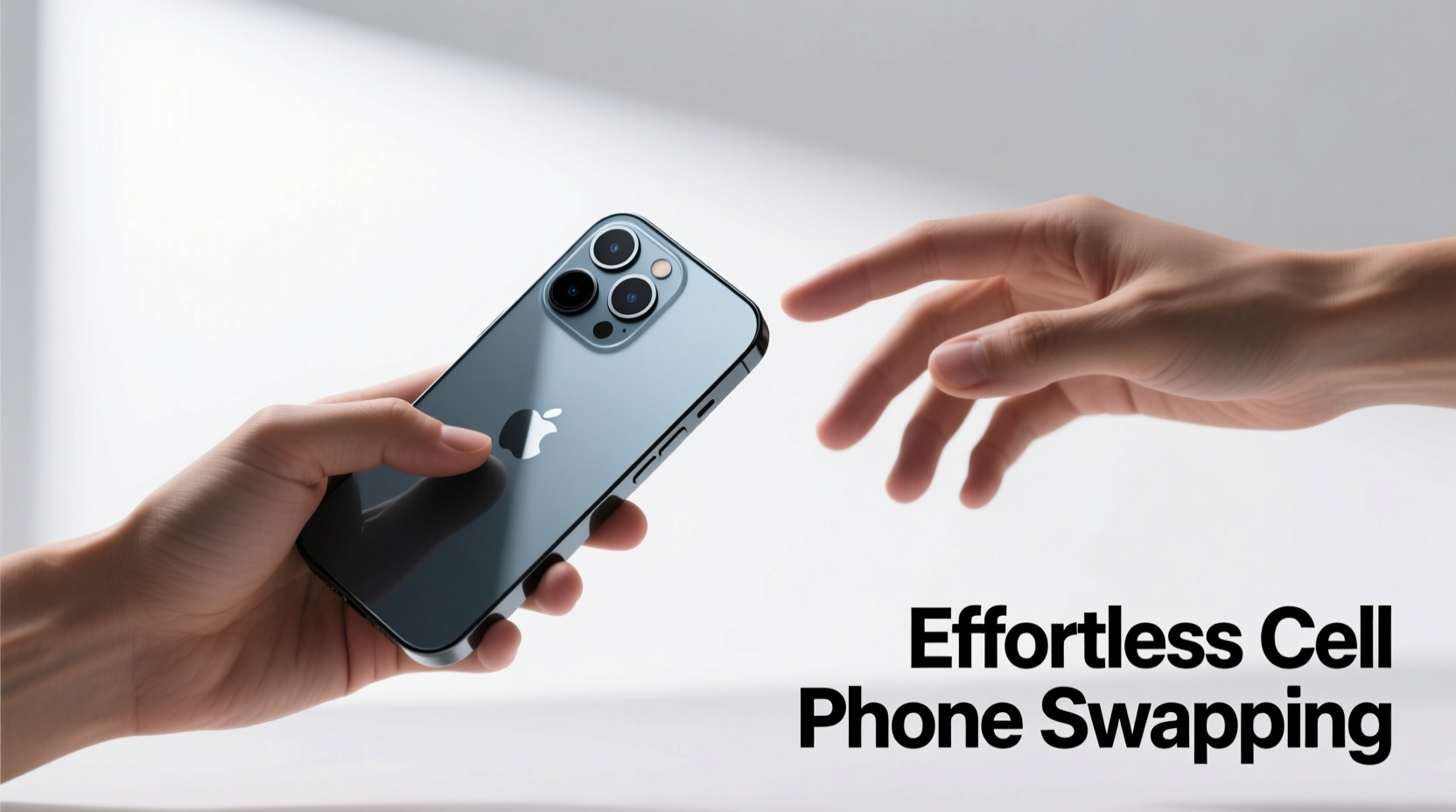
Timing matters more than most users realize. A rushed migration leads to missed data, broken app syncs, and frustration. Instead, build a realistic timeline that accounts for both technical steps and personal habits.
- 7–10 Days Before Switching: Begin backing up current device data and auditing apps.
- 3–5 Days Before: Update all apps and operating systems on both old and new devices.
- 1–2 Days Before: Perform final backup and verify cloud storage access.
- Swap Day: Activate new phone, restore data, and test core functions (calls, messages, email).
- 48 Hours After: Reinstall essential apps not auto-restored and re-authenticate two-factor logins.
Data Backup: The Foundation of Seamless Swapping
No matter how advanced your new phone is, it’s only as good as the data it inherits. A comprehensive backup ensures nothing gets left behind.
iOS Users: Use iCloud or iTunes (Finder on macOS Catalina+) to create encrypted backups. Enable “iCloud Backup” under Settings > [Your Name] > iCloud > iCloud Backup, then tap “Back Up Now.” For larger libraries, connect via USB and use Finder/iTunes for faster, full-system backups including Health data and message history.
Android Users: Google One automatically backs up app data, call history, device settings, and media if enabled. Go to Settings > Google > Backup to confirm your account and toggle on desired categories. For Samsung users, Smart Switch offers deeper integration, including SMS, call logs, and even home screen layouts.
“Over 60% of failed migrations stem from incomplete or unverified backups.” — David Lin, Senior Mobile Engineer at CloudSync Labs
What Should Be Backed Up?
- Contacts (synced to Google or Apple ID)
- Photos and videos (preferably cross-synced to cloud services)
- Messages (SMS and iMessage history where supported)
- App data (especially notes, calendars, health metrics)
- Wi-Fi passwords and browser bookmarks
- Two-factor authentication recovery codes
Transferring Between Platforms: iOS to Android (and Back)
Cross-platform transitions used to be fraught with complications. Today, tools like Google’s “Switch to Android” app (for iPhone users) and Apple’s Move to iOS (for Android users during initial iPhone setup) streamline the process significantly.
When moving from iPhone to Android:
- Download “Switch to Android” from the App Store.
- On your new Android phone, select “Copy apps & data” during setup.
- Choose “Transfer from iOS” and follow pairing instructions.
- The apps establish a direct Wi-Fi connection to migrate contacts, message history, photos, videos, and calendars.
For Android-to-iPhone moves:
- Install “Move to iOS” on your Android device.
- During iPhone setup, select “Move Data from Android.”
- Follow prompts to generate a secure code and connect both devices.
- Transfer completes over Wi-Fi; includes contacts, message history, photos, calendar events, and free apps.
| Transfer Method | Supported Data | Limitations |
|---|---|---|
| Google Move to iOS | Contacts, messages, photos, calendars, free apps | Paid apps not transferred; music requires manual upload |
| Apple Switch to Android | Contacts, messages, photos, videos, calendars | App data not migrated; no password transfer |
| Third-party Tools (e.g., Samsung Smart Switch) | Full system clone including apps, settings, home layout | Limited to specific brands; may require USB cable |
Avoid Common Migration Pitfalls
Even with proper planning, small oversights can derail the experience. Awareness of frequent issues helps prevent them.
- Assuming cloud sync is automatic: Not all apps back up data to the cloud. Check individual app settings (e.g., banking apps, note-taking tools).
- Ignoring SIM and eSIM compatibility: New phones may require different SIM sizes or carrier activation. Contact your provider ahead of time.
- Skipping two-factor re-verification: Authy or Google Authenticator seeds don’t transfer by default. Export backup codes or use multi-device support where available.
- Overlooking subscription continuity: Apple subscriptions won’t carry over to Android. Cancel or adjust before switching.
Mini Case Study: Sarah’s Cross-Platform Shift
Sarah had used iPhones for over a decade but switched to a Pixel 7 for its camera and AI features. She assumed her Google Account would handle everything. While contacts and photos synced smoothly, she lost access to her fitness app data because it stored progress locally. Additionally, her bank’s authenticator app wasn’t backed up. By keeping her old iPhone for 72 hours, she was able to export critical data manually and re-scan QR codes. Her lesson? Platform independence doesn’t mean universal compatibility—verify each service individually.
Post-Swap Optimization Checklist
Restoring data is just the beginning. True seamlessness comes from fine-tuning your new device for performance and security.
- ✅ Verify all critical data has transferred (photos, messages, contacts).
- ✅ Re-enable biometric locks (Face ID, fingerprint) and set strong passcodes.
- ✅ Install essential apps not auto-restored (password managers, productivity tools).
- ✅ Set up cloud sync across devices (Google Drive, iCloud, Dropbox).
- ✅ Transfer payment methods (Apple Pay, Google Wallet).
- ✅ Review privacy permissions and disable unnecessary app tracking.
- ✅ Factory reset old device and remove it from your account (Find My iPhone / Find My Device).
Frequently Asked Questions
Can I use both phones simultaneously during the transition?
Yes—and it’s highly recommended. Keeping your old phone active for 48–72 hours allows you to verify data integrity, retrieve forgotten files, and manage two-factor logins without disruption.
Will my WhatsApp chats transfer to the new phone?
Yes, if you use the official WhatsApp transfer tool. On Android, back up to Google Drive; on iOS, use iCloud. During setup on the new device, restore from the same backup. Ensure both phones use the same phone number and internet connection.
What happens to my old phone after the swap?
You have several options: repurpose it as a dedicated music or GPS device, gift it to a family member, sell it (after wiping), or recycle responsibly through manufacturer programs like Apple Trade In or Google Renewed.
Final Thoughts: Make Every Upgrade Effortless
Smartphone transitions don’t need to be stressful. With systematic preparation, reliance on trusted tools, and attention to detail, moving to a new device becomes less about data recovery and more about embracing fresh capabilities. The goal isn’t just to copy data—it’s to carry forward your digital life with confidence and clarity.
Every new phone represents an opportunity: to declutter unused apps, tighten privacy settings, and refine your digital habits. Treat the swap not as a technical task, but as a ritual of renewal.




 浙公网安备
33010002000092号
浙公网安备
33010002000092号 浙B2-20120091-4
Comments
No comments yet. Why don't you start the discussion?