
Nothing is more frustrating than clicking \"Send\" on an important email, only to see it linger indefinitely in your Outbox. Whether you're using Outlook, Apple Mail, Gmail with a desktop client, or another email platform, a message trapped in the Outbox can disrupt communication, delay decisions, and create confusion. The good news: this issue is usually fixable. Understanding the root causes—ranging from connectivity problems to oversized attachments—can help you resolve it quickly and prevent future occurrences.
Why Emails Get Stuck in the Outbox
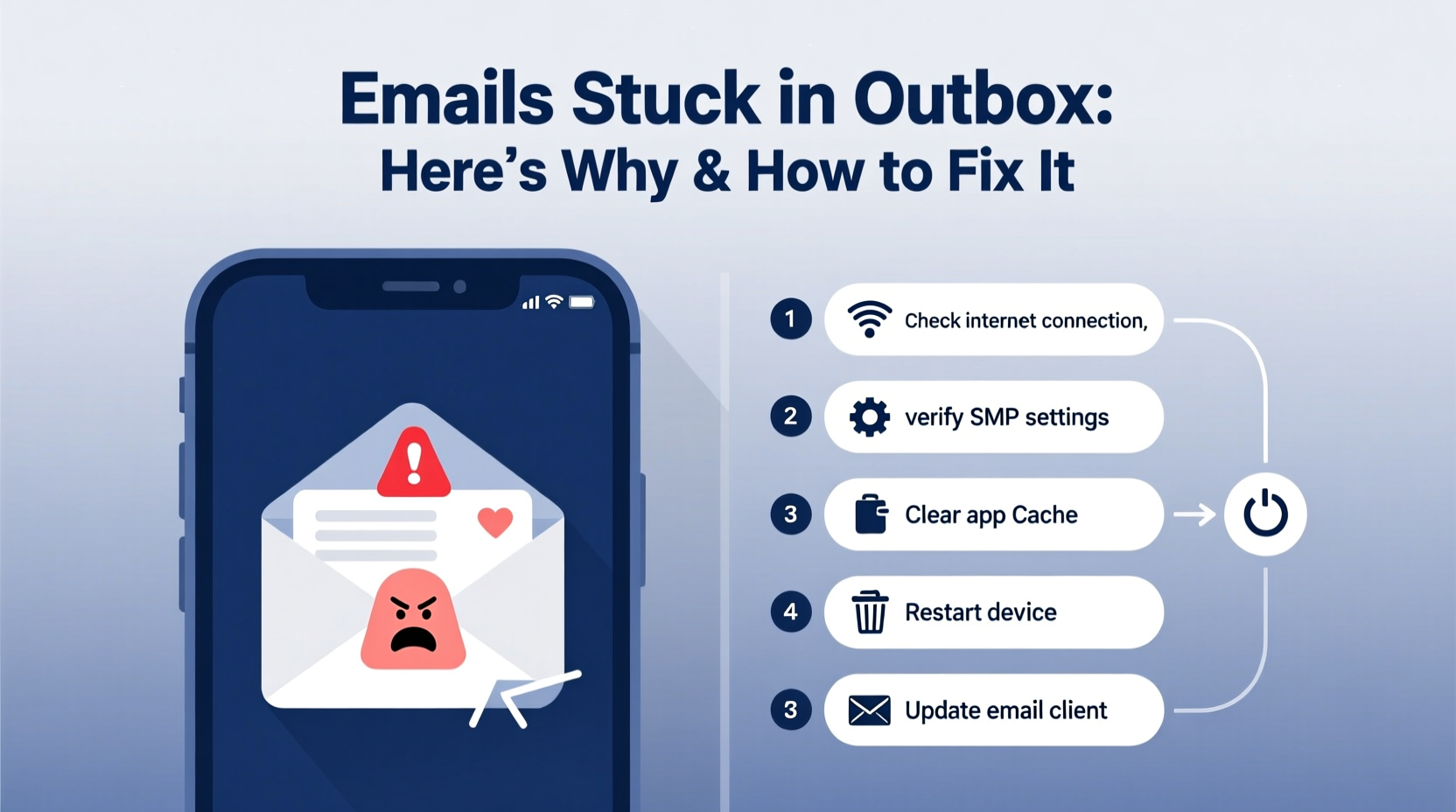
The Outbox is a temporary holding area for outgoing emails that haven’t yet been sent. When your email client fails to communicate with the outgoing mail server (SMTP), the message remains stranded. This doesn’t mean the email is lost—it’s just waiting for the right conditions to be transmitted.
Common underlying reasons include:
- Internet connectivity issues: Without a stable connection, your device can't reach the SMTP server.
- Incorrect SMTP settings: Misconfigured port numbers, encryption types, or authentication credentials block transmission.
- Large attachments: Files exceeding size limits may fail to upload, freezing the send process.
- Server downtime: Your email provider’s outgoing server might be temporarily unavailable.
- Full inbox or account quota: Some systems restrict sending when storage limits are reached.
- Email client bugs: Software glitches in Outlook, Thunderbird, or Apple Mail can interrupt normal operations.
“An email stuck in the Outbox is rarely a data loss issue—it's almost always a delivery handshake failure between client and server.” — Raj Patel, Network Infrastructure Engineer
Step-by-Step Guide to Fix Stuck Emails
Follow this structured troubleshooting sequence to identify and resolve the problem efficiently.
- Check your internet connection. Try loading a website or pinging a server. If offline, reconnect and retry sending.
- Restart your email client. Close and reopen the application. This often clears temporary freezes.
- Verify SMTP settings. Confirm the correct outgoing server address, port (typically 587 for TLS), and authentication method.
- Remove or compress large attachments. Reduce file sizes below 10–20 MB or use cloud sharing links instead.
- Test with a new, simple message. Send a blank email with no attachments to isolate the issue.
- Check your email provider’s status page. Look for service alerts affecting SMTP servers.
- Update or repair your email client. Install updates or run built-in repair tools (e.g., Outlook’s Inbox Repair Tool).
Common Fixes by Email Client
Different platforms handle sending differently. Here’s how to troubleshoot the most widely used ones.
Outlook (Desktop)
If emails remain in the Outbox, first ensure you’re not in “Work Offline” mode. Go to Send/Receive > Work Offline and toggle it off. Then, manually force a send/receive cycle by pressing F9.
If the issue persists:
- Navigate to File > Account Settings > Repair your account.
- Disable cached mode temporarily under account settings to rule out sync issues.
- Run the Microsoft Support and Recovery Assistant (SaRA) tool for automated diagnosis.
Apple Mail (macOS)
Apple Mail often stalls due to corrupted preferences or certificate errors. Try these steps:
- Quit Mail and relaunch while holding the Option key to rebuild the mailbox.
- Go to Mail > Preferences > Accounts and verify SMTP settings match your provider’s requirements.
- Delete and re-add the problematic account if settings appear correct but still fail.
Gmail via IMAP (e.g., Thunderbird, Mobile Apps)
Ensure “Less Secure App Access” is enabled (if applicable) or, preferably, use App Passwords with two-factor authentication. Also, confirm that IMAP is turned on in Gmail settings under Forwarding and POP/IMAP.
| Client | Quick Fix | Advanced Step |
|---|---|---|
| Outlook | Press F9 to force send/receive | Repair account via Account Settings |
| Apple Mail | Rebuild mailbox (Option + launch) | Reset SMTP password in Keychain Access |
| Thunderbird | Check Outbox folder manually | Reconfigure SMTP server settings |
Tips to Prevent Future Outbox Issues
Proactive habits reduce the risk of recurring problems. Incorporate these best practices into your routine.
- Monitor attachment sizes: Compress files or use services like Google Drive or WeTransfer for large documents.
- Keep software updated: Regularly update your OS, email client, and security certificates.
- Use strong, stable Wi-Fi: Avoid sending critical emails over public or weak networks.
- Enable two-factor authentication safely: Use app-specific passwords when connecting third-party clients to secure accounts.
- Review server settings annually: Providers occasionally change ports or protocols without broad notice.
Real Example: A Small Business Owner’s Email Crisis
Sarah runs a boutique marketing agency and relies heavily on Outlook for client communication. One Monday morning, she sent three project proposals—all remained in her Outbox for hours. Panicked, she called her IT consultant.
The diagnosis? Her office router had dropped its connection overnight, but her laptop showed Wi-Fi as active. The machine thought it was online, but data wasn’t routing properly. After rebooting the router and restarting Outlook, all three emails sent instantly. Sarah now schedules weekly router restarts and uses a network monitoring tool to detect silent outages.
This case highlights how subtle connectivity issues can mimic deeper technical failures—and why checking the basics first saves time.
FAQ
Can I recover an email stuck in the Outbox?
Yes. Emails in the Outbox are saved locally until sent. You can open, edit, or forward them manually. If the client crashes, look for autosave drafts in the Drafts folder or temporary files directory.
How long should an email stay in the Outbox?
Typically, only a few seconds. If a message remains longer than 5–10 minutes without sending, assume there’s an issue and begin troubleshooting.
Does deleting a stuck email remove it permanently?
No. Deleting it removes the unsent message from your Outbox. It hasn’t been transmitted, so no copy exists on the recipient’s end. However, consider saving the draft first if you might need it later.
Conclusion: Take Control of Your Email Flow
Emails stuck in the Outbox are a common but solvable problem. By understanding the technical factors—from incorrect SMTP settings to oversized attachments—you gain the power to fix issues swiftly and avoid future disruptions. Don’t wait for critical messages to fail before reviewing your setup. Proactively verify your configurations, maintain your software, and adopt smart sending habits.




 浙公网安备
33010002000092号
浙公网安备
33010002000092号 浙B2-20120091-4
Comments
No comments yet. Why don't you start the discussion?