
It defies logic: you plug in an Ethernet cable expecting a faster, more reliable connection, only to find your speeds are worse than when using Wi-Fi. Yet this scenario is more common than many realize. While Ethernet typically offers superior stability and bandwidth over wireless signals, real-world conditions can reverse that advantage. From outdated hardware to misconfigured settings, multiple factors can degrade wired performance. Understanding these causes—and knowing how to address them—is essential for anyone relying on consistent internet quality for work, streaming, or gaming.
Why Ethernet Should Be Faster Than Wi-Fi
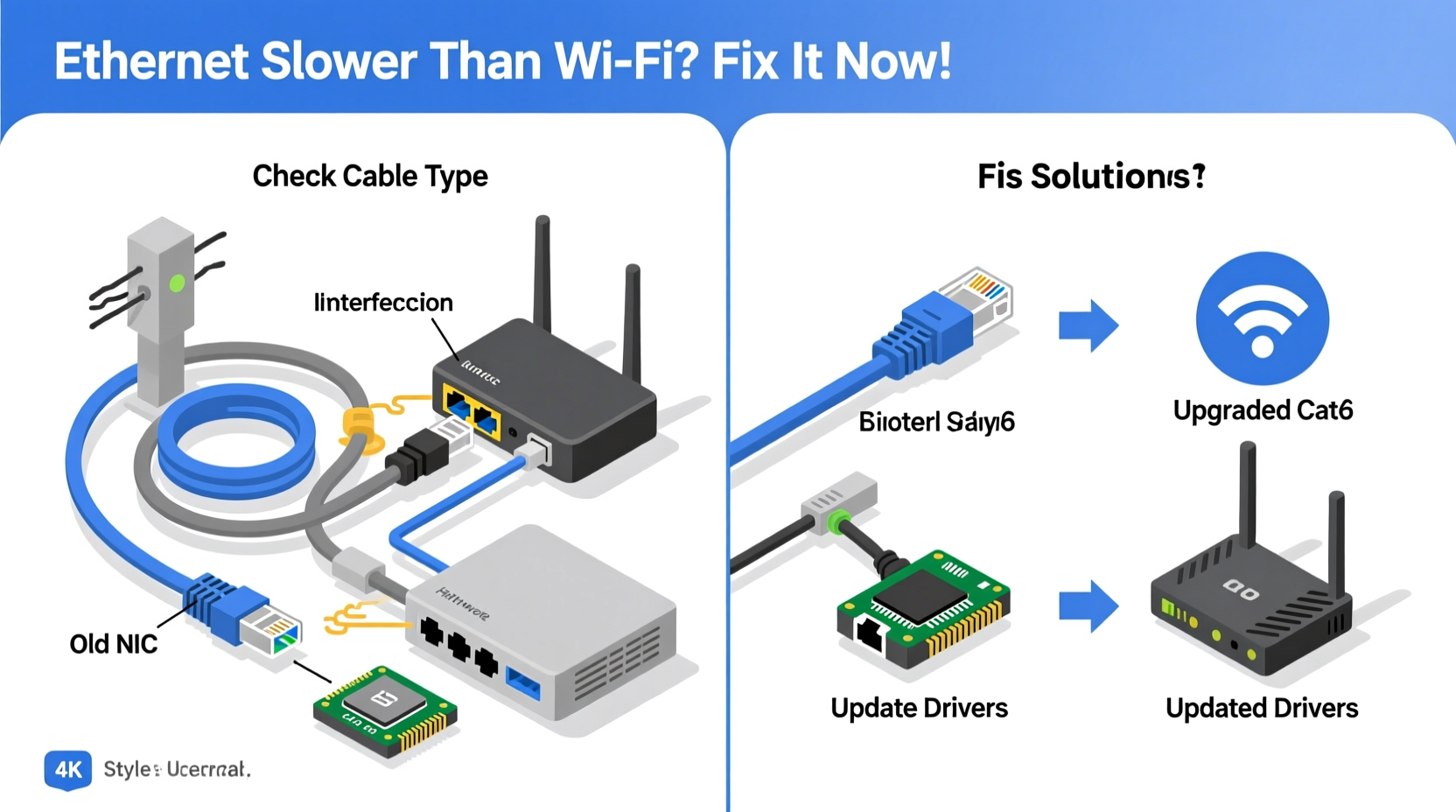
Ethernet has long been the gold standard for network reliability. It provides a direct, dedicated connection between your device and router, eliminating interference, signal degradation, and congestion that often plague Wi-Fi networks. In ideal conditions, Ethernet delivers lower latency, higher throughput, and consistent speeds—especially important for bandwidth-heavy tasks like video conferencing, large file transfers, or online gaming.
However, if your wired speeds are consistently underperforming compared to wireless, something is interfering with that expected advantage. Identifying the root cause requires investigating both hardware and software components of your network setup.
Common Reasons Ethernet Is Slower Than Wi-Fi
The assumption that \"wired equals fast\" doesn’t always hold true. Several technical issues can degrade Ethernet performance below Wi-Fi levels:
- Outdated or damaged Ethernet cables: Older Cat5 or poorly shielded cables may not support modern gigabit speeds.
- Network interface card (NIC) limitations: Some laptops and desktops have NICs limited to 100 Mbps instead of 1 Gbps.
- Duplex mode mismatches: When a device and router operate in different duplex modes (half vs. full), data collisions occur, reducing effective speed.
- Router port issues: The specific LAN port used might be malfunctioning or operating at reduced capacity.
- Background processes and QoS settings: Automatic updates, cloud backups, or Quality of Service rules may throttle wired connections unexpectedly.
- Driver or firmware problems: Outdated network drivers or router firmware can impair communication efficiency.
- Cable length and interference: Long Ethernet runs near power lines or fluorescent lighting can introduce electrical noise.
“Many users assume Ethernet is inherently faster, but without proper cabling and configuration, they’re essentially using a high-speed lane with a traffic jam built in.” — David Lin, Network Infrastructure Engineer
Step-by-Step Guide to Diagnose and Fix Slow Ethernet
Follow this structured approach to isolate and resolve the underlying issue causing subpar wired speeds.
- Run a baseline speed test on Wi-Fi: Use a trusted service like Speedtest.net to record download, upload, and ping values over your wireless connection.
- Test Ethernet on the same device: Disconnect from Wi-Fi, connect via Ethernet, and rerun the test under identical conditions.
- Check link speed negotiation: On Windows, go to Device Manager > Network Adapters > Properties > Advanced tab, and look for “Speed & Duplex.” Ensure it’s set to “Auto” or manually configured to 1.0 Gbps Full Duplex.
- Swap Ethernet cables: Replace the current cable with a known-good Cat6 or Cat6a cable shorter than 100 meters.
- Try a different LAN port: Plug into another port on your router or switch to rule out faulty hardware.
- Update network drivers: Visit your device manufacturer’s website to install the latest NIC drivers.
- Reboot modem and router: Power cycle networking equipment to clear temporary glitches.
- Test with another device: Connect a second computer or laptop via Ethernet to determine if the issue is device-specific.
- Inspect router settings: Log into your router’s admin panel and check for bandwidth limiting rules, MAC filtering, or port-based restrictions.
- Disable energy-efficient Ethernet (EEE): This feature can reduce power consumption but sometimes causes speed drops; disable it in adapter settings if present.
Hardware Comparison: What You're Likely Using vs. What You Need
| Component | Common Issue | Ideal Standard | Solution |
|---|---|---|---|
| Ethernet Cable | Cat5e or older, frayed ends | Cat6 or Cat6a, shielded | Replace with certified high-speed cable |
| Network Adapter | Limited to 100 Mbps | Gigabit (1000 Mbps) capable | Upgrade internal/USB NIC |
| Router Port | Non-gigabit or damaged | Gigabit Ethernet port | Use verified functional port or upgrade router |
| Driver/Firmware | Outdated or buggy | Latest version installed | Update through manufacturer support site |
Real-World Example: Home Office Setup Troubleshooting
A freelance graphic designer in Austin experienced frequent lag during client Zoom calls—even after switching from Wi-Fi to Ethernet. Her internet plan promised 300 Mbps, yet speed tests showed only 85 Mbps over cable, while Wi-Fi delivered 270 Mbps. After ruling out ISP issues, she discovered her five-year-old laptop was negotiating at 100 Mbps due to a driver glitch. Updating the Realtek PCIe GBE Family Controller driver restored full gigabit capability, bringing wired speeds up to 310 Mbps—faster than Wi-Fi and stable enough for 4K screen sharing.
This case highlights how a single outdated component can bottleneck an entire connection, even when all other elements appear functional.
Troubleshooting Checklist
Use this checklist to systematically eliminate potential causes:
- ✅ Perform speed tests on both Wi-Fi and Ethernet
- ✅ Confirm Ethernet cable is Cat6 or better
- ✅ Verify network adapter supports gigabit speeds
- ✅ Check link speed in OS network settings
- ✅ Try different router LAN ports
- ✅ Update NIC drivers and router firmware
- ✅ Disable energy-saving features on NIC
- ✅ Eliminate background bandwidth usage
- ✅ Test with a secondary device
- ✅ Reset router to factory settings if necessary
Frequently Asked Questions
Can a bad Ethernet cable make my connection slower than Wi-Fi?
Yes. Damaged, poorly terminated, or outdated cables (like Cat5) may only support 100 Mbps, which is often slower than modern dual-band Wi-Fi. Upgrading to a certified Cat6 or Cat6a cable resolves most such issues.
Why does my Ethernet show 100 Mbps instead of 1 Gbps?
This usually indicates a mismatch in speed negotiation. Causes include old cables, non-gigabit router ports, or incorrect NIC settings. Check each component in the chain—from cable to port to driver—to ensure gigabit compatibility.
Is it possible for Wi-Fi 6 to be faster than Ethernet?
In rare cases, yes. If Ethernet is constrained by hardware limitations (e.g., 100 Mbps NIC), a nearby Wi-Fi 6 access point with strong signal and low interference can deliver higher throughput. However, Ethernet remains more stable and less prone to fluctuation.
Conclusion: Reclaim Your Wired Advantage
Ethernet should be your fastest, most dependable internet option—not an afterthought. When it underperforms Wi-Fi, the culprit is rarely the technology itself, but rather overlooked details in cabling, configuration, or hardware compatibility. By methodically testing each element of your setup, you can identify bottlenecks and restore the performance you paid for. Don’t accept slow wired speeds as normal. With the right tools and knowledge, you can achieve the stable, high-speed connection that Ethernet was designed to deliver.




 浙公网安备
33010002000092号
浙公网安备
33010002000092号 浙B2-20120091-4
Comments
No comments yet. Why don't you start the discussion?