
When shopping for a new mouse, many casual computer users find themselves drawn to the sleek designs and bold specs of gaming mice. With features like 16,000 DPI, RGB lighting, and programmable buttons, they look more advanced than the standard plug-and-play models that come with most laptops. But does that extra performance translate into real benefits for someone who isn’t playing competitive shooters or editing high-resolution video? More specifically, does mouse sensitivity—often measured in DPI (dots per inch)—actually matter for everyday browsing, email, and office tasks?
The short answer is: usually not. But the full picture is more nuanced. Understanding how sensitivity works, what it affects, and when it becomes relevant can help casual users make smarter decisions without overspending on unnecessary features.
Understanding Mouse Sensitivity (DPI) and Its Real-World Impact
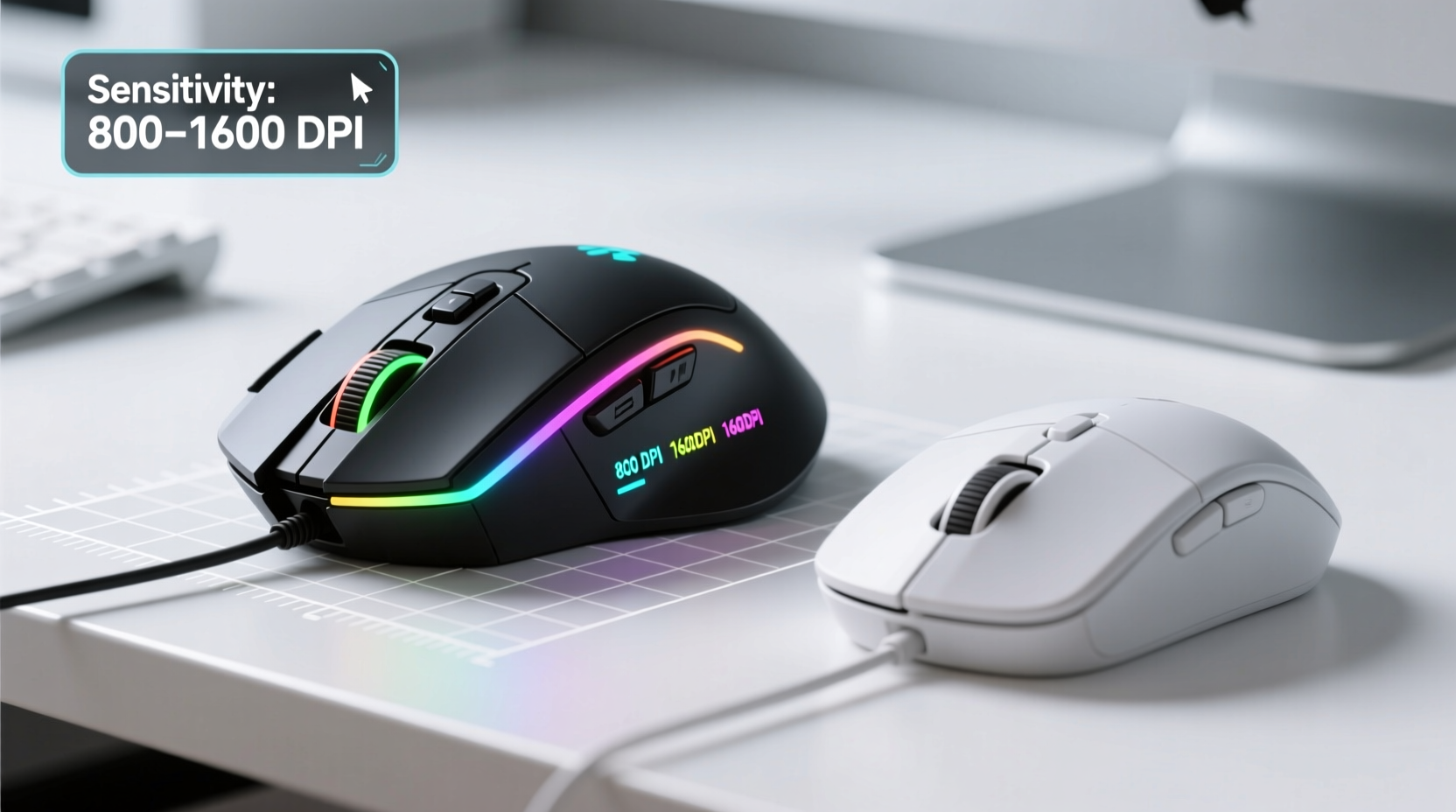
DPI stands for \"dots per inch,\" and it measures how far your cursor moves on-screen relative to the physical distance you move the mouse. A higher DPI means less physical movement is needed to cover the same screen distance. For example, at 800 DPI, moving your mouse one inch might move the cursor 800 pixels across the screen. At 3200 DPI, the same one-inch motion would move it 3200 pixels—four times farther.
This sounds powerful, but context matters. Most operating systems and monitors are optimized for a range between 800 and 1600 DPI. Windows, for instance, defaults to 96 DPI for display scaling, which aligns well with typical mouse sensitivities. macOS uses a similar baseline. This means that even if your mouse supports 12,000 DPI, the practical benefit depends on how you use your computer.
For casual users—those primarily engaged in web browsing, document editing, streaming videos, or light photo management—high DPI settings often lead to overly sensitive tracking. The cursor may feel jittery or hard to control precisely, especially on high-resolution displays where excessive sensitivity can cause overshooting targets like small buttons or hyperlinks.
Gaming Mice vs Regular Mice: Key Differences
While both types serve the same basic function—moving a cursor and clicking—they differ significantly in design, hardware, and intended use. Here’s a breakdown of the core distinctions:
| Feature | Gaming Mouse | Regular Mouse |
|---|---|---|
| Sensor Quality | High-precision optical/laser sensors with adjustable DPI (up to 25,600+) | Basic optical sensor, fixed DPI (typically 800–1200) |
| Build Materials | Durable plastics, metal reinforcements, ergonomic shapes for long sessions | Lightweight plastic, minimalist design |
| Button Count | 6–12+ programmable buttons | 2–3 buttons (left, right, scroll wheel) |
| Polling Rate | Up to 1000Hz (1ms response time) | 125Hz (8ms response time) |
| Software Support | Custom profiles, macros, RGB lighting control | Limited or no software required |
| Price Range | $40–$150+ | $10–$30 |
| Use Case | FPS games, CAD, video editing, multitasking | General computing, office work, light home use |
The engineering behind gaming mice prioritizes responsiveness, accuracy, and customization. These traits are essential in fast-paced games where split-second movements determine success. However, for opening PDFs or scrolling through social media, such precision offers diminishing returns.
Do Casual Users Benefit from High Sensitivity?
For most non-gamers, high DPI doesn't improve the experience—it can actually degrade it. Consider a user working on a 1080p monitor. At 3200 DPI, a small hand twitch could send the cursor flying across the screen. This makes fine control difficult, especially when selecting text or resizing windows.
Conversely, too low a DPI requires large arm movements to traverse the screen, which can be tiring over time. The sweet spot for comfort and control typically lies between 800 and 1600 DPI for standard desktop setups.
Some modern gaming mice allow on-the-fly DPI switching, letting users toggle between sensitivity levels. While useful for professionals switching between graphic design and spreadsheet navigation, this feature is rarely leveraged by casual users. Without deliberate intent, these options go unused—or worse, accidentally activated during normal use.
“Most people don’t need more than 1200 DPI for daily tasks. Higher sensitivity is only beneficial if you have limited desk space or use ultra-high-resolution monitors.” — David Lin, Peripheral Hardware Analyst at TechInsight Weekly
A Real-World Example: Sarah’s Office Upgrade
Sarah, a freelance writer and part-time online course creator, replaced her aging wireless mouse with a flashy RGB gaming model boasting 16,000 DPI. Excited by the promise of “ultra-fast response,” she unboxed it expecting a productivity boost.
Within hours, she noticed problems. Her cursor skipped past menu items, double-clicks registered as drags, and highlighting text became frustrating. After adjusting the DPI down to 1200 through the manufacturer’s software, the issues resolved. She later realized the extra buttons were collecting dust—she never assigned them functions—and the heavy build caused wrist fatigue after long typing sessions.
Sarah eventually switched back to a lightweight ergonomic mouse under $25. Her workflow improved not because of raw specs, but due to better fit and stability.
When Might a Gaming Mouse Make Sense for a Casual User?
Despite the general mismatch, there are legitimate scenarios where a gaming mouse adds value—even outside gaming:
- Multi-monitor setups: Navigating across three or four screens benefits from higher DPI, reducing the need for constant repositioning.
- High-resolution displays: On 4K or ultrawide monitors, default DPI settings may feel sluggish. A higher sensitivity helps maintain fluid movement.
- Content creation: Users editing photos or videos in apps like Photoshop or Premiere Pro may appreciate pixel-level precision and shortcut buttons for tools.
- Ergonomic needs: Some gaming mice offer superior palm support and customizable weights, which can aid users with repetitive strain concerns.
In these cases, it's not the sensitivity alone that justifies the upgrade—it's the combination of build quality, customization, and long-term comfort.
Step-by-Step: Choosing the Right Mouse for Your Needs
Follow this decision framework to avoid overspending while ensuring functionality:
- Assess your primary tasks: Are you mostly browsing, typing, or using creative software?
- Evaluate your setup: What’s your monitor resolution and number of screens?
- Test sensitivity preferences: Try adjusting your current mouse’s pointer speed. Do you max it out or keep it low?
- Consider ergonomics: Do you experience discomfort after prolonged use? Look for shape and weight that suit your grip style.
- Determine budget: Spending $80 on a mouse for occasional use may not yield proportional returns.
- Check compatibility: Ensure drivers work with your OS (especially important for Mac or Linux users).
- Try before you buy: Visit a store or borrow a friend’s mouse to test feel and responsiveness.
FAQ: Common Questions About Mouse Sensitivity and Usage
Is a higher DPI always better?
No. Higher DPI increases cursor speed but reduces precision. For most desktop tasks, extremely high DPI makes control harder, not easier. The ideal DPI depends on your screen size, resolution, and personal preference.
Can I use a gaming mouse for office work?
Yes, but consider whether the added features are necessary. Heavy weight, aggressive styling, and extra buttons may not enhance—and could hinder—your workflow. Look for models designed for hybrid use if you want durability without excess bulk.
Does sensitivity affect battery life?
Indirectly. Gaming mice with high polling rates (e.g., 1000Hz) and RGB lighting consume more power. Even wireless office mice with moderate DPI can last months on a single charge, while gaming counterparts may need weekly charging.
Final Checklist: Is a Gaming Mouse Right for You?
Before upgrading, ask yourself the following:
- ✅ Do I regularly use multiple monitors or a 4K+ display?
- ✅ Do I edit images, videos, or do CAD work occasionally?
- ✅ Am I dissatisfied with my current mouse’s responsiveness or comfort?
- ✅ Do I value programmable buttons for shortcuts (e.g., copy/paste, browser tabs)?
- ✅ Am I willing to install and manage driver software?
- ❌ Do I mostly browse, type, or watch videos?
- ❌ Do I prefer simple, lightweight devices?
- ❌ Is my desk space very limited?
If most of your answers lean toward the first five checkboxes, a mid-tier gaming or productivity-focused mouse could be worthwhile. If the last three resonate more, a standard or ergonomic office mouse will likely serve you better.
Conclusion: Prioritize Fit Over Features
The allure of gaming mice is understandable—they represent peak performance in peripheral design. But for casual users, raw specs like ultra-high DPI often mask deeper mismatches in usability, comfort, and cost-effectiveness. Sensitivity matters only when it aligns with actual usage patterns. For everyday computing, smooth tracking, consistent clicks, and a comfortable grip matter far more than how fast the cursor can fly across the screen.
Rather than chasing technical benchmarks, focus on what enhances your real-world experience. Whether it’s a $15 basic mouse or a $100 flagship model, the best choice is the one that disappears into your workflow—reliable, intuitive, and unnoticed. Evaluate your habits honestly, test options when possible, and resist marketing hype. In the end, the right mouse isn’t the fastest—it’s the one that feels like an extension of your hand.




 浙公网安备
33010002000092号
浙公网安备
33010002000092号 浙B2-20120091-4
Comments
No comments yet. Why don't you start the discussion?