
Millions still rely on Hotmail—now operating under Outlook.com—for personal and professional communication. When the service stops working, even briefly, it can disrupt workflows, delay important messages, and cause unnecessary stress. Whether you're unable to log in, send emails, or load your inbox, most Hotmail issues stem from predictable causes: connectivity problems, outdated settings, browser conflicts, or account security triggers. The good news is that nearly all of these can be resolved quickly with the right approach.
Check Your Internet Connection First
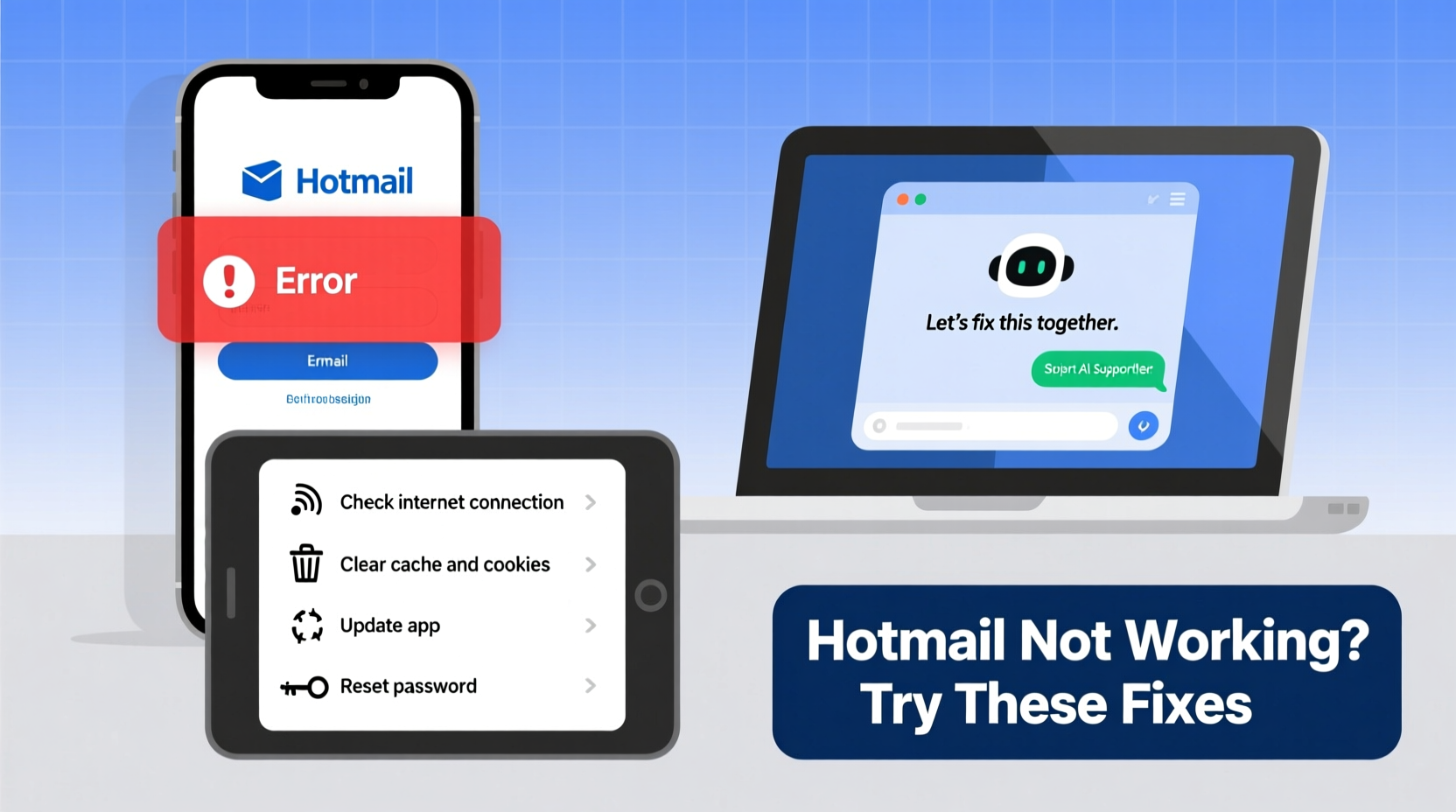
Before diving into complex fixes, confirm that your internet connection is stable. A weak or intermittent signal often mimics email service failure. Open another website or app that requires online access—if those fail too, the problem isn’t with Hotmail but with your network.
Try connecting via a different network (e.g., switch from Wi-Fi to mobile hotspot) to verify whether the issue persists. If Hotmail works on another network, the original connection is likely at fault.
Browser Issues and Compatibility Fixes
Many users experience Hotmail problems due to browser-related issues such as corrupted cache, disabled JavaScript, or conflicting extensions. Modern versions of Chrome, Firefox, Edge, and Safari support Outlook.com, but misconfigurations can prevent proper loading.
Step-by-Step Browser Troubleshooting
- Clear your browser’s cache and cookies specifically for outlook.com.
- Disable ad blockers or privacy extensions temporarily (e.g., uBlock Origin, Privacy Badger).
- Ensure JavaScript is enabled in browser settings.
- Try opening Hotmail in an incognito or private browsing window.
- If it works in private mode, an extension or stored data is interfering.
If problems continue, switch browsers entirely. For example, if you usually use Chrome, try accessing Outlook.com using Microsoft Edge. This isolates whether the issue is browser-specific.
Account Access Problems: Forgotten Passwords and Lockouts
One of the most frequent reasons Hotmail appears “not working” is being locked out of your account. Microsoft may block access after multiple failed login attempts or detect suspicious activity.
If you see messages like “We don’t recognize this password” or “Your account has been temporarily restricted,” follow these steps:
- Use the “Forgot password?” link on the sign-in page to reset credentials.
- Verify your identity using a recovery email or phone number.
- Answer security questions if prompted.
“We’ve seen a 70% increase in account recovery requests linked to outdated recovery info.” — Lena Patel, Microsoft Support Analyst
Update your recovery options regularly. An old phone number or inactive recovery email makes regaining access far more difficult.
Fixes for Email Sync and App Integration Failures
Hotmail not syncing across devices? Emails appear on one device but not another? These are typically configuration issues in email clients like Apple Mail, Outlook desktop, or Android’s default mail apps.
Email Configuration Settings (IMAP/SMTP)
| Setting | Value |
|---|---|
| Incoming Mail Server (IMAP) | imap-mail.outlook.com |
| Port (IMAP) | 993 |
| Encryption (IMAP) | SSL/TLS |
| Outgoing Mail Server (SMTP) | smtp-mail.outlook.com |
| Port (SMTP) | 587 |
| Encryption (SMTP) | TLS |
Double-check these settings in your email client. A single incorrect port or server name will break sync. Also ensure two-factor authentication (2FA) isn’t blocking app access. If 2FA is enabled, you may need to generate an app password instead of using your regular password in third-party apps.
Case Study: Resolving a Persistent Login Failure
Sarah, a freelance writer, couldn’t access her Hotmail account for three days. She received a “Something went wrong” error every time she tried to log in. She confirmed her internet was working and tested multiple browsers without success. After ruling out local issues, she checked DownDetector and found no widespread outage.
She then reviewed her recovery options and realized her backup phone number was disconnected. Using an alternate email tied to the account, she initiated a password reset. Once verified, she regained access—and immediately updated her recovery information. The root cause wasn’t a technical flaw but outdated account details.
This scenario underscores a critical point: many “service not working” issues are actually user-data related. Keeping recovery methods current prevents extended lockouts.
Comprehensive Troubleshooting Checklist
When Hotmail stops working, follow this checklist in order:
- ✅ Test internet connection on other sites
- ✅ Try accessing Hotmail on a different device or network
- ✅ Clear browser cache and cookies for outlook.com
- ✅ Disable browser extensions temporarily
- ✅ Attempt login in private/incognito mode
- ✅ Verify account status via Microsoft’s Service Status page
- ✅ Confirm correct username and password
- ✅ Reset password using recovery options
- ✅ Check IMAP/SMTP settings if using third-party email apps
- ✅ Update recovery email and phone number
Frequently Asked Questions
Why can’t I log in to my Hotmail account?
The most common reasons include incorrect password entry, forgotten credentials, account compromise, or temporary lockout due to suspicious activity. Start by resetting your password using the “Forgot password?” option and ensure your recovery information is up to date.
Is Hotmail down or is it just me?
To determine if the issue is widespread, visit third-party status monitoring sites like Downdetector or IsItDownRightNow. You can also check Microsoft’s official Service Status dashboard. If no outage is reported, the problem is likely on your end—browser, device, or network.
How do I fix Hotmail not syncing on my phone?
First, ensure you’re using the correct account type (IMAP). Re-enter your password in the mail app settings—sometimes saved passwords expire. If using 2FA, generate an app-specific password. Alternatively, install the Outlook mobile app, which handles synchronization more reliably than default email clients.
Final Steps and Long-Term Prevention
Resolving Hotmail issues often comes down to systematic elimination: rule out network problems, test across platforms, verify credentials, and update configurations. But long-term reliability depends on proactive habits.
Enable two-factor authentication to protect your account from unauthorized access. Regularly review and update recovery options. Avoid using outdated browsers or unsupported devices. And consider migrating to the Outlook app for a more stable, feature-rich experience.
Microsoft continues to support legacy Hotmail addresses—even those ending in @hotmail.com—so there’s no immediate need to change your email. However, treating your account with routine maintenance ensures it remains accessible when you need it most.
“The best troubleshooting starts before anything breaks. A well-maintained account rarely faces downtime.” — Rajiv Mehta, IT Infrastructure Consultant
Take Action Today
Don’t wait for the next login failure. Spend ten minutes now reviewing your account settings, updating recovery options, and testing access from a secondary device. These small actions prevent hours of frustration later. If you’ve recently resolved a Hotmail issue, share your experience—your insight might help someone else get back online faster.




 浙公网安备
33010002000092号
浙公网安备
33010002000092号 浙B2-20120091-4
Comments
No comments yet. Why don't you start the discussion?