
In an age where our phones store everything from personal memories to sensitive financial data, losing access to that information can be devastating. Accidents happen—devices break, get lost, or fail unexpectedly. That’s why backing up your phone to a computer isn’t just smart; it’s essential. Unlike cloud backups, which may have storage limits or depend on internet reliability, a local backup on your computer gives you full control over your data. This guide walks you through the complete process of backing up both iPhone and Android devices to a computer, ensuring no photo, message, or app setting is left behind.
Why Back Up Your Phone Locally?
While cloud services like iCloud and Google Drive offer convenient automatic backups, they come with limitations. Free tiers often cap storage at 5GB (iCloud) or rely on available Google account space, forcing users to pay for more. More importantly, cloud backups may not include all data types—such as certain app data or locally stored media—and require a stable internet connection to restore.
Backing up directly to a computer eliminates these issues. You retain full copies of your photos, videos, messages, contacts, call logs, and even application data in many cases. Plus, retrieval is faster since files are stored locally. Whether you're preparing for a device upgrade, troubleshooting system errors, or simply practicing digital hygiene, a complete computer-based backup is one of the most reliable safety nets available.
“Local backups provide the highest fidelity recovery option. When restoring after hardware failure, having a full image of your device on a trusted machine is invaluable.” — David Lin, Senior Data Recovery Specialist at TechShield Labs
Step-by-Step Guide: Backing Up an iPhone to a Computer
iOS devices use Apple’s Finder (on macOS Catalina and later) or iTunes (on older macOS and Windows) to create encrypted, comprehensive backups. These backups include settings, messages, health data, app data, and media not purchased through Apple.
What You’ll Need:
- iPhone with charging cable (preferably original)
- Computer running macOS Catalina or later, or Windows 10/11 with iTunes installed
- Sufficient free storage (at least 2x your current phone usage)
- Apple ID and password (for verification)
Steps to Back Up iPhone via Finder (macOS Catalina+):
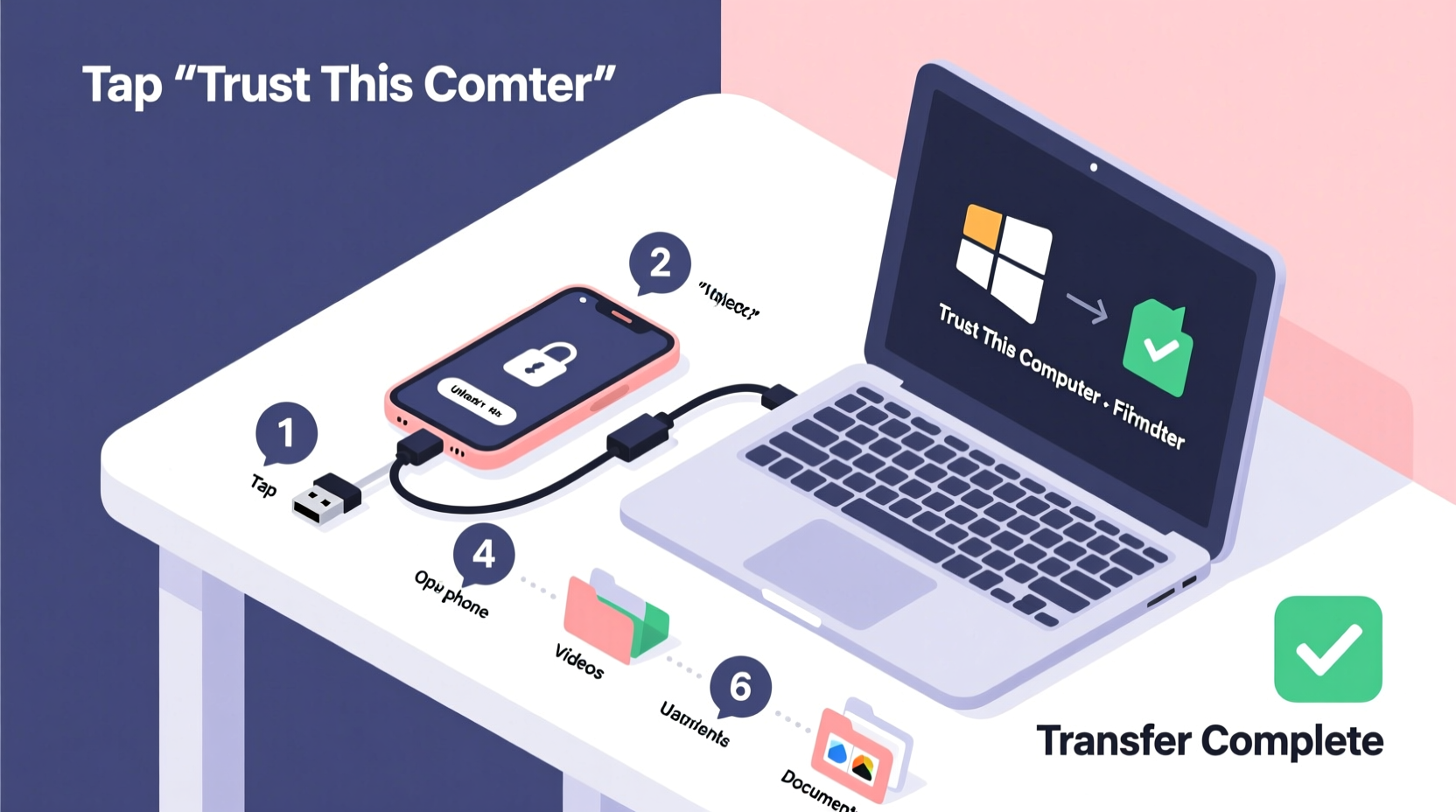
- Unlock your iPhone and connect it to your Mac using the USB cable.
- Open Finder. In the sidebar under “Locations,” click your iPhone’s name.
- Select “Back up all of the data on your iPhone to this Mac.”
- Check the box for “Encrypt local backup” to include passwords, Wi-Fi settings, and Health data.
- Set a strong password and remember it—without it, you cannot restore the backup.
- Click Back Up Now.
- Wait for the progress bar to complete. Do not disconnect the device during this time.
Steps to Back Up iPhone via iTunes (Windows & Older macOS):
- Download and install the latest version of iTunes if not already present.
- Connect your iPhone and open iTunes. Click the device icon when it appears.
- Under the “Backups” section, choose “This computer.”
- Enable “Encrypt iPhone backup” and set a memorable password.
- Click Back Up Now.
- Wait until the completion message appears. Check the backup history under Preferences > Devices to confirm success.
Step-by-Step Guide: Backing Up an Android Phone to a Computer
Android offers greater flexibility but lacks a single unified tool like iTunes. Instead, you can manually transfer files or use third-party software for full-system backups. This section covers both methods.
Method 1: Manual File Transfer (Basic Backup)
This method works for copying photos, videos, documents, downloads, and music.
- Use a USB cable to connect your Android phone to the computer.
- On your phone, tap the USB notification and select “File Transfer” (MTP mode).
- On your computer, a window will open showing your device’s folders.
- Navigate to key directories:
DCIM/Camera– Photos and videosDownloads– Saved filesMoviesorVideosDocumentsMusic
- Copy and paste these folders to a designated backup folder on your computer (e.g.,
C:\\PhoneBackup\\2024-Oct).
Method 2: Full System Backup Using Third-Party Tools
To back up app data, SMS messages, call logs, and settings, manual transfer won’t suffice. Use trusted tools like Swift Backup (requires root), Super Backup & Restore, or desktop software such as Dr.Fone – Phone Backup (Android) or SyncDroid.
Example using Dr.Fone – Phone Backup (Android):
- Download and install Dr.Fone on your computer.
- Launch the program and select “Phone Backup.”
- Connect your Android phone via USB and enable USB debugging (go to Settings > About Phone > Tap Build Number 7 times to unlock Developer Options).
- In Developer Options, enable “USB Debugging.”
- Allow backup permissions when prompted on your phone.
- Select the data types to back up: Messages, Contacts, Call Logs, Apps, App Data, Photos, etc.
- Click “Back Up” and wait for the process to finish.
- Once done, you can view, export, or restore individual items later.
Best Practices and Common Pitfalls
Even with the right tools, mistakes can compromise your backup integrity. Follow these best practices to ensure your data remains secure and recoverable.
| Do’s | Don’ts |
|---|---|
| ✅ Encrypt backups containing sensitive data | ❌ Leave your phone unattended during backup |
| ✅ Verify backup completion before disconnecting | ❌ Store backups only on external drives without redundancy |
| ✅ Schedule monthly backups automatically | ❌ Use outdated or pirated backup software |
| ✅ Keep multiple versions (e.g., last 3 backups) | ❌ Assume a sync equals a full backup |
| ✅ Test restoration periodically | ❌ Rely solely on wireless transfers for large backups |
Real Example: Recovering After a Water Damage Incident
Jamie, a freelance photographer, dropped her iPhone 14 into a sink while washing dishes. Though she retrieved it quickly, the device failed to power on the next morning. Fortunately, she had performed an encrypted iTunes backup two days prior. Using a loaner iPhone from her carrier, she restored the full backup—including Lightroom presets, client emails, and thousands of unreleased shots—within 90 minutes. Without that local backup, Jamie estimated she would have lost over $3,000 in potential income due to missing project files.
Essential Backup Checklist
Before starting any backup session, run through this checklist to ensure nothing is missed:
- 🔋 Charge your phone to at least 50% (or keep it plugged in)
- 💻 Ensure your computer has enough free space (check available storage)
- 🧰 Use a high-quality USB cable (avoid worn or third-party cables that disconnect intermittently)
- 🔐 Enable encryption for sensitive backups (especially on shared computers)
- 📅 Create a consistent naming convention for backup folders
- 📁 Manually verify critical files were copied (open a few photos, check message count)
- 🔄 Schedule recurring backups (e.g., first Sunday of every month)
Frequently Asked Questions
Can I back up my phone without Wi-Fi?
Absolutely. Backing up to a computer uses a physical USB connection, so no internet is required during the transfer. However, some apps may prompt for re-authentication after restore if they require online login.
How long does a full phone backup take?
Time varies based on data volume and connection speed. A 64GB iPhone typically takes 10–20 minutes via USB. Larger Android devices with 128GB+ of mixed data may take 30–60 minutes, especially if app data is included. Using a USB 3.0 port and cable significantly speeds up the process.
Are computer backups safer than cloud backups?
Both have pros and cons. Computer backups are immune to service outages and subscription fees, and they’re faster to restore. However, they’re vulnerable to hardware failure, theft, or fire unless duplicated offsite. For maximum security, combine local backups with encrypted cloud storage—this is known as the 3-2-1 backup strategy: 3 copies, 2 media types, 1 offsite.
Final Thoughts: Make Backups Part of Your Routine
Your phone holds more than just apps and notifications—it holds pieces of your life. From birthday videos to business contacts, that data deserves protection beyond a simple screen lock. Taking the time to back up your entire phone to a computer might seem tedious now, but it’s an investment that pays off the moment something goes wrong.
The steps outlined here work across major platforms and require no technical expertise—just consistency. Whether you use an iPhone with Finder or an Android with specialized software, the principles remain the same: connect securely, back up completely, verify thoroughly, and store wisely.




 浙公网安备
33010002000092号
浙公网安备
33010002000092号 浙B2-20120091-4
Comments
No comments yet. Why don't you start the discussion?