
If your internet feels like it’s stuck in molasses—buffering videos, lagging Zoom calls, and pages that take forever to load—you’re not alone. Many users assume the only fix is to pay more for a higher-speed plan. But before you open your wallet, consider this: often, the problem isn’t your provider—it’s how your network is set up, what devices are using it, and how your equipment is configured. With a few smart adjustments, you can significantly improve your internet speed without spending a single dollar.
The good news? You don’t need technical expertise to make meaningful changes. From optimizing router placement to managing bandwidth hogs, there are actionable steps anyone can take. This guide walks through real-world strategies that deliver results—no marketing fluff, just what works.
Optimize Your Router’s Physical Placement
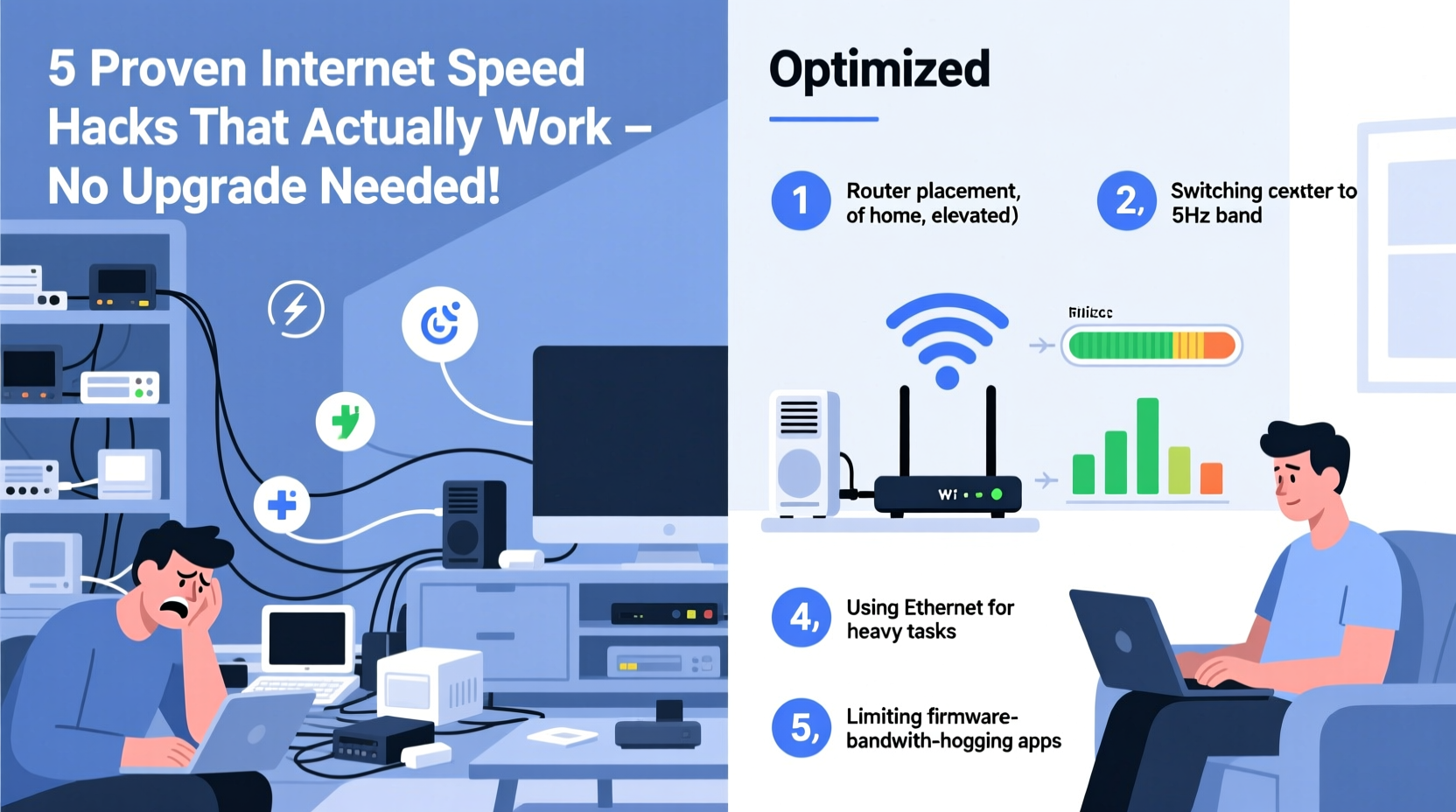
One of the most overlooked factors affecting Wi-Fi performance is where your router is located. A poorly placed router can drastically reduce signal strength and coverage, leading to frustrating slowdowns—even if you have a high-speed plan.
Routers emit radio waves that struggle to penetrate thick walls, metal objects, mirrors, and even large appliances like refrigerators. Placing your router in a basement, closet, or behind a TV stand can create dead zones and inconsistent speeds throughout your home.
Avoid placing it near cordless phones, microwaves, or Bluetooth speakers, as these operate on similar frequencies and can cause interference. If possible, keep it at least 5–6 feet away from such devices.
For multi-story homes, position the router midway between floors if you can’t place it on the second level. If your layout makes central placement impossible, consider repositioning frequently used devices closer to the router during critical tasks like video conferencing or streaming.
Reduce Network Congestion with Device Management
Your internet bandwidth is shared across all connected devices. The more devices using data simultaneously, the slower each one performs. Background activities—like cloud backups, software updates, and smart home gadgets syncing—can silently consume significant bandwidth without your knowledge.
To reclaim speed, start by identifying which devices are actively using your network. Most modern routers include a web interface or mobile app that shows connected devices and their data usage. Log in (usually via 192.168.1.1 or a branded app) and review the list.
Look for anything suspicious or unnecessary—old smartphones, tablets left behind by guests, or IoT devices updating firmware. Disconnect or block unknown devices to prevent unauthorized use.
“Bandwidth isn’t infinite. Even on fast plans, unmanaged device traffic can cripple performance.” — David Lin, Network Engineer at NetSignal Labs
Step-by-Step Guide: Managing Connected Devices
- Access your router’s admin panel (check the label on the back for login details).
- Navigate to “Connected Devices” or “Network Map.”
- Review active connections and identify non-essential ones.
- Disconnect unused or unfamiliar devices.
- Set up MAC address filtering to allow only trusted devices.
You can also schedule heavy downloads or updates for off-peak hours—late at night or early morning—when fewer people are using the network. This prevents competition for bandwidth during peak usage times.
Upgrade Your DNS Settings for Faster Browsing
Most people never touch their DNS (Domain Name System) settings, but doing so can noticeably speed up web browsing. DNS translates website names (like google.com) into IP addresses your device can connect to. Your ISP assigns a default DNS server, but these are often slow or unreliable.
Switching to a faster, public DNS service reduces latency and improves page load times. Google DNS, Cloudflare DNS, and OpenDNS are free, secure, and optimized for performance.
| Service | Primary DNS | Secondary DNS | Known For |
|---|---|---|---|
| Google DNS | 8.8.8.8 | 8.8.4.4 | Speed & reliability |
| Cloudflare DNS | 1.1.1.1 | 1.0.0.1 | Privacy & low latency |
| OpenDNS | 208.67.222.222 | 208.67.220.220 | Security filtering |
To change your DNS:
- On Windows: Go to Control Panel > Network and Sharing Center > Change adapter settings > Right-click your connection > Properties > Internet Protocol Version 4 > Use the following DNS server addresses.
- On macOS: System Settings > Network > Select your connection > Details > DNS > Add new servers.
- On mobile: Modify DNS in Wi-Fi settings under advanced options.
- On router: Changing DNS at the router level applies it to all devices automatically.
Boost Signal Strength with DIY Wi-Fi Extenders and Reflectors
If certain areas of your home suffer from weak signals, a Wi-Fi extender might seem like the logical solution—but you don’t necessarily need to buy one. Simple household items can help redirect and amplify your existing signal.
A popular trick involves creating a parabolic reflector using aluminum foil or a soda can cut in half and shaped into a curve. Position it behind your router’s antenna to focus the signal toward a specific area. While this won’t increase total bandwidth, it can improve directional strength where you need it most.
Alternatively, repurpose an old router as a Wi-Fi repeater if it supports third-party firmware like DD-WRT or OpenWRT. This turns it into a range extender, rebroadcasting your main network without cost beyond initial setup time.
Mini Case Study: Sarah’s Home Office Fix
Sarah worked from her bedroom, two floors away from her router. Video calls consistently dropped, and uploads stalled. After trying various fixes, she built a foil reflector shaped like a satellite dish and attached it behind her router’s rear-facing antenna. She also changed her DNS to Cloudflare. Combined, these tweaks reduced call lag by 60% and eliminated buffering during meetings. No hardware upgrades, no extra fees—just smarter use of what she already had.
While DIY solutions aren’t perfect, they can bridge gaps until you’re ready for professional gear. For larger homes, consider powerline adapters, which use electrical wiring to transmit internet signals from your router to distant rooms. Many models are plug-and-play and cost less than upgrading service plans.
Clear Cache, Close Tabs, and Optimize End Devices
Slow internet isn’t always the network’s fault. Sometimes, the bottleneck is the device itself. An overloaded browser with 20 open tabs, outdated drivers, or accumulated cache can make even fast connections feel sluggish.
Regular maintenance of your computers, phones, and tablets ensures they’re not dragging down your experience. Clear browsing history, cached images, and cookies weekly. On Chrome or Edge, press Ctrl+Shift+Del to access the cleanup tool. On Safari, go to Preferences > Privacy > Manage Website Data.
Close unused browser tabs and applications running in the background. Each tab consumes memory and may continue loading scripts or ads, eating into system resources and perceived speed.
Update your operating system and network drivers. Outdated firmware can limit your ability to handle modern internet demands. Check for updates in your system settings or visit the manufacturer’s website for driver downloads.
Finally, reboot your devices regularly. A simple restart clears temporary files, resets network stacks, and resolves minor glitches that accumulate over time.
Essential Checklist: Boost Internet Speed Without Paying More
Follow this checklist to maximize your current internet plan:
- ✅ Reposition your router to a central, elevated spot
- ✅ Restart your router weekly (or after outages)
- ✅ Switch to a faster DNS (e.g., 1.1.1.1 or 8.8.8.8)
- ✅ Disconnect unused or unknown devices from your network
- ✅ Schedule large downloads for off-peak hours
- ✅ Clear browser cache and close unnecessary tabs
- ✅ Update device OS and network drivers
- ✅ Test speed before and after changes (use fast.com or speedtest.net)
- ✅ Consider a DIY reflector or repurposed router for dead zones
- ✅ Use Ethernet for stationary devices like desktops and smart TVs
Frequently Asked Questions
Will restarting my router really make a difference?
Yes. Routers run on limited memory and can become bogged down over time. Rebooting clears temporary data, refreshes the connection to your ISP, and often restores lost speed. Make it a habit to restart your router every week or two—more often if you notice slowness.
Can I improve Wi-Fi without buying new equipment?
Absolutely. Most performance gains come from configuration, not hardware. Adjusting router placement, changing DNS, managing connected devices, and optimizing end-user devices can yield dramatic improvements without spending money. Only consider new gear if structural issues (like home size or building materials) prevent adequate coverage.
Is it safe to change my DNS settings?
Yes. Public DNS services from Google, Cloudflare, and others are secure, privacy-conscious, and often more reliable than ISP defaults. They do not give these companies control over your internet—they simply resolve domain names faster. Some even offer enhanced privacy protections against tracking.
Take Control of Your Connection Today
You don’t need to settle for slow internet or pay for a costly upgrade. By understanding how networks function and applying practical, no-cost optimizations, you can unlock better performance from your existing service. These methods aren’t gimmicks—they’re rooted in networking fundamentals used by IT professionals every day.
Start small: move your router, change your DNS, and clean up device usage. Measure the difference with a speed test. Then build from there. Over time, these habits compound into a smoother, faster online experience for everyone in your household.




 浙公网安备
33010002000092号
浙公网安备
33010002000092号 浙B2-20120091-4
Comments
No comments yet. Why don't you start the discussion?