
As remote collaboration becomes a standard part of modern work and education, mastering tools like Google Meet is essential. A well-organized and customized meeting session can improve engagement, reduce technical hiccups, and ensure productive outcomes. Whether you're hosting a team check-in, client presentation, or virtual classroom, the way you set up and tailor your Google Meet experience directly impacts its success.
Google Meet offers a robust platform for video conferencing, but many users only scratch the surface of its capabilities. From scheduling smartly to leveraging background settings and access controls, there are multiple ways to enhance both functionality and professionalism. This guide walks through practical strategies to create and customize Google Meet sessions that are secure, efficient, and conducive to meaningful interaction.
Creating a Google Meet Session: Step-by-Step Process
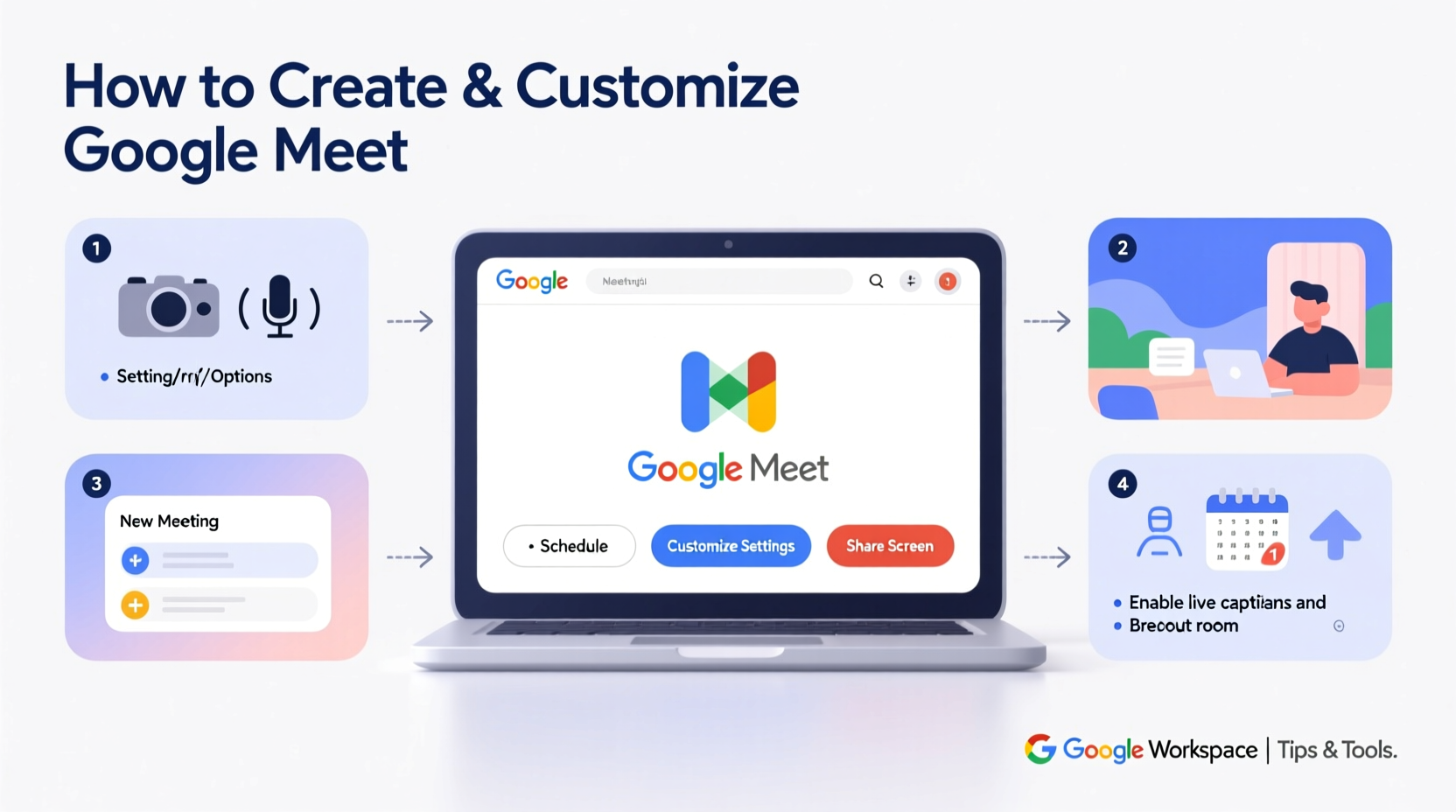
The foundation of any successful meeting lies in proper setup. Google Meet integrates seamlessly with Google Calendar, making it easy to schedule and manage sessions in advance.
- Open Google Calendar: Navigate to calendar.google.com and sign in with your Google account.
- Schedule a New Event: Click on the desired time slot or select “Create” to add a new event.
- Add Meeting Details: Enter the title, date, time, and guest list. As soon as you begin adding attendees, Google automatically generates a Meet link.
- Generate the Video Call Link: Click “Add Google Meet video conferencing.” The system will insert a unique URL into the event description.
- Send Invitations: Once saved, calendar invites with the Meet link are sent to all participants.
If you need to start an instant meeting without scheduling, go directly to meet.google.com, click “New meeting,” and choose “Start an instant meeting.” You can then share the generated link via email, chat, or messaging platforms.
Customizing Your Meeting Environment
A professional appearance starts before the meeting begins. Customization isn’t just about aesthetics—it supports clarity, focus, and brand consistency.
Virtual Backgrounds and Appearance Settings
Google Meet allows users to apply virtual backgrounds or blurred effects to maintain privacy or project a branded image. To access these options during a call:
- Click the three-dot menu in the bottom-right corner of the video screen.
- Select “Change background.”
- Choose from blur, solid colors, or upload your own image (must be JPG or PNG under 5MB).
For recurring team meetings, consider using a consistent background—such as a company-branded scene—to reinforce identity and professionalism.
Audio and Video Optimization
Before joining, test your microphone, speakers, and camera through the pre-call diagnostics screen. Adjust input levels and select external devices if needed. During the meeting, use the “Settings” gear icon to fine-tune video resolution, turn off self-view to save bandwidth, or switch between cameras.
“Poor audio quality is the number one complaint in virtual meetings. Always use a headset or external mic when possible.” — David Lin, Remote Work Technology Consultant
Managing Access and Security Settings
Controlling who joins your meeting ensures privacy and prevents disruptions. Google Meet provides several layers of access management depending on your Google Workspace plan.
| Feature | Available For | Purpose |
|---|---|---|
| Meeting Code Required | All Users | Prevents unauthorized access by requiring a specific link or code |
| Host Must Approve Participants | Workspace Subscribers | Allows host to admit guests individually (like a waiting room) |
| Mute Participants on Entry | All Plans | Reduces background noise at the start of the session |
| Lock Meeting After Start | All Users | Blocks latecomers once the session has begun |
To enable approval-based entry, open the meeting details in Google Calendar, edit the Meet settings, and toggle on “Only invited guests can join.” This is particularly useful for sensitive discussions or confidential training sessions.
Enhancing Engagement Through Interactive Features
An effective meeting keeps participants engaged—not just present. Leverage built-in tools to foster interaction and maintain energy throughout the session.
Screen Sharing and Collaborative Tools
Share presentations, documents, or live demos by clicking the “Present now” button. You can share your entire screen, a single window, or a Chrome tab. When sharing a tab, audio is included automatically—ideal for playing instructional videos.
Encourage collaboration by integrating Google Docs, Sheets, or Slides. Share the document in the chat and invite real-time editing. This reduces dependency on verbal clarification and creates a shared record of decisions.
Using Reactions and Chat Effectively
Participants can use emoji reactions (thumbs-up, clap, heart) to respond without interrupting the speaker. Encourage their use to gauge sentiment quickly. Meanwhile, the chat function is ideal for sharing links, asking side questions, or posting action items.
Mini Case Study: Streamlining Weekly Team Syncs
A mid-sized marketing agency was struggling with disorganized weekly stand-ups. Meetings often ran over time, with team members multitasking or missing key updates. They implemented a structured Google Meet workflow:
- Scheduled recurring events with standardized templates in Google Calendar.
- Enabled “Mute on entry” and used a branded virtual background to signal meeting formality.
- Shared a collaborative agenda doc linked in the invite, allowing team members to add topics in advance.
- Used the chat to post action items and deadlines in real time.
Within four weeks, meeting duration decreased by 25%, while follow-through on tasks improved significantly. The visual and procedural consistency helped participants enter a focused mindset more quickly.
Checklist: Pre-Meeting Preparation
Use this checklist to ensure every Google Meet session runs smoothly:
- ✅ Schedule the meeting in Google Calendar with clear title and agenda
- ✅ Invite all necessary participants and confirm RSVPs
- ✅ Test camera, microphone, and internet connection beforehand
- ✅ Select and preview virtual background or blur setting
- ✅ Prepare and share any presentation or collaborative documents
- ✅ Enable security settings (mute on entry, participant approval if needed)
- ✅ Send reminder 15 minutes before start time via chat or email
Frequently Asked Questions
Can I record a Google Meet session?
Yes, recording is available for Google Workspace users. During the meeting, click “Activities” > “Record meeting.” The recording saves to Google Drive and can be shared securely afterward. Note that all participants are notified when recording begins.
How do I prevent uninvited guests from joining?
Ensure the meeting link isn’t publicly shared. Use “Only invited guests” mode if your plan supports it, and avoid posting links on public forums. For maximum security, distribute the link directly via email or private message after the meeting starts.
What’s the difference between instant and scheduled meetings?
Instant meetings generate a temporary link that can be reused, but lack automated reminders and calendar integration. Scheduled meetings sync with calendars, send automatic invites, and support agenda notes and attachments—making them better suited for formal or recurring sessions.
Conclusion
Creating and customizing Google Meet sessions goes beyond clicking a link. It involves thoughtful planning, attention to technical details, and a commitment to fostering engagement. By leveraging scheduling tools, personalizing your environment, controlling access, and using interactive features strategically, you transform routine calls into impactful collaborations.




 浙公网安备
33010002000092号
浙公网安备
33010002000092号 浙B2-20120091-4
Comments
No comments yet. Why don't you start the discussion?