
A cluttered desktop might seem harmless—just a few extra files, icons scattered across the screen—but it’s more than an eyesore. It slows down your workflow, increases stress, and can even impact system performance over time. Digital clutter accumulates quietly: screenshots from last month, downloaded PDFs you meant to review, project folders that were relevant six months ago. Before you know it, your desktop is a maze of disorganized shortcuts and overlapping windows.
Decluttering your desktop isn’t just about aesthetics; it’s about efficiency. A clean digital workspace reduces cognitive load, improves focus, and makes file retrieval nearly instantaneous. Whether you're using Windows, macOS, or Linux, the principles of effective desktop organization remain consistent. This guide walks you through proven strategies to clear the chaos, streamline access, and maintain order long-term.
Why a Cluttered Desktop Slows You Down
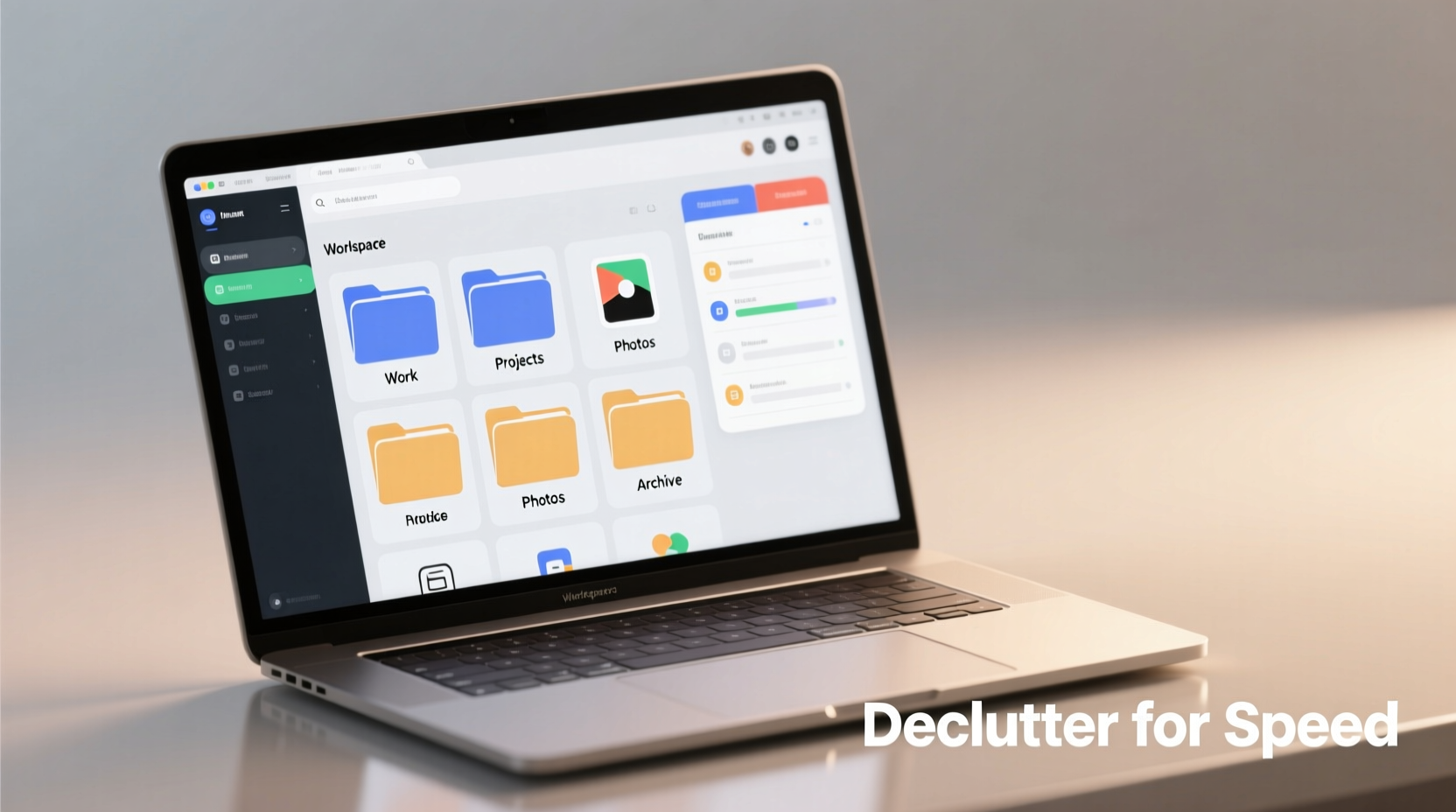
Your desktop is often the first place you land when starting work. If it's overcrowded, every task begins with visual scanning, mental sorting, and unnecessary clicks. Research from Princeton University’s Neuroscience Institute shows that physical and digital clutter competes for attention, reducing focus and increasing stress. The brain struggles to process multiple stimuli at once, which means a messy desktop actively hinders productivity.
Beyond cognitive strain, excessive files on your desktop can affect system performance. While modern operating systems handle large numbers of files reasonably well, having hundreds of icons forces your system to render thumbnails, update metadata, and manage background processes—especially if those files are large media or complex documents. On older machines or systems with limited RAM, this overhead can result in slower boot times and sluggish responsiveness.
“Digital clutter has a measurable impact on both performance and psychological well-being. A clean desktop environment supports faster decision-making and reduces digital fatigue.” — Dr. Alan Chen, Human-Computer Interaction Researcher, MIT Media Lab
Step-by-Step Guide to Declutter Your Desktop
Decluttering doesn’t have to be overwhelming. Follow this structured, seven-step process to transform your desktop from chaotic to controlled in under an hour.
- Pause and assess. Before deleting anything, take a full-screen screenshot of your current desktop (press Windows + Shift + S or Cmd + Shift + 4 on Mac). This creates a visual record in case you accidentally remove something important.
- Remove immediate trash. Delete temporary files, duplicate downloads, outdated installers, and old screenshots. Right-click each item and confirm deletion. Empty your Recycle Bin or Trash afterward.
- Sort by file type. Use your OS’s sort function (right-click on desktop > Sort By > Type) to group similar files. This reveals patterns—like dozens of .jpg screenshots or unused .exe files—and helps prioritize what to keep.
- Create core folders. Make 3–5 master folders directly on your desktop: Active Projects, Quick Access, Incoming, and Shortcuts. These act as containers for related items instead of leaving files loose.
- Move non-essential files. Anything not needed daily should be relocated to Documents, Downloads, or cloud storage. Archive completed projects into dated folders (e.g., “Project Alpha – Q1 2024”) and move them off the desktop.
- Organize shortcuts intelligently. Keep only essential application shortcuts—browser, email, calendar, note-taking app. Group others into a folder labeled “Tools” or “Utilities.”
- Apply naming conventions. Rename ambiguous files with clear titles. Instead of “Document1_final_v2.docx,” use “Budget_Q3_2024_Approved.docx.” Consistent naming speeds up searches later.
Smart Folder Structures for Long-Term Maintenance
Once your desktop is clean, the challenge shifts to maintenance. The key is designing a folder hierarchy that aligns with your workflow—not just storing files, but making them easy to retrieve.
Start by defining categories based on frequency of use:
- Daily Use: Files currently being edited or referenced regularly.
- Weekly Reference: Templates, reports, or logs accessed occasionally.
- Archived: Completed work no longer active but kept for records.
Here’s a recommended structure for desktop folders:
| Folder Name | Purpose | Max Items | Review Frequency |
|---|---|---|---|
| Active Projects | Ongoing tasks requiring frequent access | 3–5 subfolders | Weekly |
| Quick Access | Important docs needed within 24 hours | 5–7 files max | Daily |
| Incoming | New downloads awaiting categorization | Empty weekly | Every Friday |
| Shortcuts | Less-used apps and utilities | As needed | Quarterly cleanup |
This system prevents re-cluttering by enforcing limits and scheduled reviews. For example, anything lingering in “Incoming” past Friday gets moved or deleted. “Quick Access” resets every Monday with only that week’s priorities.
Real Example: From Chaos to Control in One Hour
Sarah, a freelance graphic designer, used her desktop as a dumping ground for client assets, fonts, mockups, and invoices. Her screen had over 200 icons, making it difficult to locate files during deadlines. After a particularly frustrating morning searching for a logo revision, she decided to reorganize.
She began by backing up everything to an external drive, then followed the step-by-step guide above. She deleted 47 obsolete files, moved 89 assets into project folders stored in Documents, and created three desktop folders: Current Clients, Urgent Revisions, and Design Tools.
The result? She reduced desktop items from 213 to 14. Within a week, she reported saving at least 20 minutes per day on file navigation. More importantly, her mental clarity improved—she no longer felt overwhelmed opening her laptop.
Common Mistakes to Avoid
Even with good intentions, people fall into traps that undo their progress. Here are the most common missteps and how to avoid them:
- Moving files without renaming them. Transferring “IMG_1234.png” into a folder called “Client Logos” doesn’t help. Always rename files meaningfully before organizing.
- Over-relying on desktop search. While powerful, search tools fail when filenames are vague. “Report.docx” could mean anything. Clear names make search reliable.
- Keeping “just in case” files. If you haven’t opened a file in six months and it’s not legally required, archive or delete it. Cloud storage allows recovery if truly needed.
- Ignoring cloud sync conflicts. Storing desktop files in Dropbox or OneDrive is helpful, but syncing too many large files can slow down startup. Use selective sync settings to control what’s mirrored locally.
Checklist: Maintain a Clean Desktop
Use this checklist weekly to ensure your desktop stays functional and distraction-free:
- ✅ Delete temporary files (screenshots, installers, duplicates)
- ✅ Move all items from “Incoming” to appropriate folders
- ✅ Verify “Quick Access” contains only current-priority files
- ✅ Rename any poorly titled documents
- ✅ Confirm no single folder exceeds 10 items
- ✅ Back up critical desktop data to cloud or external drive
- ✅ Run a quick system scan to detect corrupted or hidden files
Completing this list takes less than 10 minutes but prevents weeks of accumulated clutter. Print it or save it as a sticky note reminder until the habit sticks.
Frequently Asked Questions
How many files should I keep on my desktop?
Ideally, fewer than 20. The goal is to see everything at a glance without scrolling. If you need more, use folders with clear labels. The fewer individual icons visible, the better.
Is it bad to store files on the desktop long-term?
Yes, for two reasons. First, if your system crashes or needs reinstalling, desktop files are often overlooked in backups. Second, constant read/write activity on the system drive can degrade performance over time. Store files in dedicated directories like Documents or cloud folders instead.
Can a clean desktop improve computer speed?
Indirectly, yes. While a few extra files won’t cripple a modern machine, hundreds of desktop icons force the OS to generate thumbnails, update indexing, and manage window layering—all consuming memory and GPU resources. Users with older computers report noticeable improvements in responsiveness after cleanup.
Conclusion: Take Action Today
A cluttered desktop isn’t just messy—it’s a silent productivity thief. Every second spent hunting for a file, every moment of frustration caused by visual overload, adds up across your workweek. The solution isn’t complicated: a one-time purge followed by disciplined habits.
You don’t need special software or advanced skills. What matters is consistency. Apply the steps outlined here—sort, delete, organize, maintain—and experience the difference within days. Faster navigation, clearer focus, and a more professional digital presence are all within reach.




 浙公网安备
33010002000092号
浙公网安备
33010002000092号 浙B2-20120091-4
Comments
No comments yet. Why don't you start the discussion?