
In an age where we generate more digital content than ever—photos, documents, downloads, emails, and apps—it’s easy for storage to fill up quickly. Cluttered digital files don’t just slow down devices; they make it harder to find what you need, increase stress, and reduce productivity. Unlike physical clutter, digital disorganization is often invisible until your laptop warns of low disk space or your phone refuses to install updates. The good news: a systematic approach can transform chaos into clarity. By auditing, organizing, and maintaining your digital ecosystem, you can reclaim gigabytes, improve efficiency, and create a cleaner digital environment.
Assess Your Current Digital Storage
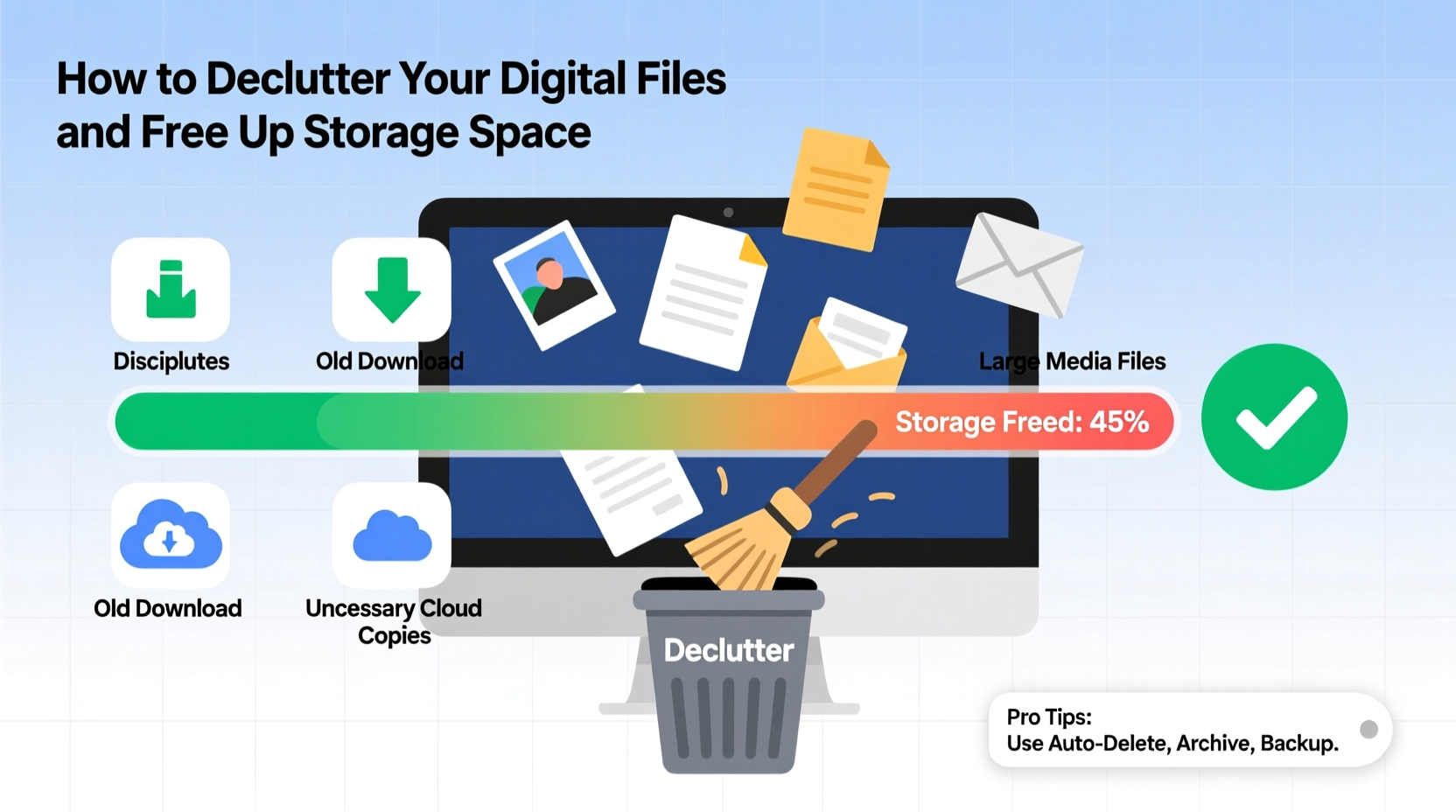
Before making changes, understand the state of your digital landscape. Begin by checking how much storage each device uses. On macOS, go to Apple Menu > About This Mac > Storage. On Windows, navigate to Settings > System > Storage. Mobile users can check under Settings > General > iPhone/iPad Storage or Settings > Storage on Android.
Most systems break down usage into categories: apps, photos, documents, system files, and “other.” Pay close attention to the largest contributors. For many, photos and videos consume the most space—especially if automatic backups are enabled. Downloads folders and old email attachments also accumulate silently over time.
Once you identify space hogs, decide which devices or accounts need immediate attention. Prioritize those nearing full capacity. A drive that’s 90% full not only risks performance issues but may prevent software updates or new file creation.
Create a Step-by-Step Decluttering Plan
Decluttering digital files isn’t about deleting everything at once—it’s a thoughtful process of evaluation, organization, and preservation. Follow this structured timeline to avoid overwhelm and ensure nothing important is lost.
- Backup critical data: Before deleting anything, ensure all essential files are backed up to an external drive or cloud service like Google Drive, iCloud, or OneDrive.
- Start with the Downloads folder: This is often the biggest source of forgotten files. Sort by date, delete duplicates, and move useful items to appropriate folders.
- Review photo libraries: Delete blurry shots, duplicates, and screenshots you no longer need. Consider using AI-powered tools like Google Photos’ “Free Up Space” feature.
- Organize documents: Create a logical folder hierarchy (e.g., Personal, Work, Taxes, Projects) and sort files accordingly. Archive older projects instead of deleting them.
- Uninstall unused apps: Remove applications you haven’t used in the past six months. Check both desktop and mobile devices.
- Clear browser cache and temporary files: These can take up several gigabytes over time. Use tools like CCleaner (with caution) or built-in browser cleanup options.
- Empty the trash: Deleted files often remain in recycle bins or trash folders, still consuming space. Permanently remove them after confirming backups.
This process may take a few hours spread across multiple sessions. Tackle one category per day to maintain focus and prevent fatigue.
Organize Files with a Sustainable Naming and Folder System
After removing clutter, establish a consistent structure to prevent future buildup. A well-designed file system makes retrieval fast and reduces the temptation to save duplicates.
Use clear, descriptive folder names such as “Client Contracts – 2023,” “Family Vacation – Italy 2024,” or “Tax Records.” Avoid vague labels like “Stuff” or “Misc.” Within folders, adopt a naming convention: YYYY-MM-DD_Title_Version.ext (e.g., 2024-05-12_Budget_Proposal_v2.pdf). This ensures chronological sorting and version control.
| Do | Don't |
|---|---|
| Use underscores or hyphens instead of spaces | Use special characters like ?, *, | in filenames |
| Limit folder depth to 3–4 levels | Create deeply nested paths like /Work/Projects/ClientA/Docs/Final/Revised/Updated/ |
| Archive completed projects annually | Keep active and inactive files in the same folder |
| Label external drives clearly (e.g., “Backup – 2024”) | Leave unlabeled USBs lying around |
For shared environments—like team drives or family accounts—document the system and share it with others. Consistency multiplies the benefits across users.
“Digital organization isn’t about perfection—it’s about creating a system that works consistently over time. The goal is to reduce friction, not add complexity.” — Dr. Lena Torres, Digital Productivity Researcher, MIT Human-Computer Interaction Lab
Real Example: How Sarah Reclaimed 80GB in One Weekend
Sarah, a freelance graphic designer, noticed her MacBook was constantly warning of low storage. She avoided restarting it because updates took hours to install. Curious, she checked her storage breakdown and found 117GB dedicated to “System” files and 68GB in her Downloads folder alone.
She began by backing up her portfolio to an external SSD. Then, she sorted her Downloads folder—deleting outdated ZIP archives, duplicate client assets, and old software installers. Next, she reviewed her photo library. Using Preview and manual inspection, she deleted over 1,200 duplicate screenshots and test renders. She moved remaining project files into a structured folder system labeled by client and year.
Finally, she offloaded large video files to Google Drive and enabled automatic syncing. After emptying the trash, her available space increased from 8GB to 89GB—a net gain of 81GB. Her machine now runs faster, and she spends less time searching for files.
Sarah’s experience highlights a common truth: small, repeated digital habits compound into major clutter. But with focused effort, recovery is fast and impactful.
Essential Tools and Automation for Ongoing Maintenance
Maintaining a clutter-free digital life requires more than a one-time cleanup. Integrate smart tools and automation to sustain results.
- Duplicate file finders: Tools like Gemini 2 (Mac), Duplicate Cleaner (Windows), or DupeGuru help locate redundant files across drives.
- Cloud storage optimizers: Services like Dropbox Smart Sync or iCloud Drive store files online while keeping shortcuts locally, saving physical space.
- Scheduling cleanups: Set calendar reminders every three months to review downloads, photos, and app usage.
- Email attachment managers: Use tools like Clean Email or Gmail’s search filters (e.g., has:attachment larger:10M) to find and delete large messages.
- Automated backups: Use Time Machine (Mac), File History (Windows), or third-party tools like Backblaze to ensure data safety without manual effort.
Automation reduces the cognitive load of maintenance. For example, setting a rule in your email client to auto-delete newsletters older than 30 days prevents inbox bloat. Similarly, configuring your camera app to upload and delete photos after cloud sync keeps mobile storage lean.
Digital Decluttering Checklist
Use this actionable checklist to guide your cleanup process:
- ✅ Back up all critical files to an external drive or cloud service
- ✅ Audit storage usage on all devices (laptop, phone, tablet)
- ✅ Delete unnecessary files in Downloads, Desktop, and temporary folders
- ✅ Remove duplicate photos, screenshots, and documents
- ✅ Uninstall unused applications and games
- ✅ Organize remaining files into clearly named folders with consistent structure
- ✅ Clear browser cache, cookies, and offline website data
- ✅ Empty trash/recycle bins permanently
- ✅ Offload large media files to cloud storage or external drives
- ✅ Schedule a recurring monthly review to maintain order
Print this list or save it digitally as a recurring task. Completing it thoroughly can free up tens or even hundreds of gigabytes, depending on your starting point.
Frequently Asked Questions
How often should I declutter my digital files?
A thorough digital cleanup should be done at least twice a year. However, perform mini-audits monthly—review your Downloads folder, clear recent duplicates, and uninstall any apps you’ve tried and abandoned. Regular maintenance prevents overwhelming buildup.
Is it safe to delete files from the “System” or “Other” category?
Generally, no. These categories include essential operating system files, caches, and logs. While some third-party tools claim to clean “junk” files, they can sometimes remove necessary components. Instead, use built-in system tools like macOS Storage Management or Windows Disk Cleanup, which are designed to act safely.
What should I do with old family photos stored on my phone?
Upload them to a secure cloud service like Google Photos, iCloud, or Amazon Prime Photos. Once confirmed synced, delete the local copies to save space. Keep a secondary backup on an external hard drive for added security. Use albums and tags to organize them by event, year, or person for easy access.
Take Control of Your Digital Environment
Decluttering your digital files is not just about freeing up storage—it’s about regaining control. Every unnecessary file adds a tiny cognitive burden, making it harder to focus, create, and act efficiently. By systematically removing digital noise, you create room for what matters: meaningful work, cherished memories, and smoother daily workflows.
The process doesn’t require technical expertise, only intention and consistency. Start small. Pick one folder. Delete ten old files. Build momentum. Over time, your devices will feel faster, your mind clearer, and your digital life more intentional.




 浙公网安备
33010002000092号
浙公网安备
33010002000092号 浙B2-20120091-4
Comments
No comments yet. Why don't you start the discussion?