
In today’s fast-paced digital world, precision matters—especially when it comes to time. Whether you're managing a smart home, overseeing office operations, or simply relying on your touchscreen wall clock for daily routines, inaccurate time can lead to missed appointments, scheduling conflicts, or disrupted automation sequences. Many users assume their touch clocks are automatically correct, but firmware glitches, daylight saving transitions, or network hiccups can throw off synchronization. This guide walks through practical, step-by-step methods to ensure your touch clock reflects the exact current time—without technical frustration.
Understanding Touch Clock Technology
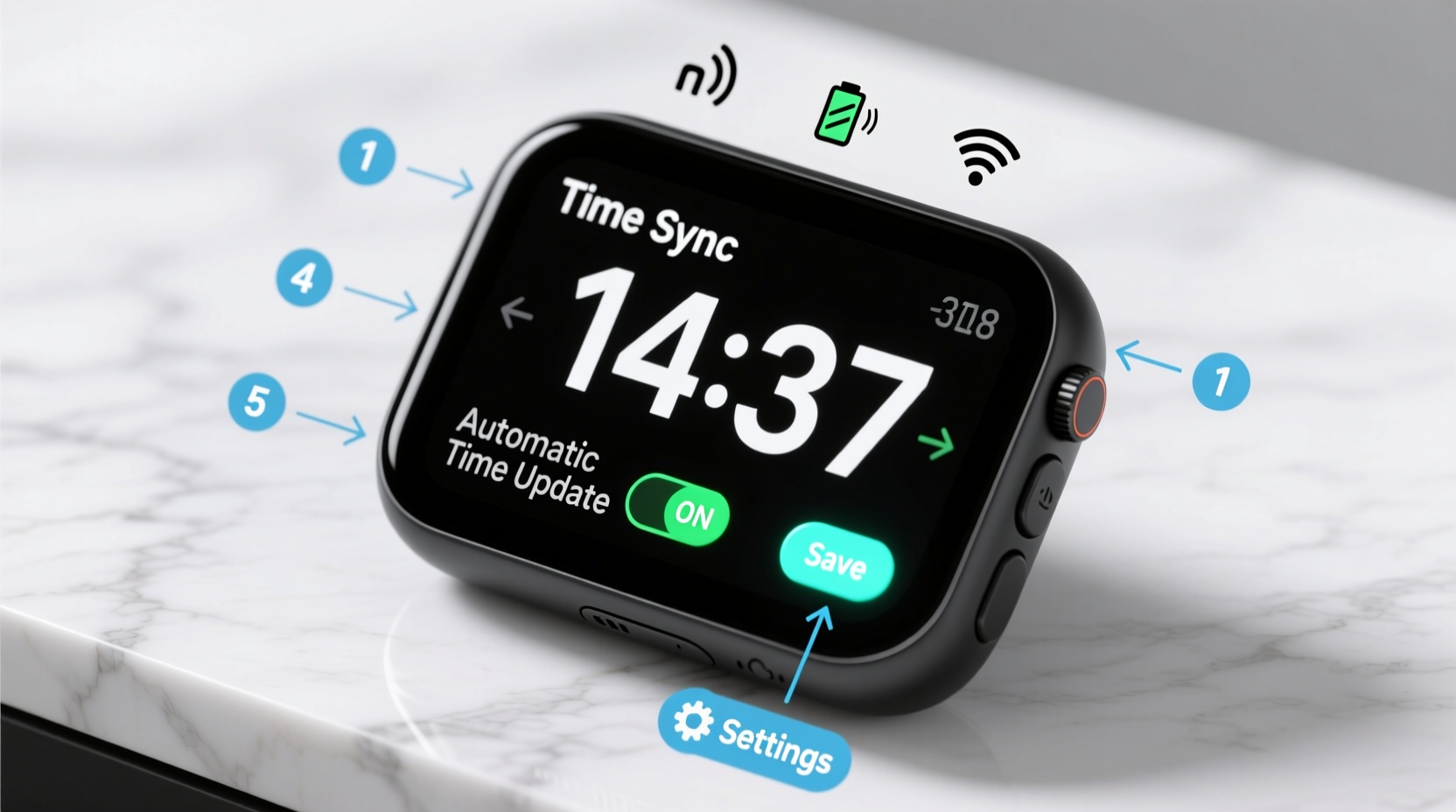
Touch clocks, often found in smart displays, kitchen appliances, or industrial control panels, combine visual interfaces with responsive touch inputs. Unlike traditional analog clocks, they rely on internal software and external time sources—like NTP (Network Time Protocol) servers or smartphone pairings—to maintain accuracy. However, not all models sync continuously. Some require manual intervention after power loss, firmware updates, or Wi-Fi disconnections.
The key components influencing time accuracy include:
- Internal Real-Time Clock (RTC): A small battery-powered chip that keeps time when the device is off.
- Internet Connectivity: Enables automatic synchronization with global time servers.
- Time Zone Settings: Must be correctly configured to reflect local adjustments like DST.
- User Interface Responsiveness: A laggy or unresponsive touch panel may prevent timely adjustments.
Step-by-Step Guide to Adjusting Your Touch Clock Settings
Follow this structured process to manually or automatically calibrate your touch clock for precise timekeeping.
- Access the Settings Menu
Tap the screen to wake the display. Look for a gear icon, “Settings,” or swipe from the edge of the screen to reveal hidden menus. The location varies by model—consult your user manual if needed. - Navigate to Date & Time Options
Within settings, find the section labeled “Date & Time,” “Clock,” or similar. This is where all time-related configurations reside. - Disable Automatic Time (Temporarily)
If the clock is already incorrect, disable “Set Automatically” to gain manual control. This prevents immediate overwrites during adjustment. - Manually Set the Correct Time
Input the current hour, minute, second, date, and month using on-screen controls. Be precise—many systems allow second-level accuracy. - Select the Correct Time Zone
Choose your geographic region from the dropdown list. For example, “Eastern Time (US & Canada)” instead of just “EST.” This ensures future daylight saving adjustments are applied correctly. - Re-enable Automatic Synchronization
Turn “Set Automatically” back on. The device will now attempt to sync with an NTP server such astime.google.comorpool.ntp.org. - Test and Verify
Wait 30–60 seconds, then compare your touch clock to a trusted source (e.g., atomic clock website or smartphone). Confirm alignment within one second.
Do’s and Don’ts When Adjusting Touch Clocks
| Do’s | Don’ts |
|---|---|
| ✅ Always verify internet connectivity before enabling auto-sync | ❌ Never skip time zone selection—even if the hour seems right |
| ✅ Use 24-hour format if your environment relies on military or industrial timing | ❌ Avoid setting time manually every day; fix the root sync issue instead |
| ✅ Regularly update firmware to patch known time-handling bugs | ❌ Don’t ignore recurring drift—this may indicate failing hardware |
| ✅ Label critical clocks (e.g., in labs or clinics) with calibration dates | ❌ Don’t assume Bluetooth-paired devices always stay synced |
Troubleshooting Common Sync Issues
Even after proper setup, some touch clocks fall out of sync. Here are frequent culprits and solutions:
- Wi-Fi Drops: Intermittent connectivity prevents regular NTP checks. Place the device closer to the router or use Ethernet if supported.
- Firmware Bugs: Older versions may mishandle leap seconds or DST changes. Check the manufacturer’s support page for updates.
- Incorrect NTP Server: Default servers might be unreachable. Replace them with reliable public options like
us.pool.ntp.org. - Power Surges: These can corrupt the RTC. Consider using a surge protector or uninterruptible power supply (UPS).
“Over 70% of reported time inaccuracies in smart displays stem from misconfigured time zones, not failed sync attempts.” — Dr. Alan Reyes, Embedded Systems Engineer at ChronoLogic Labs
Real-World Example: Fixing a Clinic’s Scheduling Glitch
A community health clinic noticed patients were arriving early for appointments. Investigation revealed that their main lobby touch clock was running 15 minutes behind. Staff had assumed the clock synced automatically via Wi-Fi, but a recent network upgrade changed the DNS settings, blocking access to the NTP server.
The IT manager followed these steps:
- Checked the clock’s network status—connected but not syncing.
- Accessed advanced settings and discovered the NTP request timeout error.
- Updated the primary NTP server to
north-america.pool.ntp.org. - Restarted the device, which successfully pulled the correct time within seconds.
After resolution, the clinic implemented a monthly verification checklist for all digital clocks, preventing future disruptions.
Essential Maintenance Checklist
To keep your touch clock accurate long-term, follow this routine:
- ▢ Ensure Wi-Fi or Ethernet connection is stable
- ▢ Verify automatic time sync is enabled and functional
- ▢ Confirm correct time zone and daylight saving rules
- ▢ Update firmware quarterly or when alerts appear
- ▢ Physically inspect the device for signs of wear or moisture damage
- ▢ Cross-check against a reference clock once a month
Frequently Asked Questions
Why does my touch clock keep losing time after reboot?
This typically indicates a failing internal RTC battery. Most touch clocks use a small CR2032 or similar coin cell to maintain time during power loss. Replace the battery following the manufacturer’s instructions.
Can I sync my touch clock to my phone?
Some models support Bluetooth or app-based synchronization. Install the companion app (e.g., SmartHome Hub, ClockSync+) and pair your phone as the primary time source. Note: This method depends on your phone’s own time accuracy.
What if my clock doesn’t have internet access?
In offline scenarios, manual time entry is the only option. Set a reminder to adjust it weekly, especially around daylight saving transitions. Alternatively, consider upgrading to a model with Wi-Fi capability for long-term reliability.
Final Thoughts and Action Steps
Accurate timekeeping isn’t just about convenience—it’s foundational to coordination, safety, and efficiency. A touch clock that runs fast or slow undermines trust in your entire system, whether at home or work. By understanding how these devices manage time, proactively configuring settings, and performing regular checks, you eliminate avoidable errors before they escalate.
Take action today: pick one touch clock in your space, verify its current time, and walk through the adjustment process. Then expand to others. Small efforts compound into seamless daily operations. Share your experience or ask questions below—your insight could help someone else solve their sync puzzle.




 浙公网安备
33010002000092号
浙公网安备
33010002000092号 浙B2-20120091-4
Comments
No comments yet. Why don't you start the discussion?