
Streaming YouTube on a large screen enhances the viewing experience—whether you're watching tutorials, music videos, or full-length documentaries. While mobile and laptop screens are convenient, connecting YouTube to your TV brings clarity, sound quality, and immersion. The good news: it’s simpler than ever, regardless of your device setup. From built-in smart TV apps to casting from smartphones, this guide walks through every practical method to get YouTube on your television.
Why Stream YouTube on Your TV?
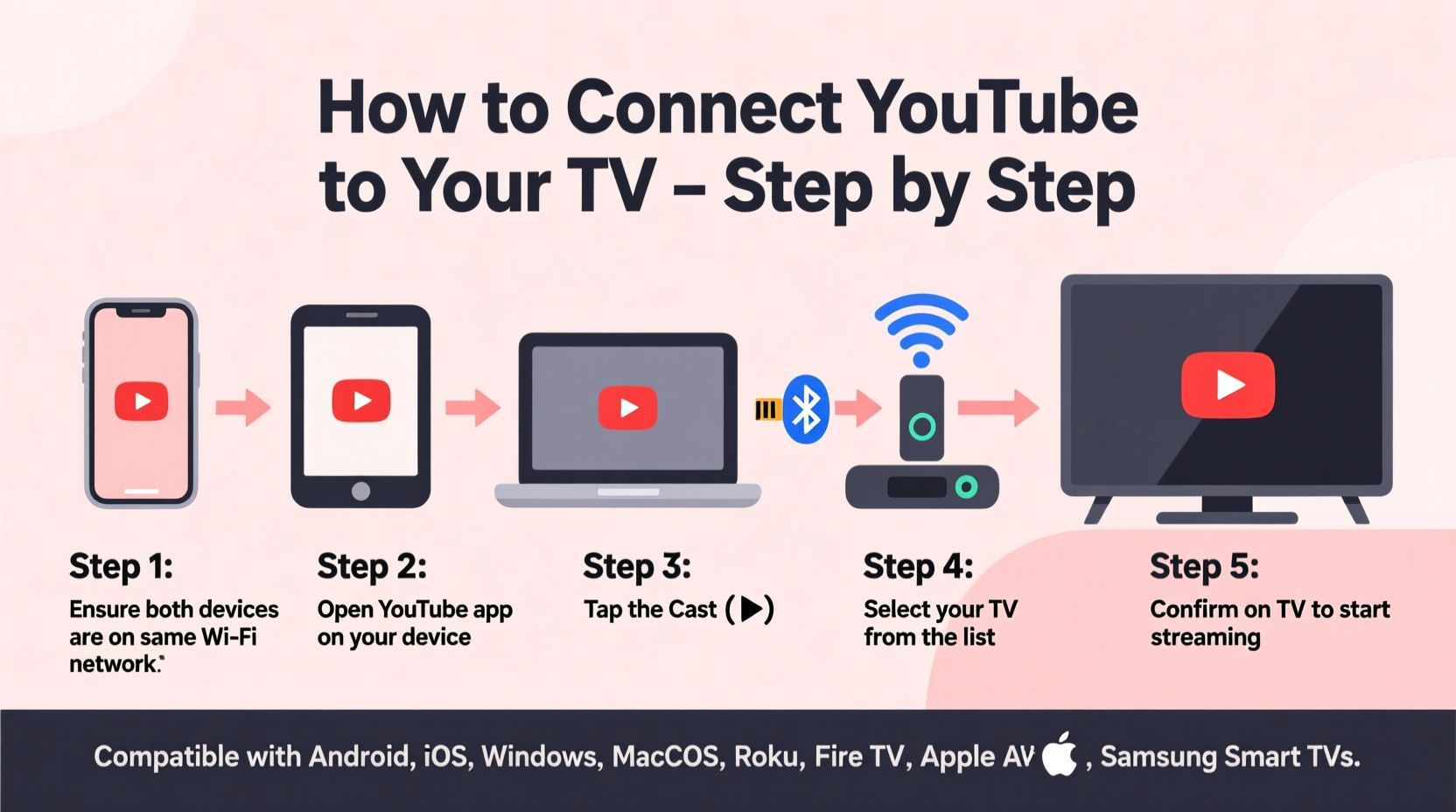
Watching YouTube on a big screen transforms casual browsing into an engaging activity. Families gather around to watch vlogs, kids enjoy animated content at eye level, and fitness enthusiasts follow workout routines with full visibility. A larger display also reduces eye strain during long sessions and pairs well with external speakers or soundbars for superior audio.
Modern televisions and streaming devices are designed with app integration in mind. Most come with YouTube preinstalled, but even if they don’t, workarounds exist using HDMI, casting, or screen mirroring. The key is knowing which method suits your hardware and comfort level.
Step-by-Step Methods to Connect YouTube to Your TV
Different devices require different approaches. Below are the most common and effective ways to stream YouTube content from your phone, tablet, or computer directly to your TV.
Method 1: Use Built-in Smart TV Apps (No Extra Devices Needed)
Many modern TVs—Samsung, LG, Sony, Hisense, and others—run operating systems like Tizen, webOS, or Google TV that support native YouTube apps.
- Turn on your TV and navigate to the home screen.
- Open the app store (e.g., Samsung Apps, LG Content Store, Google Play).
- Search for “YouTube” and install the official app.
- Launch the app and sign in with your Google account.
- Begin browsing and playing videos directly on your TV.
Method 2: Cast from Mobile Device or Browser (Chromecast & AirPlay)
If your TV supports Chromecast (built-in) or AirPlay (Apple TVs and select models), you can beam YouTube content wirelessly.
For Android and Chrome Users (Chromecast):
- Ensure your phone and TV are on the same Wi-Fi network.
- Open the YouTube app or website in Chrome.
- Tap the Cast icon (rectangle with Wi-Fi waves) in the top-right corner.
- Select your TV from the list of available devices.
- Choose a video—the playback will transfer instantly to your TV.
For iPhone and iPad (AirPlay):
- Open the YouTube app and start a video.
- Tap the AirPlay icon (a triangle with concentric circles).
- Select your Apple TV or AirPlay-compatible TV.
- Enter a passcode if prompted.
- The video now plays on your TV while your phone acts as a remote.
“Wireless casting has made second-screen experiences seamless. With one tap, users shift content from personal to shared viewing.” — Raj Mehta, Streaming Technology Analyst at MediaInsight Group
Method 3: Use a Streaming Stick or Box
Devices like Amazon Fire Stick, Roku, Chromecast with Google TV, and Apple TV offer full access to the YouTube app and other streaming services.
| Device | Setup Process | YouTube Access |
|---|---|---|
| Amazon Fire Stick | Plug into HDMI, connect to Wi-Fi, download YouTube from Amazon Appstore | Yes, via dedicated app |
| Roku | Connect via HDMI, follow on-screen setup, search for YouTube in channel store | Yes, free app available |
| Apple TV | Set up using iOS device or manually, sign in with Apple ID | Yes, native app included |
| Chromecast (with Google TV) | Plug in, use smartphone to complete setup via Google Home app | Yes, front-and-center interface |
Once installed, these devices function like mini-computers, allowing full YouTube navigation with a remote or voice commands.
Method 4: HDMI Cable Connection (Direct Link from Laptop or Phone)
This method works when wireless options fail or aren't supported. It’s reliable and delivers high-quality video and audio.
- Use an HDMI cable to connect your laptop or phone (via adapter) to the TV’s HDMI port.
- Switch the TV input source to match the connected HDMI port (e.g., HDMI 1).
- On your computer, open YouTube in a browser.
- Adjust display settings: Press Win + P (Windows) or go to System Settings > Displays (Mac) and choose “Duplicate” or “Extend.”
- Play any video—it will appear on the TV screen.
Method 5: Screen Mirroring (Miracast, Google Cast, or Proprietary Systems)
Screen mirroring duplicates your entire device screen onto the TV without needing individual app support.
- Android: Go to Settings > Connected Devices > Connection Preferences > Cast. Enable and select your TV.
- iOS: Swipe down for Control Center, tap Screen Mirroring, then choose your AirPlay-enabled TV.
- Windows PC: Press Win + K to open wireless projection menu and select a compatible display.
Note: This method may introduce lag and drains battery faster. Best for short-term sharing rather than extended viewing.
Mini Case Study: Connecting YouTube for a Family Movie Night
Sarah, a parent in Austin, wanted to show her children educational wildlife videos from YouTube during weekend family time. Her older TV lacked smart features, so she purchased a $30 Amazon Fire Stick. After plugging it in and connecting to Wi-Fi, she downloaded the YouTube app within minutes. Now, every Saturday evening, the family gathers to watch curated playlists—from ocean life to space exploration—all streamed smoothly on their 55-inch screen. The setup took less than 15 minutes and eliminated the need to huddle around a tablet.
Checklist: How to Confirm Your Setup Is Working
- ✅ Both TV and sending device are connected to the same Wi-Fi network (for wireless methods).
- ✅ YouTube app is updated on mobile and TV devices.
- ✅ HDMI cable is securely plugged in and set to correct input source.
- ✅ Google account is signed in on both sender and receiver devices.
- ✅ No firewall or router settings are blocking media streaming.
- ✅ Sound output is configured correctly (TV speakers vs. external soundbar).
Common Issues and Fixes
Even straightforward setups can encounter glitches. Here’s how to troubleshoot frequent problems:
- Casting fails or disconnects: Restart your router, reboot both devices, and ensure firmware is up to date.
- No sound on TV: Check audio settings on both the source device and TV. Increase volume on both ends.
- Video buffering: Close background apps, move closer to the router, or switch to 720p resolution temporarily.
- App not found on smart TV: Older models may no longer support YouTube. Consider adding a streaming stick instead.
FAQ
Can I watch YouTube on a non-smart TV?
Yes. Use a streaming device like Chromecast, Roku, or Fire Stick, or connect a laptop via HDMI cable.
Do I need a YouTube Premium subscription to cast?
No. Casting works with a free YouTube account. However, YouTube Premium removes ads and enables background play and downloads.
Why won’t my phone find my TV when casting?
Make sure both devices are on the same Wi-Fi network. Disable Bluetooth temporarily and check if the TV’s screen mirroring feature is enabled in settings.
Conclusion
Connecting YouTube to your TV doesn’t require technical expertise or expensive gear. Whether you own a cutting-edge smart TV or an older model with basic HDMI inputs, there’s a solution that fits your needs. From effortless casting to plug-and-play streaming sticks, the tools are accessible and user-friendly. By following the right steps for your setup, you unlock a richer, shared viewing experience that elevates everyday content.




 浙公网安备
33010002000092号
浙公网安备
33010002000092号 浙B2-20120091-4
Comments
No comments yet. Why don't you start the discussion?