
TikTok has become one of the most influential social platforms worldwide, offering short-form video content that entertains, educates, and inspires. Whether you're a content creator, a brand looking to expand reach, or someone who enjoys trending challenges and viral moments, getting started with TikTok begins with a simple but essential process: downloading and setting up the app. The good news is that TikTok is designed for universal accessibility and works seamlessly across smartphones, tablets, and even desktop browsers. This guide walks through every step of the setup process, tailored to different devices, along with troubleshooting advice and best practices for a smooth experience.
Step-by-Step Guide: Downloading TikTok on Mobile Devices
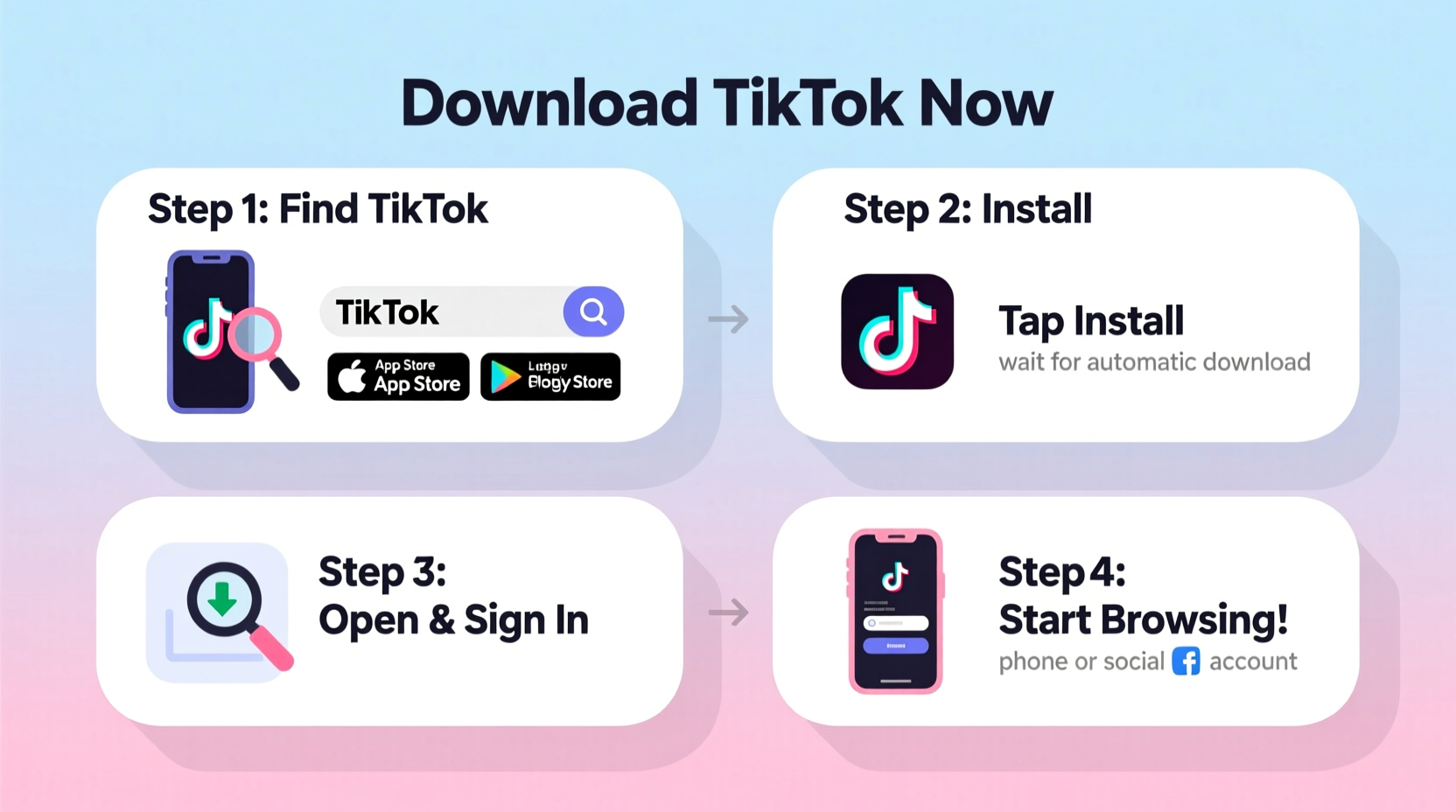
The fastest and most feature-rich way to use TikTok is through its mobile app, available for both iOS and Android. The installation process is straightforward and typically takes less than five minutes.
- Open your device’s app store: For iPhone users, launch the App Store. For Android users, open Google Play Store.
- Search for “TikTok”: Use the search bar at the top and type in “TikTok.” Make sure the official app by “TikTok Pte. Ltd.” appears at the top of results.
- Tap “Install” or “Get”: Confirm the download. The app will automatically install once permissions are granted.
- Launch the app after installation: Tap the TikTok icon on your home screen to open it for the first time.
- Set up your account: You can sign up using your email, phone number, or third-party accounts like Apple, Google, or Facebook.
Signing Up: Choosing the Right Method
When creating your profile, you’ll be prompted to choose a sign-up method. Each option has trade-offs:
- Email: Offers full control and recovery options if you forget your password.
- Phone number: Speeds up verification but may raise privacy concerns for some users.
- Third-party login (Google/Apple/Facebook): Fastest method, especially if you’re already logged into those services.
After registration, you'll be asked to select interests, follow initial creators, and customize your feed. This onboarding sequence helps TikTok tailor content recommendations from day one.
Installing TikTok on Tablets and iPads
TikTok functions well on tablets, offering a larger viewing area ideal for content creation and consumption. The process mirrors smartphone setup but with slight interface differences.
For iPad users, ensure you're downloading the native TikTok app optimized for iOS rather than relying on scaled-up iPhone versions. Search “TikTok” in the App Store as usual and confirm compatibility with your iPadOS version (requires iPadOS 11.0 or later).
Android tablet users should note that not all models support Google Play Store. In such cases, visit the official TikTok website (tiktok.com) and download the APK file directly. However, only download APKs from trusted sources to avoid malware.
“Mobile remains the primary gateway to TikTok, but tablet usage is rising—especially among creators editing videos on larger screens.” — Maya Lin, Digital Platform Analyst
Accessing TikTok on Desktop Computers
While TikTok doesn’t offer a downloadable desktop application, full functionality is accessible via web browser. This is useful for browsing trends, managing business accounts, or researching content without picking up your phone.
To access TikTok on Windows, Mac, or Linux:
- Open a modern browser (Chrome, Firefox, Edge, or Safari).
- Navigate to https://www.tiktok.com.
- Log in with your existing credentials or create a new account.
On desktop, you can watch videos, like, comment, and share—but you cannot record or upload videos unless using the mobile app. Business and creator accounts benefit from the TikTok Creative Center and Ads Manager, which are fully functional on desktop.
Device Compatibility Overview
TikTok supports a wide range of devices, but performance depends on hardware and operating system versions. Below is a comparison of minimum requirements and optimal configurations.
| Device Type | Minimum OS | Recommended RAM | Notes |
|---|---|---|---|
| iOS (iPhone/iPad) | iOS 11.0+ | 3GB+ | App Store exclusive; no sideloading allowed. |
| Android Phone | Android 5.0+ | 2GB+ | Available on Google Play and official site. |
| Android Tablet | Android 5.0+ | 3GB+ | APK download recommended for unsupported devices. |
| Desktop (Browser) | N/A | 4GB+ system RAM | Full viewing and management features; no uploads. |
Troubleshooting Common Setup Issues
Despite its simplicity, some users encounter problems during installation or login. Here are frequent issues and solutions:
- App won’t install: Check available storage. Free up space or restart your device before retrying.
- Verification code not received: Ensure your network connection is stable. Try switching between Wi-Fi and cellular data.
- Login fails repeatedly: Reset your password or clear the app cache via device settings.
- App crashes on launch: Update your OS or reinstall TikTok after uninstalling completely.
If none of these work, check TikTok’s official status page or social channels for service outages.
Mini Case Study: Emma’s First TikTok Experience
Emma, a small business owner selling handmade candles, decided to promote her products on TikTok. She used an older Android phone with limited storage. Initially, the app failed to install due to insufficient memory. After deleting unused apps and clearing her cache, she successfully downloaded TikTok via the Google Play Store. During signup, she chose Google authentication for speed. Within minutes, she customized her feed around DIY crafts and small business growth. Her first video—a behind-the-scenes look at candle pouring—gained over 10,000 views in 48 hours. Emma credits her success to a clean device and focused onboarding choices.
Essential Post-Setup Checklist
Once TikTok is installed and running, complete these steps to optimize your experience:
- ✅ Complete your profile with a clear username and profile picture
- ✅ Set privacy preferences (public vs. private account)
- ✅ Enable notifications for likes and comments
- ✅ Explore Discover tab to refine content preferences
- ✅ Link other social media accounts for cross-sharing
- ✅ Review parental controls if sharing device with minors
Frequently Asked Questions
Can I use TikTok without creating an account?
Yes. You can browse videos on the TikTok website or app as a guest, but you won’t be able to like, comment, follow, or upload content without signing up.
Is TikTok safe to download from third-party sites?
Only download APK files from TikTok’s official website. Unofficial sources may distribute modified or malicious versions of the app.
Why does TikTok ask for so many permissions?
TikTok requests access to camera, microphone, storage, and location to support video creation, personalized content, and ads. You can manage these permissions in your device settings at any time.
Final Thoughts: Start Creating Today
Downloading and setting up TikTok is a quick and intuitive process across nearly all modern devices. Whether you're joining to stay current with digital culture, grow a personal brand, or market a product, the platform rewards early engagement and consistent presence. With just a few taps or clicks, you gain access to a global community of creators and audiences eager to discover fresh perspectives. Don’t overthink the first steps—install the app, explore what resonates with you, and begin sharing your voice.




 浙公网安备
33010002000092号
浙公网安备
33010002000092号 浙B2-20120091-4
Comments
No comments yet. Why don't you start the discussion?