
Reverse image search is one of the most powerful tools available for verifying authenticity, finding higher-resolution versions, identifying unknown people or places, and even detecting scams. While many assume it's only possible on desktops, performing a reverse image search on your phone is not only feasible—it’s fast and intuitive. Whether you're trying to track down the origin of a meme, confirm if a product photo is stolen, or identify a landmark from a vacation snap, your smartphone can do the job efficiently.
This guide walks through multiple methods across Android and iOS devices, using built-in features and trusted apps. No technical expertise required—just clear, actionable steps anyone can follow.
Why Reverse Image Search Matters on Mobile
With over 90% of internet users accessing the web via smartphones, the ability to investigate images on the go has never been more important. Social media, messaging apps, and online marketplaces are flooded with visuals—some misleading, some misrepresented. A reverse image search helps cut through the noise.
Common use cases include:
- Verifying if a profile picture on a dating app is fake
- Checking if a product listing uses stock photography
- Identifying plants, animals, or artwork from a photo
- Tracking copyright usage of your own images
- Finding higher-resolution versions of screenshots or memes
“Mobile reverse image search empowers users to fact-check instantly, turning every smartphone into a digital detective tool.” — Dr. Lena Patel, Digital Literacy Researcher at Stanford University
Step-by-Step: Using Google Lens (Android & iOS)
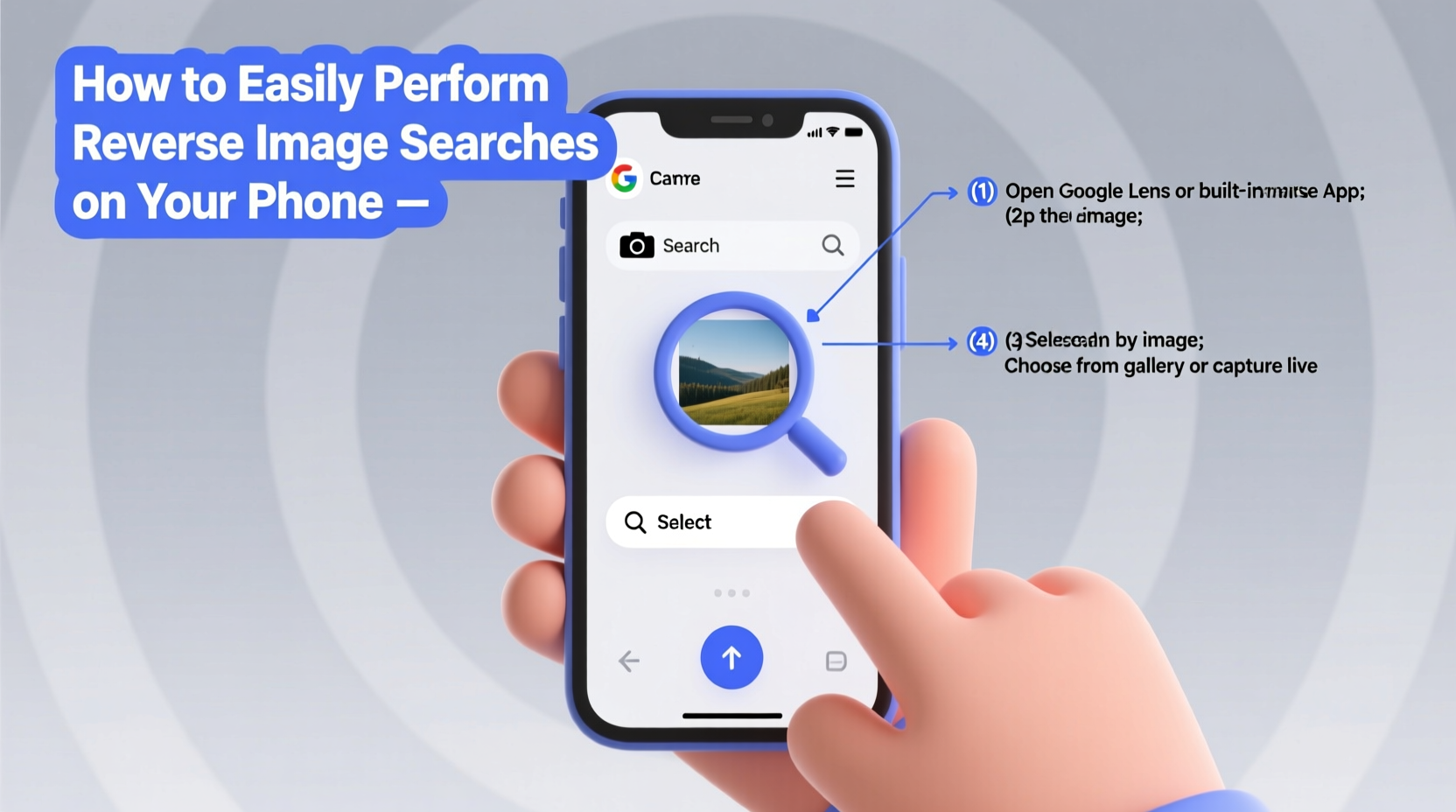
Google Lens is the most accessible and accurate tool for reverse image searching on mobile. Integrated directly into the Google app and Photos, it works seamlessly across platforms.
- Open the Google app on your phone (download from App Store or Google Play if needed).
- Navigate to the image you want to search. This could be in your Gallery, Messages, WhatsApp, or any app.
- Take a screenshot of the image if it’s not saved, or long-press to download it.
- Back in the Google app, tap the camera icon next to the search bar.
- Select “Upload an image” or choose “From your device” depending on your version.
- Browse and select the image from your gallery.
- Wait a few seconds. Google Lens analyzes the image and returns visually similar results, related websites, shopping links, and text recognition (if applicable).
Alternative: Use Google Photos
If the image is already in your Google Photos library:
- Open the Google Photos app.
- Tap on the image you want to search.
- Tap the “Lens” icon at the bottom (shaped like a square with a dot).
- Review the results: related images, shopping options, landmarks, or text extraction.
This method works best with photos already backed up to the cloud and doesn’t require leaving the app.
Using Safari and Google Images on iPhone
iOS doesn’t have native Google Lens integration in Safari, but you can still perform reverse image searches manually using Google Images.
- Open Safari and go to images.google.com.
- Tap the share icon (square with arrow) at the bottom.
- Select “Request Desktop Website” from the menu.
- Return to the page. You should now see the desktop version with a camera icon in the search bar.
- Tap the camera icon and choose “Upload an image”.
- Select the photo from your camera roll.
- Analyze the results page for matches, source URLs, and context.
Note: This process requires enabling desktop mode because mobile Google defaults hide the image upload option.
Third-Party Apps for Advanced Reverse Searches
While Google dominates the space, specialized apps offer additional functionality for power users.
| App Name | Platform | Key Features | Best For |
|---|---|---|---|
| TinEye | iOS, Web | Precise match detection, copyright tracking | Photographers, content creators |
| CamFind | Android, iOS | Real-time object recognition, voice feedback | Shopping, quick identification |
| Image Searcher | Android | Batch reverse search, metadata viewer | Digital investigators |
These apps vary in accuracy and speed. TinEye, for example, maintains a smaller index than Google but excels at finding exact duplicates—ideal for spotting image theft.
Mini Case Study: Spotting a Fake Rental Listing
Sophie, a student in Austin, found an appealing apartment on Facebook Marketplace. The photos showed a modern kitchen and spacious balcony. Before wiring a deposit, she performed a reverse image search using Google Lens on her phone. Within seconds, the same images appeared on a real estate site in Denver—with a $500 higher rent. She reported the listing, avoiding a scam. This common fraud relies on victims not checking image origins. A 30-second reverse search prevented a costly mistake.
Do’s and Don’ts of Mobile Reverse Image Searching
| Do | Don’t |
|---|---|
| Use high-quality, well-lit images for better results | Expect perfect results from blurry or cropped photos |
| Verify multiple sources before trusting information | Assume the first result is always correct |
| Save suspicious images for future reference | Share unverified images that may spread misinformation |
| Clear your search history if privacy is a concern | Perform sensitive searches on public Wi-Fi without protection |
FAQ
Can I reverse search a screenshot?
Yes. Screenshots work just like any other image. However, ensure the subject is clearly visible and not obscured by UI elements like buttons or notifications.
Is reverse image search free?
Yes, all major tools—including Google Lens, Google Images, and TinEye—offer free reverse search capabilities. Premium versions exist for businesses but aren’t necessary for personal use.
Does reverse image search work offline?
No. The process requires uploading the image to a server for analysis, so a stable internet connection is essential.
Checklist: Perform a Reverse Image Search in Under 2 Minutes
- ✅ Locate or save the image to your phone’s gallery
- ✅ Open Google app or Google Photos
- ✅ Tap the Lens icon or camera symbol
- ✅ Upload the image from your device
- ✅ Review results: sources, similar images, text, and context
- ✅ Cross-check findings for accuracy
- ✅ Take action based on what you discover (report, verify, purchase, etc.)
Conclusion
Reverse image search isn’t just a tech gimmick—it’s a vital skill for navigating today’s visual-first digital world. With just a few taps, you can uncover truths hidden behind pixels, protect yourself from deception, and deepen your understanding of the images you encounter daily. Your phone already has the tools; now you have the knowledge.




 浙公网安备
33010002000092号
浙公网安备
33010002000092号 浙B2-20120091-4
Comments
No comments yet. Why don't you start the discussion?