
Typing the number zero might seem like the most basic task on a phone, but for new users, those with visual impairments, or individuals using unfamiliar devices, locating and entering \"0\" can be surprisingly confusing. Unlike physical keypads of the past, modern smartphones rely on virtual keyboards that vary across operating systems, languages, and accessibility settings. This guide demystifies the process, offering clear instructions, practical tips, and troubleshooting advice so you can confidently type zero—quickly and accurately—on any mobile device.
Understanding the Mobile Keypad Layout
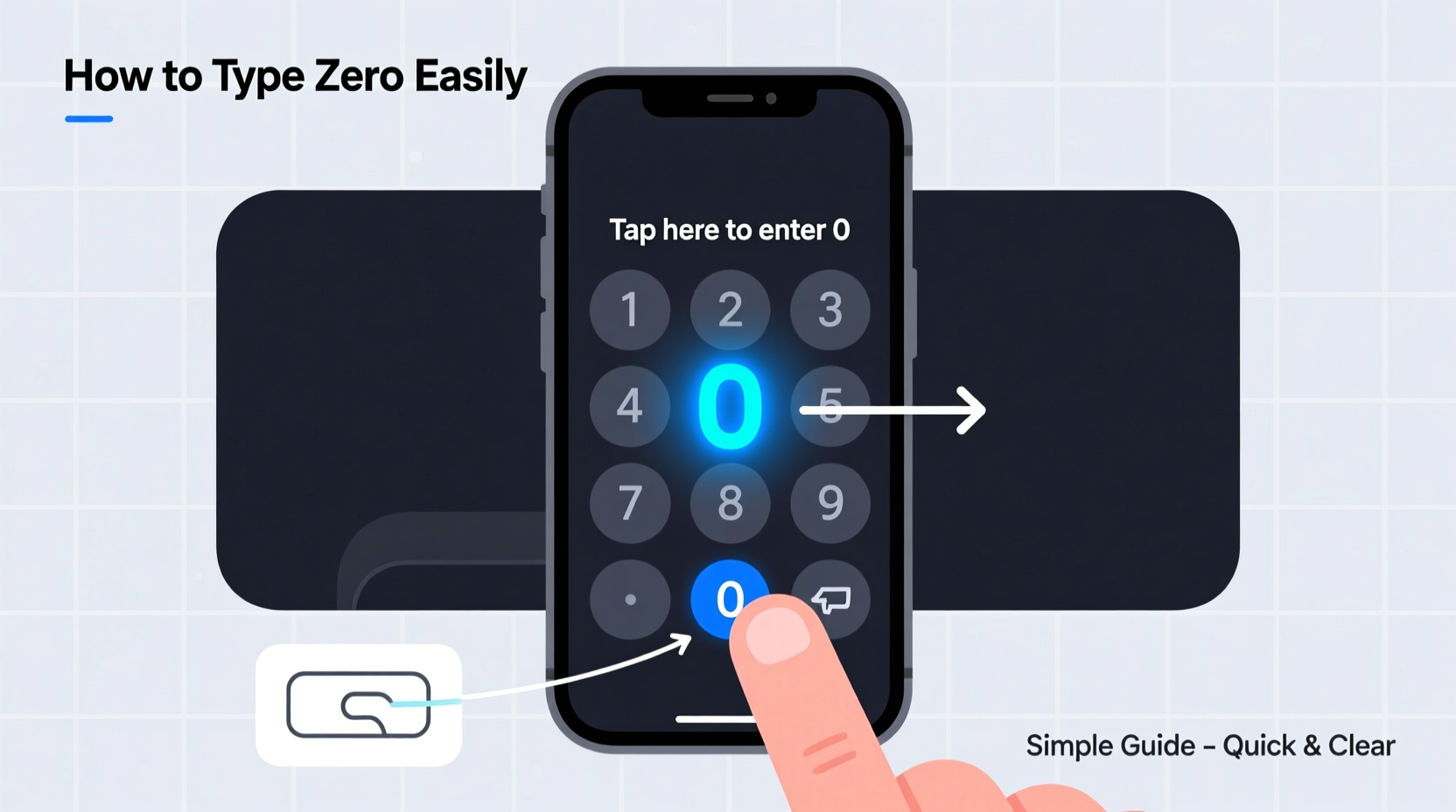
The digital keypad on smartphones mimics the layout of traditional telephone keypads. Most numeric keypads, whether standalone or within a full keyboard, follow a consistent 3x4 grid: three numbers per row, with digits 1–9 in the first three rows, and the zero (0) occupying the bottom center of the fourth row. On many devices, the zero key is wider than others, often spanning nearly the full width of the keypad to make it easier to tap.
However, not all keypads are visible at all times. Depending on your app or input field, you may need to switch from the alphabetic keyboard to a numeric or dial pad mode. For example, when entering a phone number in your contacts or typing an amount in a finance app, the system usually auto-switches to numbers. If it doesn’t, a single tap on the “123” key typically brings up the numeric layout where “0” becomes accessible.
Step-by-Step: How to Type Zero on Different Devices
While the general method is similar across platforms, slight variations exist between iOS and Android. Below is a detailed walkthrough for both major operating systems.
iOS (iPhone)
- Open any app that requires text input (e.g., Messages, Notes, Phone).
- Tap inside a text field to bring up the keyboard.
- If the alphabet keyboard appears, tap the “123” key in the lower-left corner.
- The numeric keypad will appear. The “0” is located at the bottom center.
- Tap “0” once to input the digit.
- To return to letters, tap “abc” in the lower-left corner.
Android (Samsung, Google Pixel, etc.)
- Tap a text field to activate the keyboard.
- If the QWERTY layout is shown, look for the “?123” or “123” key—usually in the bottom row.
- Tap it to switch to the numeric layout.
- Locate the “0” key at the center of the bottom row.
- Select it to enter the number.
- Press “ABC” or the arrow key to go back to letters.
Some Android devices offer a dedicated number row above the main keyboard. In such cases, “0” is typically the rightmost key in that row, eliminating the need to switch layouts entirely.
Accessibility Features That Simplify Typing Zero
For users with motor challenges, vision limitations, or cognitive disabilities, tapping small keys can be difficult. Fortunately, both iOS and Android provide built-in tools to make typing zero—and all digits—more accessible.
- Voice Control (iOS): Enable Voice Control in Settings > Accessibility. Say “Tap zero” to input the number without touching the screen.
- Google’s Voice Access (Android): After setup, say “Tap zero” or “Click number zero” to simulate a tap on the keypad.
- Magnifier: Turn on screen magnification to zoom in on the zero key for more precise tapping.
- Keyboard Click Sounds: Enable audible feedback so you hear a sound when a key is pressed, confirming your input.
These features reduce errors and increase confidence, especially for older adults or those adjusting to smartphone use.
“Many users underestimate how much accessibility tools improve daily interactions with their phones. A simple voice command can eliminate frustration and enhance independence.” — Dr. Lena Patel, Assistive Technology Specialist
Troubleshooting: When You Can’t Type Zero
Sometimes, the zero key may appear unresponsive. Before assuming hardware failure, consider these common causes and solutions:
| Issue | Possible Cause | Solution |
|---|---|---|
| Zero key does nothing | Wrong keyboard mode (e.g., symbols instead of numbers) | Switch back to numeric layout using “123” or “#=” key |
| Accidentally types “O” instead of “0” | Using alphanumeric keypad or predictive text error | Ensure numeric mode is active; disable auto-replace for numbers |
| Screen doesn’t respond to taps | Glove mode off, screen protector interference, or moisture | Remove gloves, clean screen, or recalibrate touch sensitivity |
| Zero key is missing | Custom keyboard app or language-specific layout | Switch to default keyboard or check language settings |
Real-Life Example: Maria Learns to Use Her New Smartphone
Maria, a 72-year-old retiree, recently switched from a flip phone to an iPhone. She struggled to send her grandson a text with her address because she couldn’t find the zero key. After several failed attempts, she accidentally typed the letter “O” instead. Frustrated, she called customer support.
The agent walked her through switching to the numeric keypad using the “123” button. They also showed her how to enable larger text and keyboard sounds. Within minutes, Maria successfully typed her apartment number—“Apt 405”—and sent the message. She later said, “I didn’t realize there was a whole other keyboard hiding behind a button. Now that I know, it feels easy.”
Maria’s experience highlights how intuitive design isn’t always universal. Small knowledge gaps can create big barriers—especially for first-time smartphone users.
Pro Tips for Faster and More Accurate Input
Mastering zero entry goes beyond just finding the key. These advanced tips help you type faster and avoid mistakes:
- Use glide typing on supported keyboards: Swipe your finger from the “9” key down to “0” for quicker transitions.
- Enable number row on SwiftKey or Gboard: This keeps digits visible above letters, reducing mode switches.
- Practice blind tapping: Familiarize yourself with the position of “0” by muscle memory to minimize looking at the screen.
- Use clipboard shortcuts: Copy “0” once and reuse it in multiple fields without retyping.
Checklist: Ensure Smooth Zero Input
- ✅ Confirm you’re in numeric mode (look for 1–9 layout)
- ✅ Check that your screen responds to touches
- ✅ Verify you're not in a special input mode (e.g., password masking)
- ✅ Clean the screen to prevent mis-taps
- ✅ Try a different keyboard app if issues persist
Frequently Asked Questions
Why does pressing zero sometimes add a + sign?
On many smartphones, long-pressing the “0” key inserts a “+” symbol. This is designed for international dialing codes (e.g., +1 for the US). If you only want “0”, tap it briefly without holding.
Can I customize the position of the zero key?
Most default keyboards don’t allow repositioning individual keys. However, some third-party apps like Gboard or Fleksy offer layout customization, including resizable keys and alternative arrangements for accessibility.
Is there a way to type zero without switching keyboards?
Yes. Some messaging and note apps support inline number input. Alternatively, enable the number row in Gboard settings so digits remain accessible without switching modes.
Final Thoughts: Mastering the Basics Builds Digital Confidence
Typing zero may seem trivial, but it’s a foundational skill in today’s digital world. Whether you're entering a PIN, filling out a form, or texting a zip code, knowing exactly how and where to find “0” saves time and reduces frustration. By understanding your device’s keypad behavior, leveraging accessibility tools, and applying simple best practices, even the most basic actions become effortless.




 浙公网安备
33010002000092号
浙公网安备
33010002000092号 浙B2-20120091-4
Comments
No comments yet. Why don't you start the discussion?