
Solid-state drives (SSDs) have revolutionized computer storage with their speed, reliability, and quiet operation. Unlike traditional hard drives, SSDs have no moving parts, making them less prone to mechanical failure. However, they aren’t indestructible. Every SSD has a finite number of write cycles per memory cell, meaning that data written too frequently or under poor conditions can wear it out prematurely. The good news? With a few intelligent software adjustments and smart usage habits, you can significantly extend your SSD’s lifespan without spending a dime.
Modern SSDs are built to last, but maximizing their longevity isn't just about waiting for failure—it's about proactive care. By adjusting system settings, monitoring drive health, and avoiding common pitfalls, you can preserve both performance and durability. Whether you're using a laptop, desktop, or high-performance workstation, these practical tweaks apply universally across Windows, macOS, and Linux environments.
Understand How SSDs Wear Out
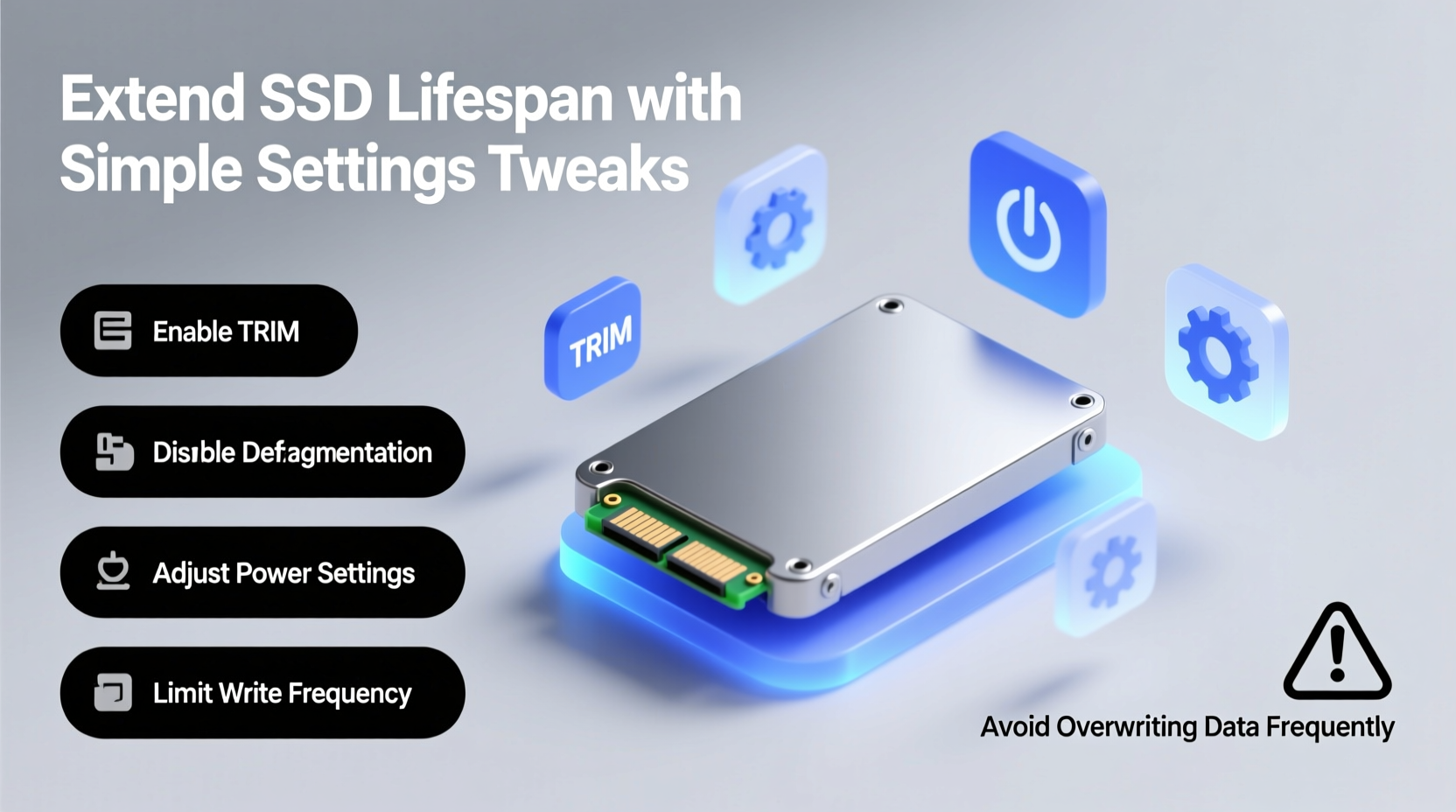
At the heart of every SSD is NAND flash memory, which stores data in cells. Each time data is written or erased, the memory cells degrade slightly. This process is known as \"write endurance.\" Most consumer SSDs use either TLC (Triple-Level Cell) or QLC (Quad-Level Cell) NAND, which offer higher storage density but lower endurance compared to older MLC (Multi-Level Cell) types.
The key metric here is terabytes written (TBW), a specification provided by manufacturers indicating how much data can be written to the drive over its lifetime. For example, a 1TB SSD might have a TBW rating of 600TB—meaning you could write 600 terabytes of data before risking failure. While this sounds like a lot, heavy workloads involving constant file transfers, virtual machines, or video editing can eat into that budget quickly.
Luckily, modern SSDs include wear leveling and error correction technologies. These features distribute writes evenly across memory blocks and correct minor errors before they become critical. But even with these safeguards, user behavior and system configuration play a major role in determining real-world lifespan.
“Most SSDs fail not from age, but from sustained high-write scenarios combined with poor thermal management.” — Dr. Alan Reeves, Storage Systems Researcher at MIT Computer Science Lab
Enable and Maintain TRIM Support
One of the most important yet overlooked settings for SSD longevity is TRIM. When files are deleted from an SSD, the operating system doesn’t immediately erase the underlying data—instead, it marks the space as available. Without TRIM, the SSD doesn’t know those blocks are free until new data needs to be written, forcing it to perform a slow read-modify-erase-write cycle.
TRIM solves this by allowing the OS to inform the SSD which blocks are no longer in use. This enables the drive to proactively clean up unused pages, improving both write speed and endurance by reducing unnecessary operations.
How to Check TRIM Status (Windows)
- Open Command Prompt as Administrator.
- Type
fsutil behavior query DisableDeleteNotify. - If the result is
0, TRIM is enabled. If it's1, runfsutil behavior set DisableDeleteNotify 0to enable it.
macOS and Linux
On macOS, TRIM is automatically managed. For third-party SSDs, use Terminal: sudo trimforce enable. On Linux, ensure discard is mounted in your fstab entry or run periodic TRIM with fstrim.
Reduce Unnecessary Write Activity
Every write shortens your SSD’s usable life. While normal computing generates inevitable writes, many common practices create avoidable overhead. Identifying and minimizing these can dramatically improve drive longevity.
Move Temporary Files and Logs Off the SSD
Applications and systems often store temporary files, logs, caches, and swap data on the primary drive. Redirecting these to a secondary HDD or external storage reduces SSD wear.
- Windows: Change temp folder locations via Environment Variables (
TEMPandTMP) to a non-SSD drive. - Linux: Mount
/tmpon a RAM disk or secondary drive usingtmpfs. - macOS: While limited, consider using symbolic links to redirect cache folders if you have a secondary drive.
Disable Hibernation (Windows)
Hibernation saves your system state to a file (hiberfil.sys) equal in size to your installed RAM. On a machine with 16GB of RAM, that’s 16GB written to your SSD each hibernation cycle.
To disable: Open Command Prompt as Admin and run powercfg -h off. You’ll free up space and eliminate a large, recurring write event.
Limit Browser Cache Size
Browsers like Chrome and Firefox store gigabytes of cached data over time. Configure them to limit cache size or place cache directories on another drive.
Manage Temperature and Physical Environment
Heat is one of the silent killers of SSDs. Elevated temperatures accelerate electron leakage in NAND cells, increasing error rates and forcing more frequent background corrections—which in turn generate additional writes.
A study by Google and the University of Toronto found that SSDs operating above 40°C (104°F) showed measurably higher failure rates over time. Yet many laptops and compact desktops trap heat around the M.2 or 2.5” drive slots.
Cooling Best Practices
- Ensure adequate airflow inside your PC case.
- Use heatsinks on M.2 NVMe drives—many motherboards include them, but aftermarket options are inexpensive.
- Avoid stacking multiple NVMe drives without spacing or cooling.
- Don’t leave laptops running intensive tasks on soft surfaces like beds or couches.
Monitor Drive Temperature
Use tools like CrystalDiskInfo (Windows), smartctl (Linux), or DriveDx (macOS) to check real-time SSD temperature. Set alerts for thresholds above 60°C.
| Temperature Range | Risk Level | Action Recommended |
|---|---|---|
| Below 40°C | Low | Normal operation. No action needed. |
| 40–55°C | Moderate | Monitor trends; improve ventilation if rising. |
| 55–70°C | High | Add cooling; reduce workload duration. |
| Above 70°C | Critical | Shut down and inspect immediately. |
Optimize System Settings by OS
Different operating systems handle SSDs differently. Tailoring settings to your platform ensures optimal behavior.
Windows: Disable Defragmentation and Superfetch
Traditional defragmentation is harmful to SSDs. Fortunately, Windows automatically disables scheduled defrags on detected SSDs—but it’s wise to verify.
Navigate to Defragment and Optimize Drives in Control Panel. Confirm your SSD shows “OK (0% fragmented)” and the schedule is turned off. Also, disable Superfetch (SysMain) via Services.msc, as it preloads apps into memory and increases background reads/writes.
macOS: Ensure APFS Optimization Is Active
If you’re running macOS High Sierra or later, your SSD should be formatted as APFS, which natively supports TRIM, copy-on-write, and space sharing. Verify your format in Disk Utility. Avoid third-party disk utilities that claim to “optimize” SSDs—they often do more harm than good.
Linux: Tune Mount Options
Edit your /etc/fstab file to include SSD-friendly options:
UUID=your-ssd-uuid / ext4 defaults,noatime,discard 0 1
The noatime flag prevents timestamp updates on file access, reducing writes. discard enables continuous TRIM. Alternatively, use fstrim.timer for weekly batch trimming instead of real-time.
Real-World Example: Extending Laptop SSD Life
Consider Mark, a freelance video editor using a lightweight laptop with a 512GB SSD. His workflow involved rendering 4K timelines, storing project files locally, and running multiple browser tabs for client communication. Within 18 months, his SSD showed signs of slowdown and elevated temps.
After diagnosis, he made several changes:
- Moved project exports and raw footage to an external HDD.
- Disabled hibernation and redirected temp folders.
- Installed a small M.2 heatsink.
- Set up automatic
fstrimweekly via cron (Linux).
Result: His SSD temperature dropped from consistent 62°C peaks to 48°C, write amplification decreased by ~40%, and system responsiveness improved. Two years later, his drive remains healthy with over 70% of its TBW budget remaining.
Essential SSD Longevity Checklist
- Verify TRIM is enabled on your system.
- Disable hibernation (Windows) or unnecessary sleep images.
- Turn off automatic defragmentation for SSDs.
- Redirect temp folders, caches, and logs to non-SSD storage.
- Install a heatsink on M.2 drives if not already present.
- Monitor SSD temperature monthly using reliable tools.
- Keep firmware updated via manufacturer software (e.g., Samsung Magician, Crucial Storage Executive).
- Avoid filling the SSD beyond 75% capacity to maintain spare area for wear leveling.
- Use
noatimeon Linux systems. - Back up critical data regularly—no SSD lasts forever.
Frequently Asked Questions
Can I completely prevent SSD wear?
No drive lasts forever, but you can drastically slow degradation. The goal isn’t elimination—it’s intelligent management. Even with heavy use, proper settings can stretch an SSD’s functional life to 7–10 years or more.
Is it safe to use my SSD as a scratch disk for photo/video editing?
Yes, but with caveats. Frequent large writes will consume TBW faster. If possible, use a secondary SSD or fast HDD dedicated to scratch files. If using the main SSD, ensure ample free space (at least 25%) and monitor health regularly.
Do SSDs need to be “refreshed” or rewritten periodically like old media?
No. Unlike magnetic tapes or floppies, SSDs don’t suffer from data decay due to inactivity. However, leaving an SSD unplugged for years (5+) may lead to charge leakage in cells. For archival, power on and boot the drive every 12–18 months.
Final Steps to Maximize Your SSD’s Lifespan
Extending your SSD’s life isn’t about complex engineering—it’s about thoughtful configuration and awareness. The fastest way to degrade an SSD is to treat it like an infinite resource. The smartest users recognize its strengths and limitations alike.
Start today: open your system settings, verify TRIM status, check your temperatures, and review where your applications are writing data. Small adjustments compound over time, preserving not just the physical drive, but also sustained system performance. Remember, your SSD doesn’t just store data—it powers your productivity. Treat it well, and it will return the favor for years to come.




 浙公网安备
33010002000092号
浙公网安备
33010002000092号 浙B2-20120091-4
Comments
No comments yet. Why don't you start the discussion?