
If you've ever been told, “I can’t hear you,” during a call despite speaking clearly, you're not alone. Audio problems—especially being inaudible to the other party—are among the most frustrating mobile phone issues. Unlike speaker or headphone malfunctions, microphone problems are often subtle and hard to diagnose. The good news is that many of these issues can be resolved without professional repair. Whether it’s dirt buildup, software glitches, or misconfigured settings, this guide walks you through actionable steps to restore clear two-way communication.
Understanding the Problem: Why Can’t Others Hear You?
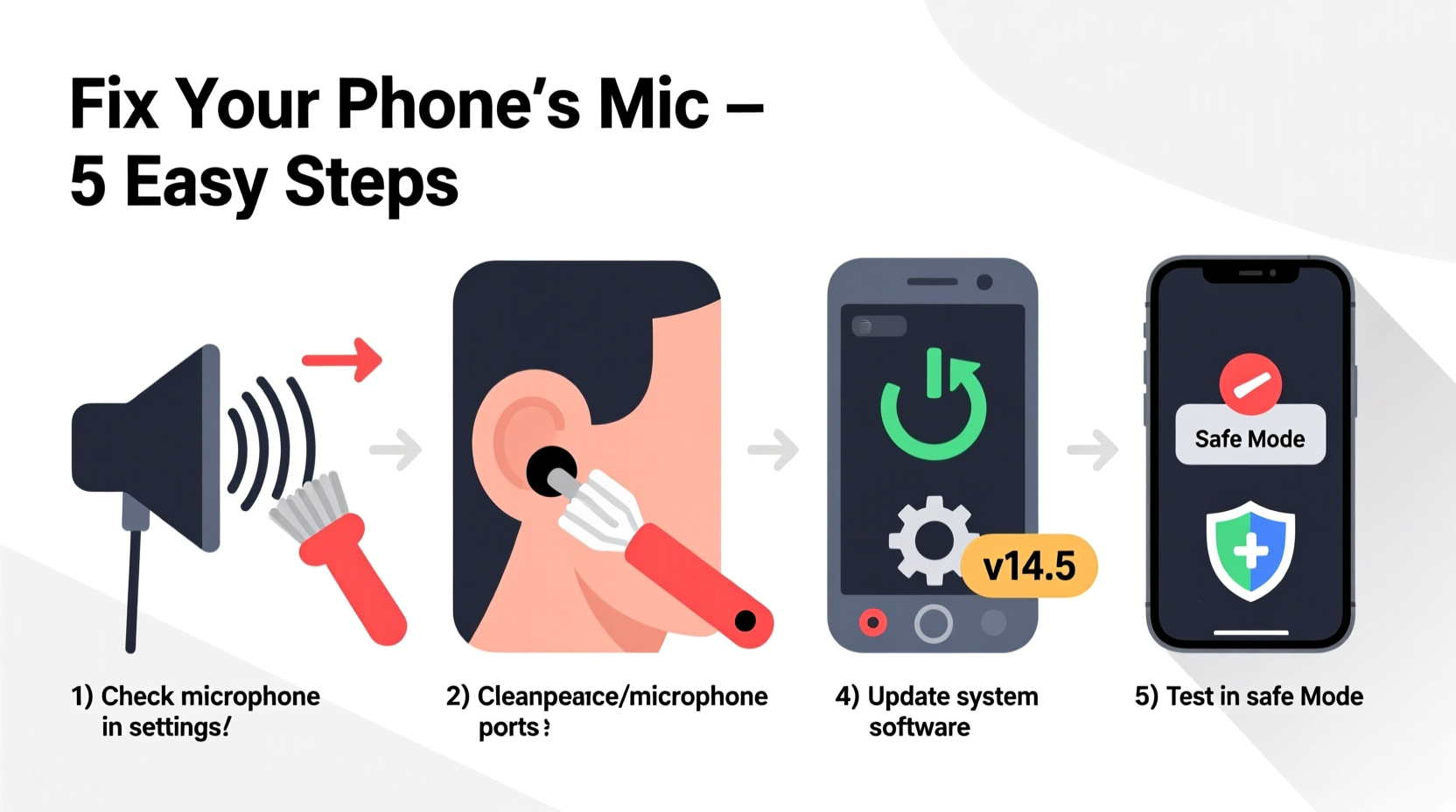
The primary reason people can't hear you on calls usually traces back to the phone’s microphone. Modern smartphones have multiple microphones: one for voice input during calls (typically at the bottom), another for noise cancellation, and sometimes a third near the rear camera for video recording. If any of these fail—or if sound isn’t being processed correctly—you may become inaudible.
Common causes include:
- Dirt, dust, or moisture clogging the microphone mesh
- Software bugs after an OS update
- Incompatible or malfunctioning third-party apps
- Accidental mute or incorrect audio routing
- Hardware damage from drops or water exposure
Before assuming hardware failure, rule out simpler explanations. Most issues stem from preventable or correctable factors.
Step-by-Step Guide to Diagnose and Fix the Issue
Follow this logical sequence to identify and resolve the root cause:
- Test the microphone: Open your phone’s voice recorder or use Siri/Google Assistant. Speak clearly and play back the recording. If your voice is faint or absent, the mic may be blocked or faulty.
- Check for physical obstructions: Inspect the microphone port (usually a small mesh near the charging port). Use a soft-bristled brush or compressed air to gently remove debris. Avoid metal tools that could damage internal components.
- Clean the microphone safely: Wrap a toothpick in a microfiber cloth and lightly wipe around the opening. Never insert anything deep into the port.
- Restart your phone: A reboot clears temporary software glitches that might interfere with audio processing.
- Update your operating system: Go to Settings > System > Software Update (Android) or Settings > General > Software Update (iOS) to ensure you’re running the latest version.
- Boot in safe mode (Android only): This disables third-party apps. If the mic works in safe mode, a downloaded app is likely interfering.
- Reset all settings: On iPhone, go to Settings > General > Transfer or Reset iPhone > Reset > Reset All Settings. On Android, go to System > Reset options > Reset Wi-Fi, mobile & Bluetooth. This won’t delete data but will clear misconfigurations.
- Test on another network or device: Try calling from Wi-Fi vs. cellular, or use a VoIP app like WhatsApp or FaceTime. If audio works there, the issue may lie with your carrier or SIM card.
Do’s and Don’ts When Handling Microphone Issues
| Do’s | Don’ts |
|---|---|
| Use a dry, soft brush to clean the mic port | Insert pins, needles, or sharp objects |
| Test with different apps (voice recorder, Zoom, etc.) | Assume hardware failure immediately |
| Keep your phone away from moisture and dust | Blow into the mic port with your mouth (moisture risk) |
| Update your phone regularly | Ignore recurring glitches after updates |
| Contact manufacturer support if under warranty | Attempt DIY repairs unless experienced |
Real-World Example: Recovering From a Silent Mic After Water Exposure
Jamal, a field technician, dropped his phone in a puddle during a site visit. After drying it with a towel, he noticed callers couldn’t hear him—even though he could hear them perfectly. He tried restarting the phone with no success. Suspecting water trapped in the bottom mic, he placed the device in a sealed container with silica gel packets for 48 hours. Upon testing again, his voice came through clearly. The moisture had dampened the microphone diaphragm, temporarily impairing its sensitivity. Early intervention prevented permanent corrosion.
This case highlights the importance of patience and proper drying techniques. Rice is often recommended, but silica gel is more effective at absorbing moisture without introducing dust.
“Many microphone issues are environmental rather than electronic. Dust, lint, and moisture are silent killers of audio clarity.” — Dr. Lena Park, Mobile Hardware Engineer at TechSight Labs
Checklist: Quick Actions to Restore Your Phone’s Microphone Function
✅ Microphone Troubleshooting Checklist
- ✔️ Record a short voice memo to test input quality
- ✔️ Visually inspect the bottom microphone for blockages
- ✔️ Gently clean the mic area with a dry brush or cloth
- ✔️ Restart your phone to reset audio services
- ✔️ Check for and install pending OS updates
- ✔️ Disable recently installed apps that access the mic
- ✔️ Test calls via different networks (Wi-Fi, cellular, VoIP)
- ✔️ Reset settings if software conflicts are suspected
- ✔️ Contact customer support if all else fails
Frequently Asked Questions
Why can I hear others but they can’t hear me?
This typically indicates a problem with the uplink audio path—your microphone or its software driver. The speaker (downlink) works independently, so one can fail while the other functions normally. Start by testing the mic in a voice recording app.
Can a screen protector or case block the microphone?
Yes. Poorly designed cases or full-coverage screen protectors can cover the microphone mesh, especially on phones where the mic is located near the edge. Remove the case and retest. If audio improves, consider switching to a slimmer, precision-cut accessory.
Is it possible to fix a damaged microphone myself?
While some advanced users replace microphones using repair kits, it’s risky. Soldering tiny connectors requires specialized tools and skills. For most users, visiting an authorized service center is safer and preserves water resistance seals.
When to Seek Professional Help
If you’ve completed all basic troubleshooting and the microphone still doesn’t work, the issue may be hardware-related. Signs include:
- No response in voice tests across multiple apps
- Visible damage to the mic port
- History of water exposure or impact
- Intermittent audio that worsens over time
Visit your phone manufacturer’s service center or a reputable repair shop. They can run diagnostic tests and determine whether the microphone, audio IC, or flex cable needs replacement. If your phone is under warranty and hasn’t been exposed to water or physical damage, repairs should be free.
Conclusion: Stay Heard, Stay Connected
Your phone’s microphone is essential for clear communication, yet it’s often overlooked until it fails. Most audio issues aren’t permanent—they stem from simple oversights like dirt buildup or software hiccups. By following regular maintenance and methodical troubleshooting, you can prevent and resolve most problems before they disrupt your day.
Don’t wait until an important call gets cut short. Take a few minutes now to inspect your device, test its microphone, and ensure your voice comes through loud and clear. If you’ve solved a tricky audio issue, share your experience in the comments—your insight could help someone else stay connected.




 浙公网安备
33010002000092号
浙公网安备
33010002000092号 浙B2-20120091-4
Comments
No comments yet. Why don't you start the discussion?