
In an age where laptops are essential for work, study, and personal life, getting the most out of your device isn’t just about performance—it’s about longevity. Most people replace their laptops every 3 to 5 years, often due to preventable wear and degradation. The truth is, small, consistent habits can dramatically extend your laptop’s lifespan, saving you money and reducing electronic waste. You don’t need technical expertise or expensive tools—just a few mindful routines integrated into your daily use.
From battery care to thermal management, software hygiene to physical protection, the way you treat your laptop every day shapes its future. These practices aren’t time-consuming or complicated. In fact, many take less than a minute. But over months and years, they compound into noticeable improvements in reliability, speed, and overall durability.
1. Optimize Battery Usage for Long-Term Health
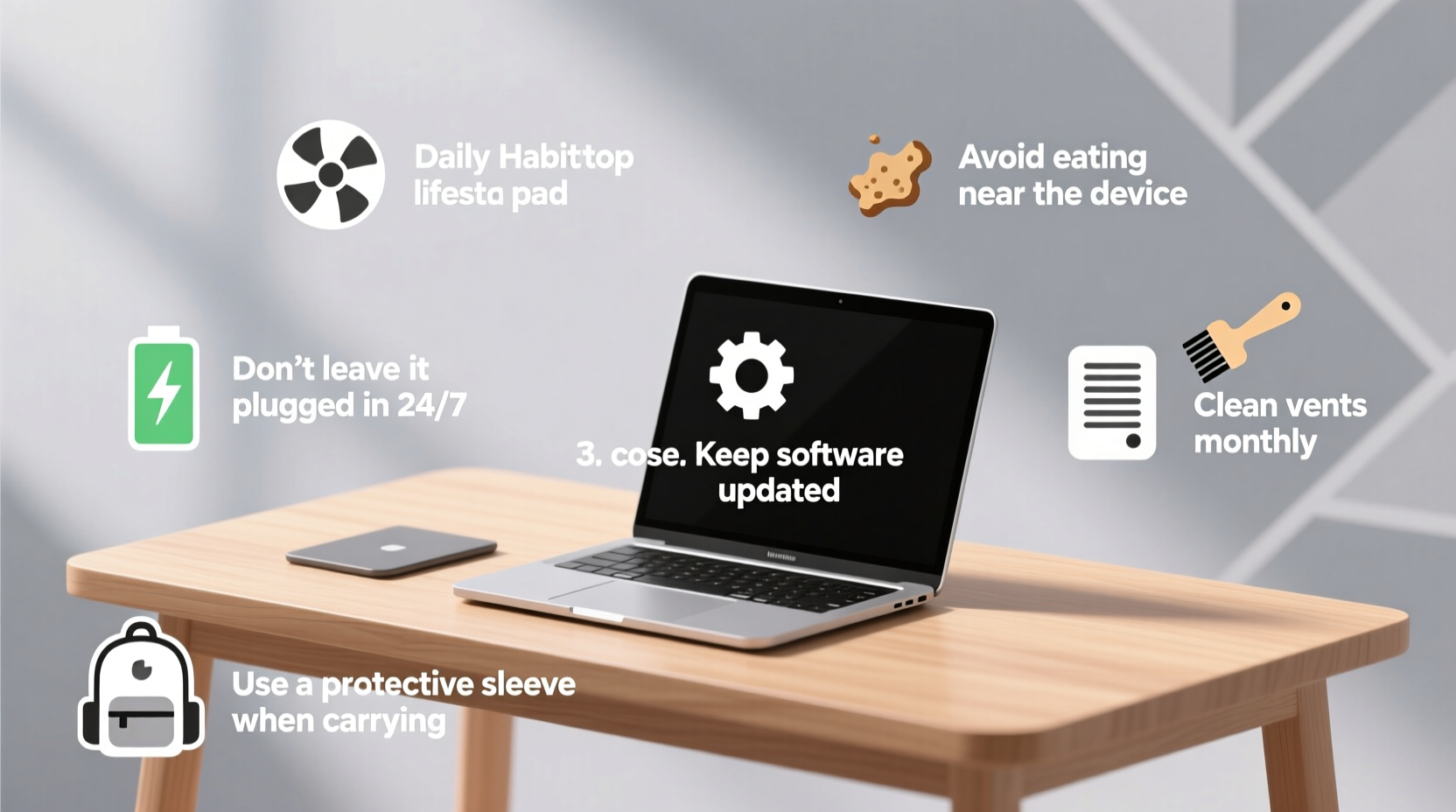
Lithium-ion batteries power nearly all modern laptops, and while they’re efficient, they degrade over time—especially when misused. Unlike older battery types, lithium-ion doesn’t like being fully charged or completely drained for extended periods. Keeping it between 20% and 80% is ideal for long-term health.
Many users plug in their laptops the moment they sit down and leave them charging overnight. This habit may seem harmless, but consistently keeping the battery at 100% increases internal stress and heat buildup, accelerating chemical aging. Over time, this reduces total capacity and runtime.
For those without built-in software controls, unplugging once the battery hits 80% during long sessions helps reduce strain. Similarly, avoid letting the battery drop below 20% regularly. If you store your laptop for weeks, charge it to around 50% before powering down—this minimizes degradation during idle periods.
Battery Do’s and Don’ts
| Do | Don't |
|---|---|
| Keep charge between 20% and 80% | Leave plugged in at 100% for days |
| Use manufacturer-approved chargers | Use cheap third-party adapters |
| Store at ~50% charge if unused | Store fully charged or fully drained |
| Unplug occasionally to discharge | Run intensive tasks while charging |
“Battery longevity isn’t about how long it lasts per charge—it’s about preserving cycle life. Avoiding extreme states of charge is one of the most effective ways to do that.” — Dr. Alan Kim, Energy Storage Researcher, MIT
2. Prevent Overheating with Smart Ventilation
Heat is one of the biggest enemies of electronics. Prolonged exposure to high temperatures damages components like the CPU, GPU, and battery, leading to throttling, crashes, and shortened lifespans. Laptops generate heat naturally, especially during multitasking or media playback, but poor airflow turns manageable warmth into harmful overheating.
One common mistake is using a laptop on soft surfaces like beds, couches, or pillows. These materials block air intake vents—usually located on the bottom or sides—causing internal temperatures to spike. Within minutes, fans ramp up to maximum speed, struggling to cool overloaded circuits.
The solution? Always use your laptop on a hard, flat surface. A desk or table allows proper ventilation. For frequent lap use, invest in a lightweight cooling pad or even a simple tray with raised edges to promote airflow.
You can monitor internal temperatures using free tools like HWMonitor (Windows) or iStat Menus (Mac). If CPU temps regularly exceed 85°C under normal use, it’s a red flag. Address it early by cleaning vents or adjusting usage patterns.
3. Maintain Clean Software and System Hygiene
Physical care matters, but so does digital maintenance. A cluttered operating system slows performance, increases disk wear, and makes your laptop more vulnerable to crashes and malware. Yet many users ignore software upkeep until problems arise.
Start by managing startup programs. Too many apps launching at boot slow down login and consume memory unnecessarily. On Windows, open Task Manager > Startup tab and disable non-essential entries. On macOS, go to System Settings > General > Login Items and remove what you don’t need.
Regularly clear temporary files, caches, and downloads. Large accumulations strain storage drives, especially older mechanical hard drives or low-capacity SSDs. Use built-in tools like Disk Cleanup (Windows) or Optimized Storage (macOS) to automate this.
Monthly Maintenance Checklist
- Update operating system and drivers
- Remove unused applications
- Clear browser cache and download folders
- Scan for malware with trusted antivirus software
- Back up important files to cloud or external drive
- Check available storage (keep at least 15% free)
Storage space directly affects performance. When an SSD drops below 10% free space, write speeds decline significantly due to lack of over-provisioning room. This accelerates wear and increases latency. Aim to keep at least 15–20% of your drive unoccupied for optimal function.
“Software bloat is silent degradation. It doesn’t break your laptop today, but it wears it down over time through constant resource strain.” — Sarah Lin, Senior Systems Engineer at TechCare Labs
4. Protect Against Physical Wear and Accidental Damage
How you handle your laptop physically has a direct impact on its survival. Dropping it, slamming the lid shut, or placing heavy objects on top can cause screen cracks, hinge failure, or internal component damage. These issues often start small—like a faint line on the display—but worsen over time.
A real-world example: Maria, a college student, routinely tossed her laptop into her backpack without a sleeve. After six months, she noticed the screen flickered when opened at certain angles. A technician found bent internal cables from repeated pressure. Repair cost: $180. With a basic padded case, the damage could have been avoided.
To protect against such risks:
- Always use a protective case or sleeve when transporting.
- Open and close the lid with two hands near the hinges to reduce stress.
- Avoid placing items on the keyboard before closing—pens, sticky notes, or coins can dent keys or scratch the screen.
- Never lift your laptop by the screen; always hold the base.
Keyboard hygiene also matters. Crumbs, dust, and liquids seep between keys and corrode circuits over time. Wipe the keyboard weekly with a dry microfiber cloth. For deeper cleaning, turn off the laptop, tilt it slightly, and use compressed air to blow out debris.
5. Establish a Daily Routine That Adds Up
Longevity isn’t achieved through occasional deep maintenance—it’s built through consistent, small actions. Think of your laptop like a car: regular oil changes and tire checks prevent major breakdowns. The same principle applies digitally and physically.
Here’s a practical timeline of habits to integrate into your day:
Daily Habits (Takes Less Than 2 Minutes)
- Shut down or restart instead of relying on sleep mode all week.
- Wipe the screen and keyboard with a dry cloth.
- Check for pending updates and install them.
- Close unused browser tabs and applications.
Weekly Habits (5 Minutes)
- Empty the Downloads folder and organize documents.
- Verify backup status (Time Machine, File History, etc.).
- Inspect ports and vents for visible dust.
- Assess battery health (via system settings or third-party tools).
Quarterly Habits (15–20 Minutes)
- Deep clean with compressed air.
- Review installed programs and uninstall unused ones.
- Check for firmware updates (BIOS/UEFI, SSD, etc.).
- Test external ports with peripherals to ensure functionality.
These routines require minimal effort but yield outsized benefits. Restarting weekly clears memory leaks and resets background processes. Cleaning prevents dust from insulating heat. Updates patch security flaws and improve stability. Each step protects different aspects of your machine, forming a comprehensive defense against decay.
Frequently Asked Questions
Is it bad to leave my laptop plugged in all the time?
It depends. Modern laptops manage charging well, but constant 100% charge increases battery stress. If you're docked most days, enable a charge limit (if available) to cap at 80%. Otherwise, unplug once fully charged and let it drain to 40–50% before reconnecting.
How often should I replace my laptop’s battery?
Most laptop batteries last 300–500 charge cycles (about 2–4 years of regular use). Signs it’s time to replace include sudden shutdowns at 20%+, swelling, or inability to hold a charge for more than 30 minutes. Some models allow user replacement; others require professional service.
Can I use my laptop while it’s charging?
Yes, but avoid running heavy tasks like gaming or video editing while plugged in, as this generates excess heat. Moderate use—web browsing, document editing—is perfectly safe.
Conclusion: Small Actions, Lasting Results
Your laptop doesn’t have to be replaced every few years. With thoughtful daily habits, you can extend its functional life by 30%, 50%, or even double it. The key is consistency—not heroics. Charging mindfully, avoiding heat, cleaning vents, managing software, and handling it with care are all within anyone’s reach.
Think of these habits as insurance. They cost nothing but a few seconds a day, yet they protect hundreds or thousands of dollars in technology. More importantly, they reduce e-waste and promote sustainable tech use in a world drowning in discarded devices.




 浙公网安备
33010002000092号
浙公网安备
33010002000092号 浙B2-20120091-4
Comments
No comments yet. Why don't you start the discussion?