
For millions of Android users, the lock screen is more than just a gatekeeper—it’s the first thing they see every time they pick up their phone. It sets the tone for the day, reflects personal style, and can even provide useful information at a glance. But while personalization enhances usability and enjoyment, it also raises real concerns about privacy and security. The wrong settings or poorly chosen widgets could expose sensitive data to prying eyes.
The good news is that you don’t have to choose between a beautiful, functional lock screen and robust device protection. With the right approach, you can enjoy both. This guide walks through practical strategies to customize your Android lock screen safely—without leaking private messages, location data, or app notifications to anyone who picks up your phone.
Why Lock Screen Personalization Matters (and Risks It Brings)
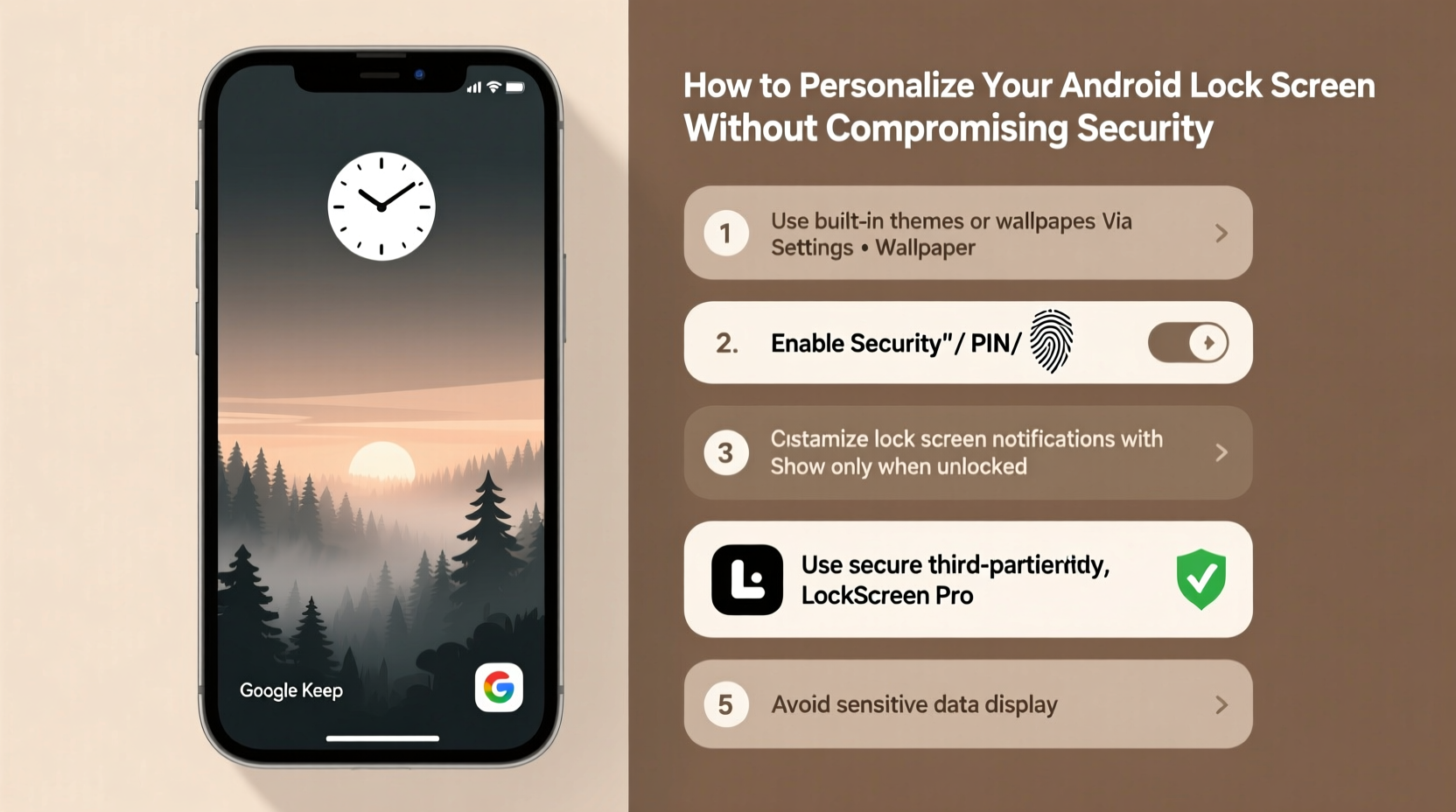
Personalizing your lock screen isn't just about aesthetics. A well-tuned interface can improve productivity by showing calendar events, weather updates, fitness stats, or music controls. It can reduce friction in daily use and make your device feel truly yours. However, convenience often comes with trade-offs.
Every piece of information visible before unlocking your phone increases exposure risk. For example, seeing a full message preview from a banking app or a private conversation may seem harmless when you're alone—but not when your phone is on a café table or handed to a child.
“Balancing usability and security starts with understanding what data is exposed—and to whom.” — Dr. Lena Torres, Mobile Security Researcher at SecureUX Labs
Android offers granular control over lock screen content, but many users either ignore these settings or enable too much access in the name of convenience. The key is selective visibility: allow only non-sensitive, actionable info while keeping personal details behind the authentication barrier.
Step-by-Step: Securely Customize Your Lock Screen
Follow this structured process to enhance your lock screen experience while maintaining strong security.
- Set a Strong Lock Method First
Before making any visual changes, ensure your device is protected with at least a PIN, pattern, or biometric authentication (fingerprint or face unlock). Avoid swipe-to-unlock if possible, as it provides no real security. - Access Lock Screen Settings
Navigate to Settings > Display > Lock screen (path may vary slightly depending on manufacturer). Here you’ll find options for clock styles, shortcuts, wallpaper, and notification display. - Choose a Secure Wallpaper
Select a background image that doesn’t contain sensitive information (e.g., photos with handwritten passwords, IDs, or home addresses). Use abstract designs, nature scenes, or curated art instead. - Disable Sensitive Notification Previews
Go to Settings > Notifications > Lock screen. Choose “Hide sensitive content” or “Show alerts, but hide contents.” This ensures messages appear as “New Message” without revealing sender or text. - Customize Clock & Widgets Carefully
Add a clock style or date format you like, but avoid placing widgets that show email previews, social media feeds, or recent calls. Stick to system-level tools like flashlight or camera shortcuts. - Review App-Specific Notification Settings
Tap into individual apps under Notifications and disable lock screen visibility for messaging, finance, health, and social platforms. You’ll still get alerts; they just won’t be readable until unlocked. - Enable Smart Lock (With Caution)
Smart Lock features like Trusted Places or Trusted Devices can keep your phone unlocked in safe environments. But limit their use—don’t pair your phone with an unsecured Bluetooth device or set your entire city as a trusted location.
What to Show (and What to Hide) on Your Lock Screen
Not all information carries the same risk. Below is a breakdown of common lock screen elements and whether they’re safe to display.
| Feature | Safe to Show? | Recommendation |
|---|---|---|
| Clock & Date | Yes | Always safe. Consider custom fonts or dual-time zones. |
| Weather Widget | Limited | Show temperature only. Disable detailed forecasts with location names. |
| Music Controls | Yes | Convenient and low-risk. Doesn’t reveal user data. |
| Message Previews | No | Hide content entirely or show only app icons. |
| Email Notifications | No | Display count only. Never show subject lines or senders. |
| Calendar Events | Sometimes | Only show time and title if event names are generic (e.g., “Meeting”) not “Dentist – Root Canal”). |
| Fitness Stats (Steps, Heart Rate) | Yes | Non-sensitive unless linked to medical conditions. |
| Wi-Fi & Battery Info | Yes | Useful and poses no privacy threat. |
Checklist: Secure Lock Screen Setup
- ✅ Set a secure lock method (PIN, pattern, or biometrics)
- ✅ Apply a non-sensitive wallpaper
- ✅ Disable message and email previews on lock screen
- ✅ Enable “Hide sensitive content” in notification settings
- ✅ Remove widgets that display personal data
- ✅ Configure app-specific notification privacy
- ✅ Limit use of Smart Lock to essential scenarios
- ✅ Regularly review lock screen behavior after app updates
A Real-World Example: Maria’s Secure Yet Stylish Lock Screen
Maria, a project manager in Chicago, uses her phone constantly for work and personal life. She wanted a clean, motivating lock screen but was concerned about colleagues accidentally seeing client messages during meetings.
She started by setting a six-digit PIN and enabling fingerprint unlock. Then she chose a calming forest wallpaper from Google’s Wallpapers app. In notification settings, she disabled previews for Slack, Gmail, and WhatsApp. Instead of showing message content, only app badges appear.
She added a minimalist clock widget and enabled music controls so she could pause podcasts during commutes. She also turned on Trusted Face (a form of Smart Lock) but limited its use to her home network via Wi-Fi detection.
The result? A personalized, responsive lock screen that supports her workflow—without exposing confidential project details. When her phone is passed around during team brainstorming sessions, no one sees anything beyond the time and weather.
Advanced Customization Without Risk
If basic settings aren’t enough, consider using third-party launchers or lock screen apps—carefully.
Apps like NiLS Lock Screen Notifications or KWGT Kustom Widget Creator let you design intricate interfaces with dynamic data. However, they require permission to read notifications, which must be managed responsibly.
To stay safe:
- Only install such apps from the Google Play Store.
- Check developer reputation and user reviews.
- Grant minimal permissions—especially deny access to SMS or call logs unless absolutely necessary.
- Regularly audit which apps have “Draw over other apps” or “Notification access” enabled.
Some manufacturers, like Samsung and OnePlus, offer built-in lock screen customization tools. Samsung’s Good Lock module, for instance, allows deep theming of the lock screen—but keeps security controls separate. Always double-check default settings after applying new themes.
“Third-party customization expands possibilities, but each added layer increases attack surface. Users must treat every new permission as a potential vulnerability.” — Rajiv Mehta, Senior Android Security Analyst at CyberShield Group
Frequently Asked Questions
Can I still receive urgent messages securely?
Yes. Android’s “Priority Only” mode or “Do Not Disturb” exceptions allow specific contacts (like family or emergency services) to bypass silent modes. You can set these callers to show full notifications—even on a locked screen—while keeping others hidden. Go to Settings > Sound > Do Not Disturb > Allow Calls From to configure.
Does dark mode improve lock screen security?
Not directly, but it helps indirectly. OLED screens turn off pixels in dark mode, meaning notifications might be less visible in bright environments. More importantly, dark themes reduce screen burn-in and battery usage, supporting long-term device reliability—which contributes to overall security hygiene.
Will my customizations reset after a software update?
Sometimes. Major Android updates or manufacturer OS upgrades can revert lock screen settings to defaults. After any system update, revisit your lock screen preferences and reapply privacy configurations. Make it part of your post-update routine.
Conclusion: Personalization and Protection Can Coexist
Your Android lock screen should reflect your personality and support your lifestyle—not become a liability. By taking deliberate steps to manage what appears before authentication, you maintain control over your digital footprint.
Start with strong authentication, then thoughtfully curate what information is visible. Use native tools first, test your setup regularly, and remain cautious with third-party apps. Remember: true personalization isn’t just about looks—it’s about creating an experience that feels uniquely yours while respecting your boundaries.




 浙公网安备
33010002000092号
浙公网安备
33010002000092号 浙B2-20120091-4
Comments
No comments yet. Why don't you start the discussion?