
Whether you're launching a YouTube channel, creating online courses, hosting webinars, or producing podcast episodes, the quality of your audio and video directly influences how your audience perceives your content. Poor sound or blurry visuals can distract viewers, reduce engagement, and damage credibility—even if your message is valuable. The good news? You don’t need expensive gear or technical expertise to achieve professional results. With the right approach, even beginners can produce polished recordings using accessible tools and smart techniques.
1. Prepare Your Environment for Optimal Recording
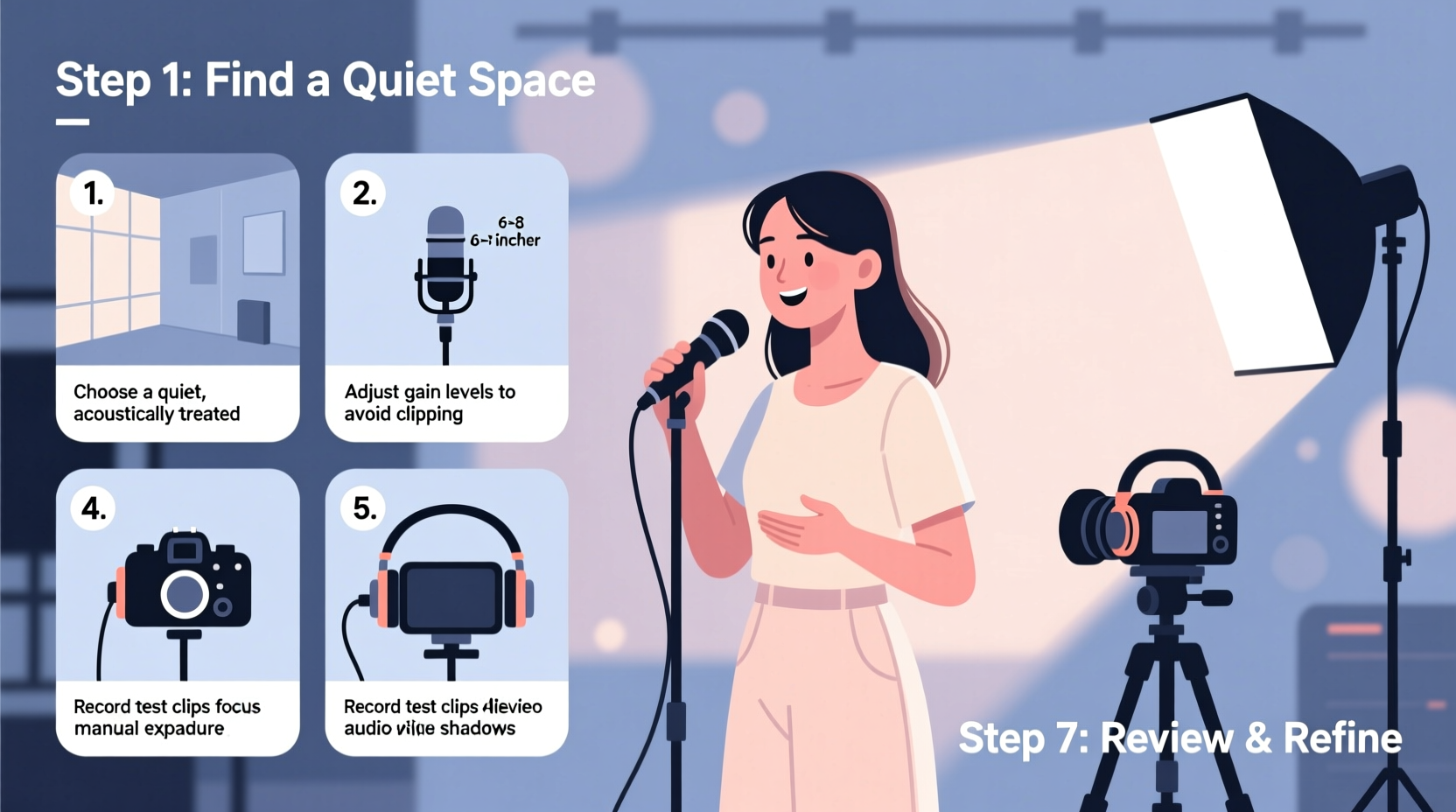
The space where you record has more impact than most beginners realize. Background noise, echo, and poor lighting can ruin otherwise solid content. Start by choosing a quiet room with minimal foot traffic and outside disturbances like street noise or appliances.
Soft furnishings help absorb sound. Rooms with bare walls, hardwood floors, and large windows often suffer from reverb—sound bouncing off hard surfaces, making voices sound hollow or distant. To improve acoustics, hang thick curtains, place rugs on the floor, or use bookshelves as natural diffusers.
For lighting, position yourself facing a natural light source like a window, but avoid backlighting (where the window is behind you). If natural light isn't sufficient, invest in an affordable softbox or ring light to evenly illuminate your face without harsh shadows.
2. Choose the Right Equipment Within Your Budget
You don’t need a $2,000 microphone or 4K cinema camera to start. Many modern smartphones and laptops have surprisingly capable built-in microphones and cameras. However, upgrading key components can dramatically improve quality.
| Component | Affordable Option | Mid-Range Upgrade | Professional Standard |
|---|---|---|---|
| Microphone | USB condenser mic (e.g., Fifine K669) | Audio-Technica AT2020USB+ | Shure SM7B with audio interface |
| Camera | Smartphone (1080p mode) | Logitech Brio or Sony ZV-E10 | Canon EOS R5 or Blackmagic Pocket 6K |
| Lighting | DIY daylight setup with lamps | Ring light or two-point softbox kit | Three-point studio lighting system |
| Accessories | Mini tripod, pop filter | Boom arm, XLR cables, shock mount | Dual monitors, field recorder |
Beginners should focus on clean audio first—most viewers will forgive slightly grainy video if the sound is crisp and clear. A USB microphone under $100 is often a better investment than a higher-resolution camera.
“Audio quality is the foundation of professional content. Viewers may overlook average visuals, but they won’t listen to muddy or inconsistent sound.” — Lena Torres, Podcast Producer & Audio Engineer
3. Step-by-Step Recording Process
Follow this structured workflow to ensure consistency and reduce editing time later.
- Test your setup: Record a 30-second test clip. Play it back to check levels, clarity, and background noise.
- Position the microphone correctly: Place a USB mic 6–8 inches from your mouth, slightly off-axis to reduce plosive sounds (like “p” and “b”). Use a pop filter if available.
- Frame your shot: For video, position the camera at eye level. Leave space above your head and align your eyes along the upper third of the frame (rule of thirds).
- Set audio levels: Aim for peaks around -6dB to -3dB. Avoid clipping (red zones), which causes distortion.
- Minimize interruptions: Silence phone notifications, close unnecessary apps, and inform others in your space not to disturb you.
- Speak clearly and steadily: Enunciate words, maintain consistent volume, and pause briefly between sentences to allow for smoother editing.
- Record multiple takes if needed: Don’t stress about perfection in one go. It’s easier to edit together clean segments than to fix a flawed full take.
4. Post-Production Essentials for Polished Output
Editing transforms raw footage into professional content. Free software like Audacity (audio) and DaVinci Resolve (video) offer powerful tools without cost. Here’s what to do after recording:
- Cut out mistakes: Remove long pauses, filler words (“um,” “uh”), and false starts.
- Noise reduction: Use tools like Audacity’s noise profile feature to eliminate background hums or AC noise.
- Normalize audio: Adjust volume so your voice sits consistently between -16 LUFS and -12 LUFS for platforms like YouTube.
- Add subtle music (optional): Use royalty-free background tracks at low volume to enhance mood without overpowering speech.
- Export in correct format: For YouTube, export video as MP4 (H.264 codec, 1080p resolution). For podcasts, use MP3 at 128–192 kbps.
Always preview your final file on different devices—laptop, phone, headphones—to ensure compatibility and quality across platforms.
Real Example: From Garage to Professional Podcast
Jamal started a personal finance podcast using only his smartphone and a $30 lapel mic. He recorded in his garage, which had noticeable echo. After three episodes, listener feedback pointed out the poor audio quality. He moved recording indoors, draped blankets over the walls, and upgraded to a USB condenser mic. He also began editing in Audacity, removing background noise and normalizing levels. Within two months, his retention rate doubled, and he was invited to guest on established shows—all because of clearer, more confident-sounding audio.
5. Common Pitfalls and How to Avoid Them
Even with preparation, beginners often make preventable mistakes. Recognizing these early saves time and frustration.
| Mistake | Why It Hurts Quality | Solution |
|---|---|---|
| Recording in noisy environments | Background noise distracts listeners and limits editing flexibility | Choose quiet spaces; record during off-hours |
| Holding the phone while speaking | Causes handling noise and unstable framing | Use a tripod or stable surface |
| Speaking too fast or too softly | Reduces intelligibility and forces volume boosting | Practice pacing; monitor input levels |
| Ignoring file naming and organization | Makes editing chaotic when managing multiple clips | Use consistent names: project_take1.mp4, voiceover_intro.wav |
Quick Checklist Before Hitting Record
- ✅ Room is quiet and free of echo
- ✅ Microphone is positioned correctly with pop filter
- ✅ Camera is stable and properly framed
- ✅ Lighting is even and flattering
- ✅ Audio levels are tested and not peaking
- ✅ Script or notes are ready and visible
- ✅ Phone and computer notifications are silenced
FAQ
Can I use my smartphone for professional-quality recordings?
Yes. Modern smartphones support 1080p or even 4K video and have decent microphones. For better audio, pair your phone with an external microphone via adapter or use a dedicated recording app with manual controls.
Do I need to speak louder to be heard clearly?
No. Speaking too loudly can distort your voice and overwhelm the microphone. Instead, maintain a consistent distance and let gain settings handle volume. Speak naturally and enunciate clearly.
How long should my videos or audio clips be?
It depends on purpose. Educational content averages 8–15 minutes. Vlogs can range from 5–20 minutes. Podcast episodes vary from 20–60 minutes. Focus on delivering value—not filling time.
Final Thoughts
Creating clear, professional audio and video isn’t about having the most expensive gear—it’s about thoughtful preparation, consistent technique, and attention to detail. Every expert started where you are now: learning how to frame a shot, reduce background noise, and speak confidently on camera. Each recording builds experience. Over time, these steps become second nature, freeing you to focus on your message.




 浙公网安备
33010002000092号
浙公网安备
33010002000092号 浙B2-20120091-4
Comments
No comments yet. Why don't you start the discussion?