
Recording gameplay on a mid-range PC doesn’t have to mean unbearable lag or dropped frames. While high-end systems handle recording with ease, many gamers rely on balanced hardware that can still deliver solid performance—if configured correctly. The key lies not in raw power alone, but in smart optimization of both software and system resources. With the right approach, you can capture smooth, high-quality footage without sacrificing playability.
Mid-range PCs typically feature processors like Intel Core i5 or AMD Ryzen 5, 8–16GB of RAM, and dedicated GPUs such as the NVIDIA GTX 1660 or AMD Radeon RX 580. These specs are sufficient for modern gaming at 1080p, but adding screen recording introduces additional strain. This guide walks through proven strategies to minimize performance impact while maintaining visual fidelity in your recordings.
Understand Your Hardware Limits
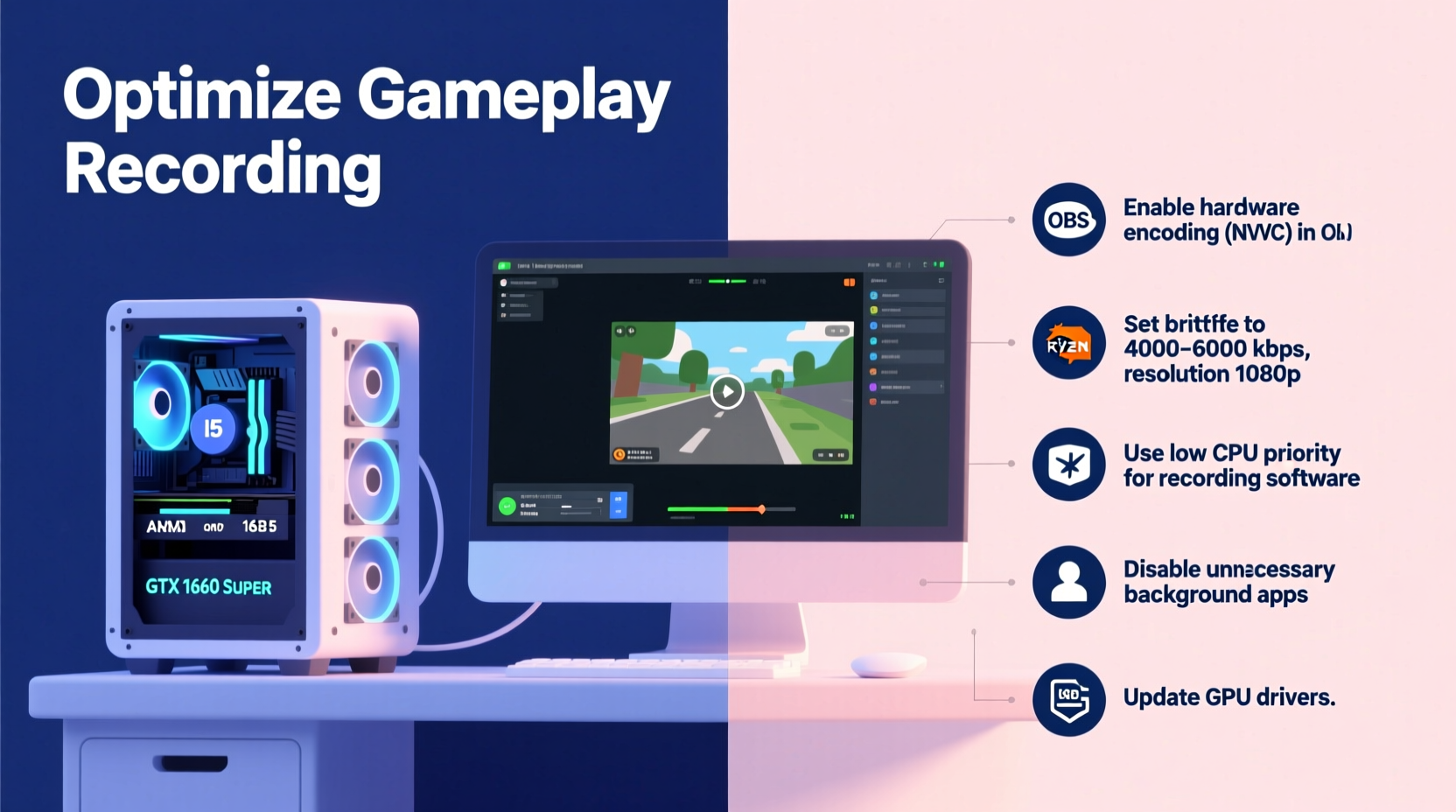
Before adjusting any settings, it's crucial to understand what your system can realistically handle. Recording gameplay is a dual-task operation: your PC must render the game at full speed while simultaneously encoding video data. This process heavily involves the CPU, GPU, and storage subsystem.
- CPU: Handles game logic and often assists with video encoding if GPU encoding isn't used.
- GPU: Renders graphics and, in most cases, performs hardware-accelerated encoding via NVENC (NVIDIA) or AMF (AMD).
- Ram: Should be at least 16GB to prevent bottlenecks when multitasking.
- Storage: An SSD significantly improves write speeds, reducing the risk of frame drops during recording.
Mid-range systems may lack the headroom of higher-tier builds, but they benefit greatly from offloading encoding tasks to the GPU and minimizing background processes. Knowing your components allows you to make informed decisions about which settings to prioritize.
Choose the Right Recording Software
Not all screen recorders are created equal. Some consume excessive resources, while others leverage hardware acceleration efficiently. For mid-range PCs, selecting lightweight, well-optimized software is essential.
Here’s a comparison of popular options based on performance impact and features:
| Software | Encoding Support | Performance Impact | Best For |
|---|---|---|---|
| OBS Studio (Free) | NVENC, AMF, QuickSync | Low to Moderate (configurable) | Customizable, high-quality output |
| Windows Game Bar | NVENC/AMF (if available) | Low | Quick captures, minimal setup |
| ShadowPlay (NVIDIA) | NVENC only | Very Low | NVIDIA GPU users seeking simplicity |
| Xbox Game Bar (UWP) | Hardware-accelerated | Low | Integrated Windows solution |
| Bandicam | NVENC, AMF, x264 | Moderate | High FPS recording with some overhead |
OBS Studio stands out due to its flexibility and support for multiple hardware encoders. When properly configured, it can run efficiently even on modest systems. ShadowPlay is ideal for NVIDIA users who want a “set it and forget it” experience with minimal performance cost.
“Hardware encoding has leveled the playing field. Even mid-tier GPUs now offer near-zero-lag recording when properly tuned.” — David Lin, Streaming Technology Analyst at PCPerformer Labs
Optimize Recording Settings for Performance
The biggest mistake gamers make is trying to record at maximum quality without adjusting for their system’s capabilities. High bitrates, resolutions, and framerates increase file size and processing load unnecessarily. Instead, adopt a balanced configuration tailored to your hardware.
Step-by-Step Guide to Optimal OBS Settings
- Set Output Mode to Advanced: In OBS, go to Settings > Output and choose \"Advanced\" mode for full control.
- Select Hardware Encoder: Under \"Encoder,\" pick \"NVENC H.264\" (for NVIDIA) or \"AMD AMF H.265\" (for AMD). Avoid x264 unless you have a powerful CPU.
- Resolution & Framerate: Record at the same resolution you're gaming (e.g., 1080p) and cap framerate at 30 or 60 FPS depending on game type.
- Bitrate: Use 10,000–15,000 kbps for 1080p60. Lower to 8,000 kbps if experiencing lag.
- Preset: Choose \"Quality\" or \"Max Quality\" for better visuals without extreme CPU use.
- Keyframe Interval: Set to 2 seconds for smoother editing later.
- Rescale Output: If needed, set rescale to 1280x720 to reduce encoder load.
Use Game-Specific Profiles
Different games place varying demands on your system. A competitive shooter like CS2 may run smoothly at 100+ FPS, while an open-world RPG like Elden Ring might struggle at 30 FPS. Adjust recording settings per game:
- For fast-paced games: Prioritize stable FPS over bitrate. Use 1080p30 at 8,000 kbps.
- For cinematic games: Increase bitrate to 12,000+ kbps to preserve detail.
- For older or less demanding titles: You can safely increase quality settings.
Minimize System Overhead
Even with optimized software, background processes can cripple performance. Every running app competes for CPU cycles, memory, and disk access—resources your game and recorder need.
Checklist: Pre-Recording System Optimization
- Close unused browsers and applications (especially Chrome tabs).
- Disable startup programs via Task Manager > Startup tab.
- Update GPU drivers to ensure optimal encoder performance.
- Set power plan to \"High Performance\" in Control Panel.
- Run disk cleanup and ensure at least 10GB free space on recording drive.
- Defragment HDDs (if used); SSDs do not require defragmentation.
- Disable overlays (Discord, Steam, GeForce Experience) unless absolutely needed.
Additionally, consider dedicating a secondary drive for recordings. Writing large video files to the same drive hosting your OS and game can cause stutters. An external SSD connected via USB 3.0 or better works well for temporary storage.
Real Example: Alex’s Recording Upgrade
Alex, a streamer using an AMD Ryzen 5 3600, GTX 1660 Super, and 16GB RAM, struggled with stuttering while recording gameplay in OBS. Initially, he used x264 encoding with medium preset, causing CPU usage to spike above 90%. After switching to AMD AMF hardware encoding, lowering the bitrate to 10,000 kbps, and disabling Discord overlay, his in-game FPS stabilized from fluctuating between 40–60 to a consistent 60. He also moved his recording folder to a separate SSD, eliminating audio dropouts during long sessions.
This case illustrates how targeted changes—not hardware upgrades—can resolve lag issues effectively.
Balance In-Game and Recording Settings
Your goal should be a harmonious balance between visual quality and performance. Slight reductions in-game can yield significant gains in recording stability.
Recommended In-Game Adjustments
- Lower anti-aliasing and shadow quality—they’re GPU-intensive and less noticeable in recordings.
- Cap in-game FPS slightly below your monitor’s refresh rate to avoid spikes.
- Reduce draw distance in open-world games to ease VRAM usage.
- Disable motion blur and depth of field if they don’t add value to your content.
Consider using dynamic resolution scaling if supported, allowing the game to adjust resolution under load while maintaining frame pacing.
Do’s and Don’ts Table
| Action | Do | Don’t |
|---|---|---|
| Encoder Choice | Use NVENC or AMF | Use x264 on weak CPUs |
| Resolution | Match game resolution | Record at 4K on a 1080p rig |
| Background Apps | Close unnecessary programs | Run video editors or browsers |
| Audio Sources | Only enable mic/game audio if needed | Add multiple audio inputs unnecessarily |
| Storage | Save to SSD or fast external drive | Write to mechanical HDD under load |
Every adjustment contributes to a leaner system profile, freeing up critical resources for seamless recording.
Frequently Asked Questions
Can I record gameplay without a dedicated GPU?
Yes, but with limitations. Integrated graphics like Intel UHD 630 or AMD Vega 8 support basic recording via QuickSync or AMF, respectively. However, expect reduced quality and potential lag in demanding games. Lower resolution (720p) and bitrate (5,000 kbps) are recommended.
Why does my game lag only when I start recording?
This usually indicates that your system lacks sufficient headroom to handle both rendering and encoding. Check whether hardware encoding is enabled. If not, the CPU takes over encoding, leading to high usage and frame drops. Also verify that no other apps are consuming resources unexpectedly.
Is it better to record now or use capture cards later?
For most mid-range PC users, software recording is more practical and cost-effective. Modern GPUs include efficient encoders that rival entry-level capture cards. Only consider a capture card if you're streaming from another device (like a console) or need lossless recording, which exceeds typical mid-range capabilities anyway.
Final Recommendations and Action Plan
Recording gameplay smoothly on a mid-range PC is entirely achievable with deliberate configuration. Start by auditing your current setup: identify bottlenecks using monitoring tools, then apply targeted optimizations. Choose software that leverages your GPU’s built-in encoder, dial in conservative but effective recording settings, and eliminate background distractions.
Remember, perfection isn’t the goal—consistency is. A stable 1080p60 recording at moderate bitrate looks far better than a corrupted 4K clip riddled with dropped frames. Small trade-offs in visual fidelity yield major improvements in reliability.
Implement one change at a time and test thoroughly. Once you find a working baseline, create a preset in your recording software so you can apply it across different games quickly.




 浙公网安备
33010002000092号
浙公网安备
33010002000092号 浙B2-20120091-4
Comments
No comments yet. Why don't you start the discussion?