
Losing access to your tablet because you’ve forgotten the password is frustrating but not irreversible. Whether it’s a child’s device locked after multiple failed attempts or your own tablet that hasn’t been used in months, regaining access is possible through a combination of built-in recovery tools, manufacturer support, and careful troubleshooting. The approach varies significantly depending on the operating system—Android, iPadOS, or Windows—and whether the device was previously linked to a cloud account. This guide walks you through practical, secure solutions to reset a forgotten password without compromising data unnecessarily.
Understanding Device Security and Recovery Options
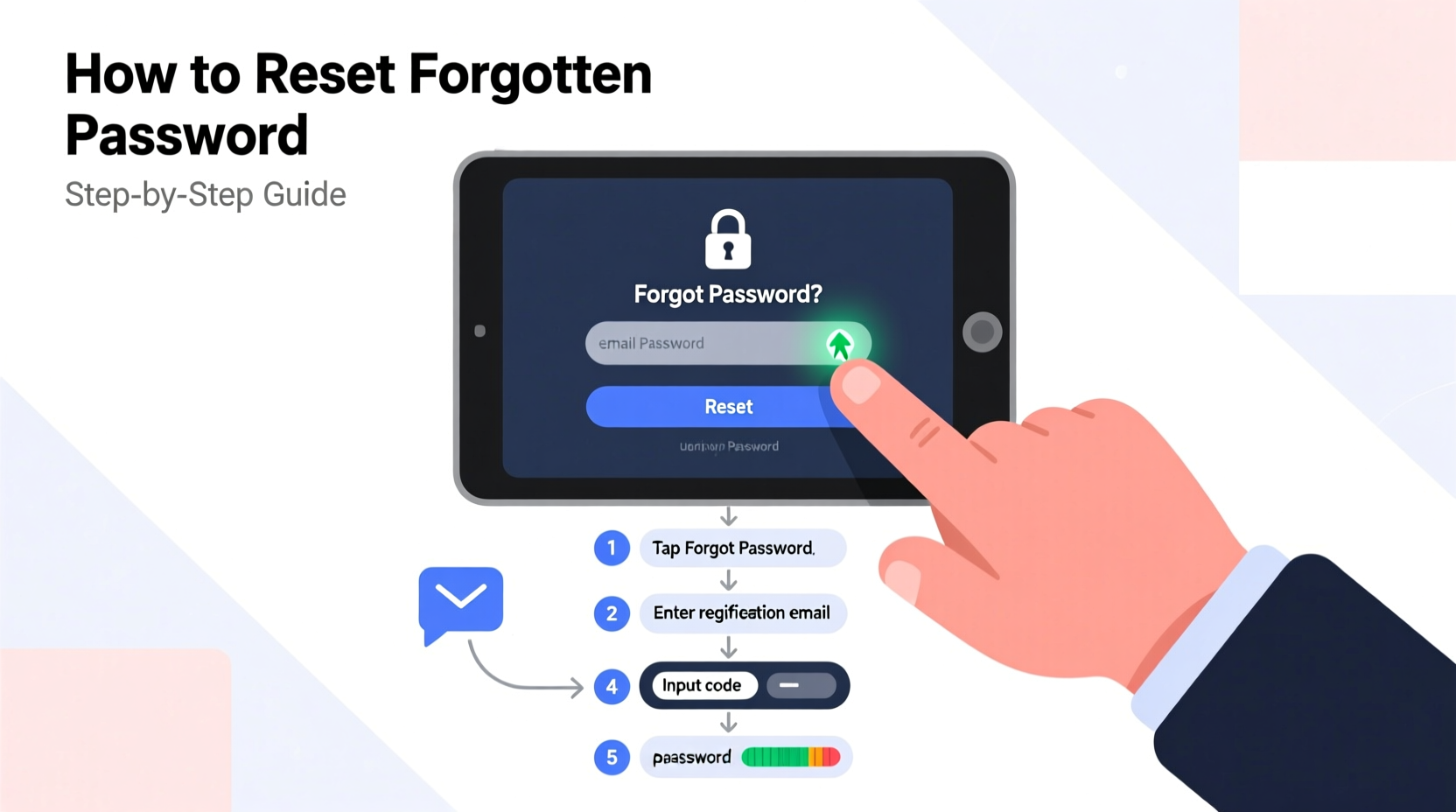
Modern tablets are designed with robust security features to protect user data. When a password, PIN, or pattern is set, the device encrypts stored information so that only authorized users can unlock it. While this prevents unauthorized access, it also means there’s no simple “backdoor” to bypass the lock screen. However, manufacturers and OS developers have implemented recovery mechanisms—usually tied to an online account—that allow legitimate owners to regain control.
The key to successful recovery lies in preparation: Was the tablet ever synced with a Google Account (for Android), Apple ID (for iPad), or Microsoft account (for Windows)? If yes, resetting the password becomes significantly easier. If not, options become more limited and may require full factory resets, which erase all data.
Step-by-Step Guide: Resetting an Android Tablet Password
Android tablets, especially those from Samsung, Google, or Lenovo, offer several recovery paths. The exact method depends on the brand, Android version, and whether Find My Device was enabled.
- Attempt Smart Lock or Biometric Unlock: If facial recognition, fingerprint, or voice match was enabled, try these even if the password is forgotten. Some systems allow fallback authentication under specific conditions.
- Use Google's Find My Device: Visit google.com/android/find from another device. Sign in with the Google Account linked to the tablet. Select the locked device and choose “Erase Device.” This will wipe all data and remove the lock screen. After rebooting, you can set up the tablet as new.
- Recovery Mode Factory Reset: Power off the tablet. Press and hold the Power + Volume Down buttons simultaneously until the recovery menu appears. Use volume keys to navigate to “Wipe data/factory reset,” confirm with the power button, then reboot. Note: This erases everything.
- Samsung-Specific Option – Find My Mobile: For Samsung tablets, visit findmymobile.samsung.com. Log in with your Samsung account and use the “Unlock” feature if available, or remotely erase the device.
After a factory reset, the tablet will restart into setup mode. You’ll need to reconnect to Wi-Fi and sign in with the previous Google account due to Factory Reset Protection (FRP). This anti-theft measure prevents stolen devices from being easily reused.
“Always keep your Google Account credentials secure and accessible. It’s the single most important recovery tool for Android devices.” — David Lin, Mobile Security Analyst at TechShield Labs
Resetting a Locked iPad: Forgotten Passcode Solutions
iPads running iPadOS do not allow passcode resets directly from the lock screen. Apple prioritizes privacy, meaning brute-force attacks are blocked after too many attempts. However, recovery is possible via iTunes (on macOS Catalina and earlier) or Finder (macOS Catalina and later), or through iCloud.
Method 1: Restore Using a Computer
This requires access to a computer previously synced with the iPad or any computer you’re willing to use for recovery.
- Connect the iPad to a Mac or PC using a USB cable.
- Put the iPad into recovery mode:
- For models with Face ID: Press and release Volume Up, then Volume Down, then press and hold the Top button until the recovery screen appears.
- For Home button models: Hold the Home + Top (or Side) button until the recovery screen shows.
- A prompt will appear in Finder or iTunes asking to Restore or Update. Choose Restore.
- The computer downloads the latest iPadOS software and installs it, wiping the device.
- After restoration, set up the iPad as new or restore from a backup if available.
Method 2: Erase via iCloud
If “Find My iPad” was enabled:
- Go to iCloud.com on any web browser.
- Sign in with the Apple ID linked to the iPad.
- Select “Find iPhone” > “All Devices” > Choose your iPad.
- Click “Erase iPad.” Confirm the action.
- Once erased, you can set a new passcode during re-setup.
Note: If the iPad is offline, the erase command will execute the next time it connects to the internet.
Windows Tablets: Recovering from a Forgotten Login
Microsoft Surface tablets or other Windows-based devices often use either a local account or a Microsoft account for login. The recovery process differs accordingly.
| Login Type | Recovery Method | Data Impact |
|---|---|---|
| Microsoft Account | Reset password online at live.com/resetpassword | Minimal; sync resumes after login |
| Local Account | Use installation media or reset via Settings (if accessible) | High; full reset usually required |
| PIN Only | Wait out lockout timer or use password alternative | None if password is known |
To reset a Windows tablet without the password:
- At the login screen, click the power icon and select “Restart.”
- Hold Shift while selecting “Restart” to enter Advanced Startup.
- Choose “Troubleshoot” > “Reset this PC.”
- Select “Remove everything” or “Keep my files” if available.
- Follow prompts to reinstall Windows and set up the device anew.
If you cannot access the login screen at all, create Windows installation media on another PC using the Media Creation Tool from Microsoft’s website, boot from it, and perform a clean install.
Mini Case Study: Recovering a Child’s Locked Learning Tablet
Sarah, a parent in Austin, Texas, faced a common dilemma when her 8-year-old son accidentally locked his Android-based learning tablet after five incorrect pattern attempts. The device had no fingerprint sensor, and Sarah couldn’t recall the associated Google email.
She began by searching the tablet’s model number online and confirmed it supported Google’s Find My Device. After rummaging through old receipts and emails, she recovered the Gmail address used during setup. Logging into Google’s portal, she located the tablet, triggered a remote erase, and waited 10 minutes for the command to sync. The tablet rebooted, wiped clean, and she restored basic apps from a recent backup. Though some game progress was lost, core documents and photos were preserved via automatic Google Drive sync.
Sarah now keeps a password manager note with all family device accounts and enables screen pinning to prevent accidental lockouts during supervised use.
Do’s and Don’ts of Tablet Password Recovery
| Do’s | Don’ts |
|---|---|
| Link your tablet to a cloud account during setup | Use third-party “unlock” software claiming to bypass passwords |
| Enable Find My Device / Find My iPad | Forget your primary email password |
| Back up data regularly to cloud or computer | Attempt repeated guesses on public or shared devices |
| Write down recovery info and store it securely | Leave tablets unattended with sensitive data |
Frequently Asked Questions
Can I reset my tablet password without losing data?
In rare cases, yes—if you have remote access via iCloud, Find My Device, or Microsoft account recovery, and the feature supports unlocking without erasing. However, most scenarios require a factory reset, which deletes all local data. Cloud-synced content (photos, emails, contacts) can usually be restored afterward.
What if I don’t remember the Google or Apple ID linked to the tablet?
Recovery becomes extremely difficult. For Google, visit Google Account Recovery and answer verification questions. For Apple, go to iforgot.apple.com to recover your ID or reset the password using security questions or trusted devices.
Are there legal risks in trying to unlock a secondhand tablet?
Yes. If the tablet has active activation lock (Apple) or FRP (Android), and you can’t provide proof of ownership or the original account credentials, accessing it may violate laws against circumventing digital locks. Always verify the device’s status before purchase.
Checklist: Steps to Regain Access to a Locked Tablet
- Identify the tablet’s operating system (Android, iPadOS, Windows).
- Determine if a cloud account (Google, Apple, Microsoft) was linked.
- Attempt biometric or alternative unlock methods (face, fingerprint).
- Try remote find-and-erase services (Find My Device, iCloud, Find My Mobile).
- If no remote access, boot into recovery mode and perform a factory reset.
- After reset, set up the device anew and restore from backup if available.
- Update security settings and enable remote tracking for future protection.
Conclusion
Forgetting a tablet password doesn’t mean permanent loss of the device. With the right tools and preparation, most locked tablets can be reset and restored to working order. The critical factor is whether the device was previously associated with a recoverable online account. Without that link, a factory reset remains the only viable option, underscoring the importance of proactive digital hygiene—linking accounts, enabling location services, and backing up data.
Take action today: Verify that all your tablets are connected to your cloud accounts, test remote locate functions, and document recovery steps in a secure place. These small efforts save hours of stress when memory fails. If you’ve successfully recovered a locked tablet, share your story in the comments—your experience could help someone else regain access tomorrow.




 浙公网安备
33010002000092号
浙公网安备
33010002000092号 浙B2-20120091-4
Comments
No comments yet. Why don't you start the discussion?