
Forgetting a password to an old phone, tablet, or computer is more common than you might think. Whether it’s a device stored in a drawer for years or one passed down from a family member, regaining access without compromising security requires careful planning. Unlike new devices with cloud recovery options, older models often lack updated firmware, active accounts, or internet connectivity—making standard reset procedures ineffective or risky.
Resetting a forgotten password isn’t just about bypassing a lock screen—it’s about doing so in a way that respects data integrity, avoids bricking the device, and minimizes exposure to vulnerabilities. This guide walks through secure, step-by-step methods tailored to different types of legacy hardware, including smartphones, laptops, and tablets. You’ll also learn how to preserve personal data when possible and recognize when a full factory reset is the only safe option.
Understanding the Risks of Forgotten Passwords on Legacy Devices
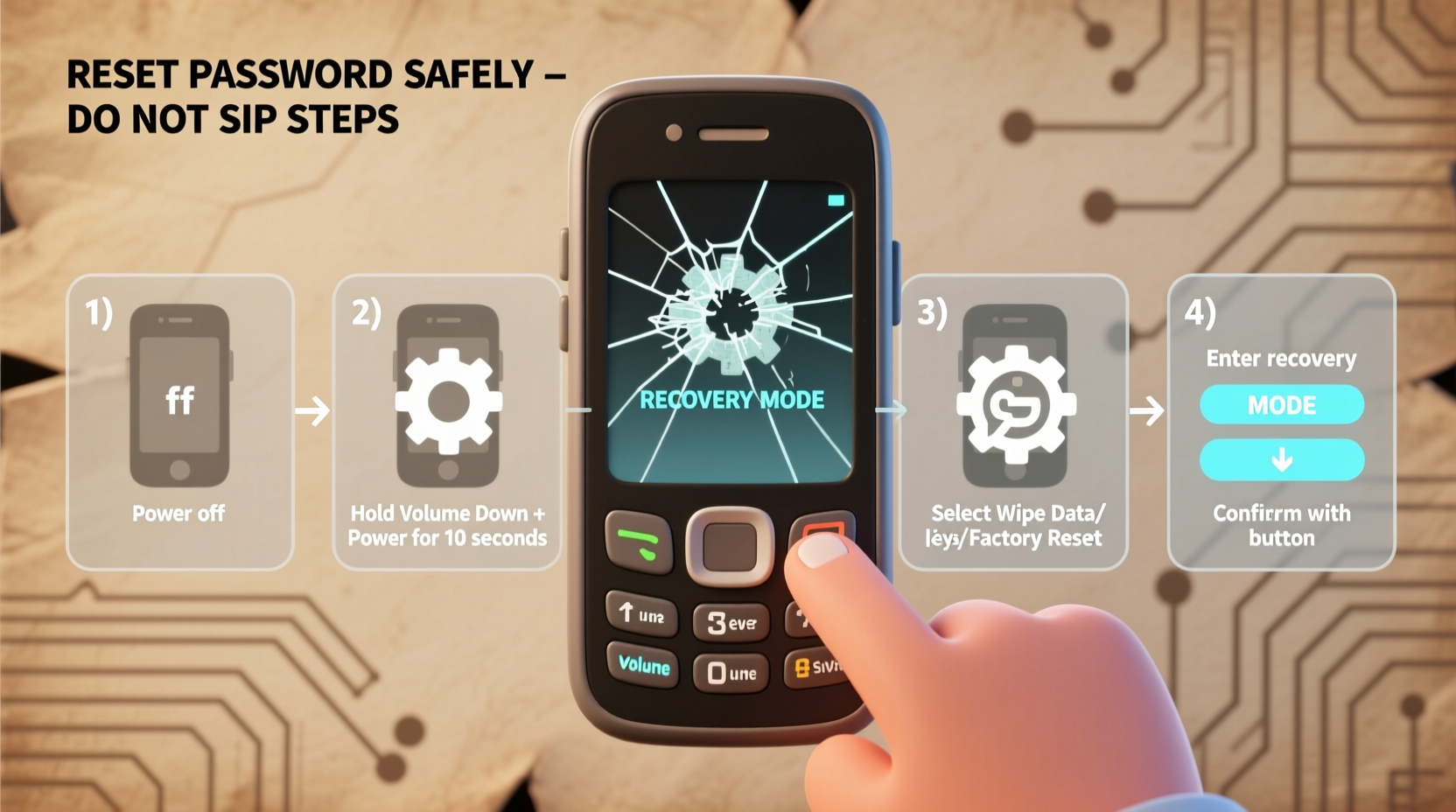
Older devices were not designed with today’s recovery ecosystems in mind. Many lack two-factor authentication, cloud sync, or remote wipe capabilities. As a result, attempting to reset a password through unofficial means can trigger security locks, erase stored data, or even render the device unusable.
One major concern is the risk of introducing malware during recovery. Third-party tools promising “one-click” password removal often bundle spyware or backdoors. Additionally, some older operating systems have known exploits that hackers could leverage if the device later connects to public Wi-Fi after being unlocked.
“Recovering access to an old device should never come at the cost of future security. The method matters as much as the outcome.” — Dr. Lena Torres, Cybersecurity Researcher at SecureEdge Labs
Before proceeding, assess whether the device contains sensitive information such as saved passwords, banking apps, or private messages. If so, consider professional data recovery services instead of DIY solutions.
Step-by-Step Guide: Securely Resetting Passwords by Device Type
The correct approach depends heavily on the device type, operating system, and whether it was previously linked to an online account. Below are structured workflows for the most common scenarios.
Android Phones (5.0 Lollipop and Later)
If the device runs Android 5.0 or higher and was ever connected to a Google account, use Google’s Find My Device feature:
- Power on the device and attempt to enter any password five times.
- Look for a “Forgot pattern/password” or “Forgot PIN” option below the lock screen.
- Tap it and select verification via email or secondary device.
- Enter the associated Google account credentials.
- Follow prompts to reset the lock screen password.
If the device was never linked to a Google account or Find My Device is disabled, a factory reset may be necessary. However, this erases all data:
- Power off the device completely.
- Press and hold the Power + Volume Down buttons until the bootloader menu appears.
- Use volume keys to navigate to “Recovery Mode,” then press Power to select.
- Select “Wipe data/factory reset” and confirm.
- After completion, choose “Reboot system now.”
iOS Devices (iPhone/iPad Running iOS 8–15)
Apple enforces strict anti-theft measures, especially on older models. If Activation Lock is enabled (which ties the device to an Apple ID), simply resetting the password won’t grant full access.
To proceed safely:
- Connect the device to a trusted computer with iTunes or Finder open.
- Put the device into recovery mode:
- iPhones with Home Button: Hold Power + Home until the recovery screen appears.
- iPhones without Home Button: Press Volume Up, then Volume Down, then hold Side Button until recovery mode activates.
- When prompted in iTunes/Finder, choose “Restore” (not Update).
- Wait for the software to reinstall. The device will restart as new.
- At setup, if asked for the previous Apple ID, you must provide it—bypassing this violates Apple’s terms and may result in a non-functional device.
Windows Laptops (Windows 7, 8, 10)
Local account passwords on older Windows machines can sometimes be reset using built-in tools—if physical access is available.
Using installation media (USB/DVD):
- Create a Windows installation USB on another PC using Microsoft’s Media Creation Tool.
- Boot the locked laptop from the USB (may require changing boot order in BIOS).
- On the setup screen, press Shift + F10 to open Command Prompt.
- Type
copy c:\\windows\\system32\\utilman.exe c:\\and press Enter. - Type
copy c:\\windows\\system32\\cmd.exe c:\\windows\\system32\\utilman.exeand confirm overwrite. - Restart and remove the USB. At login screen, click the Ease of Access icon (bottom-left).
- A command prompt will open. Type
net user [username] [newpassword]to change the password. - Log in with the new credentials and restore utilman.exe from backup.
Note: This method works only on local accounts, not Microsoft-linked ones. For domain-joined systems, contact the network administrator.
Data Preservation vs. Security: Making the Right Trade-Off
One of the hardest decisions when resetting an old device is whether to prioritize recovering data or ensuring the system is clean and secure. A factory reset guarantees no hidden malware remains but wipes everything—including photos, notes, and documents.
If the device holds irreplaceable files, consider these alternatives:
- Professional Data Recovery Services: Firms like DriveSavers or Gillware specialize in extracting data from locked or damaged devices without altering the OS.
- Disk Imaging: On computers, remove the hard drive and connect it via SATA-to-USB adapter to another machine. Browse files directly without logging in.
- Cloud Sync Check: Even if the device is offline, check if backups exist on Google Drive, iCloud, or OneDrive under the original account.
| Action | Preserves Data? | Secure? | Best For |
|---|---|---|---|
| Account-based recovery (Google/Apple) | Yes | High | Devices linked to active accounts |
| Factory reset | No | Medium-High | Unlinked devices, gift recipients |
| Command-line password override | Yes | Low-Medium | Local Windows accounts only |
| Third-party unlock tools | Sometimes | Very Low | Not recommended |
Mini Case Study: Recovering a Family Photo Archive
Sarah inherited her late father’s iPad mini (iOS 9) containing hundreds of scanned family photos from the 1980s. She didn’t know his Apple ID or passcode. After initial panic, she contacted Apple Support, who explained that without proof of ownership and the original credentials, they couldn’t assist.
She then tried connecting the iPad to her Mac. iTunes recognized it but required trust confirmation on the device—impossible without unlocking. Eventually, Sarah located an old backup on an external drive labeled “Family Photos 2014.” It contained a partial sync of the iPad’s camera roll.
While not a perfect solution, this highlights the importance of checking for indirect backups before attempting invasive resets. In cases involving emotional or historical data, patience and lateral thinking often yield better results than technical force.
Essential Checklist Before Resetting Any Old Device
Follow this checklist to avoid irreversible mistakes:
- ✅ Determine the device model and OS version.
- ✅ Confirm whether it was linked to a Google, Apple, or Microsoft account.
- ✅ Attempt official recovery options first (Find My Device, iCloud.com, etc.).
- ✅ Back up data externally if the device can be partially accessed.
- ✅ Use only manufacturer-approved tools or official installation media.
- ✅ Avoid downloading unknown “cracking” software.
- ✅ After reset, update the OS to the latest compatible version before reuse.
- ✅ Set up strong authentication and enable encryption if supported.
Frequently Asked Questions
Can I reset a password without losing data?
Sometimes. If the device is linked to a cloud account (Google, Apple, Microsoft), you may reset the password while preserving data. Otherwise, most resets erase everything. Always attempt account recovery before resorting to factory resets.
What if my old device doesn’t support modern recovery methods?
Devices manufactured before 2013 often lack remote find-and-wipe features. In such cases, physical access and installation media are your best options. If the device uses proprietary firmware (e.g., older Samsung models with Kies), consult archived support pages for legacy instructions.
Is it legal to reset a password on a secondhand device?
Yes, provided you own the device or have explicit permission from the owner. However, bypassing Activation Lock on iPhones or FRP (Factory Reset Protection) on Android devices without proof of ownership may violate laws in some jurisdictions. Always verify legitimacy before proceeding.
Final Recommendations for Long-Term Device Management
Once you’ve successfully regained access, take steps to prevent future lockouts. Store passwords in a reputable password manager like Bitwarden or 1Password. Enable biometric authentication where available, and document device details—including serial numbers and associated accounts—in a secure location.
Consider upgrading critical old devices to newer models with ongoing security updates. Unsupported operating systems pose increasing risks as vulnerabilities go unpatched. If keeping the device for nostalgia or light use, disconnect it from networks and disable unnecessary services.
“Security isn’t just about locking things down—it’s about ensuring you can unlock them when needed, without compromise.” — Marcus Reed, Digital Forensics Consultant
Take Action Today to Protect Your Digital Legacy
Forgotten passwords don’t have to mean lost memories or wasted hardware. By applying secure, methodical approaches based on your device’s ecosystem, you can regain control while minimizing risk. Whether you’re helping a relative, reviving an old project, or repurposing tech sustainably, the right knowledge makes all the difference.




 浙公网安备
33010002000092号
浙公网安备
33010002000092号 浙B2-20120091-4
Comments
No comments yet. Why don't you start the discussion?