
Forgetting your Kindle Fire password is more common than you might think. Whether it's been months since you last used the device or you've simply mixed up multiple PINs, being locked out can be frustrating—especially when you want quick access to your books, apps, or media. The good news? Amazon has built-in recovery options that make regaining access straightforward, even without technical expertise. This guide walks you through every reliable method to reset a forgotten password on your Kindle Fire tablet, from simple email-based resets to full factory restores, all while preserving your data whenever possible.
Understanding Kindle Fire Password Protection
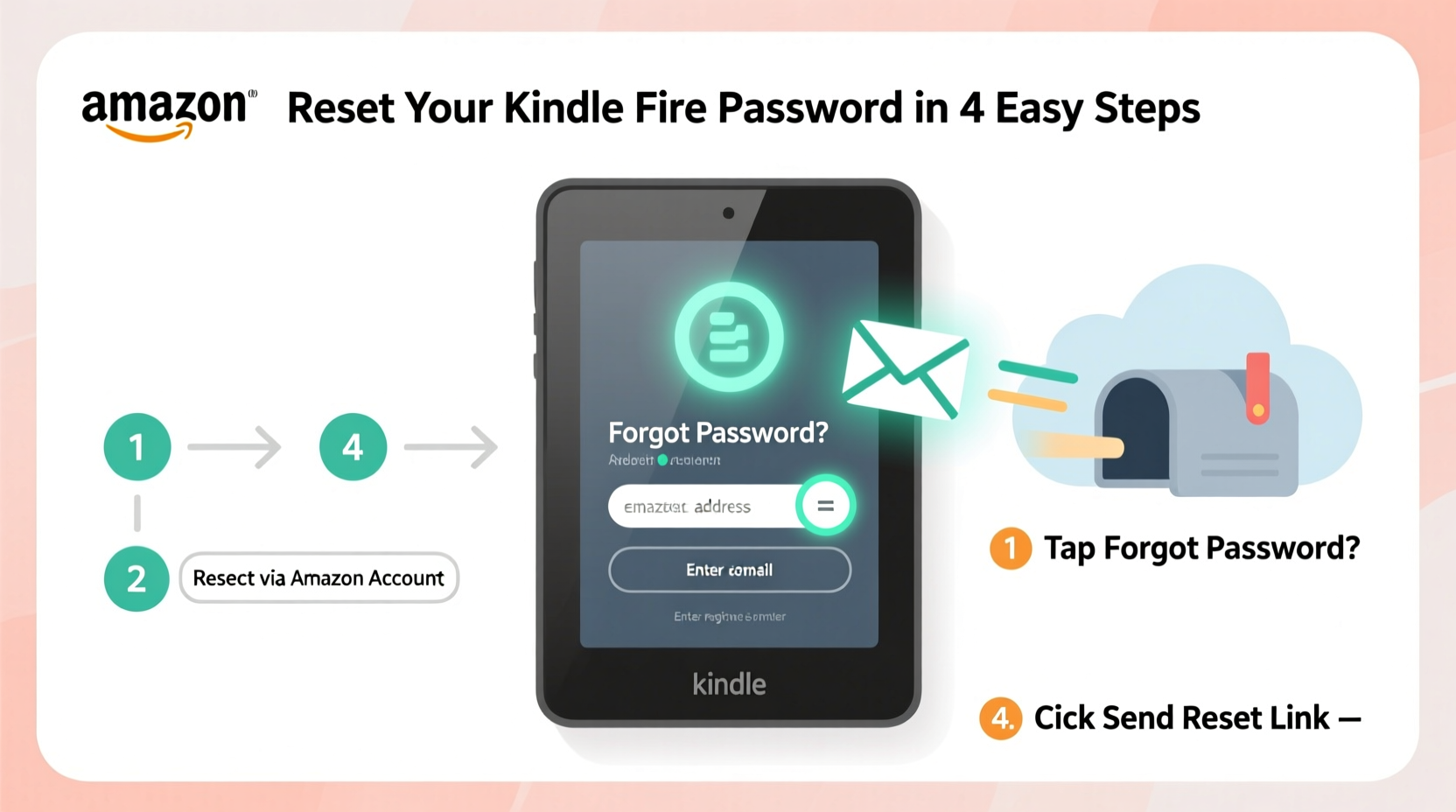
Kindle Fire tablets use a screen lock system that includes PINs, passwords, pattern locks, and biometric authentication (on supported models). These security layers are designed to protect your personal information, especially if the device is lost or stolen. However, they also mean that after too many incorrect attempts, the tablet may temporarily lock you out or require verification through your Amazon account.
Unlike some Android devices, Kindle Fire runs on a customized version of Android called Fire OS, which integrates tightly with Amazon’s ecosystem. This means your primary recovery path hinges on your Amazon account credentials—not Google, as with standard Android tablets. If you can verify ownership through your Amazon login, resetting the password becomes significantly easier.
“Your Amazon account is the master key to your entire Kindle ecosystem. Always keep it secure and accessible.” — David Lin, Consumer Tech Support Specialist
Step-by-Step: Resetting Your Password Using Amazon Account Recovery
The most effective and least disruptive way to regain access is through Amazon’s official account recovery process. This method doesn’t erase your data and works in most cases where you remember your Amazon email and have access to the associated recovery email or phone number.
- Attempt to unlock the device using any PIN, password, or pattern you think might be correct. After several failed attempts, a “Forgot Password” or “Reset Password” option should appear below the lock screen.
- Select “Reset Password”. The tablet will prompt you to enter the email address linked to your Amazon account.
- Enter your Amazon email address carefully. Use the on-screen keyboard and double-check for typos.
- Connect to Wi-Fi if not already connected. The device needs internet access to verify your identity.
- Check your email inbox for a message from Amazon titled “Reset Your Kindle Device Lock Screen Password.” It usually arrives within one minute.
- Open the email and click the verification link. This confirms you’re the rightful owner.
- Create a new lock screen password directly on your Kindle once redirected.
- Re-enter the new password to confirm, then tap “Set” or “Save.”
After completing these steps, your Kindle Fire will unlock automatically, and you’ll regain full access. Your apps, books, and settings remain intact.
When You Can’t Access Your Amazon Email: Alternative Methods
Sometimes, the issue isn’t just the Kindle password—it’s that you’ve also lost access to your Amazon account email. In such cases, direct device recovery won’t work, but there are still paths forward.
Option 1: Recover Your Amazon Account First
Visit amazon.com on another device and click “Sign in.” Then select “Need help?” Enter your email or mobile number. Amazon will guide you through recovery via:
- Email verification (if you control the recovery email)
- Text message codes (if a phone number is registered)
- Security questions (on older accounts)
Once your Amazon account is restored, return to your Kindle Fire and repeat the password reset process.
Option 2: Factory Reset (Last Resort)
If you cannot recover your Amazon account and need immediate access to the device, a factory reset will erase all data—including apps, photos, documents, and downloaded content—but allow you to set it up as new.
- Power off the Kindle Fire completely by holding the power button for 30 seconds.
- Press and hold the Volume Down button, then press and release the Power button while still holding Volume Down.
- Continue holding Volume Down until the Amazon logo appears, then release.
- You’ll enter Device Recovery Mode. Use the volume buttons to navigate and the power button to select.
- Select “Wipe Data / Factory Reset” and confirm.
- Wait for the process to complete, then choose “Reboot System Now.”
After rebooting, the Kindle will behave like a brand-new device. Follow the initial setup prompts, sign in with a working Amazon account, and restore content from the cloud if available.
“Factory resetting should always be a last resort. Once done, local data is gone unless backed up.” — Maria Chen, Digital Forensics Technician
Tips and Best Practices to Avoid Future Lockouts
Preventing future password issues is far easier than resolving them. A few proactive habits can save hours of frustration down the line.
Enable Two-Factor Authentication (2FA)
While it adds an extra step during login, enabling 2FA on your Amazon account significantly improves recovery chances. Even if someone gains access to your password, they won’t be able to reset your Kindle lock without the second factor—usually a code sent to your phone.
Link a Trusted Recovery Email and Phone Number
Ensure your Amazon account has at least one verified recovery email and a current mobile number. Update these details regularly, especially after changing phones or email providers.
Write Down Your Password (Safely)
Keep a physical note of your Kindle password in a secure place—like a locked drawer or password-protected notebook. Never store it digitally in unencrypted files or messaging apps.
Use the Same Amazon Account Across Devices
If you own multiple Amazon devices (Echo, Fire TV, Kindle e-readers), use the same account for all. This increases trust signals with Amazon’s systems, making recovery smoother when needed.
Real-Life Example: Recovering a Forgotten Password After Travel
Sarah, a frequent traveler, hadn’t used her Kindle Fire for three months while abroad. When she returned and tried to read before bed, she couldn’t remember her six-digit PIN. She tried variations of her old passwords, but after five attempts, the device displayed “Try again in 30 seconds.”
She noticed a small “Forgot Password” link beneath the keypad. Tapping it, she entered the email linked to her Amazon account. Within seconds, she received a reset email on her phone. She clicked the link, set a new PIN, and was back reading her book in under two minutes—all without losing a single app or file.
Sarah later updated her recovery phone number and enabled 2FA. She now keeps a printed list of important passwords in her home office, safely out of reach of others.
Do’s and Don’ts of Kindle Fire Password Management
| Do’s | Don’ts |
|---|---|
| ✅ Use a strong, unique password for your Kindle lock screen | ❌ Use the same PIN as your bank card or phone lock |
| ✅ Enable two-factor authentication on your Amazon account | ❌ Share your password with family members—even trusted ones |
| ✅ Regularly update your recovery email and phone number | ❌ Store passwords in plain text on your computer or notes app |
| ✅ Try the “Forgot Password” option before attempting a factory reset | ❌ Perform repeated incorrect password attempts—this can trigger longer lockout periods |
| ✅ Back up important documents and photos to Amazon Drive or another cloud service | ❌ Assume all data is saved in the cloud—some files may only exist locally |
Frequently Asked Questions
What happens if I enter the wrong password too many times?
Your Kindle Fire will temporarily lock you out, increasing wait times after each failed attempt—from 30 seconds to several minutes. Eventually, the “Forgot Password” option will appear, allowing you to begin recovery via your Amazon account.
Will resetting my password delete my books and apps?
No—if you use the Amazon account recovery method, none of your data is erased. Books, apps, and settings remain unchanged. Only a factory reset removes data, and even then, purchased content can usually be re-downloaded from the cloud.
Can I reset my Kindle Fire password without Wi-Fi?
No. The recovery process requires an active internet connection to communicate with Amazon’s servers. If Wi-Fi is unavailable, you’ll need to wait until you can connect to a network or use a mobile hotspot.
Checklist: How to Reset a Forgotten Kindle Fire Password
- ✅ Attempt to unlock using known PINs or patterns
- ✅ Look for the “Forgot Password” option after multiple failures
- ✅ Enter your Amazon account email address accurately
- ✅ Connect to Wi-Fi if prompted
- ✅ Check your email (including spam) for the Amazon reset message
- ✅ Click the verification link and follow instructions
- ✅ Set a new password on your Kindle Fire
- ✅ If recovery fails, consider recovering your Amazon account first
- ✅ As a last resort, perform a factory reset using Device Recovery Mode
- ✅ After reset, set up the device anew and restore content from the cloud
Conclusion: Take Control of Your Device Access Today
Losing access to your Kindle Fire shouldn’t mean losing your digital life. With the right approach, resetting a forgotten password is a manageable process that takes minutes, not days. By leveraging Amazon’s integrated recovery tools and maintaining good account hygiene, you can bypass most lockout scenarios without data loss.
Now that you know the steps, take a moment to review your Amazon account settings. Verify your recovery options, consider enabling two-factor authentication, and store your password securely. These small actions today could save you significant stress tomorrow.




 浙公网安备
33010002000092号
浙公网安备
33010002000092号 浙B2-20120091-4
Comments
No comments yet. Why don't you start the discussion?