
Streaming content from your smartphone, tablet, or laptop directly to your TV has become a standard part of modern digital life. Roku, one of the most popular streaming platforms, supports seamless screen mirroring and media casting—commonly referred to as “screen play”—allowing users to extend their viewing experience beyond small screens. Whether you're sharing vacation photos, presenting work slides, or watching videos not available on Roku apps, knowing how to properly cast your screen enhances both convenience and engagement.
This guide walks through everything you need to know about screen playing on Roku, including compatible devices, setup requirements, troubleshooting tips, and best practices for smooth performance.
Understanding Screen Play on Roku: What It Means
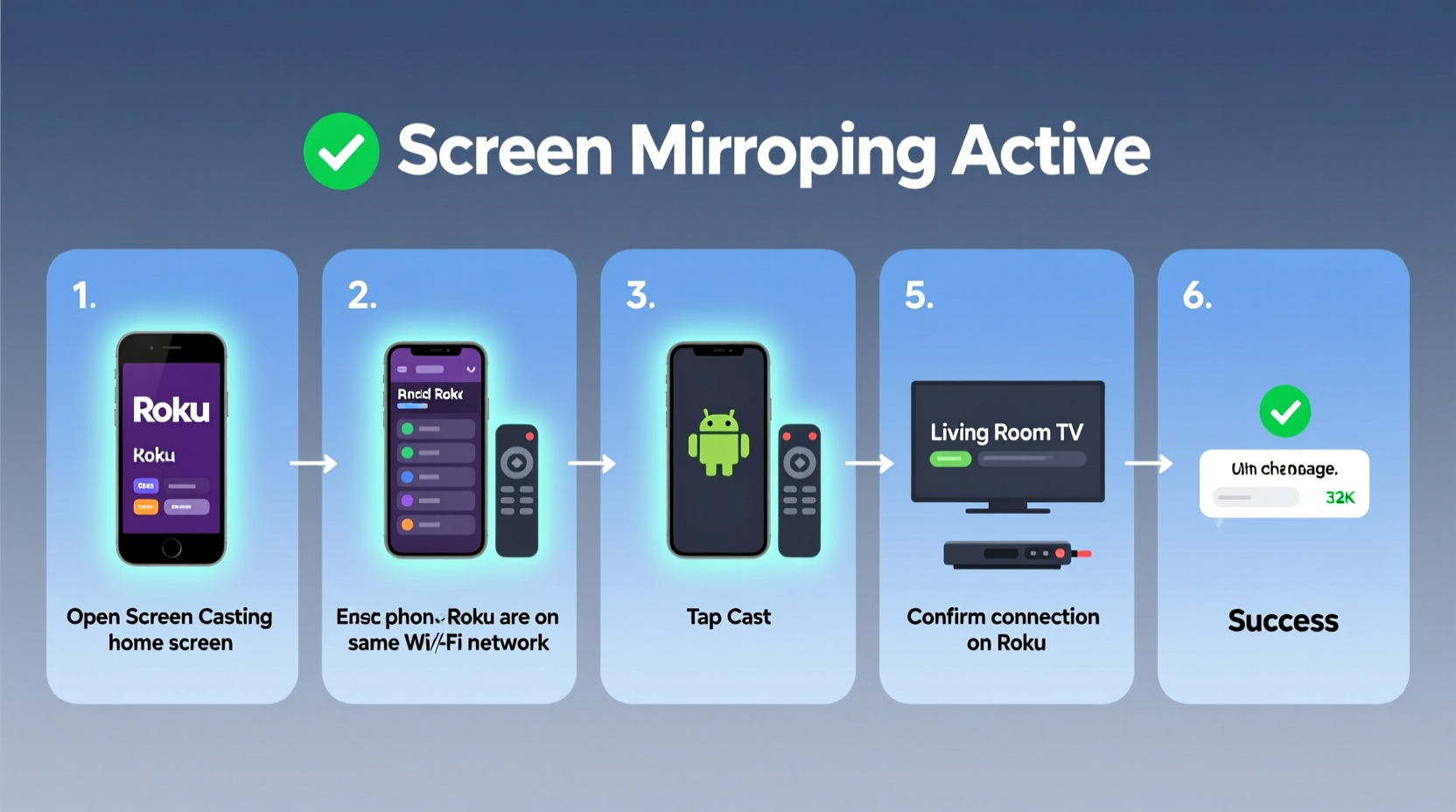
“Screen play” on Roku refers to two primary functions: screen mirroring and media casting. While often used interchangeably, they serve different purposes:
- Screen Mirroring: Displays your entire device screen in real time on your TV. Ideal for presentations, gameplay, or navigating apps not available on Roku.
- Media Casting: Sends specific photos, videos, or audio files from your device to the Roku player using apps like Google Photos, YouTube, or Plex.
Roku supports both features across various models, but functionality depends on your device’s operating system and network configuration.
“The strength of Roku’s ecosystem lies in its simplicity. With proper setup, screen play becomes nearly invisible—just tap and display.” — David Lin, Streaming Technology Analyst at HomeTech Insights
Step-by-Step Guide to Casting Your Device to Roku
Follow this detailed process to successfully cast your screen or media to any Roku-powered TV or streaming stick.
Step 1: Confirm Compatibility and Requirements
Before attempting to cast, ensure the following:
- Your Roku device is powered on and connected to Wi-Fi.
- Your mobile device or computer is on the same Wi-Fi network as the Roku.
- You’re using a supported device:
- iOS (AirPlay-compatible Roku models only)
- Android (via built-in Smart View or third-party apps)
- Windows 10/11 (via Connect To feature)
- Mac (only if Roku supports AirPlay 2)
Step 2: Enable Screen Mirroring on Roku
- Press the Home button on your Roku remote.
- Navigate to Settings > System > Screen Mirroring.
- Select Screen Mirroring Settings and set it to “Prompt” or “Always Allow” (not “Disabled”).
- Note the Roku model number—some older models do not support full-screen mirroring.
Step 3: Cast from an Android Device
- Open the Settings app and go to Connected devices > Connection preferences > Cast.
- Tap the menu (three dots) and select Enable wireless display.
- Your Roku should appear in the list. Tap it to connect.
- If prompted, confirm the connection on your TV screen.
Alternatively, many Samsung, LG, and Pixel devices use proprietary casting systems (like Smart View), which integrate directly with Roku when on the same network.
Step 4: Mirror from iPhone or iPad (AirPlay)
If your Roku model supports AirPlay 2 (Roku Ultra, Roku Streambar Pro, Roku TVs from TCL, Hisense, etc.):
- Swipe down from the top-right corner (iPhone X or later) to open Control Center.
- Tap Screen Mirroring.
- Select your Roku device from the list.
- Enter the passcode displayed on your TV if required.
Once connected, your iOS screen appears instantly on the big screen with audio included.
Step 5: Cast from Windows PC
- Ensure both your Windows PC and Roku are on the same Wi-Fi network.
- On your PC, press Win + K to open the Connect panel.
- Select your Roku device from the list of available displays.
- Accept the connection prompt on your TV.
Now your desktop, browser, or video will appear on the TV. Use it for webinars, streaming unlisted videos, or sharing local media.
Do’s and Don’ts of Screen Playing on Roku
| Do’s | Don’ts |
|---|---|
| Use a strong 5GHz Wi-Fi signal for smoother streaming | Try to mirror over cellular data or guest networks |
| Close unused apps before mirroring to reduce lag | Expect flawless HD video if your internet is below 15 Mbps |
| Update your Roku firmware regularly | Mirror DRM-protected content (e.g., Netflix, Hulu)—it will be blocked |
| Use HDMI-connected speakers for better audio sync | Leave screen mirroring enabled all the time—it can pose privacy risks |
Troubleshooting Common Casting Issues
Even with correct setup, problems may arise. Here are frequent issues and solutions:
- Roku not showing up in cast list? Restart both devices and verify they’re on the same Wi-Fi. Disable VPNs or firewalls temporarily.
- Laggy or frozen screen? Move closer to the router or switch to a less congested network band (5GHz preferred).
- No sound during mirroring? Check volume settings on both devices. On Windows, right-click the speaker icon and ensure the correct output device is selected.
- Connection drops frequently? Update your Roku software under Settings > System > System Update.
Real-World Example: Sharing Family Memories Effortlessly
Sarah, a teacher in Austin, recently hosted a family reunion and wanted to share her travel photos from Japan. Instead of passing around her phone, she used her iPhone to mirror directly to her Roku TV.
She opened Control Center, tapped Screen Mirroring, selected her Roku, and began swiping through high-resolution images—all synchronized perfectly with ambient music from her device. Guests enjoyed a cinematic slideshow without needing cloud uploads or USB transfers.
When a cousin asked how she did it, Sarah said, “It took less than 30 seconds. I didn’t even have to email anything.”
Essential Checklist for Seamless Screen Play
Use this checklist before every casting session to ensure success:
- ✅ Both Roku and casting device are powered on
- ✅ Connected to the same Wi-Fi network
- ✅ Screen Mirroring is enabled in Roku settings
- ✅ Device supports casting (iOS 12+, Android 5.0+, Windows 10+)
- ✅ Internet speed is stable (minimum 10 Mbps recommended)
- ✅ No active screen lock or sleep mode interfering
- ✅ Firmware updated on Roku (Settings > System > System Update)
Frequently Asked Questions
Can I cast Netflix or Disney+ from my phone to Roku?
No. Due to digital rights management (DRM), services like Netflix, Amazon Prime Video, and Disney+ block screen mirroring. However, you can cast individual videos within their apps using native \"Cast\" buttons, which stream directly from the internet rather than mirroring your screen.
Is screen mirroring on Roku free?
Yes. There is no additional cost to use screen mirroring or media casting on Roku. All required features are built into the operating system and supported devices at no extra charge.
Does screen play work without Wi-Fi?
No. Screen mirroring requires both devices to be on the same local network. You cannot cast over Bluetooth or a wired connection unless using third-party hardware adapters, which are not officially supported by Roku.
Final Thoughts: Make the Most of Your Roku Experience
Mastering screen play on Roku opens up new ways to enjoy personal content, collaborate remotely, or entertain guests. By understanding the differences between mirroring and casting, ensuring compatibility, and optimizing your network, you can achieve reliable, high-quality performance every time.
The key is preparation: keep software updated, maintain a robust Wi-Fi signal, and practice the steps ahead of important moments. Once configured, casting becomes second nature—transforming your TV into an extension of your digital life.




 浙公网安备
33010002000092号
浙公网安备
33010002000092号 浙B2-20120091-4
Comments
No comments yet. Why don't you start the discussion?