
Modern life moves fast, and staying connected across smartphones, tablets, laptops, and smart home devices is no longer optional—it's essential. At the center of this digital ecosystem for millions is the Google Account. Whether you're syncing emails, accessing files on Drive, tracking appointments in Calendar, or using voice commands with Google Assistant, having a unified and well-managed Google presence ensures efficiency and peace of mind.
But adding and managing your Google Account across multiple devices isn’t always as smooth as it should be. Syncing delays, missing data, forgotten passwords, or unexpected sign-outs can disrupt your workflow. The good news? With the right setup and consistent management practices, you can maintain seamless access and full functionality across all your gadgets—without the frustration.
Why Cross-Device Google Account Management Matters
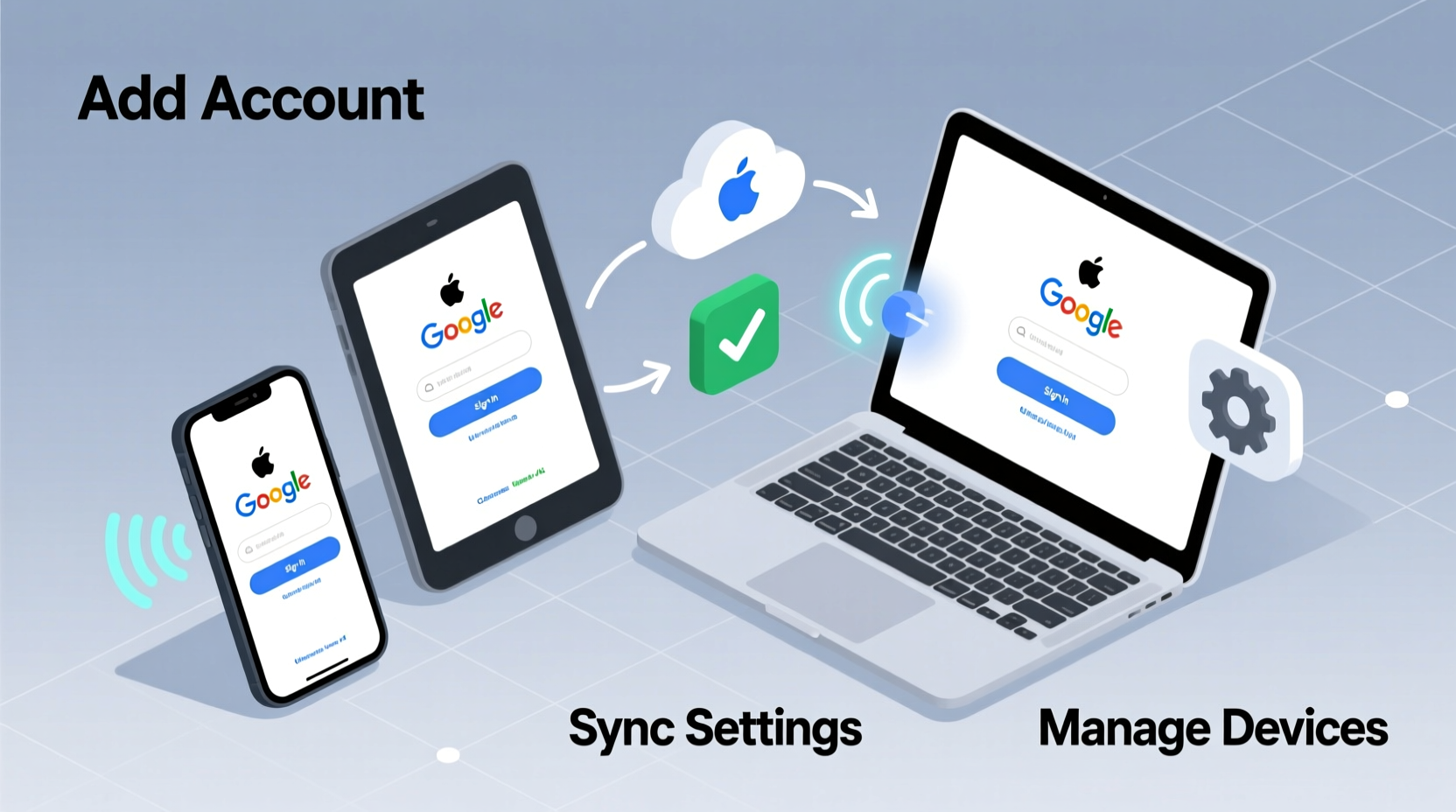
A Google Account is more than just an email address. It’s a gateway to a suite of tools including Gmail, Google Photos, Chrome bookmarks, YouTube preferences, Maps history, and Android device settings. When these services are properly synced, switching from one device to another feels effortless. You start writing an email on your phone and finish it on your laptop. Your recent searches appear in Chrome regardless of the screen you’re using. Even your Wi-Fi passwords and saved passwords travel securely between devices.
Google’s ecosystem thrives on continuity. However, that continuity depends on correct configuration and proactive maintenance. Poorly managed accounts lead to fragmented experiences, duplicated efforts, and potential security risks—especially if old or untrusted devices remain logged in.
Step-by-Step Guide to Adding Your Google Account Across Devices
Adding your Google Account correctly ensures reliable syncing and secure access. Follow this sequence for optimal results across different platforms.
- Sign In on Android Devices: Go to Settings > Accounts > Add Account > Google. Enter your credentials and select which services to sync (Gmail, Contacts, Calendar, etc.). Ensure “Auto-sync data” is enabled in your account settings.
- Add to iOS Devices: Open the Gmail app or go to Settings > Mail > Accounts > Add Account > Google. Choose whether to use Google’s native apps or integrate via IMAP. For full syncing, use Google’s official apps.
- Set Up on Windows or Mac: In Chrome, click the profile icon in the top-right corner and select “Turn on sync.” Sign in with your Google Account and choose what data to sync—bookmarks, passwords, extensions, history, and more.
- Smart Home & Wearables: For devices like Google Nest or Wear OS watches, open the corresponding app (e.g., Google Home), tap your profile, and follow the prompts to link your account.
- Chromebooks: During initial setup, enter your Google Account email and password. The entire system will configure itself with your apps, settings, and cloud files.
After signing in, allow a few minutes for data to sync. Large photo libraries or extensive bookmark collections may take longer depending on internet speed.
Best Practices for Managing Multiple Devices
Once your account is added, ongoing management keeps everything running smoothly. Here are key strategies:
- Enable Two-Factor Authentication (2FA): This adds a critical layer of security, especially when logging into new devices. Use an authenticator app or physical security key instead of SMS when possible.
- Review Device Access Regularly: Visit myaccount.google.com/device-activity to see all devices currently signed in. Remove any outdated or unrecognized entries.
- Use Consistent Sync Settings: On each device, ensure the same categories (like contacts, calendars, and passwords) are selected for syncing to avoid gaps.
- Update Apps and OS Versions: Outdated software can break sync functionality. Enable automatic updates where available.
- Leverage Family Link or Work Profiles (if applicable): If managing shared devices or work accounts, separate personal and professional profiles to prevent conflicts.
“Seamless cross-device experience starts with trust in the system. That means not only setting up your account correctly but also maintaining awareness of where it’s active.” — David Kim, Senior UX Engineer at Google, 2023
Do’s and Don’ts: Managing Your Google Account Across Devices
| Do’s | Don’ts |
|---|---|
| ✅ Use strong, unique passwords and change them periodically | ❌ Share your login credentials across users or devices |
| ✅ Enable Find My Device on Android and Location History (optional) | ❌ Leave your account signed in on public computers without logging out |
| ✅ Backup photos and files regularly using Google One or Drive | ❌ Disable sync entirely to “save battery”—this causes fragmentation |
| ✅ Use Chrome’s Password Manager across devices for secure autofill | ❌ Ignore update notifications for Google apps—they often fix sync bugs |
Real-World Example: A Remote Worker’s Setup
Sophia, a freelance graphic designer based in Barcelona, uses four primary devices: a MacBook Pro, an Android tablet, an iPhone, and a Chromebook for client meetings. She relies heavily on Google Drive for project files, Gmail for communication, and Google Calendar for scheduling.
Initially, she struggled with inconsistent file versions and missed meeting reminders because her calendar wasn’t syncing properly on iOS. After reviewing her account settings, she discovered that while her Gmail was active on the iPhone, Calendar sync had been disabled during setup. She re-added her account through the Google Calendar app, ensured “Sync” was toggled on in both the app and system settings, and within minutes, her schedule updated across all devices.
She now performs a quick sync check every Monday morning and logs out of any temporary devices used during weekend co-working sessions. Her workflow is now fluid, and she rarely faces duplication or data loss.
Frequently Asked Questions
Will signing into a new device log me out of another?
No, Google allows multiple concurrent sessions. You can be signed in on dozens of devices simultaneously. However, some features like YouTube Premium or Google Play purchases may limit simultaneous streams.
What happens if I lose a device with my Google Account signed in?
Immediately visit Find My Device to locate, lock, or erase it remotely. Also, consider revoking access via your Google Account’s device activity page to prevent further access.
Can I sync only specific data types on certain devices?
Absolutely. During setup or afterward in account settings, you can choose exactly what syncs—such as bookmarks but not passwords, or contacts but not Chrome history. This is useful for shared or secondary devices.
Final Checklist Before Expanding Your Device Network
- Account Security:
- ✅ 2FA enabled | ✅ Recovery email & phone set | ✅ Recent password audit
- Sync Settings:
- ✅ Consistent across devices | ✅ Critical data (contacts, calendar) enabled | ✅ Auto-sync turned on
- Device Oversight:
- ✅ All current devices verified | ✅ Old/unrecognized devices removed | ✅ Find My Device activated
- Backup & Recovery:
- ✅ Google One or Drive backup active | ✅ Photo sync enabled | ✅ Offline access configured in Drive/Docs
Conclusion: Take Control of Your Digital Flow
Your Google Account is the backbone of your digital life. When managed thoughtfully, it eliminates friction between devices and empowers you to move fluidly through tasks, locations, and responsibilities. Seamless integration doesn’t happen by accident—it requires deliberate setup and regular maintenance.
Start today by auditing your current device list, tightening security settings, and ensuring sync options align with your needs. Whether you're a student juggling notes across tablets and laptops, a parent coordinating family schedules, or a professional navigating hybrid work, a well-managed Google Account makes everything easier.




 浙公网安备
33010002000092号
浙公网安备
33010002000092号 浙B2-20120091-4
Comments
No comments yet. Why don't you start the discussion?