
Setting up dual monitors for gaming can dramatically improve your immersion, productivity, and multitasking capabilities. Whether you're tracking in-game maps on a secondary screen, streaming gameplay, or managing Discord and guides while playing, a well-configured dual-monitor setup enhances the experience. However, many gamers encounter performance hiccups—such as input lag, inconsistent refresh rates, or visual tearing—when adding a second display. These issues stem from improper configuration, mismatched hardware, or overlooked software settings. This guide walks through the essential steps, best practices, and technical considerations to ensure a seamless, high-performance dual-monitor gaming environment.
Understand Your Hardware Limitations
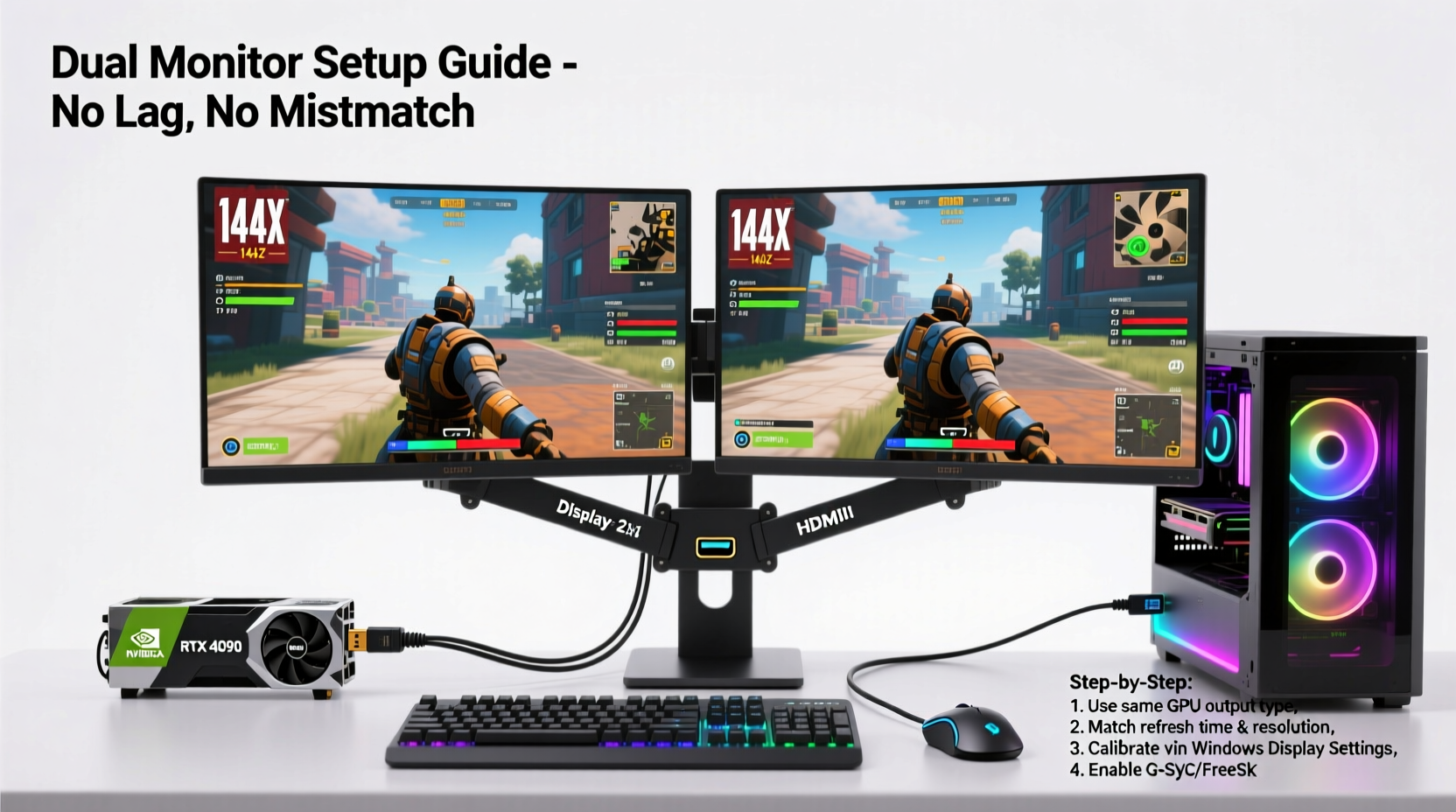
The foundation of a lag-free dual-monitor setup lies in understanding your system’s capabilities. Graphics cards, monitor specifications, and connection types all influence performance. Before connecting a second monitor, assess your GPU's output capacity and supported resolutions.
Modern GPUs from NVIDIA and AMD typically support at least two simultaneous displays, but not all outputs are equal. For example, older GPUs may struggle to drive two 144Hz panels at 1080p or higher, especially during demanding games. Integrated graphics (like those in Intel or AMD APUs) can handle basic dual-display setups but often fail under heavy gaming loads when driving multiple screens.
Additionally, consider the ports available on your graphics card. HDMI, DisplayPort, DVI, and USB-C each have different bandwidth limits. For optimal performance, prioritize DisplayPort connections—they support higher refresh rates and adaptive sync technologies like G-Sync and FreeSync more reliably than HDMI, especially on older versions.
Select Compatible Monitors
Using mismatched monitors is one of the most common causes of display inconsistency. If one screen runs at 60Hz and the other at 144Hz, or if they have different response times and panel types (e.g., IPS vs. TN), you’ll notice visual discrepancies that disrupt gameplay and cause strain.
For the smoothest experience, use two identical monitors. This ensures uniform color reproduction, brightness levels, response times, and refresh rates. If budget constraints prevent matching models, choose monitors with similar specs—same resolution (ideally 1080p or 1440p), refresh rate (144Hz recommended), and panel technology.
“Matching refresh rates across both monitors is critical. Even a small difference can lead to perceptible stutter or eye fatigue during fast-paced gameplay.” — Jordan Lee, Senior Systems Engineer at Apex Gaming Labs
Avoid mixing HDMI and DisplayPort unless necessary, and ensure both cables support the required bandwidth. For example, HDMI 1.4 maxes out at 1080p@120Hz or 1440p@60Hz, while DisplayPort 1.4 supports up to 1440p@165Hz or 4K@120Hz with DSC (Display Stream Compression).
Step-by-Step Setup Process
Follow this structured approach to physically and digitally configure your dual-monitor gaming station:
- Power down your PC – Prevents electrical surges and ensures clean detection of new hardware.
- Connect both monitors – Use high-quality DisplayPort or HDMI cables. Connect directly to the GPU, not the motherboard, to avoid hybrid rendering conflicts.
- Power on monitors and PC – Let the system detect both displays automatically.
- Access display settings – On Windows, right-click the desktop and select “Display settings.” Confirm both monitors are detected and correctly oriented.
- Set primary display – Choose the main gaming monitor as “Main display” where full-screen games will run.
- Match resolution and scaling – Set both monitors to native resolution. Avoid mixed DPI scaling to prevent blurry UI elements.
- Align displays logically – Drag the display icons to reflect physical placement on your desk for accurate mouse movement.
- Configure refresh rates – Under “Advanced display settings,” set both monitors to their highest supported refresh rate (e.g., 144Hz).
- Enable GPU-specific features – In NVIDIA Control Panel or AMD Radeon Software, enable G-Sync or FreeSync on the primary monitor only, unless both support it and are identical.
- Test with a game – Launch a title and verify frame pacing, input responsiveness, and absence of tearing.
Optimize Software and Game Settings
Even with perfect hardware alignment, poor software configuration can introduce lag. Windows and game engines must be tuned for dual-display performance.
First, disable unnecessary background applications that consume GPU resources—especially browser windows with video playback on the secondary monitor. Chrome tabs running YouTube videos can steal up to 15% of GPU power, reducing gaming FPS.
In games, always set the correct display mode:
- Fullscreen Exclusive – Best performance, lowest latency. Recommended for primary gaming monitor.
- Borderless Windowed – Allows easier alt-tabbing but may increase input lag slightly.
- Windowed – Avoid for gaming; introduces significant overhead.
Use borderless windowed mode only if you frequently switch between apps. Otherwise, stick with fullscreen exclusive for maximum performance.
Also, disable vertical sync (V-Sync) in-game if you’re using G-Sync or FreeSync. Running both can cause micro-stuttering and negate the benefits of adaptive sync.
| Setting | Recommended Value | Why It Matters |
|---|---|---|
| Resolution | Native on both monitors | Prevents blurriness and maximizes clarity |
| Refresh Rate | Matched (e.g., 144Hz) | Ensures consistent motion across screens |
| Scaling | Same scaling % (e.g., 100%) | Prevents UI distortion when moving windows |
| G-Sync/FreeSync | Enabled on primary only (or both if identical) | Reduces tearing without added input lag |
| Game Mode (Windows) | On | Prioritizes GPU resources for active games |
Real-World Example: Fixing a Laggy Dual-Monitor Rig
Mark, an avid FPS player, recently added a second 1080p 60Hz office monitor to his 144Hz gaming rig. After setup, he noticed increased input lag and inconsistent aiming in CS2. His primary monitor felt “sluggish,” despite unchanged FPS readings.
Upon investigation, he discovered Windows had defaulted the primary monitor to 60Hz—matching the secondary display. The system tried to synchronize refresh rates, crippling performance. He corrected this by manually setting the gaming monitor to 144Hz in display settings. He also switched from HDMI to DisplayPort for the primary screen and disabled V-Sync in-game since G-Sync was active.
Finally, he moved all non-essential apps to the secondary monitor and closed unused browser tabs. Input lag dropped noticeably, and frame pacing stabilized. The fix wasn’t hardware-related—it was proper configuration that restored peak performance.
Troubleshooting Common Issues
Despite careful setup, problems may still arise. Here’s how to address frequent complaints:
- Lag on primary monitor: Check refresh rate settings. Ensure no background apps are consuming GPU. Update GPU drivers.
- Screen tearing: Enable G-Sync/FreeSync on compatible monitors. Disable in-game V-Sync.
- Monitors not detected: Re-seat cables, try different ports, update GPU drivers, or restart with one monitor disconnected.
- Color mismatch: Calibrate both monitors using Windows Color Calibration tool or manufacturer software.
- Mouse jumps or misalignment: Adjust physical display layout in Windows settings to match desk arrangement.
Frequently Asked Questions
Can I use integrated graphics for the second monitor while gaming?
Technically yes, but not recommended for gaming workloads. Modern CPUs allow GPU rendering while using integrated graphics for secondary displays (via BIOS settings). However, this can introduce micro-latency and limit performance, especially in CPU-intensive titles. A dedicated GPU with multiple outputs is preferable.
Does running two monitors reduce gaming FPS?
Not significantly—if the second monitor isn’t running GPU-heavy tasks. Merely extending the desktop uses minimal resources. However, playing videos, streaming, or running overlays on the secondary screen can reduce available VRAM and GPU cycles, potentially cutting FPS by 5–15%, depending on load.
Is ultrawide better than dual monitors for gaming?
It depends on use case. Ultrawides offer seamless immersion with no bezel interruption and simpler setup. Dual monitors provide greater flexibility—dedicated space for chat, maps, or browsers. For pure gaming, ultrawide is often smoother. For hybrid gaming/productivity, dual monitors win.
Final Checklist Before You Play
Before launching your next session, verify these key points:
- ✅ Both monitors connected directly to GPU
- ✅ Identical or closely matched refresh rates and resolutions
- ✅ Primary monitor set to native resolution and highest refresh rate
- ✅ GPU drivers updated to latest version
- ✅ G-Sync/FreeSync enabled (if supported)
- ✅ In-game V-Sync disabled when adaptive sync is active
- ✅ Secondary monitor free of heavy GPU-consuming apps
- ✅ Display layout in Windows matches physical arrangement
- ✅ Fullscreen Exclusive mode used for gaming
- ✅ Background apps minimized or closed
Conclusion: Achieve Seamless Dual-Screen Gaming
A dual-monitor gaming setup doesn’t have to come at the cost of performance. With the right hardware pairing, precise configuration, and ongoing optimization, you can enjoy expanded desktop space without sacrificing speed or visual consistency. The key is attention to detail—from cable selection to refresh rate alignment. Don’t assume plug-and-play will deliver peak results; intentional tuning makes all the difference.




 浙公网安备
33010002000092号
浙公网安备
33010002000092号 浙B2-20120091-4
Comments
No comments yet. Why don't you start the discussion?