
Gaming on the go doesn’t have to mean sacrificing the quality of your PC library. With the right tools and setup, you can seamlessly stream your favorite PC games directly to your iPad—complete with responsive controls and high-fidelity visuals. The combination of Steam Link and a compatible controller transforms your iPad into a portable gaming console, letting you play AAA titles from your couch, bed, or even the backyard. This guide walks through every step of the process, from configuring your network to pairing hardware and optimizing performance.
Understanding Steam Link and Game Streaming
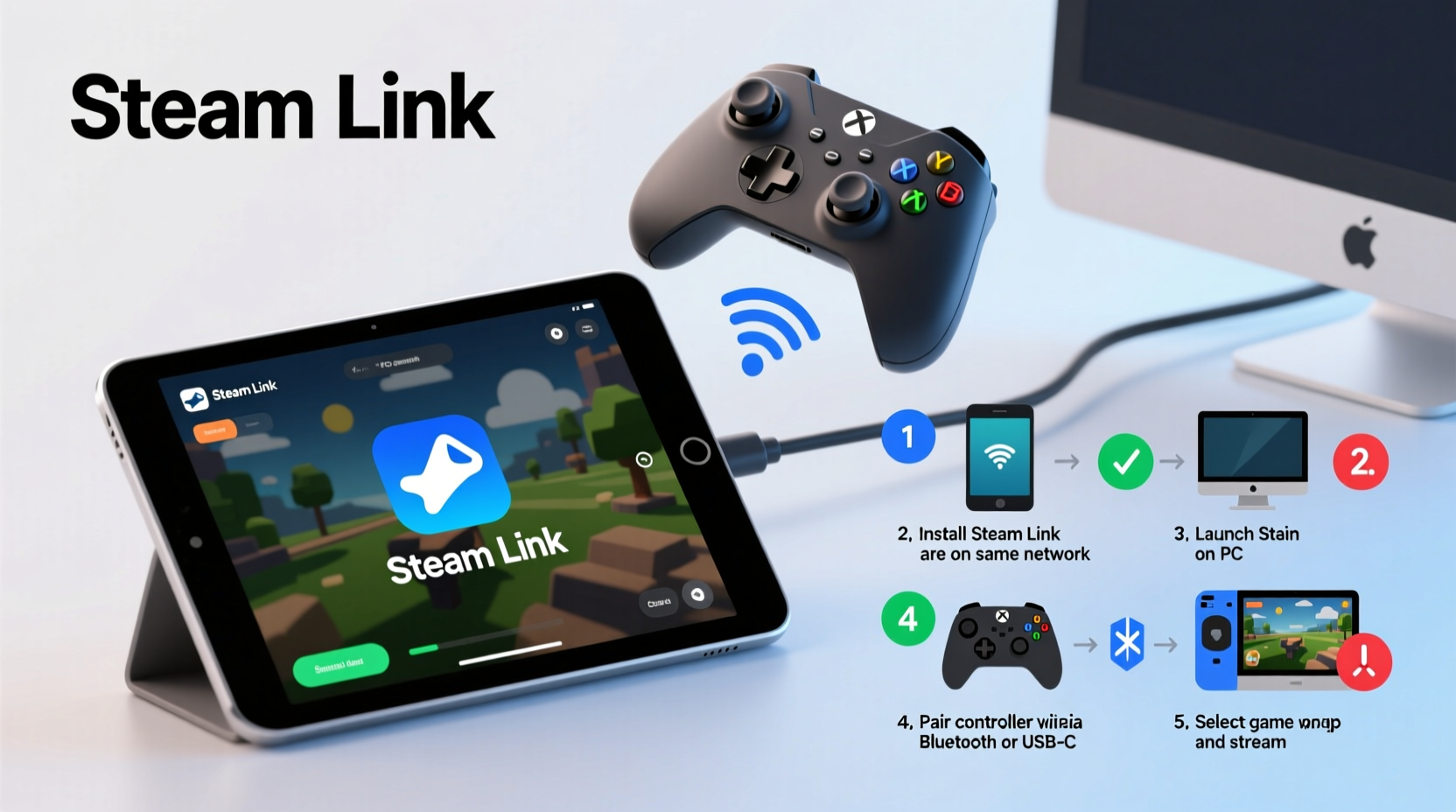
Steam Link is Valve’s official solution for streaming games from your gaming PC to other devices across your local network. Originally introduced as a standalone hardware box, it now exists as a free app available on iOS, including iPadOS. The technology leverages your home Wi-Fi or wired network to transmit video, audio, and input signals in real time, allowing you to control your PC remotely using touch, mouse, or a connected gamepad.
When used with an iPad, Steam Link turns the tablet into a secondary screen for your desktop or laptop. This means any game installed in your Steam library—whether it's The Witcher 3, Portal 2, or Resident Evil Village—can be played without installing anything extra on the iPad itself. However, success depends heavily on three key factors: network stability, hardware compatibility, and proper configuration.
“Streaming isn’t about replacing your gaming rig—it’s about extending its reach. A well-tuned Steam Link setup can deliver near-native responsiveness.” — Lucas Reed, Network Optimization Specialist at GameStream Labs
What You’ll Need Before You Begin
Before launching the app or connecting any peripherals, ensure all required components are in place. Missing one element can lead to lag, disconnections, or failed pairing attempts.
Essential Equipment Checklist
- A Windows, Linux, or macOS computer running Steam with games installed
- An iPad (iOS/iPadOS 13 or later recommended)
- Steam Link app downloaded from the App Store
- A stable dual-band Wi-Fi router (preferably supporting 5 GHz and MU-MIMO)
- A Bluetooth-enabled controller (e.g., Xbox Wireless Controller, DualShock 4, DualSense, or MFi-certified iOS gamepad)
- Optional: USB-C to Ethernet adapter if using a wired connection for the iPad via supported docks
Recommended Network Setup
| Component | Minimum Requirement | Recommended for Best Performance |
|---|---|---|
| Wi-Fi Band | 2.4 GHz | 5 GHz (non-congested channel) |
| Router Type | 802.11n | Wi-Fi 5 (ac) or Wi-Fi 6 (ax) |
| Connection Speed | 15 Mbps upload/download | 50+ Mbps symmetric speed |
| Latency (Ping) | Under 60ms | Under 30ms |
| Distance Between Devices | Same floor, minimal obstructions | Direct line-of-sight or mesh node nearby |
If possible, connect your gaming PC to the router via Ethernet while keeping the iPad on a strong 5 GHz signal. This hybrid approach minimizes packet loss and jitter during gameplay.
Step-by-Step: Setting Up Steam Link on iPad
Once your environment is ready, follow this sequence to establish a reliable streaming session.
- Install Steam Link on Your iPad
Open the App Store, search for “Steam Link,” and install the official app published by Valve Corporation. Ensure it’s updated to the latest version. - Launch Steam on Your PC
Start the Steam client and sign in. Make sure Remote Play is enabled: Go to Settings > Remote Play > Enable Remote Play. Also verify that \"Allow remote computers to access this computer\" is checked under the same menu. - Begin Pairing Process on iPad
Open the Steam Link app. It will scan your local network for active Steam clients. When your PC appears, tap it. If not visible, select “Manually Connect” and enter your PC’s local IP address (found via Command Prompt withipconfigon Windows). - Enter the On-Screen PIN
A four-digit code will appear on both your PC and iPad. Confirm the numbers match, then enter the PIN on your computer to authorize the connection. - Select Streaming Quality
You’ll be prompted to choose between 30 FPS, 60 FPS, or adaptive settings. For most iPads, 60 FPS at 720p resolution offers the best balance of clarity and fluidity. Adjust based on network feedback. - Test Initial Connection
Navigate the Steam interface using touch. Observe response time and image sharpness. Minor delays may occur initially but should stabilize within seconds.
Connecting and Configuring Your Controller
Touch controls work for menus and simple indie games, but complex titles demand a physical controller. Fortunately, Steam Link supports several popular models out of the box.
Supported Controllers
- Xbox One or Xbox Series X|S controllers (via Bluetooth or USB)
- Sony DualShock 4 (PS4) and DualSense (PS5)
- MFi (Made for iPhone) certified controllers like the Backbone One, Razer Kishi, or SteelSeries Stratus
- Generic HID-compliant Bluetooth gamepads (may require manual mapping)
Pairing Process
- Ensure Bluetooth is turned on in your iPad’s Settings.
- Put your controller into pairing mode:
- Xbox Controller: Hold the small pairing button on top until the Xbox logo flashes rapidly.
- DualShock 4: Press and hold both the PS button and Share button for 3–5 seconds.
- DualSense: Same as DS4—use PS + Create button.
- Go to Settings > Bluetooth on iPad and select the detected device.
- Return to Steam Link. The app usually recognizes the controller automatically once paired.
- In-game, press the View or Menu button (depending on controller) to bring up Steam’s overlay for remapping buttons or adjusting sensitivity.
For optimal results, calibrate dead zones and trigger thresholds through Steam’s Big Picture Mode before streaming. Navigate to Settings > Controller > General Controller Settings on your PC to fine-tune inputs.
“Controller latency over Bluetooth has improved dramatically since iOS 13. Most modern pads respond within 15–25ms—indistinguishable from wired during casual play.” — Dana Kim, Mobile Input Engineer at InputLabs
Optimizing Performance and Troubleshooting Common Issues
Even with ideal conditions, occasional hiccups arise. Here’s how to diagnose and fix them quickly.
Problem: Choppy Video or Audio Sync Issues
Cause: Network congestion or insufficient bandwidth.
Solution: Close bandwidth-heavy applications on other devices. Prioritize your PC and iPad on the router using QoS (Quality of Service) settings. Lower streaming resolution to 720p 30 FPS temporarily.
Problem: Controller Disconnects Mid-Game
Cause: Low battery or Bluetooth interference.
Solution: Recharge the controller fully. Move closer to the router or reduce physical barriers between iPad and access point. Consider using a docked setup with less wireless clutter.
Problem: Touch Input Overlaps with Controller
Cause: Accidental screen touches during gameplay.
Solution: In Steam Link settings, enable “Disable Touch Overlay” to prevent accidental taps. Alternatively, use a controller mount or case that keeps fingers off the screen.
Mini Case Study: Streaming in a Shared Apartment
Ryan, a software developer living in a two-bedroom apartment with roommates, wanted to play Hades on his iPad Pro while lounging on the sofa. His initial attempts resulted in frequent buffering due to overlapping Zoom calls and Netflix streams on the same 2.4 GHz network.
He upgraded his setup by purchasing a budget Wi-Fi 6 router and creating a dedicated 5 GHz guest network solely for gaming. He connected his PC via Ethernet and paired a Backbone One controller with his iPad. After adjusting Steam Link to 720p 60 FPS with adaptive bitrate, he achieved smooth gameplay with no noticeable input lag—even when others were online.
His total investment: $90 for the router and $80 for the controller. Total setup time: under 45 minutes.
Frequently Asked Questions
Can I stream non-Steam games using Steam Link?
Yes, but indirectly. Add non-Steam games to your Steam library as shortcuts (Add a Game > Add a Non-Steam Game). Once added, they appear in Big Picture Mode and can be streamed like any native title. Note that DRM restrictions may apply depending on the platform.
Is internet speed more important than local network quality?
No. Steam Link operates over your local network only—it does not use external internet bandwidth once the connection is established. What matters most is low-latency communication between your PC and iPad. A fast download speed from your ISP won’t help if your Wi-Fi is unstable internally.
Do I need a high-end iPad for good performance?
Not necessarily. While newer iPads (iPad Air 4+, iPad Pro M1/M2, iPad 9th gen+) handle decoding more efficiently, even older models like the iPad mini 5 run Steam Link smoothly provided the network is solid. The bottleneck is almost always the connection, not the tablet’s processor.
Final Checklist: Ready to Stream?
- ✅ Steam installed and running on PC
- ✅ Remote Play enabled in Steam settings
- ✅ iPad and PC on the same network (preferably 5 GHz)
- ✅ Steam Link app installed and updated
- ✅ Controller charged and paired via Bluetooth
- ✅ Streaming quality set to 720p 60 FPS (adjustable later)
- ✅ Background apps minimized on both devices
Conclusion: Unlock Portable PC Gaming Today
Streaming PC games to your iPad using Steam Link is no longer a novelty—it’s a practical, high-performance alternative to traditional gaming setups. With thoughtful preparation and attention to network details, you can enjoy immersive gameplay anywhere in your home without being tethered to your desk. Whether you're revisiting classic RPGs or diving into competitive shooters with a precision controller, the freedom this setup provides redefines what mobile gaming can be.
Take the time to optimize your environment, invest in a reliable controller, and test different configurations. Small adjustments often yield dramatic improvements. Once everything clicks, you’ll wonder why you didn’t make the switch sooner.




 浙公网安备
33010002000092号
浙公网安备
33010002000092号 浙B2-20120091-4
Comments
No comments yet. Why don't you start the discussion?