
Synchronizing your Christmas lights to music transforms a simple holiday decoration into a mesmerizing visual experience. With smart speakers like Amazon Alexa and Google Home, it’s now easier than ever to create a festive light show that dances in rhythm with your favorite carols. While neither Alexa nor Google Home natively supports light-to-music synchronization out of the box, pairing them with compatible smart lighting systems unlocks this capability. This guide walks you through everything you need to know—from choosing the right gear to programming dynamic sequences—so you can build a jaw-dropping display that impresses neighbors and spreads cheer.
Understanding the Technology Behind Music-Synced Lights
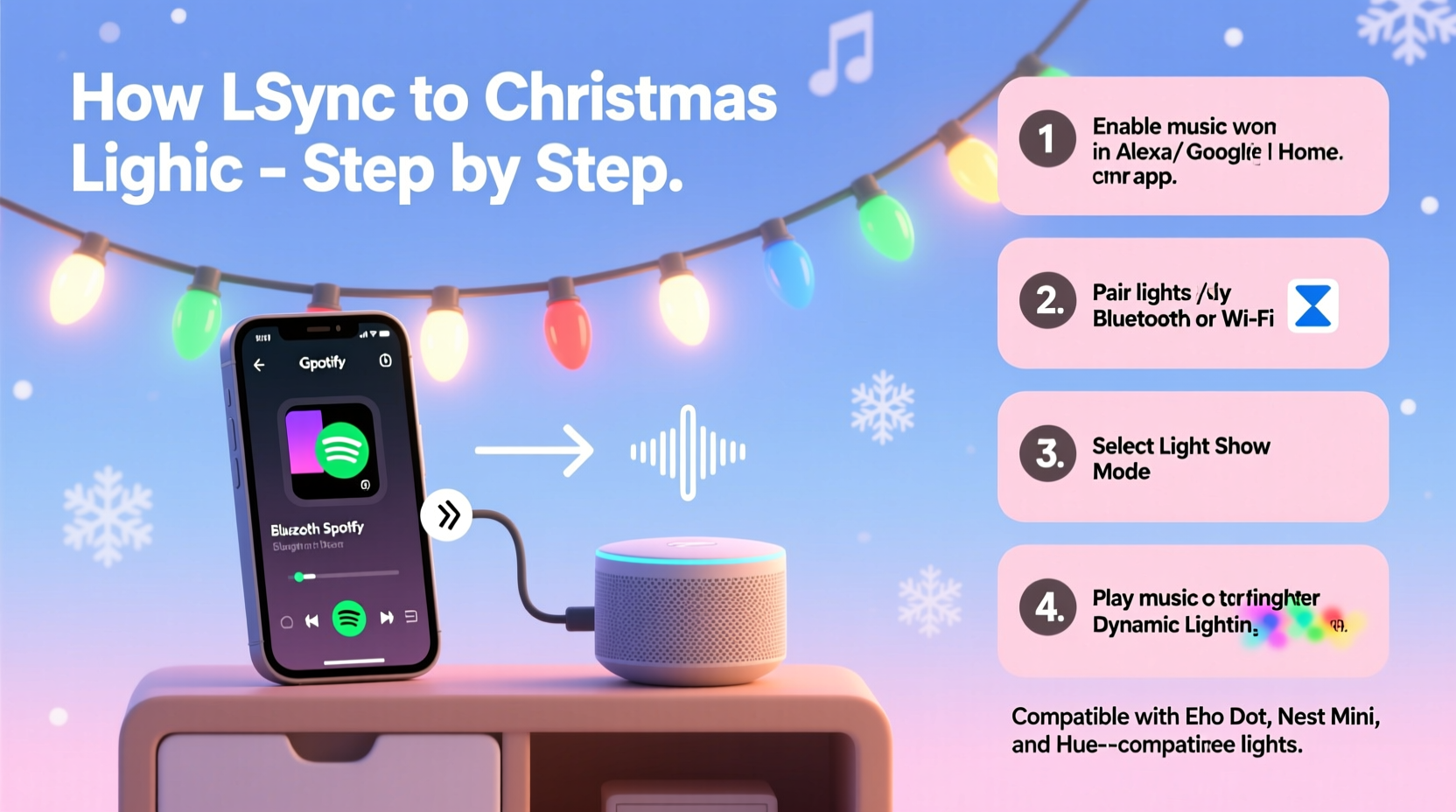
Music-synced lights rely on real-time audio analysis to adjust brightness, color, and pattern based on sound frequencies. When music plays, software detects beats, tempo, and volume changes, then sends signals to connected smart bulbs or strips to pulse, fade, or shift colors accordingly. Alexa and Google Home act as voice-controlled hubs that initiate playback and manage device groups, but they depend on third-party ecosystems—like Philips Hue, LIFX, or Nanoleaf—for actual synchronization.
The process involves three core components: an audio source (Spotify, YouTube Music, etc.), a smart speaker (Echo or Nest), and Wi-Fi-enabled lights that support reactive modes. These lights must be connected to a platform that interprets audio input and translates it into lighting effects. Without such integration, even the most advanced smart speaker cannot make lights “dance” to music.
“The magic happens not in the speaker, but in the ecosystem. You’re only as good as your light strip’s responsiveness.” — Daniel Reyes, Smart Home Integration Specialist
Required Equipment and Compatibility Checklist
Before diving in, ensure all your devices are compatible. Not every smart bulb works with music-sync features, and mismatched hardware leads to frustration. Use this checklist to verify your setup is ready.
Essential Gear
- Smart Speaker: Amazon Echo (any generation) or Google Nest Audio/Nest Mini
- Smart Lights: Philips Hue, LIFX, Govee, or Nanoleaf panels with music-reactive capabilities
- Hub (if required): Philips Hue Bridge for Hue lights
- Mobile App: Manufacturer-specific app (e.g., Hue, LIFX, Nanoleaf) installed on iOS or Android
- Streaming Service: Spotify, Apple Music, or local audio files accessible via smart speaker
Compatibility Overview
| Light Brand | Works with Alexa? | Works with Google Home? | Music Sync Feature? |
|---|---|---|---|
| Philips Hue | Yes | Yes | Yes (via Hue Sync app) |
| LIFX | Yes | Yes | Yes (in-app beat detection) |
| Govee | Yes | Yes | Limited (requires external trigger) |
| Nanoleaf | Yes | Yes | Yes (Canvas & Shapes with rhythm mode) |
| Generic Wi-Fi Bulbs | Sometimes | Sometimes | No |
Choose brands that offer dedicated music-syncing apps. Generic or budget bulbs may connect to Alexa or Google but lack the processing power or software support needed for real-time audio reactivity.
Step-by-Step Setup: Syncing Lights to Music via Alexa
Alexa doesn’t have built-in music visualization, but when paired with compatible lighting systems, you can achieve seamless synchronization using manufacturer tools. Below is a proven method using Philips Hue as an example.
- Connect Hue Lights to Alexa: Open the Alexa app, go to Devices > Add Device > Light > Philips Hue. Follow prompts to link your Hue Bridge.
- Install Hue Sync App: Download “Hue Sync” on your smartphone or PC from the App Store or Microsoft Store.
- Pair Hue Sync with Speakers: Launch the app and select your audio output (laptop, TV, or streaming device). The app mirrors screen or system audio.
- Start Music Playback: Play a song through Spotify on your computer or phone. Ensure audio is routed through the device running Hue Sync.
- Activate Sync Mode: In Hue Sync, choose “Music” mode and adjust sensitivity. Lights will begin pulsing to the beat.
- Control via Voice (Optional): Say, “Alexa, turn on the Christmas lights,” to activate the group. Note: Voice commands start the lights but don’t initiate sync—Hue Sync must already be running.
This method works best when Hue Sync runs continuously during your light show. For outdoor displays, consider using a low-power mini PC or Raspberry Pi dedicated to running the app.
Using Google Home with Reactive Lighting Systems
Google Home follows a similar principle but integrates more smoothly with certain platforms like Nanoleaf. Here's how to set up music-synced lights using Nanoleaf Shapes and a Nest Hub.
- Set Up Nanoleaf Panels: Install panels and connect to power. Use the Nanoleaf app to complete setup over Wi-Fi.
- Add to Google Home: In the Google Home app, tap “+” > “Set up device” > “Have something already set up?” Enter your Google account and select Nanoleaf devices.
- Enable Rhythm Mode: In the Nanoleaf app, go to Effects > Edit > Rhythm. Choose “Microphone” as input source. This allows panels to react to ambient sound.
- Play Music Near Google Speaker: Place your Nest speaker near the Nanoleaf panels. Play music through the speaker using voice command: “Hey Google, play ‘Jingle Bell Rock’ on YouTube Music.”
- Observe Real-Time Reaction: The built-in rhythm module detects audio from the room and triggers dynamic color shifts across the panels.
This ambient microphone approach eliminates the need for direct audio routing. However, background noise can interfere, so use in controlled environments. For larger setups, combine multiple Nanoleaf units under one effect group for unified behavior.
Real Example: A Neighborhood-Favorite Light Show
In Portland, Oregon, homeowner Marcus Tran turned his front yard into a holiday destination by syncing 300 LED nodes to music using Alexa and LIFX bulbs. He used two Echo Dots—one indoors controlling Hue lights, another outside managing LIFX strips via a weatherproof enclosure.
Marcus programmed his system to activate at 5 PM daily. Using IFTTT (If This Then That), he created an applet: “When time is 5:00 PM, play ‘Deck the Halls’ on Spotify and enable LIFX music mode.” He manually started Hue Sync on his laptop, which streamed audio to the living room lights.
Neighbors began gathering each evening. Within two weeks, his display gained local news coverage. The key, he says, was consistency and high-quality reactive lighting. “People don’t just come for the lights—they come for the experience. And that starts with perfect timing and strong beats.”
Pro Tips for a Smoother, More Impressive Display
- Use High-BPM Songs: Tracks with clear, steady beats (e.g., “Uptown Funk” remixes of carols) produce sharper, more visible light responses.
- Group Lights Strategically: Separate indoor and outdoor zones in your app to avoid unintended activation.
- Test Volume Levels: Too quiet, and lights won’t react; too loud, and the microphone may distort. Aim for moderate playback at 60–70% volume.
- Automate Schedules: Use routines in Alexa or Google Home to start music and lights simultaneously at dusk.
- Minimize Latency: Connect devices to a 5 GHz Wi-Fi band to reduce lag between sound and light response.
“Latency kills immersion. If the flash lags behind the drumbeat by half a second, the brain notices—and the magic fades.” — Lena Park, Interactive Light Designer
Frequently Asked Questions
Can I sync non-smart Christmas lights to music with Alexa or Google Home?
No—not directly. Traditional incandescent or unconnected LED strings lack the circuitry to interpret audio signals. To sync older lights, you’d need a smart plug paired with a separate music-reactive controller, which is complex and often unreliable. Upgrading to Wi-Fi-enabled smart lights is the most effective solution.
Do I need a subscription to make this work?
Most core functionality is free. However, some apps like Hue Sync offer premium modes (e.g., video sync, advanced effects) through optional subscriptions. Basic music sync works without paying extra.
Can I use my own music library instead of streaming services?
Yes. If your smart lighting app supports local audio input (like Hue Sync or LIFX), you can play music from your phone, computer, or NAS drive. Just ensure the audio source is connected to a device recognized by the sync software.
Final Checklist Before Going Live
- All smart lights are powered and connected to Wi-Fi
- Lights appear in Alexa or Google Home app
- Manufacturer’s music-sync feature is enabled (e.g., Hue Sync, Nanoleaf Rhythm)
- Audio source is configured and tested
- Volume levels are optimized for light responsiveness
- Routines or schedules are set for automatic daily shows
- Outdoor equipment is protected from moisture and temperature extremes
Bring Your Holiday Spirit to Life
Synchronized Christmas lights aren’t just a technical feat—they’re a celebration of creativity and connection. By leveraging Alexa or Google Home with responsive lighting systems, you can craft a personalized holiday experience that resonates with joy and rhythm. Whether it’s a subtle glow in the living room or a full-frontal yard spectacle, the tools are within reach. Start small, test thoroughly, and scale up as you gain confidence. With the right setup, your home can become the soundtrack of the season.




 浙公网安备
33010002000092号
浙公网安备
33010002000092号 浙B2-20120091-4
Comments
No comments yet. Why don't you start the discussion?