
As holiday traditions evolve, so do the tools we use to celebrate. Smart Christmas lights have transformed seasonal decorating from a static display into a dynamic, interactive experience. With the right app, you can manage multiple sets of smart lights—synchronizing colors, scheduling on/off times, creating animated patterns, and even syncing to music—all from your smartphone or tablet. Whether you're illuminating a modest porch or orchestrating a neighborhood-favorite light show, mastering app-based control is essential.
The convenience of remote management means no more standing on ladders to flip switches or manually adjusting strands. Instead, you gain real-time control over brightness, color temperature, timing, and effects across dozens of connected devices. This guide walks through the setup, configuration, and advanced techniques for managing multiple smart light systems using mobile applications.
Select Compatible Smart Lights and Hubs
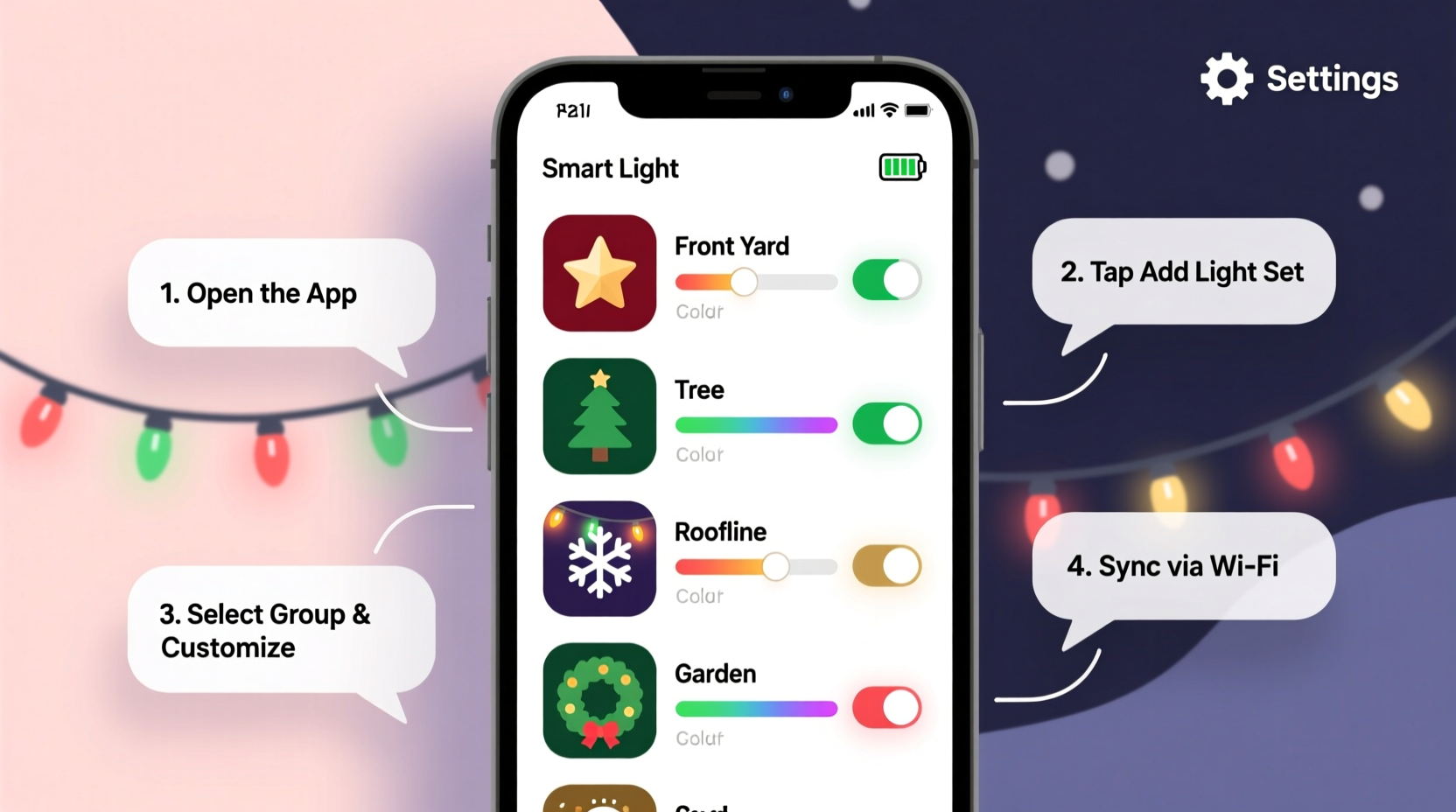
Not all smart lights work together seamlessly. Before purchasing, verify that your chosen brands support multi-device control within a single app. Leading ecosystems like Philips Hue, LIFX, Nanoleaf, and TP-Link Kasa offer robust apps capable of handling numerous light strips, bulbs, and controllers simultaneously.
For outdoor displays, ensure your lights are weather-rated (IP65 or higher) and compatible with your home Wi-Fi frequency (2.4 GHz is standard). Some systems require a central hub (like the Hue Bridge), while others connect directly via Wi-Fi or Bluetooth. Hubs often provide better range and reliability when managing large installations.
If mixing brands is unavoidable, consider integrating them into a unified platform like Apple HomeKit, Google Home, or Amazon Alexa. These platforms allow cross-brand control through voice commands and routines, though fine-grained customization may still require individual apps.
Step-by-Step Setup Process
Connecting multiple sets of smart lights begins with proper installation and pairing. Follow this sequence to ensure smooth integration:
- Install hardware safely: Securely mount outdoor strings using insulated clips; avoid nails or staples. Plug each set into GFCI-protected outlets.
- Power on all devices: Turn on each light strand and any required hubs or bridges.
- Download the manufacturer’s app: Install the official app (e.g., Kasa Smart, Hue, LIFX) on your iOS or Android device.
- Connect to Wi-Fi: Ensure your phone is on the same 2.4 GHz network as the lights. Most smart lights don’t support 5 GHz.
- Add devices: Open the app and select “Add Device.” Follow prompts to pair each light or group. Name each set clearly (e.g., “Front Porch,” “Tree Topper,” “Gutter Line”).
- Create rooms or zones: Group lights by location or function (e.g., “Exterior,” “Living Room Tree”) for easier management.
- Test individual controls: Verify you can turn each set on/off, adjust brightness, and change colors remotely.
Once all lights are recognized, test synchronization by applying a uniform effect across groups. Delays or dropouts indicate weak signal strength—consider adding a Wi-Fi extender or relocating the router.
Organize and Control Multiple Sets Efficiently
Managing five or fifty light sets demands organization. A cluttered app interface leads to confusion and missed cues during scheduled displays. Use these strategies to maintain clarity and responsiveness:
- Use descriptive names: Avoid generic labels like “Light 3.” Instead, use specific identifiers such as “North Roof Edge” or “Garland Center.”
- Group by zone: Assign lights to virtual rooms or scenes based on physical placement. This allows bulk actions—turning off all exterior lights at once, for example.
- Leverage scenes and presets: Save favorite configurations (e.g., “Warm White Elegance,” “Rainbow Pulse”) for instant recall.
- Schedule routines: Set daily on/off times aligned with sunset/sunrise or family habits.
Advanced users can layer effects. For instance, program the roofline to fade slowly while the tree pulses rhythmically. Many apps support timeline editors where you drag and drop effects over time, enabling cinematic sequences.
| Feature | Basic Control | Advanced App Capability |
|---|---|---|
| On/Off Remote Access | ✅ Yes | ✅ Yes |
| Brightness Adjustment | ✅ Yes | ✅ Yes |
| Color Customization | Limited (pre-sets) | Full RGB spectrum + white temps |
| Multi-Set Synchronization | ❌ No | ✅ Yes (via grouping) |
| Music Sync | ❌ No | ✅ Yes (with mic or audio input) |
| Timeline Sequencing | ❌ No | ✅ Yes (frame-by-frame editing) |
Automate and Enhance with Smart Features
Automation elevates smart lighting beyond manual toggling. Modern apps integrate with environmental triggers, calendars, and external sensors to create responsive displays.
For example, configure your system to activate only after dusk and deactivate at midnight. Apps like Kasa and Hue support geofencing—turning lights on automatically when your phone enters a designated radius around your home. This creates a welcoming glow upon arrival without leaving lights running unnecessarily.
Some systems offer holiday-specific modes. The LIFX app includes pre-built Christmas themes like “Santa’s Workshop” and “Falling Snow,” which can be assigned to multiple strips simultaneously. You can also import custom music and map beat-sensitive flashes to the rhythm—a favorite for driveway displays.
“With well-configured automation, your lights become part of the home’s rhythm—not just a decoration, but an ambient experience.” — Daniel Reeves, Smart Home Lighting Designer
To maximize performance, limit the number of simultaneous complex animations. Heavy processing demands can cause lag, especially on older smartphones or crowded networks. Test sequences in segments before full rollout.
Real-World Example: Coordinating a Neighborhood Display
In Portland, Oregon, a community initiative called “Brighter Together” unites 17 homes in a synchronized holiday light show. Each household uses TP-Link Kasa-compatible LED strips, controlled through a shared master schedule coordinated via Google Calendar and IFTTT (If This Then That) integrations.
A central organizer exports a JSON-based timeline that defines color changes, flash rates, and pause points. Participants import the sequence into their local Kasa apps, aligning start times via GPS-synced clocks. On event nights, a simple button press launches the choreography, with all homes pulsing in harmony.
The key to success? Standardization. Every family uses the same brand, connects to the same Wi-Fi band, and tests weekly. They also designate a backup mode—default warm white—if connectivity fails—ensuring the spirit of the display remains intact.
Checklist: Preparing Your Multi-Light System
Before launching your holiday display, run through this checklist to ensure reliability and performance:
- ☐ All smart light sets are powered and within network range
- ☐ Each device appears in the app with a clear, unique name
- ☐ Groups/zones are created for logical control (e.g., interior vs. exterior)
- ☐ Firmware is updated on all devices and the controlling app
- ☐ Wi-Fi signal strength is strong at farthest light locations
- ☐ Backup power options (like battery packs or UPS) are available for critical nodes
- ☐ Automation schedules are tested at different times of day
- ☐ Music sync or animation sequences are previewed in low-light conditions
- ☐ Emergency off routine is programmed (e.g., voice command or shortcut)
- ☐ Neighbors are informed about bright displays or strobing effects
This proactive approach prevents last-minute surprises and ensures your display runs smoothly throughout the season.
Frequently Asked Questions
Can I control different brands of smart lights in one app?
Yes, but with limitations. While native apps only manage their own devices, platforms like Google Home and Apple Home allow basic control of multiple brands. For advanced features like sequencing or music sync, you’ll likely need to use each brand’s dedicated app unless they support Matter protocol, which enables deeper cross-compatibility.
Why do my lights respond slowly when grouped?
Lag typically stems from network congestion or outdated firmware. Ensure your router supports Quality of Service (QoS) settings and prioritize traffic to your smart lighting hub. Also, avoid running too many high-bandwidth activities (like video streaming) simultaneously during live shows.
Is it safe to leave smart Christmas lights on overnight?
LED smart lights generate minimal heat and are generally safe for extended use. However, always plug them into surge protectors, inspect cords for damage annually, and enable automatic shutoff schedules. Most experts recommend limiting continuous operation to 8–12 hours unless monitoring remotely.
Master Your Holiday Light Symphony
Controlling multiple sets of smart Christmas lights through an app isn’t just about convenience—it’s about creativity and connection. With thoughtful planning, the right tools, and a bit of technical finesse, you can transform your home into a responsive canvas of light and motion. From subtle ambiance to full-scale spectacles, modern technology puts the magic firmly in your hands.
The holidays are a time of wonder, and your lights can amplify that feeling—for your family, your guests, and your entire community. Don’t settle for static strands. Explore animations, embrace automation, and experiment with coordination. The most memorable displays aren’t the brightest—they’re the ones that move with intention, rhythm, and joy.




 浙公网安备
33010002000092号
浙公网安备
33010002000092号 浙B2-20120091-4
Comments
No comments yet. Why don't you start the discussion?