
If your iPhone isn’t sending pictures, you’re not alone. Thousands of users encounter this frustrating issue daily—whether it’s a failed iMessage with a photo attachment, a stuck MMS, or an error saying “Sending Failed.” The problem can stem from network settings, messaging configurations, carrier limitations, or even minor software glitches. The good news is that most causes are fixable without visiting a service center. This comprehensive guide walks you through proven methods to restore your picture-sending capabilities quickly and effectively.
Check Your Network Connection First
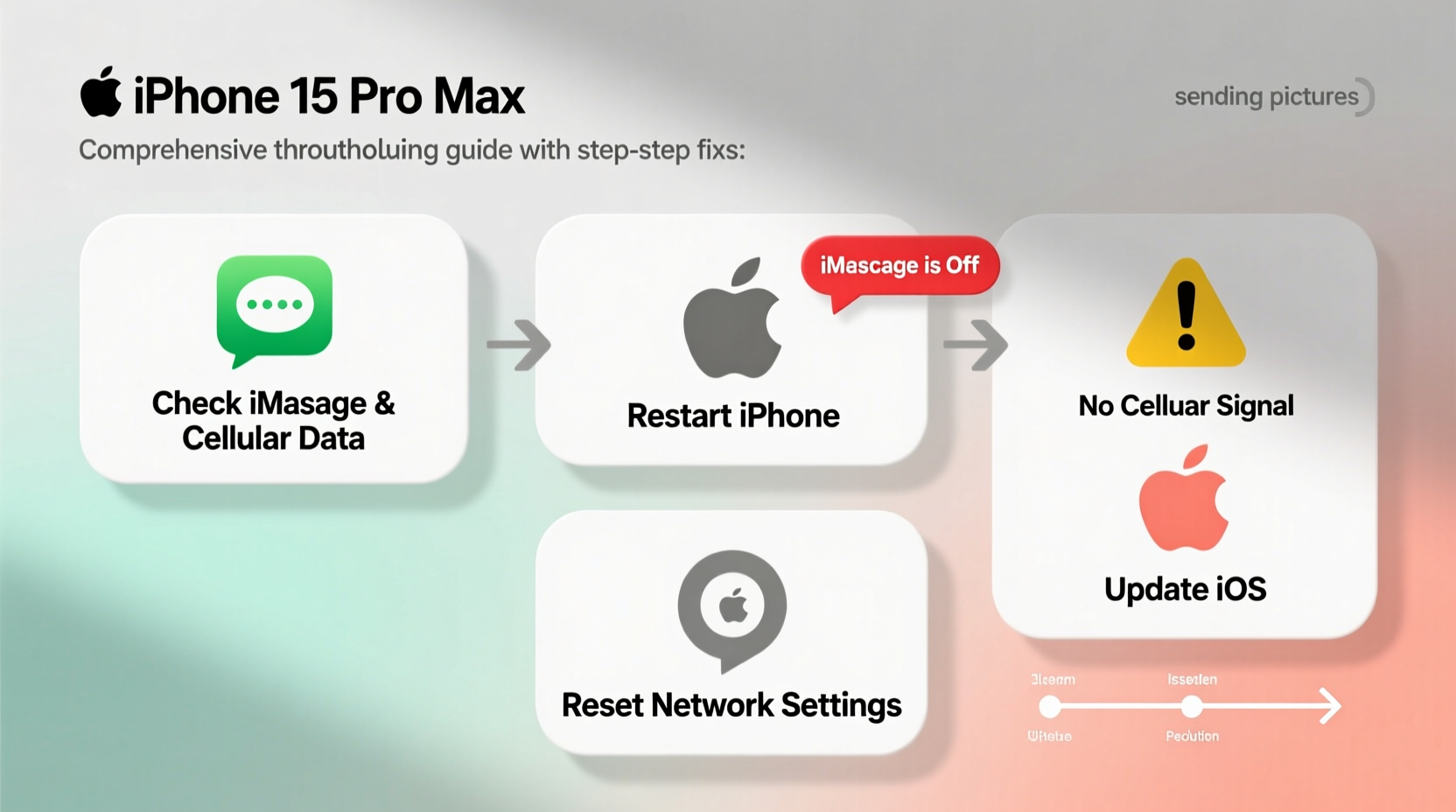
The foundation of any successful picture message is a stable internet or cellular connection. Photos require more data than text, so weak Wi-Fi or poor cellular signal often leads to failed sends. Before diving into complex settings, verify your connectivity.
- Ensure Wi-Fi is enabled and connected to a working network. Try loading a webpage in Safari to confirm.
- If using cellular data, check that your signal strength is adequate (at least two bars).
- Toggle Airplane Mode on for 10 seconds, then off, to refresh network interfaces.
Verify MMS and iMessage Settings
iPhones use different protocols to send photos: iMessage (over data) for Apple-to-Apple communication, and MMS (Multimedia Messaging Service) for Android or non-iCloud contacts. If either is disabled, picture delivery fails.
- Open Settings.
- Tap Messages.
- Confirm that Send as SMS is toggled on.
- Ensure MMS Messaging is enabled.
- Check that iMessage is turned on at the top of the screen.
If iMessage is off, sign in with your Apple ID. Note that iMessage requires internet access—either Wi-Fi or cellular data—to function. MMS, on the other hand, relies on your carrier’s network and may incur charges if not covered by your plan.
Common Configuration Issues
| Setting | Recommended State | Why It Matters |
|---|---|---|
| iMessage | Enabled | Required for sending photos to other iPhone users via blue bubbles. |
| MMS Messaging | Enabled | Necessary for sending photos to Android phones or non-iCloud contacts. |
| Send as SMS | Enabled | Acts as fallback when iMessage isn’t available. |
| Limited Cellular Data | Disabled for Messages | Prevents throttling of image uploads over data. |
Reset Network Settings to Clear Glitches
Sometimes, corrupted APN (Access Point Name) settings or cached network errors prevent MMS from working—even if everything appears correct. Resetting network settings clears these issues without affecting personal data like photos or messages.
“Many MMS failures aren’t hardware-related but stem from outdated or misconfigured network profiles.” — David Lin, Mobile Network Engineer
How to Reset Network Settings
- Go to Settings > General > Transfer or Reset iPhone.
- Select Reset.
- Choose Reset Network Settings.
- Enter your passcode if prompted.
- Wait for the phone to restart.
After rebooting, reconnect to Wi-Fi and test sending a photo. This step resolves many silent carrier configuration problems, especially after iOS updates or travel across regions.
Update Carrier Settings and iOS Version
Carriers occasionally push updated settings that improve MMS compatibility and data routing. These updates happen automatically, but only if your device checks for them.
To manually check:
- Connect to Wi-Fi.
- Go to Settings > General > About.
- If an update is available, a prompt will appear to install new carrier settings.
Similarly, outdated iOS versions may lack critical messaging patches. Always run the latest stable release:
- Navigate to Settings > General > Software Update.
- Download and install any pending updates.
Case Study: Sarah’s MMS Failure After Travel
Sarah returned from a trip to Mexico and noticed her iPhone wouldn’t send photos to her sister’s Android phone. Texts went through, but images failed with “Not Delivered.” She checked iMessage (on), Wi-Fi (connected), and even restarted her phone—no change.
She followed the network reset process and re-entered her home network. Within minutes, MMS began working again. The issue? Her iPhone had retained roaming APN settings that didn’t support multimedia messaging post-travel. A network reset restored the default domestic configuration, solving the problem instantly.
Troubleshooting Checklist
Use this checklist to methodically resolve picture-sending issues:
- ✅ Ensure Wi-Fi or cellular data is active and stable.
- ✅ Confirm MMS Messaging is enabled in Settings > Messages.
- ✅ Verify iMessage is turned on and signed in.
- ✅ Check that Send as SMS is enabled.
- ✅ Restart your iPhone to clear temporary glitches.
- ✅ Reset network settings if MMS still fails.
- ✅ Install the latest iOS and carrier updates.
- ✅ Test with a small photo first to rule out file size issues.
- ✅ Contact your carrier to confirm MMS is supported on your plan.
Frequently Asked Questions
Why do my pictures send to some people but not others?
This usually indicates a split between iMessage (Apple-to-Apple) and SMS/MMS (non-Apple). If messages appear in blue, they’re using iMessage. Green bubbles mean SMS/MMS. If photos fail only on green messages, MMS is likely misconfigured or unsupported by the recipient’s carrier.
Can a full iPhone storage prevent sending photos?
Not directly. While low storage can slow performance, it doesn’t block message transmission. However, extremely low space (<5%) might interfere with temporary file processing. Free up space via Settings > General > iPhone Storage to be safe.
Does turning off iMessage help send pictures via MMS?
Temporarily disabling iMessage forces all messages—including media—to use SMS/MMS. This can help diagnose whether the issue lies with iMessage routing. Turn it off in Settings > Messages, send a test photo, then re-enable it afterward.
Advanced Fixes for Persistent Problems
If basic steps fail, consider these deeper interventions:
- Reinsert SIM Card: Power off the phone, remove the SIM tray, clean the card gently, and reinsert. A loose or dirty SIM can disrupt data services needed for MMS.
- Manual APN Setup: Some carriers allow manual configuration. Visit your carrier’s support site for correct APN settings under Settings > Cellular > Cellular Data Network.
- Replace iMessage Thread: Open Messages, delete the problematic conversation, and start a new one. Corrupted threads sometimes block media delivery.
When to Contact Your Carrier or Apple Support
If all else fails, reach out to your carrier. Ask specifically:
- Is MMS included in my plan?
- Are there known outages in my area?
- Can you re-provision my line for MMS?
If the carrier confirms everything is functional, contact Apple Support. There may be a deeper software defect requiring diagnostics or a replacement device if hardware (like the cellular modem) is faulty.
Conclusion: Regain Control Over Your iPhone’s Messaging
Not being able to send pictures from your iPhone is disruptive, but rarely permanent. Most issues stem from simple misconfigurations or transient network states. By systematically checking connections, enabling MMS, resetting network settings, and updating software, you can resolve the vast majority of cases without professional help. Don’t tolerate broken messaging—apply these fixes today and get back to sharing life’s moments seamlessly.




 浙公网安备
33010002000092号
浙公网安备
33010002000092号 浙B2-20120091-4
Comments
No comments yet. Why don't you start the discussion?