
If your iPhone suddenly refuses to play videos—whether they’re from the Photos app, Safari, YouTube, or messaging apps—it can be more than just inconvenient. It disrupts everything from reliving memories to staying up-to-date with work-related clips. The good news is that most video playback problems on iPhones are solvable with a few targeted steps. From minor software glitches to deeper system conflicts, this guide walks you through comprehensive fixes that address the root causes.
Common Causes of Video Playback Issues
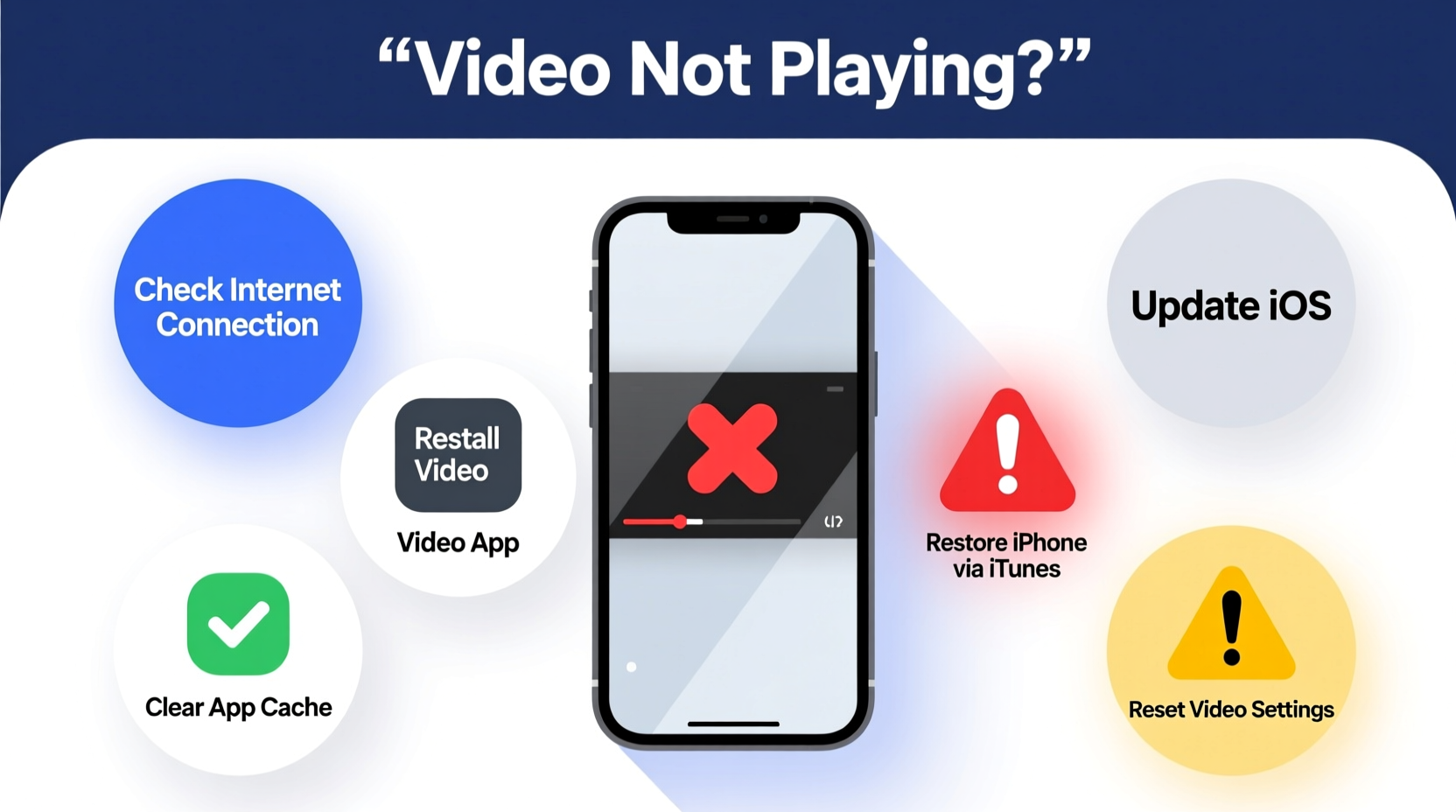
Before jumping into solutions, it helps to understand what might be causing the problem. Video playback failures on iPhones aren’t always due to corrupted files. Often, they stem from temporary software bugs, outdated apps, connectivity limitations, or storage constraints.
- Outdated iOS version: Older versions may lack support for newer video codecs or streaming protocols.
- App-specific bugs: Apps like YouTube, TikTok, or Messages may fail due to cache corruption or update lags.
- Poor internet connection: Streaming services require stable bandwidth; weak Wi-Fi or cellular data can interrupt playback.
- Insufficient storage: When your iPhone is nearly full, background processes—including video decoding—can fail.
- Corrupted media files: Videos transferred from other devices or downloaded incompletely may not play correctly.
- Hardware acceleration failure: Rarely, GPU-related functions used in video rendering may malfunction after an update.
Step-by-Step Troubleshooting Guide
Follow this logical sequence of actions to isolate and fix the issue without unnecessary changes to your device.
- Check Internet Connection
For streaming platforms (YouTube, Instagram, Safari videos), ensure you're connected to a stable Wi-Fi or cellular network. Test by loading a webpage or another video. If using cellular data, confirm that “Use Cellular Data” is enabled for the app in Settings > Cellular. - Force Close and Reopen the App
Double-click the Home button (or swipe up and hold on Face ID models) to access the app switcher. Swipe up on the problematic app to close it completely, then relaunch it. - Restart Your iPhone
Hold the side button and either volume button until the power slider appears. Slide to power off, wait 30 seconds, then turn it back on. This clears RAM and resets active processes. - Update the App
Open the App Store, tap your profile icon, and scroll to see if the video app has an available update. Outdated apps often have known bugs affecting media playback. - Check for iOS Updates
Go to Settings > General > Software Update. Install any pending updates. Apple frequently releases patches that improve media handling and stability.
Advanced Fixes for Persistent Problems
If basic steps don’t resolve the issue, consider these deeper interventions.
Clear Safari Cache (for Web Videos)
If videos won’t play in Safari, accumulated cache could be the culprit.
- Navigate to Settings > Safari.
- Tap “Clear History and Website Data.”
- Confirm the action. Note: This removes saved passwords unless synced via iCloud.
Reset All Settings
This restores network settings, keyboard dictionary, location settings, and privacy settings without erasing personal data.
- Go to Settings > General > Transfer or Reset iPhone > Reset.
- Select “Reset All Settings.”
- Enter your passcode and confirm.
This often resolves hidden configuration errors affecting media frameworks.
Check Storage Space
Low storage can prevent video apps from creating temporary files needed for buffering or processing.
- Open Settings > General > iPhone Storage.
- If available space is under 1 GB, delete unused apps, photos, or messages.
- Offload infrequently used apps via “Recommendations” to free up space safely.
Troubleshooting Table: Do’s and Don’ts
| Action | Do | Don't |
|---|---|---|
| When videos freeze | Restart the app and device | Repeatedly force-close apps rapidly |
| Streaming fails | Switch between Wi-Fi and cellular data | Assume the issue is with your carrier immediately |
| Photos app won’t play | Check if the video is still being processed after transfer | Delete the file before confirming it's corrupt |
| After iOS update | Wait 24 hours for background optimization | Factory reset without trying software fixes |
Mini Case Study: Recovering Saved Memories
Sarah, a freelance photographer, transferred hundreds of vacation clips to her iPhone via AirDrop from her MacBook. Upon opening them in the Photos app, several showed a black screen with no sound. Initially assuming file corruption, she almost deleted them. Instead, she waited 10 minutes—during which the iPhone completed background processing—and the videos began playing normally. In another case, a student found TikTok videos wouldn’t load. After resetting network settings (Settings > General > Reset > Reset Network Settings), both Wi-Fi and app performance improved instantly. These examples highlight how patience and methodical checks often reveal simple fixes.
“Many video playback issues are transient. Before assuming hardware failure or permanent corruption, rule out software and connectivity factors.” — David Lin, Mobile Support Engineer at Apple Authorized Service Provider
Complete Checklist: Fix iPhone Video Playback
Use this checklist to systematically troubleshoot:
- ✅ Restart the iPhone
- ✅ Force close and reopen the video app
- ✅ Check Wi-Fi or cellular signal strength
- ✅ Update the app via App Store
- ✅ Install latest iOS version
- ✅ Clear Safari cache (if web-based)
- ✅ Free up storage space if below 1 GB
- ✅ Reset network settings (Settings > General > Reset > Reset Network Settings)
- ✅ Try playing the video on another device to verify file integrity
- ✅ Contact Apple Support if all else fails
Frequently Asked Questions
Why do some videos show a black screen but still play audio?
This typically indicates a codec or rendering issue. The iPhone may struggle to decode high-resolution or uncommon formats (like MKV or AVI). Convert the video to MP4 using a desktop tool before transferring. Also, check if the video was recorded in HDR—if so, older iPhone models may have difficulty displaying it properly.
Can a screen protector or case interfere with video playback?
No. Physical accessories do not affect video decoding or app functionality. However, poorly installed screen protectors might block touch response, making it seem like the video isn’t responding to taps or swipes.
I updated iOS and now videos stutter. What should I do?
After an iOS update, background processes optimize apps and media. Wait 24 hours for indexing to complete. If issues persist, go to Settings > General > iPhone Storage, find the affected app, and offload it (then reinstall). This refreshes its local data without losing account info.
Final Steps and When to Seek Help
Most video playback problems on iPhones are temporary and resolvable with software adjustments. The key is to approach the issue methodically—start with the simplest solutions and progress only when necessary. Avoid immediate factory resets, as they carry risks of data loss and rarely fix software-level bugs more effectively than targeted resets.
If you’ve exhausted all options and videos still won’t play across multiple apps and file types, it may indicate deeper firmware corruption or hardware issues with the display processor. In such cases, contact Apple Support or visit an Apple Store for diagnostics. You can also use Apple’s online support assistant at support.apple.com to schedule repairs or chat with a technician.




 浙公网安备
33010002000092号
浙公网安备
33010002000092号 浙B2-20120091-4
Comments
No comments yet. Why don't you start the discussion?