
It’s a familiar sound: the persistent whir of your laptop fan spinning at full speed, even when you're only browsing a few web pages. While some fan activity is normal, a constantly running fan can signal underlying issues ranging from dust buildup to software overload. Beyond the annoyance, sustained high fan usage may indicate poor thermal management, which over time can degrade performance and shorten your device's lifespan. Understanding why this happens—and how to fix it—can restore quiet operation and ensure your laptop runs efficiently.
Why Laptop Fans Run Continuously
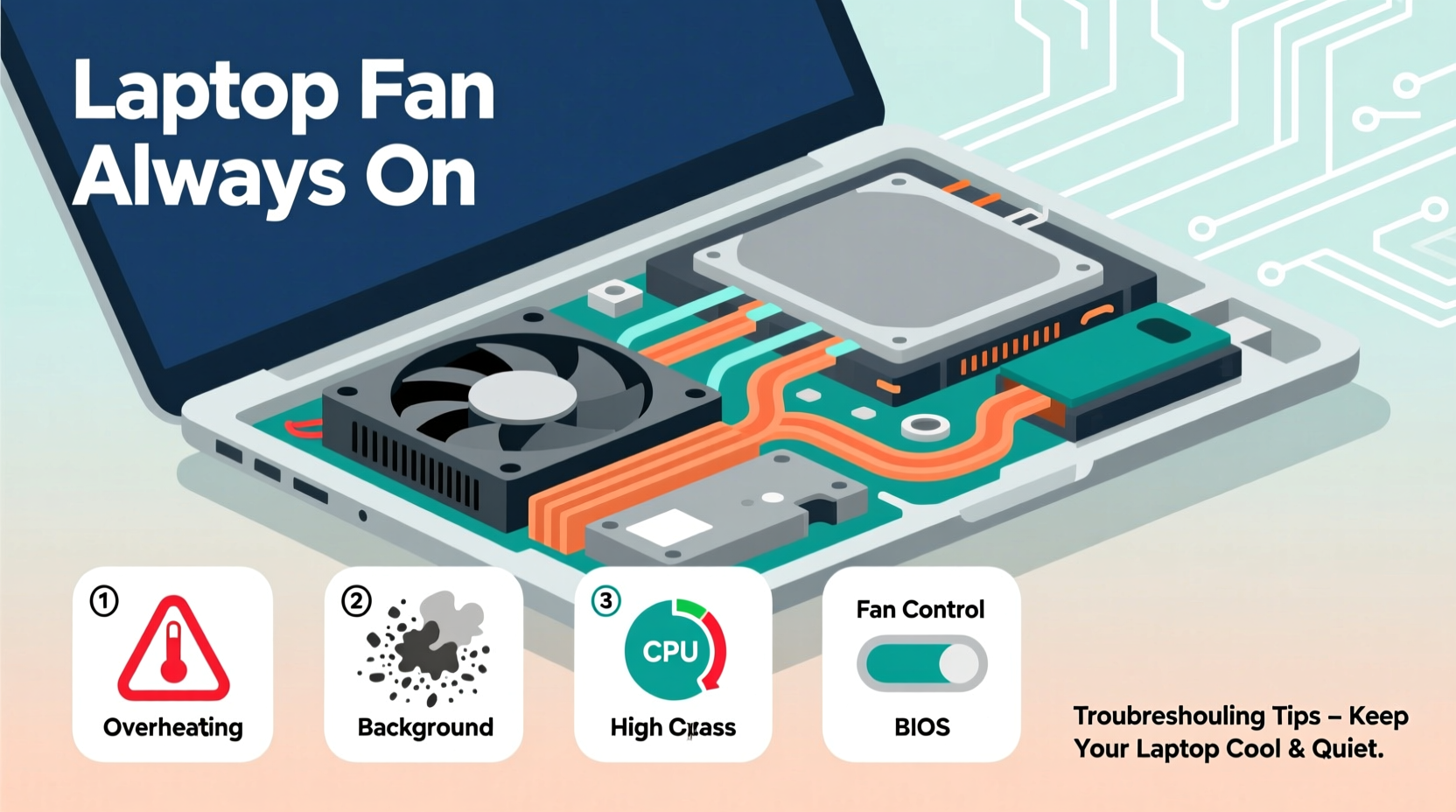
Laptop fans exist to regulate internal temperature by drawing heat away from critical components like the CPU and GPU. When these parts work harder—rendering video, compiling code, or running multiple applications—they generate more heat. The system responds by increasing fan speed. However, if the fan never powers down, even during idle periods, something is likely disrupting the thermal balance.
Common root causes include:
- Dust accumulation blocking airflow
- Faulty thermal sensors or misconfigured BIOS settings
- Background processes consuming excessive CPU
- Aging thermal paste losing effectiveness
- Poor ventilation due to improper placement
- Software bugs or driver conflicts
Each factor contributes differently, but all lead to the same outcome: the cooling system remains in high-alert mode, trying to compensate for real or perceived heat.
Step-by-Step Troubleshooting Guide
Before opening up your device or reinstalling software, follow a structured approach to isolate the cause.
- Check CPU and GPU usage – Open Task Manager (Windows) or Activity Monitor (macOS) and look for processes using more than 20–30% CPU consistently. End unnecessary tasks.
- Monitor internal temperatures – Use tools like HWMonitor, Core Temp, or Macs Fan Control to check actual component temps. Idle CPU temps above 60°C suggest an issue.
- Inspect physical condition – Examine air vents for visible dust. Shine a flashlight into intake grills; if they appear clogged, cleaning is needed.
- Evaluate placement and surface – Ensure the laptop is on a hard, flat surface with unobstructed airflow underneath.
- Update firmware and drivers – Check the manufacturer’s website for BIOS, chipset, and graphics driver updates that may improve thermal management.
- Test with minimal load – Boot into Safe Mode (Windows) or Safe Boot (macOS). If the fan quiets down, the problem is likely software-related.
If the fan still runs loudly in low-power mode, deeper hardware inspection may be required.
Common Fixes and Preventive Measures
Solving a constantly active fan often combines both immediate fixes and long-term maintenance habits.
Cleaning Internal Components
Dust is one of the top culprits. Over months, fine particles accumulate on heatsinks and fan blades, insulating heat instead of dissipating it. A simple cleaning can yield dramatic results.
Power off the laptop, disconnect the battery if possible, and use compressed air to blow out vents. For best results, open the back panel (if comfortable) and clean the fan directly. Hold the fan blade in place while blowing air to prevent overspinning, which can damage bearings.
Reapplying Thermal Paste
On laptops older than two years, factory-applied thermal paste may have dried out, reducing heat transfer efficiency. Replacing it with high-quality paste (such as Arctic MX-4 or Noctua NT-H2) improves conduction between the CPU/GPU and heatsink. This is an advanced task—proceed only if experienced or with professional help.
Adjusting Power Settings
Windows and macOS allow granular control over performance and cooling behavior. In Windows, go to Control Panel > Hardware and Sound > Power Options and select \"Balanced\" or customize the plan to limit maximum processor state to 90–95% when on battery. On macOS, consider third-party tools like TG Pro to manually adjust fan curves based on temperature thresholds.
“Over 60% of overheating cases we see in repair shops stem from blocked airflow or degraded thermal interface materials.” — David Lin, Senior Technician at TechFlow Repair Labs
Do’s and Don’ts: Managing Fan Performance
| Do | Don't |
|---|---|
| Use a laptop cooling pad with independent fans | Place the laptop on blankets, pillows, or laps |
| Keep software updated, especially drivers and OS patches | Ignore persistent high CPU usage from unknown apps |
| Restart your laptop weekly to clear memory leaks | Run intensive tasks for hours without breaks |
| Monitor temperatures regularly if doing heavy workloads | Disassemble the laptop without proper tools or guidance |
| Set custom fan profiles using trusted utilities | Disable fans entirely via software or hardware |
Real-World Example: Resolving Persistent Fan Noise
Samantha, a freelance graphic designer, noticed her three-year-old laptop fan running nonstop, even after closing Adobe Suite. Initially assuming it was age-related wear, she nearly upgraded. Instead, she ran diagnostics and discovered Chrome had 17 background tabs—including autoplay videos—consuming 45% CPU. After disabling unnecessary extensions and setting Chrome to limit background activity, fan noise dropped by 60%. A month later, she opened the chassis and cleaned accumulated dust from the fan assembly. Combined, these steps restored near-silent idle performance and extended her laptop’s usable life by over a year.
This case illustrates how software and physical factors often combine. Addressing just one side may provide partial relief, but tackling both delivers lasting results.
Essential Maintenance Checklist
Use this checklist every 3–6 months to keep your laptop cool and efficient:
- ✅ Clean exterior vents with compressed air
- ✅ Check Task Manager/Activity Monitor for abnormal CPU usage
- ✅ Update operating system, drivers, and BIOS
- ✅ Remove unused startup programs
- ✅ Verify laptop is on a hard, flat surface during use
- ✅ Consider reapplying thermal paste (for devices over 2 years old)
- ✅ Test fan behavior in Safe Mode to rule out software issues
Frequently Asked Questions
Is it bad if my laptop fan is always on?
Not necessarily—if the system is under consistent load, continuous fan operation is normal. However, if the fan runs at high speed during idle and temperatures are elevated, it may indicate poor cooling, leading to reduced component lifespan and potential throttling.
Can I disable the laptop fan?
No. Disabling the fan—even temporarily—risks immediate overheating, which can trigger automatic shutdowns or permanent hardware damage. Fans are essential safety mechanisms.
How loud should a laptop fan be?
At idle, fan noise should be barely noticeable. Under load, moderate whirring is expected. Loud grinding, clicking, or constant high-pitched noise suggests mechanical failure, dust blockage, or bearing wear.
Take Control of Your Laptop’s Performance
A constantly running fan doesn’t have to be the price of productivity. With systematic troubleshooting and regular maintenance, most causes are fixable without costly repairs or replacement. Start with the simplest solutions—cleaning vents and managing background apps—then progress to firmware updates or hardware servicing as needed. Remember, heat is the enemy of electronics. By keeping temperatures in check, you preserve not just silence, but also speed, stability, and longevity.




 浙公网安备
33010002000092号
浙公网安备
33010002000092号 浙B2-20120091-4
Comments
No comments yet. Why don't you start the discussion?