
When your MacBook freezes, it doesn’t just interrupt your workflow—it disrupts your rhythm. Whether you're in the middle of an important presentation, editing a video, or simply browsing the web, a frozen screen can feel like a digital brick wall. The good news: most freezing issues are fixable without professional help. Understanding the root causes and having a clear action plan can save time, reduce stress, and extend your Mac’s lifespan.
Freezing typically stems from software conflicts, insufficient memory, overheating, or failing hardware. While Apple devices are known for their stability, no system is immune to performance hiccups. This guide walks through practical, step-by-step solutions to get your unresponsive MacBook running smoothly again—without guessing or unnecessary repairs.
Identify the Signs of a Freezing MacBook
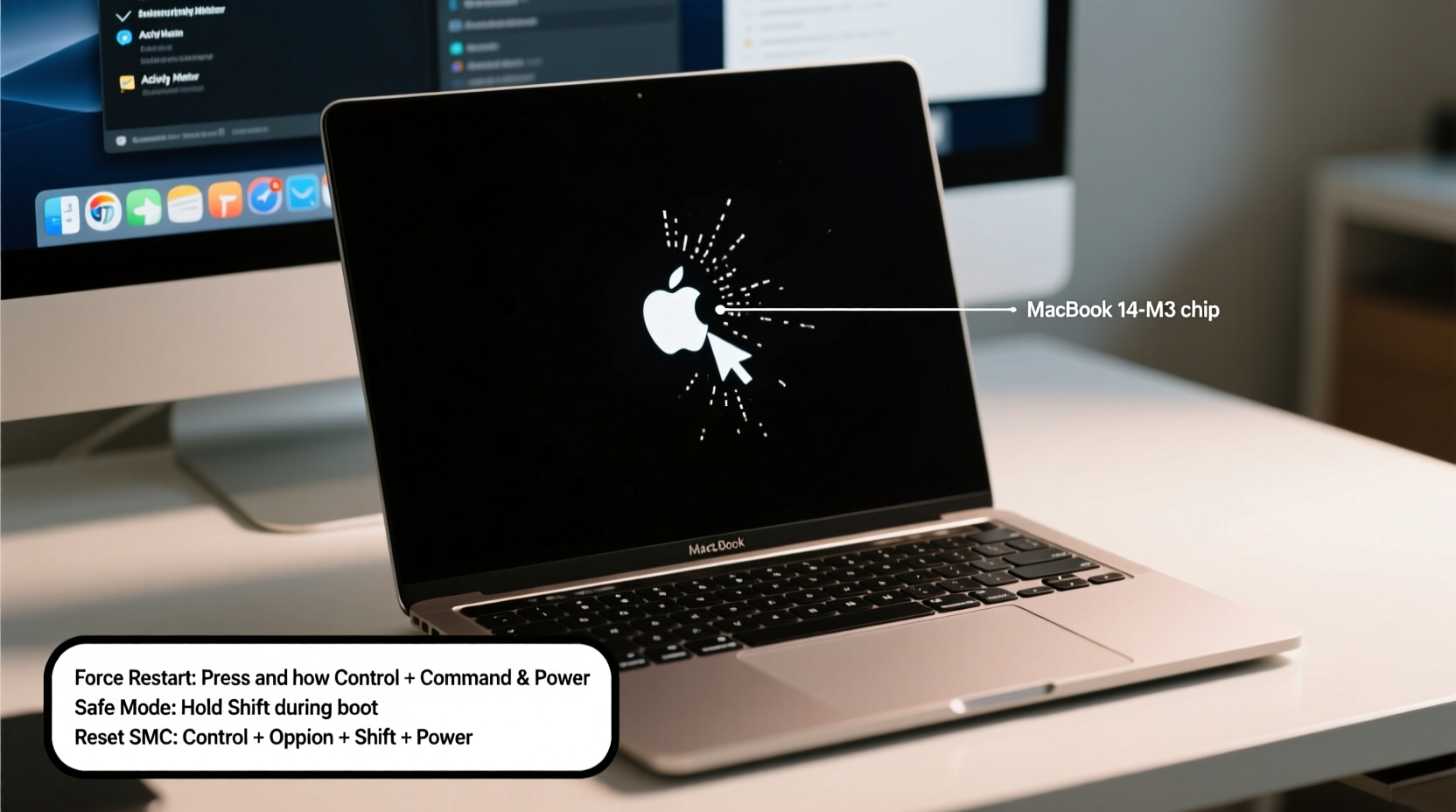
A MacBook freeze isn't always total. Sometimes the cursor moves but apps don’t respond; other times, the screen locks completely. Common symptoms include:
- Unresponsive applications that won’t close
- Spinning color wheel (the \"beach ball\") appearing frequently
- System-wide lag when switching between windows
- Inability to click or type despite power being on
- Sudden restarts or kernel panics (crash screens)
Before jumping into complex fixes, confirm the issue isn’t isolated to one app. Try opening Safari or Finder—if they work, the problem may be application-specific. If nothing responds, it's likely a system-level issue requiring deeper intervention.
Immediate Fixes for an Unresponsive MacBook
When your Mac stops responding, act quickly—but carefully. Follow this sequence to minimize data loss and avoid worsening the issue.
- Wait 30–60 seconds. Heavy tasks like rendering or updates can cause temporary lag.
- Force quit the active app. Use Command + Option + Esc, select the frozen app, and click “Force Quit.”
- Restart the system. Hold the power button for 10 seconds until the screen goes black, then press it again to reboot.
- Boot in Safe Mode. Restart and hold Shift until the login screen appears. Safe Mode disables non-essential processes and clears system caches.
If the Mac responds normally in Safe Mode, the issue is likely caused by third-party software or startup items. Exit Safe Mode by restarting normally and proceed to clean up background processes.
Mini Case Study: Resolving Chronic Freezing on a 2018 MacBook Pro
A freelance graphic designer using a 2018 MacBook Pro reported frequent freezes during Adobe Photoshop sessions. After ruling out overheating and disk errors, she booted into Safe Mode and noticed stable performance. This pointed to a login item conflict. Upon checking System Settings > Login Items, she found an outdated printer utility running at startup. Disabling it eliminated 90% of freezes. A subsequent macOS update resolved the remaining instability. The fix took under 20 minutes and avoided costly hardware diagnostics.
Long-Term Solutions to Prevent Future Freezes
Prevention is more effective than repeated troubleshooting. Implement these strategies to maintain consistent performance.
1. Manage Memory and Storage
MacBooks perform poorly when RAM is maxed out or storage is near capacity. Aim to keep at least 10–15 GB of free space and monitor Activity Monitor for memory pressure.
2. Update Software Regularly
Apple releases patches for known bugs and security flaws. Delaying updates increases vulnerability to crashes. Enable automatic updates via System Settings > General > Software Update.
3. Reduce Startup Load
Too many apps launching at login can overwhelm the system. Remove unnecessary entries in System Settings > Users & Groups > Login Items.
4. Clear System Caches (Safely)
Cached files can become corrupted over time. While macOS manages most automatically, occasional manual cleanup helps. Navigate to ~/Library/Caches and delete contents of folders related to problematic apps—not the folder itself.
“Over 70% of ‘hardware’ issues we see in Mac repair shops are actually software-related and could have been resolved with proper maintenance.” — Jordan Lee, Senior Mac Technician at Pacific Tech Repair
Troubleshooting Checklist: Step-by-Step Recovery Plan
Use this checklist to methodically address freezing issues:
- ✅ Force quit unresponsive apps using Command + Option + Esc
- ✅ Restart the MacBook properly (don’t just hold power unless necessary)
- ✅ Boot into Safe Mode to test baseline performance
- ✅ Check Activity Monitor for high CPU or memory usage
- ✅ Verify available storage (under About This Mac > Storage)
- ✅ Run First Aid in Disk Utility to check disk integrity
- ✅ Update macOS and all installed applications
- ✅ Disable unnecessary login items and background services
- ✅ Reset SMC and NVRAM if hardware behavior is erratic (e.g., fans running at full speed)
- ✅ Back up data and consider reinstalling macOS if problems persist
SMC and NVRAM: When and How to Reset
The System Management Controller (SMC) handles power, battery, and thermal management. The NVRAM stores settings like volume, display resolution, and startup disk. Resetting them can resolve underlying glitches causing freezes.
Reset SMC on Apple Silicon (M1/M2/M3 Macs):
- Shut down the Mac.
- Wait 15 seconds.
- Press and hold the power button for 10 seconds.
- Release, then press again to turn on.
Reset SMC on Intel Macs (with non-removable battery):
- Shut down.
- Press Shift + Control + Option + Power simultaneously for 10 seconds.
- Release and power on normally.
Reset NVRAM (Intel Macs only):
- Restart and immediately press Option + Command + P + R.
- Hold for about 20 seconds (or until second startup chime).
- Release and allow normal boot.
Note: Apple Silicon Macs manage NVRAM automatically; no manual reset is needed.
Do’s and Don’ts of MacBook Freeze Recovery
| Do | Don’t |
|---|---|
| Save work frequently and enable Auto Save where available | Ignore persistent beach ball icons—they signal trouble |
| Keep macOS and apps updated | Install pirated or unsigned software |
| Use Activity Monitor to identify resource-heavy apps | Constantly force-shutdown by holding the power button |
| Back up regularly with Time Machine | Fill your drive beyond 90% capacity |
| Reset SMC/NVRAM when experiencing hardware anomalies | Open the device yourself unless qualified |
FAQ: Common Questions About MacBook Freezing
Why does my MacBook keep freezing after updating macOS?
Updates can introduce compatibility issues with third-party apps or drivers. Boot into Safe Mode to disable non-essential software. Reinstall or update any outdated apps, especially antivirus tools, virtualization software, or font managers. In some cases, waiting for a patch release from the developer resolves the issue.
Can low storage cause my Mac to freeze?
Yes. When storage drops below 10 GB, macOS struggles to create temporary files and manage virtual memory. This leads to slowdowns and freezes. Offload large files to external drives or cloud storage, and delete unused apps and downloads to regain space.
Is it safe to force restart a frozen MacBook?
While not ideal, a force restart (holding the power button) is safe when the system is completely unresponsive. Modern Macs have safeguards against filesystem corruption. However, frequent forced shutdowns increase the risk of data loss or disk errors. Address the root cause instead of relying on this as a routine fix.
Conclusion: Take Control of Your MacBook’s Performance
A freezing MacBook doesn’t mean it’s time for a replacement. Most issues stem from manageable software conflicts, poor resource allocation, or outdated configurations. By applying systematic troubleshooting—from simple force quits to targeted resets and maintenance—you can restore responsiveness and prevent future disruptions.
Start today: check your storage, review login items, and run a quick scan in Activity Monitor. Small habits lead to significant improvements in reliability. A well-maintained Mac can serve efficiently for years, even under heavy use.




 浙公网安备
33010002000092号
浙公网安备
33010002000092号 浙B2-20120091-4
Comments
No comments yet. Why don't you start the discussion?