
Facebook has evolved far beyond social networking—it’s now a hub for casual and competitive gaming. With millions of users accessing games directly through their feeds or Messenger, the platform offers instant entertainment without downloads or subscriptions. Yet many users overlook its full potential, missing out on hidden features, multiplayer capabilities, and seamless cross-device play. This guide walks you through every stage of mastering Facebook Gaming, from discovery to optimization, so you can enjoy a smooth, engaging experience.
Understanding Facebook Gaming: What It Is and Why It Matters
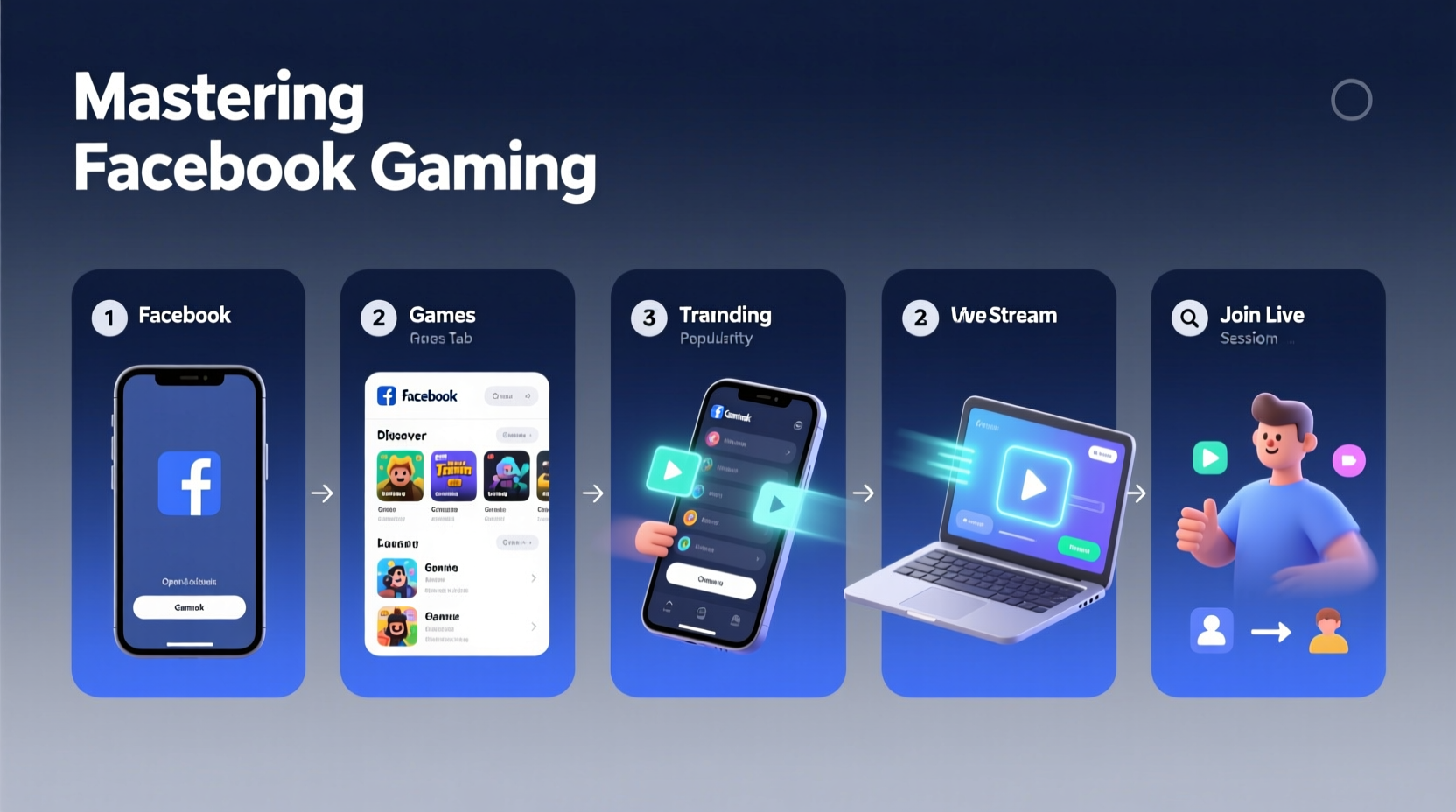
Facebook Gaming is an integrated platform that allows users to stream, discover, and play browser-based games directly within Facebook or through the standalone Facebook Gaming app. Unlike traditional gaming platforms, it emphasizes accessibility—no console or high-end PC required. Most games run in HTML5 or WebGL, loading instantly in your browser. The ecosystem includes live game streams, creator communities, in-game rewards, and real-time multiplayer functionality.
The platform thrives on social interaction. You can challenge friends, share achievements, and even co-play during video calls. According to Meta, over 700 million people engage with gaming content on Facebook monthly, making it one of the largest casual gaming networks globally. Whether you're into puzzle games, trivia, or real-time strategy, there's something tailored to your preferences.
“Facebook Gaming bridges the gap between social media and interactive entertainment. Its strength lies in frictionless access and built-in community.” — Lena Torres, Digital Engagement Analyst at GameTrends Lab
Step-by-Step Guide to Finding Games on Facebook
Locating games on Facebook isn’t always intuitive. The interface changes frequently, and gaming content is often buried under news and ads. Follow this structured approach to uncover games efficiently:
- Navigate to the Gaming Tab: On desktop, click “Watch” in the left sidebar, then select “Gaming.” On mobile, tap the menu icon (three lines), scroll down, and choose “Gaming.”
- Browse Game Categories: Explore sections like “Live Streams,” “Popular Games,” and “Play Now.” These highlight trending titles and active player communities.
- Search Directly: Use the search bar at the top and type keywords like “solitaire,” “chess,” or “multiplayer.” Add “game” to your query for better results (e.g., “arcade game”).
- Check Friends’ Activity: Visit your feed or friend profiles to see what games they’re playing. Click on their activity to jump directly into the same title.
- Use Facebook Messenger Games: Open a chat, tap the “+” icon, and select “Games.” This reveals lightweight, chat-integrated games perfect for quick sessions.
How to Play Facebook Games Seamlessly Across Devices
One of Facebook Gaming’s strongest advantages is cross-platform continuity. You can start a game on your phone during a commute and resume on your laptop later. However, syncing progress requires careful setup.
Syncing Your Game Progress
- Ensure you’re logged into the same Facebook account on all devices.
- Allow browser permissions for cookies and local storage—games use these to save progress.
- Enable “Save on Facebook” when prompted during gameplay.
- Avoid using incognito or private browsing modes, as they block data persistence.
Optimizing Performance
Browser-based games rely heavily on internet speed and device resources. For optimal performance:
- Use Chrome or Firefox with hardware acceleration enabled.
- Close unused tabs to free up RAM.
- Connect to Wi-Fi instead of relying on mobile data for stable streaming.
- Clear browser cache monthly to prevent slowdowns.
| Device | Recommended Browser | Performance Tips |
|---|---|---|
| Desktop/Laptop | Google Chrome | Disable extensions, update GPU drivers |
| iOS | Safari or Facebook App | Update iOS, close background apps |
| Android | Chrome or Facebook App | Allow storage access, disable battery saver |
Maximizing Social and Competitive Features
Facebook Gaming shines when used socially. You’re not just playing—you’re interacting. Here’s how to make the most of its community-driven design.
Challenging Friends and Joining Tournaments
Many games, such as *Words with Friends* or *Pool Live Tour*, allow direct invites. Tap the “Challenge Friend” button and select contacts from your list. Some games host weekly tournaments with leaderboards and digital badges. Participate regularly to unlock rewards and climb ranks.
Streaming and Watching Gameplay
You don’t need to be a pro gamer to stream. In the Gaming tab, click “Go Live” and select “Gameplay.” Choose any supported game to broadcast your session. Viewers can comment, send reactions, and even join your game if it supports spectating or co-op modes.
Real Example: Maria’s Rise in the Trivia Community
Maria, a teacher from Austin, started playing *QuizUp* casually on Facebook during lunch breaks. She noticed a leaderboard and decided to compete. By challenging colleagues and joining daily trivia events, she climbed to the top 5% of players in her region. Within three months, she was invited to moderate a fan group and now hosts weekly live quiz nights with over 200 participants. Her story illustrates how simple engagement can evolve into meaningful community involvement.
Essential Checklist for New Facebook Gamers
Before diving in, ensure your setup supports a smooth experience. Use this checklist to prepare:
- ✅ Log into Facebook on all devices with the same account
- ✅ Enable JavaScript and cookies in your browser settings
- ✅ Install the Facebook Gaming app (optional but recommended for mobile)
- ✅ Connect your Instagram or Messenger if cross-app play is supported
- ✅ Review privacy settings to control who sees your gaming activity
- ✅ Test audio and internet connection before joining live games
- ✅ Bookmark 2–3 starter games (e.g., Solitaire, Tetris, Words With Friends)
Frequently Asked Questions
Are Facebook games free to play?
Yes, nearly all Facebook games are free. Some offer optional in-game purchases for power-ups, cosmetics, or ad removal, but core gameplay remains accessible at no cost.
Why does my game keep resetting progress?
This usually happens when you switch accounts, use private browsing, or clear cookies. Always play while logged in and avoid incognito mode. If issues persist, check if the game supports cloud saves and re-link your profile.
Can I play Facebook games without using Facebook?
No. All games require a Facebook login for authentication and social features. However, you can limit data sharing in your privacy settings.
Conclusion: Start Playing Smarter Today
Mastering Facebook Gaming isn’t about spending more time—it’s about playing smarter. With the right tools, knowledge, and habits, you can unlock a world of entertainment that’s social, accessible, and surprisingly deep. From discovering hidden gems to competing in live tournaments, the platform rewards consistent engagement. Don’t treat gaming as a distraction; use it to connect, challenge yourself, and unwind meaningfully.




 浙公网安备
33010002000092号
浙公网安备
33010002000092号 浙B2-20120091-4
Comments
No comments yet. Why don't you start the discussion?