
Finding the right person, page, or post on Facebook doesn’t have to be guesswork. With over 2.9 billion monthly active users, Facebook is one of the largest digital ecosystems in the world—but its sheer size can make searching feel overwhelming. Most users only scratch the surface of what’s possible with Facebook’s built-in search tools. By mastering advanced search techniques, filters, and syntax, you can cut through the noise and locate exactly what you’re looking for—whether it’s reconnecting with an old friend, researching a business, or tracking down a viral post.
This guide walks you through the full spectrum of Facebook search functionality, from basic queries to expert-level filtering, so you can navigate the platform with precision and confidence.
Understanding Facebook’s Search Bar: More Than Just Typing
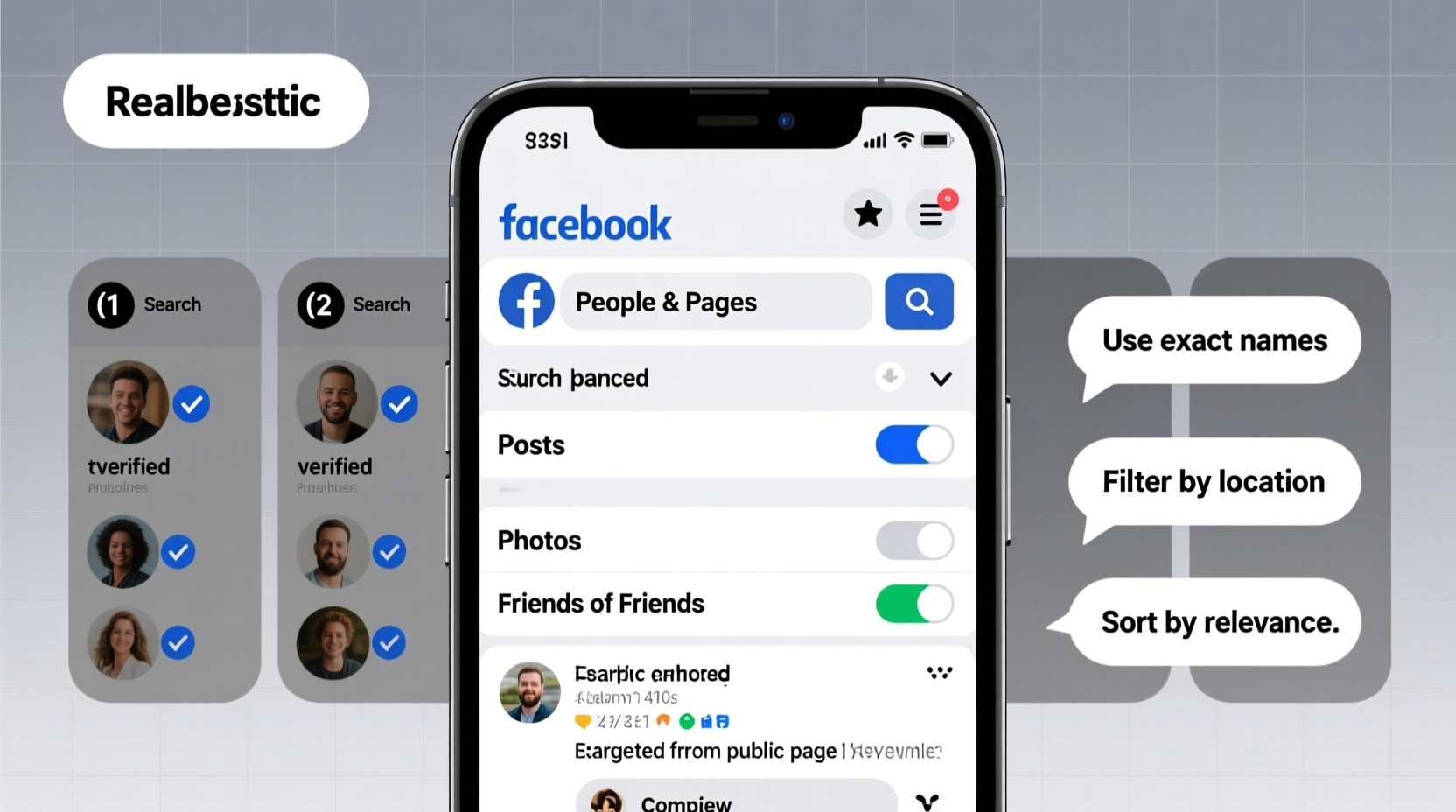
The Facebook search bar—located at the top of every desktop and mobile interface—is your gateway to the entire network. But typing a name or keyword into the box only returns results based on your connections, engagement history, and relevance algorithms. To go deeper, you need to understand how Facebook organizes data and what signals it uses to prioritize results.
Facebook categorizes search results into several tabs: People, Pages, Groups, Events, and Posts. Each tab responds differently to input, and some support advanced search modifiers that aren’t widely known. For example, adding location qualifiers or job titles can drastically refine who appears in your results.
Step-by-Step Guide to Finding People Efficiently
Locating someone on Facebook often requires more than just their name. Common names return hundreds of profiles, many of which may not be relevant. Use this structured approach to improve accuracy:
- Enter the full name – Start with both first and last name in quotes (e.g., “Sarah Johnson”) to reduce variations.
- Filter by location – Click “People” under the search bar, then use the “Current City” or “Hometown” filter if available.
- Add educational background – If you know where they studied, type the school name after the name (e.g., “Michael Reed Harvard”)
- Include employer – Add a company name to your query if known (e.g., “Linda Chen Google”).
- Use mutual connections – If you share friends, sort results by “Friends of Friends” in the filter menu.
Note: Privacy settings limit visibility. You won’t see profiles set to private unless you're connected or have been approved as a friend.
Advanced Syntax for People Search
While Facebook doesn’t support Boolean operators like Google, certain formatting tricks help. These are especially useful on desktop:
- Use quotes around full names: \"James Wilson\"
- Combine keywords: \"Anna Lee\" teacher New York
- Search within networks: Type the name + university email domain (e.g., \"Daniel Park\" @mit.edu)
“Most people don’t realize Facebook’s search engine indexes far more than profile names—it reads bios, job histories, and even recent posts.” — Lena Torres, Social Media Intelligence Analyst
How to Find Specific Pages and Businesses
Facebook hosts millions of official Pages for businesses, public figures, nonprofits, and brands. Finding the authentic page—especially when multiple similarly named ones exist—requires care.
Start by typing the exact business name into the search bar. Then switch to the “Pages” tab. Look for key indicators of legitimacy:
| Indicator | What to Look For |
|---|---|
| Verification Badge | A blue checkmark next to the name confirms authenticity. |
| Follower Count | Larger, established pages usually have thousands of followers. |
| Activity Level | Regular posts, replies to comments, and pinned updates suggest an active admin. |
| Contact Info | Official websites, addresses, and phone numbers listed in the About section. |
Tracking Down Posts and Public Content
Finding a specific post—especially one shared weeks ago—can feel impossible. However, Facebook’s post search has improved significantly, particularly for public content.
To search within posts:
- Type your keyword or phrase into the main search bar.
- Click “Posts” from the dropdown category menu.
- Refine by date range using the “Filters” button (available on desktop).
- Limit to public posts by selecting “Public” under audience filters.
You can also search posts within a specific Page or Group by navigating to that space first, then using its internal search bar. This is ideal for researching discussions, announcements, or customer feedback.
Mini Case Study: Reconnecting After Years
After losing touch with her college roommate, Maria wanted to send birthday wishes but had no current contact info. She typed “Julia Mendez” into Facebook and saw dozens of matches. Using filters, she narrowed results by “University of Texas at Austin” and “Austin, TX.” One profile listed a job at a local art gallery—matching what Julia once mentioned. Maria sent a friend request with a personalized note referencing their shared dorm. Within hours, Julia accepted, and they reconnected.
This success came from combining known details with strategic filtering—proving that even vague memories can lead to real-world outcomes with the right search method.
Essential Checklist for Effective Facebook Searches
Before starting any search on Facebook, follow this checklist to maximize efficiency and accuracy:
- ✅ Log in to your account (search results vary for logged-out users)
- ✅ Use a desktop browser for access to full filter options
- ✅ Start with precise terms in quotes for names
- ✅ Apply location, education, or workplace filters when available
- ✅ Switch between People, Pages, and Posts tabs depending on goal
- ✅ Verify authenticity of Pages using badges and contact info
- ✅ Respect privacy—don’t attempt to bypass restrictions or use third-party tools
Common Mistakes to Avoid
Even experienced users fall into traps that reduce search effectiveness. Be mindful of these pitfalls:
- Using nicknames without full names – Facebook indexes legal and display names, not common aliases.
- Ignoring filters – Skipping filters means sifting through irrelevant results.
- Searching while logged out – Results are limited and less personalized.
- Assuming all content is searchable – Private posts, messages, and closed group content are inaccessible.
Frequently Asked Questions
Can I search for someone who hasn’t added me as a friend?
Yes, but visibility depends on their privacy settings. You may see their name and some public information, but not their full timeline or private posts. If their profile is hidden, they may have restricted search visibility in their settings.
Why do some posts not appear in search results?
Only public posts or those shared within your visible networks appear in search. Posts from private groups, friends-only updates, or deleted content won’t show up. Additionally, Facebook may suppress outdated or low-engagement content.
Is there a way to search Facebook like Google with operators?
Not officially. While Facebook doesn’t support advanced operators like “site:” or “intitle:”, using quotes, spacing, and keyword combinations can simulate similar effects. Third-party tools claiming to offer Google-style searches violate Facebook’s terms and should be avoided.
Conclusion: Take Control of Your Facebook Experience
Mastering Facebook search transforms the platform from a chaotic feed into a powerful information tool. Whether you’re rekindling old relationships, researching a company, or tracking public conversations, the ability to find what matters quickly and accurately gives you a distinct advantage. The techniques outlined here—strategic keyword use, smart filtering, and awareness of privacy boundaries—are accessible to everyone and require no special tools.




 浙公网安备
33010002000092号
浙公网安备
33010002000092号 浙B2-20120091-4
Comments
No comments yet. Why don't you start the discussion?