
Photography is only half the journey. The true transformation often happens in post-processing. Whether you're enhancing a travel snapshot or refining a portrait for your portfolio, photo editing can elevate an ordinary image into something extraordinary. Yet many photographers—amateur and experienced alike—struggle to achieve consistent, professional-looking results. The issue isn’t lack of tools; it’s lack of method. With the right approach, editing becomes less about trial and error and more about intention and precision.
Understand Your Editing Goals Before You Begin
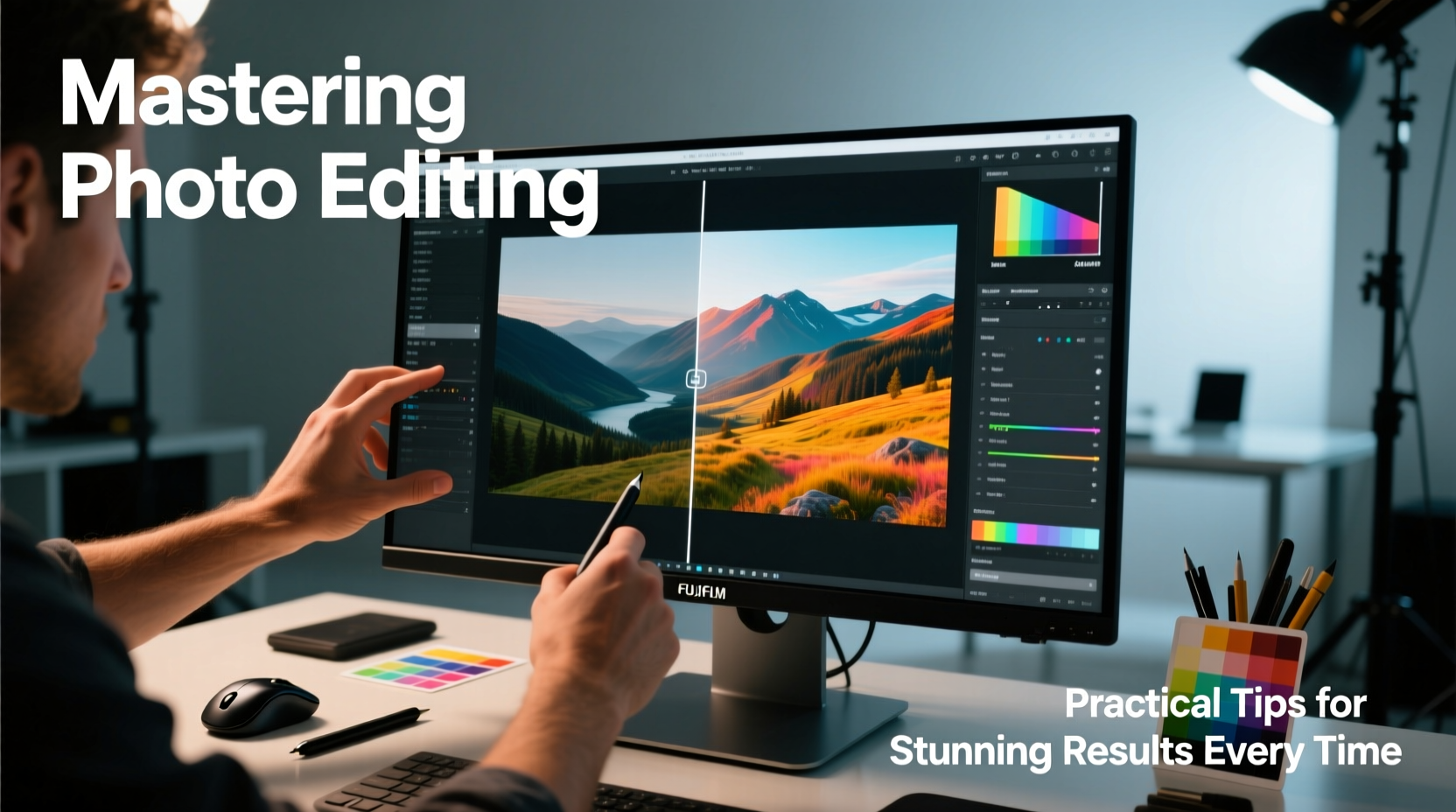
Every edit should serve a purpose. Are you correcting exposure? Enhancing mood? Preparing for print? Defining your objective early prevents aimless tweaking. For instance, a wedding photo may need natural skin tones and balanced lighting, while a landscape shot might benefit from heightened contrast and vivid skies.
Start by asking: What story does this photo tell? How can editing support that narrative without distorting reality? Over-editing can alienate viewers, while under-editing may fail to showcase your vision.
The Essential Photo Editing Workflow
A structured workflow ensures consistency and reduces decision fatigue. Follow these steps in order to maintain control over each phase of editing:
- Import and Organize: Use software like Adobe Lightroom or Capture One to tag, rate, and sort images before editing.
- Basic Adjustments: Correct exposure, white balance, contrast, highlights, and shadows.
- Crop and Straighten: Refine composition using rule of thirds or golden ratio guides.
- Local Adjustments: Apply selective edits (dodging, burning, gradients) to specific areas.
- Color Grading: Tweak hue, saturation, and luminance for mood and cohesion.
- Sharpening and Noise Reduction: Optimize for output (web vs. print).
- Final Export: Choose appropriate file format, resolution, and naming convention.
This sequence prevents redundant changes and helps maintain non-destructive editing practices, especially when working with RAW files.
Common Mistakes That Undermine Quality
Even skilled editors fall into traps that degrade image quality. Recognizing these pitfalls is the first step to avoiding them.
| Mistake | Why It Hurts | Solution |
|---|---|---|
| Over-sharpening | Creates halos and unnatural edges | Use masking sliders and preview at 100% |
| Excessive saturation | Colors look cartoonish; skin tones become unrealistic | Edit selectively using HSL panels |
| Ignoring white balance | Images appear too warm or cold, disrupting mood | Use eyedropper on neutral gray or adjust manually |
| Editing on uncalibrated screens | Colors and brightness differ across devices | Invest in a color calibrator like X-Rite i1Display |
Leverage Layers and Masks for Precision
For advanced control, switch to layer-based editors like Adobe Photoshop. Unlike global adjustments, layers allow targeted corrections. A sky can be darkened independently of the foreground. Skin blemishes can be removed without affecting texture elsewhere.
Masks are equally vital. They let you apply effects to specific areas—such as brightening a subject’s eyes or softening harsh shadows on a face. Mastering masks means never applying edits uniformly when nuance is required.
“Editing isn’t about fixing bad photos—it’s about revealing the potential already captured.” — Lena Torres, Professional Photo Retoucher
Real Example: Transforming a Dull Portrait
Consider a portrait taken on an overcast day. The subject’s face lacks definition, colors are muted, and the background distracts. Here’s how a targeted edit brought it to life:
- Adjusted white balance to remove cool cast
- Increased clarity slightly to enhance facial features
- Used a radial filter to gently brighten the eyes and lips
- Desaturated the background by 20% to make the subject stand out
- Applied subtle vignette to draw focus inward
The final result felt natural yet polished—proof that thoughtful edits, not aggressive filters, create lasting impact.
Develop a Consistent Editing Style
Your editing style is part of your visual identity. Clients and followers recognize your work not just by subject, but by tone, color palette, and contrast. To build consistency:
- Create presets or actions for recurring adjustments (e.g., “Warm Portrait” or “Moody Landscape”)
- Limit your go-to tools—stick to a core set rather than experimenting wildly each time
- Review past successful edits and reverse-engineer what worked
- Save versions to compare progress and avoid over-editing
Checklist: Pre-Export Photo Review
Before finalizing any edit, run through this checklist to ensure quality and readiness:
- ✅ Exposure is balanced—no blown-out highlights or crushed shadows
- ✅ White balance matches the scene’s natural light
- ✅ Composition is tight; unnecessary distractions are minimized
- ✅ Sharpening applied appropriately for intended use (print vs. web)
- ✅ Noise reduction used only where needed to preserve detail
- ✅ Image resized and saved in correct format (JPEG for web, TIFF for print)
- ✅ Metadata updated (copyright, keywords, title)
Frequently Asked Questions
Do I need expensive software to edit photos well?
No. While Adobe Photoshop and Lightroom are industry standards, free tools like GIMP, Darktable, and RawTherapee offer powerful features. Skill matters more than software. Many professionals started with free tools and refined their technique before upgrading.
How do I avoid making my edits look fake?
Subtlety is key. Avoid extreme sliders—especially for clarity, saturation, and sharpening. Compare your edited version to the original frequently. If the change feels jarring, dial it back. Also, study natural lighting and color in real life to develop a realistic eye.
Should I edit in RAW or JPEG?
Always shoot and edit in RAW when possible. RAW files contain significantly more data, allowing greater flexibility in recovering shadows, adjusting white balance, and preserving detail. JPEGs are compressed and limit recovery options, especially in high-contrast scenes.
Conclusion: Make Every Edit Intentional
Mastering photo editing isn’t about memorizing tools—it’s about developing judgment. The most stunning results come not from random enhancements, but from clear intent, disciplined workflow, and respect for the original image. Whether you’re editing one photo or a thousand, consistency, precision, and purpose will set your work apart.




 浙公网安备
33010002000092号
浙公网安备
33010002000092号 浙B2-20120091-4
Comments
No comments yet. Why don't you start the discussion?