
Accurate timekeeping is no longer a convenience—it’s a necessity. From syncing calendars and securing online accounts to ensuring correct timestamps on work documents and digital logs, having the right date and time across all your devices impacts reliability, efficiency, and even cybersecurity. A device with incorrect time can fail to authenticate secure connections, miss scheduled meetings, or log events inaccurately. Whether you're managing smartphones, laptops, smartwatches, or IoT gadgets, mastering time synchronization ensures seamless integration and trust in your digital ecosystem.
Why Accurate Time Matters Across Devices
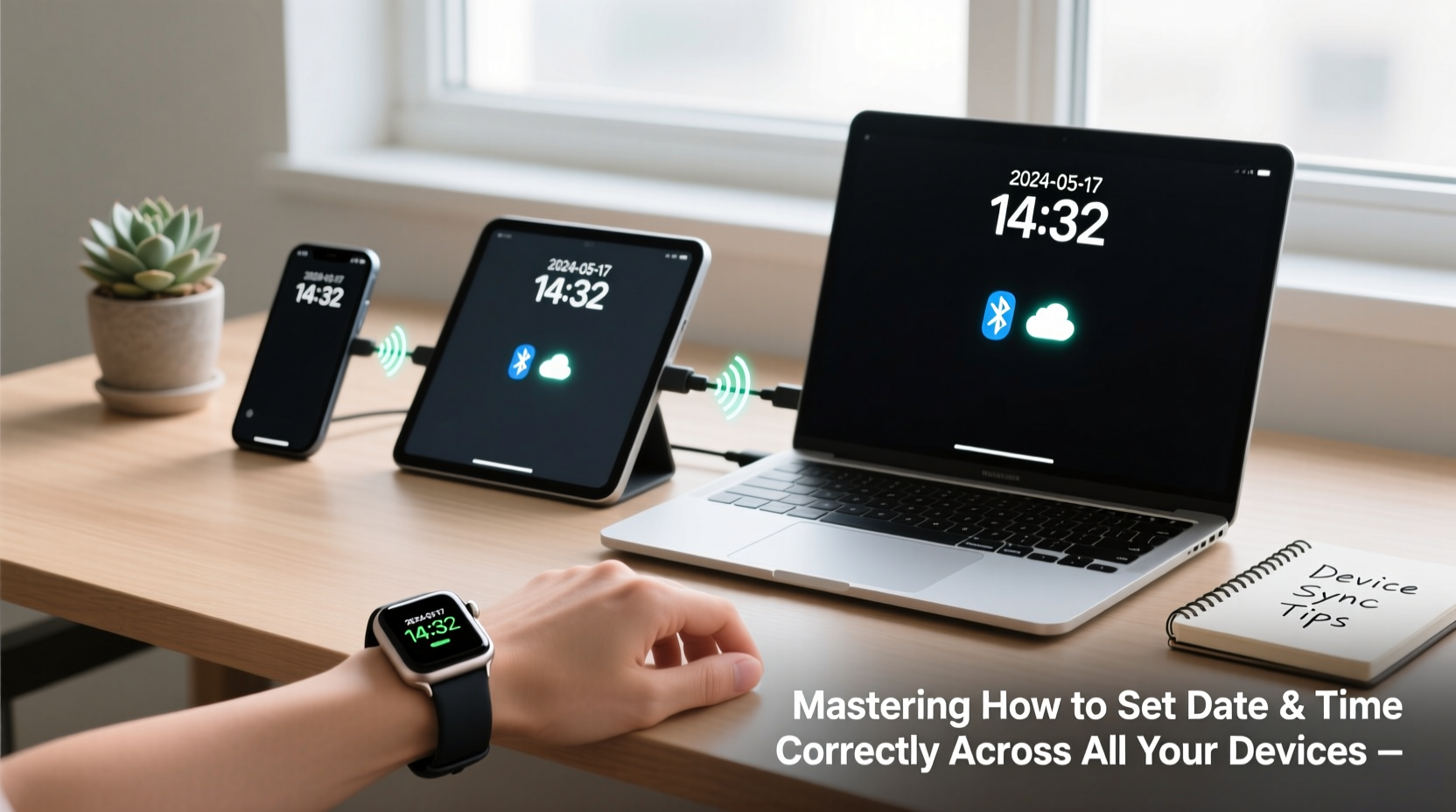
In a hyper-connected world, time is the invisible thread that ties digital interactions together. Operating systems, cloud services, and authentication protocols rely on precise timestamps to function correctly. For example, SSL/TLS certificates—used to secure websites—validate based on system time. If your device clock is off by even a few minutes, you may encounter \"Your connection is not private\" errors, even on legitimate sites.
Digital calendars, email clients, and collaboration tools like Google Workspace or Microsoft 365 use coordinated universal time (UTC) internally but display events based on your local time zone. A mismatch here leads to missed deadlines, double-booked meetings, or confusion in remote teams working across regions.
“Time synchronization isn’t just about punctuality—it’s foundational to digital trust and interoperability.” — Dr. Lena Patel, Network Systems Engineer
How Automatic Time Sync Works: Behind the Scenes
Most modern devices use Network Time Protocol (NTP) to automatically synchronize clocks with atomic time servers. These servers are maintained by national standards organizations and provide millisecond-level accuracy. When your device connects to Wi-Fi or cellular data, it queries an NTP server—often operated by Apple, Google, or Microsoft—to adjust its internal clock.
This process happens silently in the background, typically every 24 hours, though high-security environments may sync more frequently. The key components include:
- NTP Clients: Built into operating systems (Windows, macOS, Android, iOS).
- Stratum Levels: Hierarchical layers of time servers; Stratum 0 refers to atomic clocks, Stratum 1 to servers directly connected to them.
- Time Zones & DST: Automatically adjusted using geolocation or manual settings.
Step-by-Step Guide to Synchronizing All Your Devices
To achieve consistent time across your tech stack, follow this structured approach:
- Start with your primary device: Choose one central device—like your smartphone—and ensure it has the most accurate time setting via automatic network time.
- Enable automatic time zones: On iOS and Android, go to Settings > General > Date & Time and toggle on “Set Automatically.” On Windows, navigate to Settings > Time & Language > Date & Time and enable “Set time automatically” and “Set time zone automatically.”
- Sync secondary devices: Pair smartwatches, tablets, and e-readers to your primary device. Most will inherit time settings through Bluetooth or Wi-Fi sync.
- Check computers manually: Desktops without SIM cards or GPS may not auto-detect time zones. Verify they’re pulling from reliable NTP sources (e.g., time.windows.com, pool.ntp.org).
- Test consistency: Open a shared calendar event or send a timestamped message across devices to confirm alignment within one second.
Device-Specific Best Practices
Different platforms handle time slightly differently. Understanding these nuances helps prevent drift and misalignment.
| Device Type | Recommended Setting | Common Pitfall |
|---|---|---|
| iOS (iPhone/iPad) | Settings > General > Date & Time > Set Automatically (ON) | Travelers forgetting to allow location access for time zone detection |
| Android | Settings > System > Date & Time > Use network-provided time | Custom ROMs sometimes disable NTP sync by default |
| Windows PC | Settings > Time & Language > Sync now via Internet Time | Corporate firewalls blocking UDP port 123 (used by NTP) |
| macOS | System Settings > Date & Time > Set date and time automatically | Older Macs failing to update after battery removal |
| Smartwatches (Wear OS/WatchOS) | Sync via paired phone; no standalone time setting needed | Disconnected Bluetooth causing time lag |
Real-World Scenario: The Remote Worker’s Time Dilemma
Sophie, a project manager based in Denver, frequently collaborates with teams in Berlin and Singapore. During daylight saving transitions, her laptop failed to update due to a disabled location service. As a result, she joined a critical Zoom call an hour late, missing key decisions. Her calendar showed the correct time, but her computer’s system clock had reverted to standard time while the meeting was scheduled in daylight time.
After troubleshooting, Sophie realized her Windows machine wasn't receiving automatic time zone updates because she’d previously turned off location tracking for privacy reasons. She resolved it by manually selecting “Mountain Time (US & Canada)” and re-enabling time zone sync. Since then, she performs a monthly check across all devices before major meetings, especially during DST shifts.
Troubleshooting Common Time Issues
Even with automation, problems arise. Here’s how to fix frequent issues:
- Clock drifting slowly: Indicates weak NTP connectivity. Manually trigger a sync or change the NTP server to a more responsive one (e.g.,
us.pool.ntp.org). - Wrong time zone despite GPS: Clear location cache or restart location services. On iPhones, toggling Airplane Mode can reset network-based time signals.
- Offline devices showing wrong time: Devices without internet access rely on internal RTC (real-time clocks), which can drift up to several seconds per day. Avoid relying on them for precise tasks.
- Two-factor authentication failures: Many authenticator apps (Google Authenticator, Authy) generate codes based on synchronized time. A five-minute deviation breaks login attempts. Ensure “Sync now” is active in the app settings.
Essential Checklist for Perfect Time Sync
Use this checklist monthly or after travel to maintain accuracy:
- ✅ Enable “Set time automatically” on all smartphones and tablets
- ✅ Confirm “Set time zone automatically” uses location services
- ✅ Verify desktops and laptops sync with NTP servers
- ✅ Reboot wearable devices after time zone changes
- ✅ Test multi-device consistency using a live clock or video call
- ✅ Update firmware—some older devices require patches for DST rule changes
Frequently Asked Questions
Why does my smartwatch show a different time than my phone?
This usually occurs when Bluetooth is disconnected or the watch hasn’t synced recently. Restart both devices and ensure sync is enabled in the companion app. Also, verify that both devices have automatic time enabled.
Can I manually set the time if I don’t want automatic sync?
Yes, but it’s strongly discouraged. Manual settings increase the risk of error, especially during daylight saving changes or travel. You’ll also face issues with encrypted communications, app logins, and cloud file versioning.
Do routers and smart home devices need correct time too?
Absolutely. Smart thermostats, security cameras, and doorbells use timestamps for logs and automation. Most pull time from your router, which should itself be configured to sync via NTP. Check your router’s admin panel under “Administration” or “System Tools.”
Final Thoughts: Make Time Work for You
Mastering how to set date and time correctly across all your devices is a small habit with outsized benefits. It prevents avoidable errors, strengthens digital security, and supports smooth collaboration in personal and professional life. With automatic syncing enabled and periodic verification, your entire digital environment operates in harmony, reducing friction and boosting confidence in your technology.




 浙公网安备
33010002000092号
浙公网安备
33010002000092号 浙B2-20120091-4
Comments
No comments yet. Why don't you start the discussion?