
Instagram has evolved from a photo-sharing platform into a dynamic social hub where real-time interaction is now central. Among its most powerful features are direct audio and video calls—tools that allow users to connect instantly with friends, family, clients, or collaborators. Whether you're using Instagram for personal relationships or professional networking, mastering these calling functions can significantly improve your digital communication experience.
Unlike third-party apps, Instagram calls integrate seamlessly within the app’s existing interface, eliminating the need to switch platforms. With end-to-end encryption for privacy and intuitive controls, Instagram offers a secure and user-friendly environment for voice and video chats. This guide walks through everything you need to know—from setup to advanced usage—so you can make the most of Instagram's calling capabilities.
Setting Up for Success: Preparing Your Device and Account
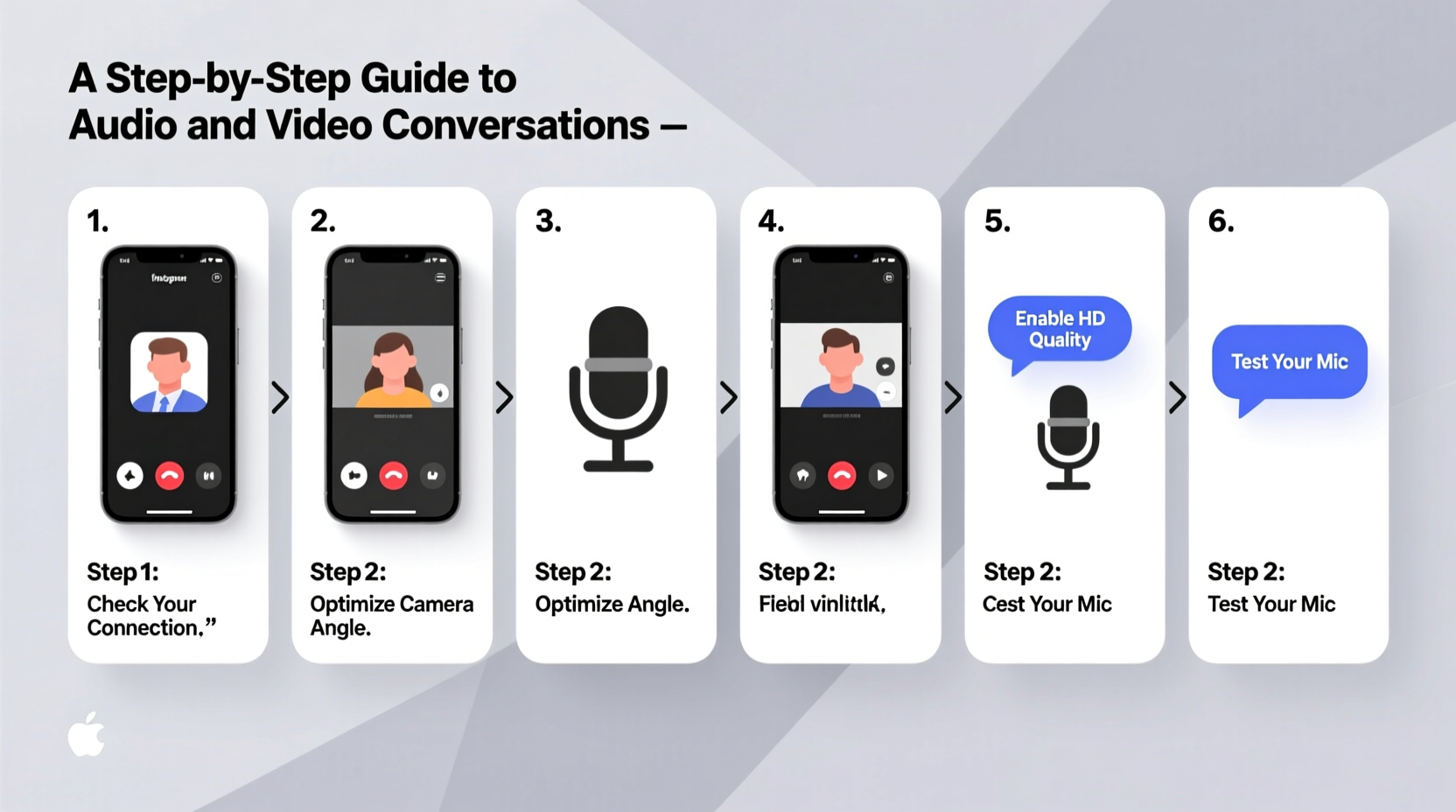
Before making your first call, ensure your device and Instagram account are optimized for smooth audio and video performance. A stable internet connection is essential; Wi-Fi is recommended over mobile data to prevent interruptions and reduce data usage. Make sure your Instagram app is updated to the latest version, as older versions may lack calling functionality or security updates.
Check your microphone and camera permissions in your phone’s settings. Without proper access, Instagram won’t be able to transmit sound or video. On iOS, go to Settings > Privacy > Microphone/Camera and enable access for Instagram. On Android, navigate to Apps > Instagram > Permissions and grant microphone and camera access.
Additionally, verify that your profile allows direct messages (DMs) from the people you plan to call. If your DMs are restricted, others may not be able to receive your call requests. You can adjust this under Settings > Privacy > Messages.
Initiating an Audio or Video Call: Step-by-Step Guide
Making a call on Instagram is straightforward once you’re set up. Follow these steps to start a conversation:
- Open the Instagram app and tap the messenger icon (paper airplane) in the top-right corner of the home screen.
- Select the contact you want to call from your recent chats or search for their username.
- Once in the chat, locate the video camera icon in the top-right corner of the message window—tapping it starts a video call.
- To initiate an audio-only call, press and hold the same video icon. A pop-up will appear asking if you want to make a voice call—release to confirm.
- The recipient will receive a notification and can choose to accept or decline.
During a video call, you can toggle your front/rear camera, mute your microphone, turn off your video, or end the call using on-screen buttons. For audio calls, options include muting and ending the call. Both call types support group conversations with up to eight participants, provided all members have the feature enabled.
“Instagram’s calling feature bridges the gap between casual messaging and meaningful connection—it’s fast, private, and built right into a space people already use daily.” — Lena Patel, Digital Communication Strategist
Best Practices for Clear and Engaging Calls
To get the most out of Instagram calls, focus on both technical quality and conversational etiquette. Poor lighting, background noise, or distractions can undermine even the most important conversation.
- Lighting: Face natural light when possible. Avoid backlighting, which can leave your face in shadow.
- Audio clarity: Use headphones with a built-in microphone to minimize echo and improve sound quality.
- Background: Choose a quiet, neutral space. Blur your background using Instagram’s portrait mode if needed.
- Engagement: Maintain eye contact by looking at the front camera, not the screen preview.
- Timing: Respect time zones and avoid calling late at night unless previously agreed upon.
Common Issues and How to Troubleshoot Them
Even with preparation, technical problems can occur. Knowing how to address common issues ensures your calls remain reliable.
| Issue | Possible Cause | Solution |
|---|---|---|
| Call not connecting | Poor internet, blocked user, or app glitch | Check Wi-Fi, ensure the user hasn’t blocked you, restart the app |
| No audio during call | Muted phone, app permissions, or hardware issue | Unmute device, check microphone permissions, test mic in another app |
| Video lagging or freezing | Slow connection or outdated app | Switch to Wi-Fi, close background apps, update Instagram |
| Can’t find call button | Feature not available in your region or account type | Confirm availability in your country; business accounts may have limited access |
If problems persist, try logging out and back into your Instagram account or reinstalling the app. Note that calling features may not be available in all countries due to regulatory restrictions.
Real-World Application: A Case Study in Remote Collaboration
Sophie, a freelance graphic designer based in Barcelona, uses Instagram calls to stay connected with her client in Toronto. They initially communicated via email and text, but miscommunications about design revisions led to delays. After switching to weekly video calls on Instagram, they noticed immediate improvements.
The visual nature of their discussions allowed Sophie to share her screen (via screen recording) and walk through design choices in real time. Quick audio calls replaced lengthy message threads for minor clarifications. Over three months, project turnaround time decreased by 40%, and client satisfaction increased significantly.
“Instagram calls feel more personal than email,” Sophie said. “They’re low-pressure but effective. I don’t need to schedule a Zoom meeting for a five-minute check-in.”
FAQ: Frequently Asked Questions About Instagram Calls
Can someone see me before I answer a video call?
No. The caller cannot see your video feed until you accept the call. Once accepted, your camera activates automatically unless you manually turn it off.
Are Instagram calls truly private?
Yes. Instagram uses end-to-end encryption for one-on-one video and voice calls, meaning only you and the recipient can access the content. Instagram cannot view or store the conversation.
Can I record an Instagram call?
Instagram does not have a built-in recording feature for calls. However, users may record externally using screen recording tools. Be aware that recording without consent may violate privacy laws in some regions.
Maximizing Instagram Calls: A Practical Checklist
To ensure every call is productive and seamless, follow this checklist before connecting:
- ✅ Confirm both parties have the latest version of Instagram
- ✅ Test your internet connection
- ✅ Enable microphone and camera permissions
- ✅ Choose a quiet, well-lit environment
- ✅ Close unnecessary apps to optimize performance
- ✅ Notify the other person before initiating a call
- ✅ Have a backup communication method in case of technical failure
Conclusion: Elevate Your Conversations on Instagram
Instagram calls offer a fast, secure, and integrated way to communicate beyond text. By understanding how to initiate calls, optimize quality, and troubleshoot common issues, you can turn routine interactions into meaningful connections. Whether catching up with a friend across the world or aligning with a collaborator on a creative project, the ability to speak face-to-face—without leaving the app—adds depth and efficiency to your digital life.




 浙公网安备
33010002000092号
浙公网安备
33010002000092号 浙B2-20120091-4
Comments
No comments yet. Why don't you start the discussion?