
Screen orientation on your iPhone may seem like a minor detail, but it plays a crucial role in how you interact with apps, consume media, and navigate daily tasks. Whether you're watching videos in bed, using navigation while driving, or taking notes in landscape mode, understanding how to control your iPhone’s screen rotation gives you greater flexibility and efficiency. Many users overlook the settings and gestures that govern this feature—until their screen refuses to rotate when needed or stubbornly flips at inconvenient moments.
Apple has designed intuitive yet powerful tools to manage screen orientation across all modern iPhones. However, these tools are often hidden behind layers of settings or misunderstood due to inconsistent behavior across apps. This guide demystifies the entire system—from enabling rotation to troubleshooting common issues—so you can take full control of your display experience.
How iPhone Screen Rotation Works
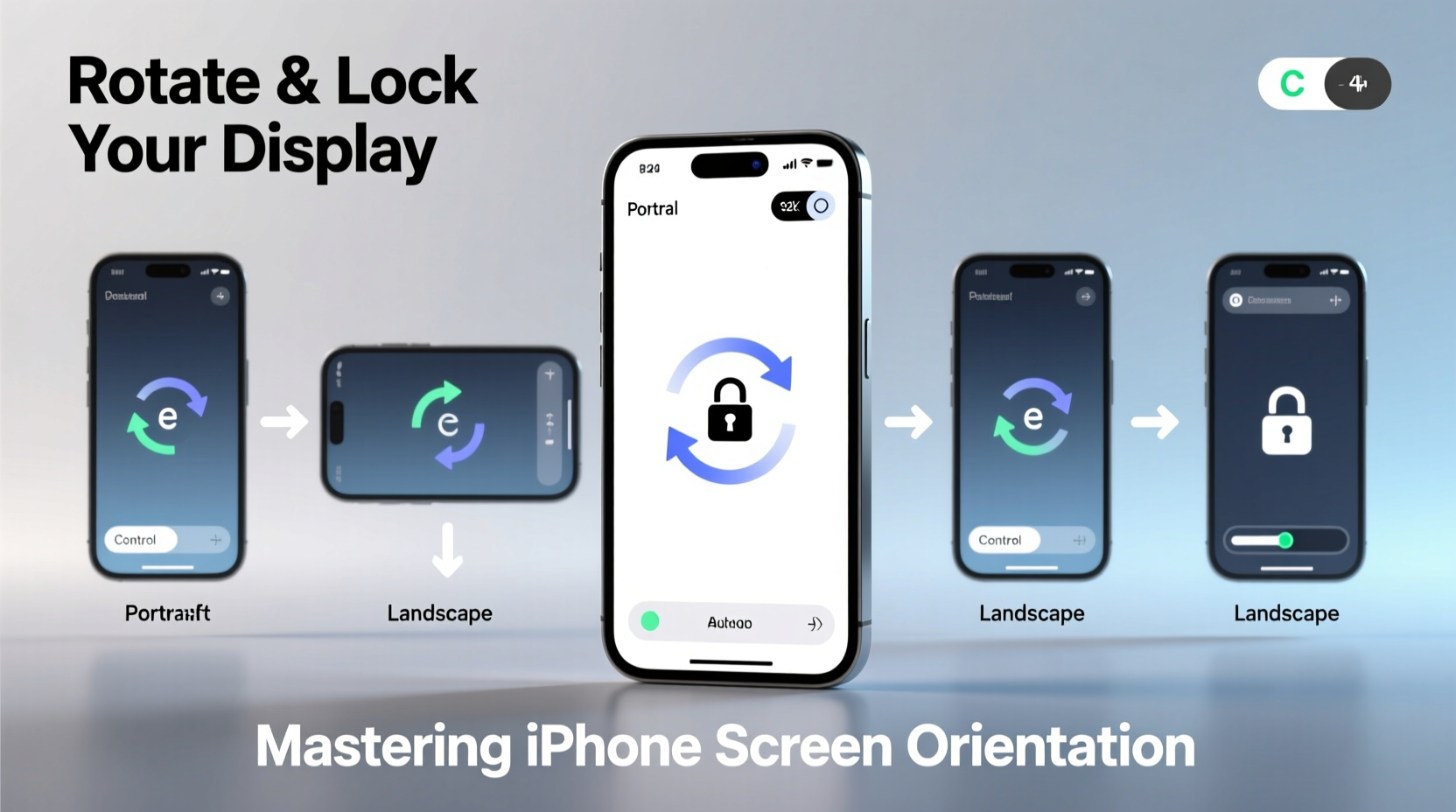
Your iPhone uses an internal gyroscope and accelerometer to detect physical movement and adjust the screen orientation accordingly. When Auto-Lock is enabled, turning your device sideways should automatically shift supported apps into landscape mode. But not all apps support both orientations, and some restrict rotation based on functionality—for example, the Phone app only works in portrait.
The key factor determining whether rotation occurs is the status of \"Portrait Orientation Lock.\" When disabled, the phone responds dynamically to motion. When enabled, the current orientation is locked regardless of how you hold the device. This feature prevents accidental flipping during reading or one-handed use.
It's important to note that iOS does not offer per-app rotation preferences. Instead, developers decide within each app whether landscape mode is supported. If an app doesn’t rotate despite correct settings, the limitation lies with the app itself—not your iPhone.
Enabling and Disabling Portrait Orientation Lock
The most direct way to control screen rotation is through the Portrait Orientation Lock. Here’s how to toggle it using two methods:
Using Control Center (Recommended)
- Swipe down from the top-right corner of the screen (iPhone with Face ID) or swipe up from the bottom (iPhone with Home button).
- Look for the icon showing a circular arrow around a padlock (🔒🔄).
- Tap it once to enable lock; tap again to disable.
When active, a small lock symbol appears in the status bar near the battery indicator, signaling that orientation changes are blocked.
Using Settings App
- Open the Settings app.
- Tap Display & Brightness.
- Toggle Portrait Orientation Lock on or off.
This method takes longer but can be useful if Control Center isn’t responding properly.
“Understanding where to find Orientation Lock saves time and reduces frustration—especially when presenting content or sharing photos.” — Jordan Lee, Mobile Usability Consultant
Troubleshooting Common Rotation Issues
Even when correctly configured, screen rotation sometimes fails. Below are frequent problems and practical solutions:
| Issue | Possible Cause | Solution |
|---|---|---|
| Screen won’t rotate | Orientation Lock is enabled | Disable via Control Center or Settings |
| Rotation is delayed or inconsistent | Sensor calibration issue | Restart device or reset motion settings |
| Only certain apps rotate | App-specific limitations | No fix required—depends on developer design |
| Control Center missing rotation toggle | Customized Control Center layout | Add “Lock Rotation” button in Settings > Control Center |
If none of these resolve the problem, try restarting your iPhone. A soft reboot clears temporary glitches affecting sensor responsiveness. For persistent issues, recalibrate by opening the Compass app and moving your iPhone in a figure-eight motion to improve gyro accuracy.
Real-World Use Case: Presenting During a Meeting
Imagine you're in a team meeting and need to share a spreadsheet from your Notes app. You naturally turn your iPhone horizontal to show more columns. But nothing happens—the screen stays locked in portrait.
You quickly realize the Orientation Lock was left on after reading emails earlier. After swiping into Control Center and tapping the rotation lock icon, the screen shifts smoothly into landscape. Colleagues appreciate the clear view, and you avoid fumbling with zoom gestures or passing the phone around.
This scenario underscores why mastering orientation controls enhances professionalism and usability in everyday situations. Having instant access to rotation settings ensures seamless transitions between tasks.
Best Practices for Managing Screen Orientation
To make the most of your iPhone’s display capabilities, follow this checklist:
- ✅ Regularly check the status of Orientation Lock before media playback or presentations.
- ✅ Customize Control Center to include the rotation lock toggle for faster access.
- ✅ Restart your iPhone weekly to maintain sensor performance.
- ✅ Avoid placing your phone on unstable surfaces while relying on auto-rotation.
- ✅ Use cases or screen protectors that don’t interfere with motion sensors.
Frequently Asked Questions
Why doesn’t my YouTube video go full screen in landscape?
If the screen remains in portrait despite rotating your phone, first confirm that Orientation Lock is off. Then ensure you’re using the official YouTube app or Safari in full-screen mode. Some third-party browsers or embedded players restrict orientation changes.
Can I force an app to rotate even if it doesn’t support landscape?
No. iOS respects app-level orientation rules set by developers. There is no built-in option or workaround to override this without jailbreaking, which voids warranties and compromises security.
Does screen brightness affect orientation sensitivity?
No. Brightness and orientation are managed by separate systems. However, extremely low light might cause slower response times in apps that dim UI elements critical for visual feedback during rotation.
Conclusion: Take Full Control of Your Viewing Experience
Mastering screen orientation on your iPhone isn’t about memorizing menus—it’s about building awareness of how your device interprets movement and responds to commands. With the right settings in place and a clear understanding of when and how rotation works, you gain smoother interactions across every part of your digital life. From casual browsing to professional presentations, controlling your display orientation empowers you to use your iPhone exactly how you want.




 浙公网安备
33010002000092号
浙公网安备
33010002000092号 浙B2-20120091-4
Comments
No comments yet. Why don't you start the discussion?